

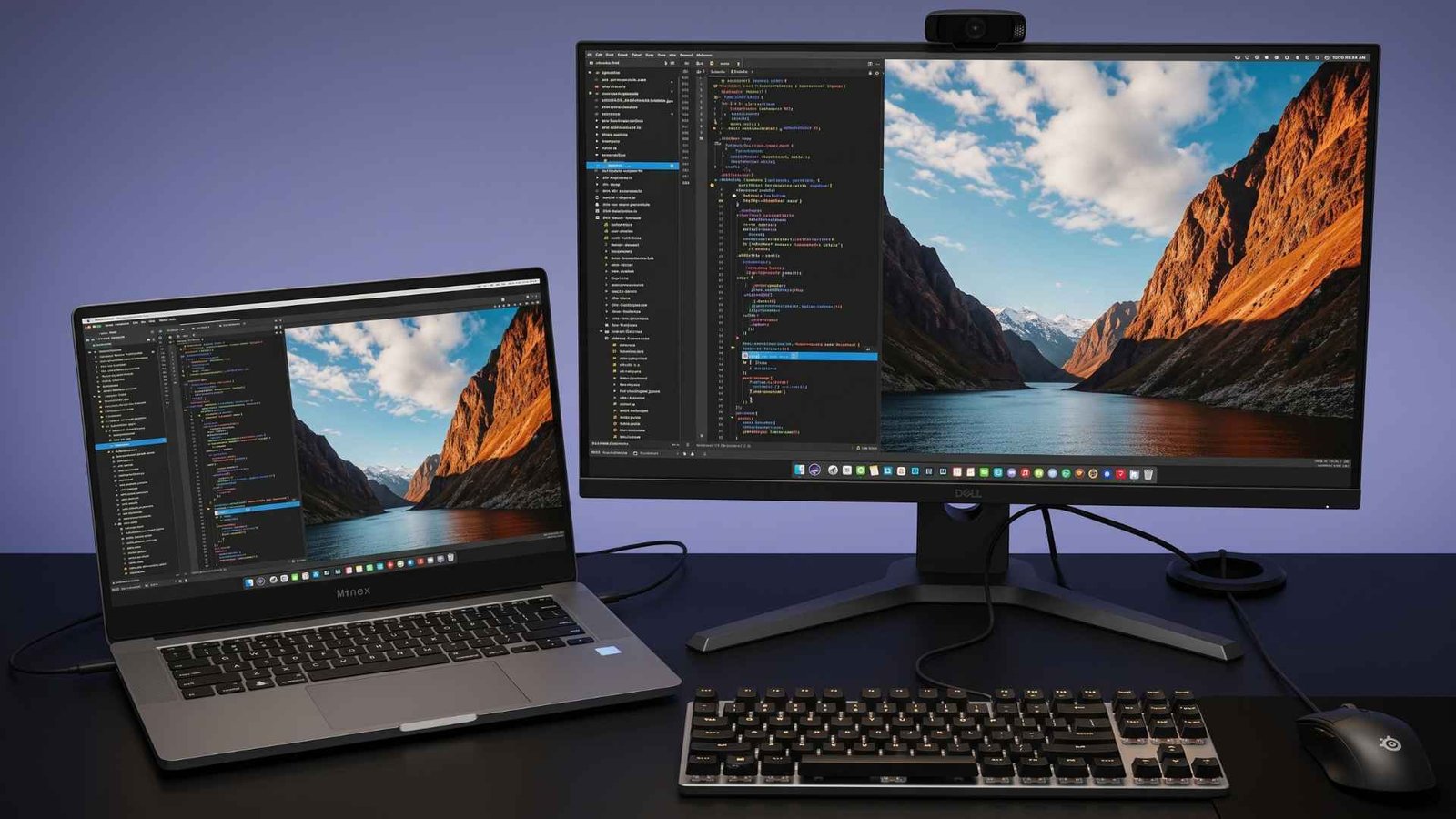
Your laptop screen was never meant to carry the whole workday. You’ve got a spreadsheet open, email pinging, and a video call buried somewhere in the middle. Extra screens could really fix that mess.
A University of Utah study, sponsored by NEC Display Solutions in 2007, found that two 20-inch monitors increased productivity in text editing by 44%, 29% for spreadsheets, when compared to a single 18-inch display, and reduced overall user error by 33%.
The trick is that not every notebook can feed two monitors. Some cap out at a single external display. Others have a USB-C port that only charges. Finding the best laptop for dual monitor work means checking ports and graphics before price.
We walk you through the best laptops for dual monitors across Windows and Mac, plus the cables, docks, and settings that make it all click. Whether you’re building a Home Office or claiming a shared desk, you’ll find a fit below.
What Makes a Laptop Good for Dual Monitors?
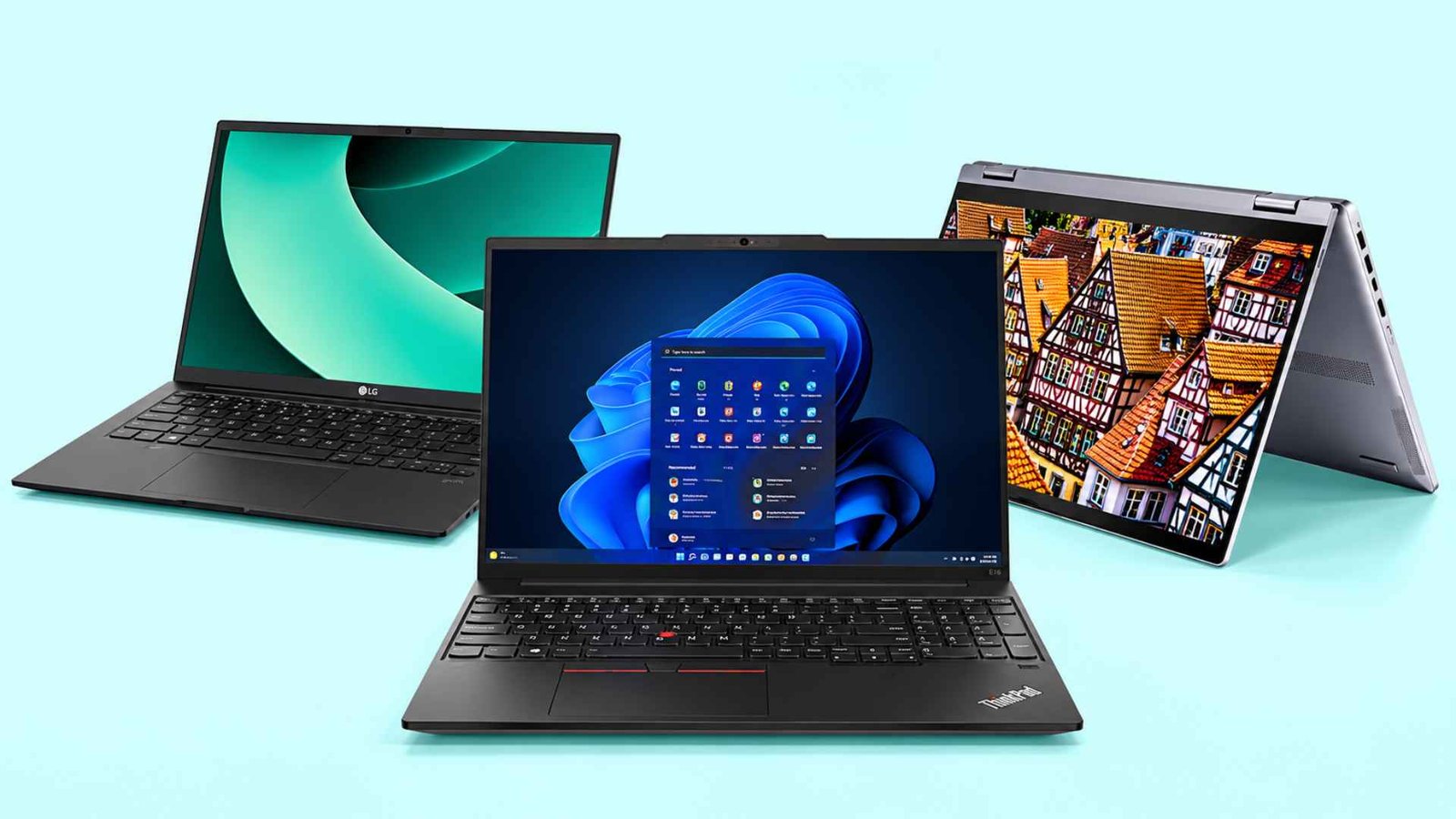
A laptop can have plenty of ports and still be a bad pick for two screens. The part you need to check first is whether those ports actually carry video and whether the graphics hardware supports multiple displays at the same time. Intel even tells buyers to confirm the supported display setup with the laptop manufacturer because port count alone does not tell the whole story.
- HDMI plus another video capable port
- USB C with DisplayPort Alt Mode or Thunderbolt
- Graphics support for two external monitors
- 16GB of RAM if you plan to multitask heavily
- Power delivery support if you want one cable for charging and a dock
- Clear manufacturer specs for maximum resolution and refresh rate
USB-C is a good option for a dual monitor setup but not all USB-C ports are created equal. DisplayPort Alt Mode is the feature that allows for the display output to be sent over a USB-C connection to a monitor or docking station.
RAM matters too on laptops with integrated graphics because the GPU uses shared system memory. More memory gives Windows, your apps, and the graphics side more room to work once several displays and programs are active.
After that, things like weight, keyboard comfort, and battery life are easier to compare. None of them help much if the laptop cannot drive both monitors properly in the first place.
1. Lenovo ThinkPad E16 Gen 2 – Best Overall for Dual Monitors

Key Specs
- Processor: AMD Ryzen 7 7735HS with 8 cores
- Graphics: AMD Radeon 680M
- Display: 16 inch WUXGA IPS, 1920 by 1200, 300 nits, anti glare
- Storage: 512GB PCIe NVMe SSD
- Ports: HDMI, USB C with video output, 4 USB ports, bundled 5 in 1 hub
- Operating system: Windows 11 Pro
- Weight: 3.9 lbs
- RAM: 16GB DDR5
Why It Made Our List
Business notebooks make the reputation on the desk, and this laptop for dual monitors is not an exception. The HDMI output and the USB c port, which both support the video signal, allow connecting two external displays without adapters.
Moreover, the 5 in 1 hub that comes with the laptop provides a possibility to add other devices such as Ethernet or card reader. It is possible to operate the spreadsheet, browser, Teams, and several PDFs simultaneously without any lag due to the eight-core Ryzen 7 7735HS processor.
The graphics of the Radeon 680M support the two external monitors, while the 16 GB DDR5 memory is enough to keep several apps opened. In case of there are not enough memories, it is possible to upgrade to 32 GB. The laptop features a 16-inch display with a resolution of 1920 x 1200 pixels that can be used as a third monitor.
It allows working with three monitors, which involves a more productive workflow than with two. Backlight keys ensure excellent visibility in dark, and Windows 11 Pro offer the BitLocker encryption and the domain join, essential for business use. All in all, the laptop can be used as the best laptop for dual monitors with the budget.
What We Like
- Easily drives two external screens
- Bundled hub saves accessory shopping
- Roomy 16 inch built in display
- Upgradeable memory
What We Don’t Like
- Standard resolution for creative work
2. Apple MacBook Pro 16 M5 Pro – Best for High-Resolution Multi-Monitor Work

Key Specs
- Chip: Apple M5 Pro
- Display: 16.2 inch Liquid Retina XDR, 1000 nits sustained, 1600 nits peak on HDR content
- Storage: 1TB SSD
- Ports: three Thunderbolt 5, HDMI, SDXC slot, MagSafe 3, headphone jack
- External displays: up to three, each at 6K and 60Hz or 4K and 144Hz
- Wireless: WiFi 7, Bluetooth 6
- Operating system: macOS
- RAM: 24GB unified memory
Why It Made Our List
Three external monitors on a laptop is already a big deal, but Apple pushes the setup much further here. The M5 Pro MacBook Pro can run three displays at up to 6K 60Hz or 4K 144Hz, and you still keep the built in screen active at full resolution.
You get three Thunderbolt 5 ports and HDMI, so there is plenty of room for monitors, docks, storage, and other desk gear. Thunderbolt 5 reaches up to 120Gb/s on this model, making a single cable dock setup much easier to build around.
The 24GB of unified memory is another reason this Mac fits a multi monitor desk. Code, design apps, browser tabs, and creative software can all stay open across several screens with far more breathing room than a basic 16GB machine.
Then there is the 16.2 inch Liquid Retina XDR display itself. You get 3456 by 2234 resolution, P3 color, ProMotion up to 120Hz, and 1600 nits peak brightness for HDR content.
It is expensive, no question. But if your idea of the best laptops for dual monitors includes three high resolution displays, heavy creative work, and a desk full of peripherals, the M5 Pro MacBook Pro has the hardware to handle it properly.
What We Like
- Drives three external screens at once
- Blazing bandwidth for docks
- Gorgeous display for color work
- Generous memory for heavy workloads
What We Don’t Like
- Premium price tag stings
3. LG gram 16 – Best Lightweight Dual-Monitor Laptop

Key Specs
- Processor: Intel Core Ultra 9 288V
- Graphics: Intel Arc
- Display: 16 inch IPS touchscreen, 2560 by 1600, 350 nits, up to 99% DCI P3
- Storage: 2TB SSD
- Ports: two Thunderbolt 4, HDMI, 4 USB ports
- Battery: 77Wh, up to 28.5 hours of video playback
- Weight: 2.74 pounds, 0.66 inches thin
- Operating system: Windows 11 Home
- RAM: 32GB LPDDR5
Why It Made Our List
Most 16 inch laptops start feeling heavy once you carry them every day. The LG gram 16 avoids that problem almost completely. The standard model weighs about 2.73 pounds and stays around 0.66 inches at its thickest point.
That lighter build still leaves room for two Thunderbolt 4 ports and HDMI 2.1. Both USB C ports support DisplayPort and charging. Turns out, setting up two external monitors does not turn into an adapter puzzle.
Memory is another reason it works well at a desk. The 32GB LPDDR5X configuration gives you plenty of room for bigger Excel files, research tabs, calls, and other work spread across several screens. Storage can reach 2TB on some versions too.
Battery capacity comes in at 77Wh. LG quotes up to 28.5 hours of video playback for one current gram 16 configuration, though real work will land lower once the screen gets brighter and more apps stay active.
Then you still have the built in 16 inch 2560 by 1600 panel for work away from the desk. That mix of low weight, strong memory, and proper display outputs is what puts it high on my list for a laptop for dual monitors setup.
What We Like
- Feather light for daily commuting
- Three video outputs for flexibility
- Huge memory and storage headroom
- Full workday battery away from outlets
What We Don’t Like
- Memory can’t be upgraded later
- Premium pricing for thin design
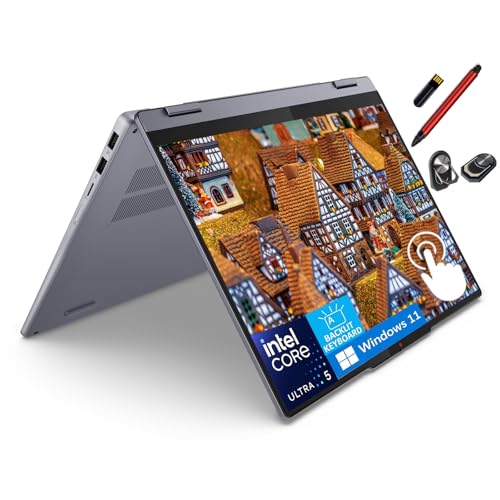
4. Lenovo IdeaPad 5i 2-in-1 – Best Convertible for Dual Displays
Key Specs
- Processor: Intel Core Ultra 5 225U with 12 cores, up to 4.8GHz
- Graphics: integrated Intel graphics
- Display: 14 inch WUXGA touchscreen, 1920 by 1200 IPS, 300 nits
- Storage: 512GB PCIe 4.0 NVMe SSD
- Ports: two USB C (10Gbps, power delivery, DisplayPort 1.4), HDMI 1.4b, two USB A, microSD reader
- Wireless: WiFi 6, Bluetooth 5.2
- Battery: about 10 hours
- RAM: 8GB LPDDR5X
Why It Made Our List
Although convertibles are rarely featured on lists like this, this laptop for dual monitor has the right to be here due to its ports. Lenovo gives you two USB C ports with DisplayPort 1.4 and Power Delivery, plus HDMI 1.4b. One monitor can run from USB C and the second can go straight into HDMI.
The HDMI port is the weaker link, so you should keep that screen at 1080p or 1440p for normal office work. The USB C side is where you could put the sharper display or a dock.
The Intel Core Ultra 5 225U brings 12 cores and turbos up to 4.8GHz. Email, documents, Zoom calls and web apps across two screens feel smooth.
The Intel core Ultra 5 225U processor has 12 cores, and a boost mode of up to 4.8 GHz. You should have no problem with email, office applications, video conferencing, and websites while working with two monitors. The amount of RAM in the laptop is eight gigabytes, soldered to the motherboard. This means that you cannot upgrade it later. However, eight gigs is enough to comfortably work with the required applications without lagging.
What makes the Lenovo IdeaPad 5i laptop for dual monitors more interesting is the hinge. You can work in normal laptop mode, flip it into tent mode for a call, or use it as a tablet away from the desk. Then plug back into two monitors when you sit down again. That mix gives it more range than the average laptop for dual monitor use.
What We Like
- Flexible 2 in 1 design
- Video ready USB C ports
- Efficient chip for everyday work
- Good ergonomics
What We Don’t Like
- Only 8GB with no upgrades
- Glossy screen invites glare
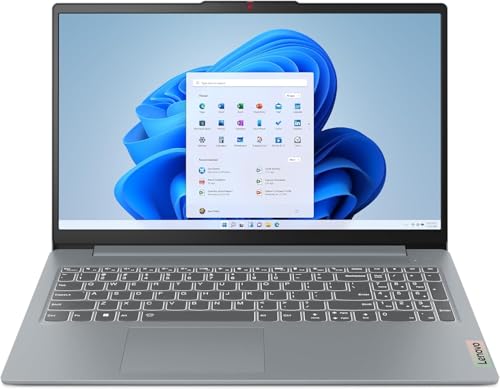
5. Lenovo IdeaPad Slim 3 – Best Budget Pick for Docking Stations
Key Specs
- Processor: AMD Ryzen 7 5825U with 8 cores, up to 4.5GHz
- Graphics: integrated AMD Radeon
- Display: 15.6 inch FHD touchscreen, 1920 by 1080, 300 nits
- Storage: 512GB NVMe M.2 SSD
- Ports: HDMI 1.4, 3 USB ports, headphone jack
- Extras: numeric keypad, privacy camera, WiFi 6, Bluetooth 5.2
- RAM: 16GB DDR4 at 3200 MHz
Why It Made Our List
We selected this laptop because it offers an affordable option to upgrade to a dual monitor configuration, with one important caveat. The device provides just one HDMI 1.4 output, so you are limited to just one external display out of the box, but with the addition of a DisplayLink dock you can output a second screen via USB.
This gives you a functional laptop docking station for spreadsheet calculations, email checks, browser sessions and other light office duties. DisplayLink requires a driver software to function, so we would not consider this laptop for gaming or for photo editing either.
It has Ryzen 7 5825U processor and 16GB of DDR4 memory which is pretty generous. It provide you ample processing power for everyday office tasks. The 15.6 inch touchscreen and full size number pad cater to those heavy on Excel spreadsheet calculations as well.
If your goal is a cheap laptop docking station setup for office work, this gives you a practical route into a dual monitor work laptop setup with one dock added.
What We Like
- Budget friendly entry point
- Roomy 15.6 inch screen
- Full size number pad
- Solid memory for its class
What We Don’t Like
- One native external display only
How to Connect Two Monitors to a Laptop

Setup takes about five minutes once the hardware checks out. Even the best laptop for dual monitor duty needs the right routine.
Check Your Ports First
Look along the sides and back of your machine. You want an HDMI socket, a DisplayPort output or a USB C port marked with a small D icon or a Thunderbolt lightning bolt. Those carry video. A plain USB C port might only charge.
Plug In and Extend
Run one cable from each monitor to a separate output. On Windows 11, press the Windows key and P together, then pick Extend. On a Mac, open System Settings, choose Displays and drag the screens into the order they sit on your desk.
Fine Tune the Layout
Set each screen to its native resolution and match the refresh rate, usually 60Hz. Line up the on screen boxes until your cursor glides across the gap. Then choose which display holds the taskbar or menu bar.
Fix a Black Screen
Swap cables first, then try another port. Update your graphics driver next. If a USB C port stays dark, it likely handles data only. Grab a compatible adapter or dock to fill the gap.
Do You Need a Docking Station for Dual Monitors?
If your laptop already has HDMI plus a USB C port that supports video, you may be able to run two monitors directly and skip the dock completely. A Docking Station starts to earn its keep when you also need:
- Laptop charging
- Wired Ethernet
- External storage
- Keyboard and mouse connections
- Extra USB accessories
- One cable desk hookup
The type of dock is where things get important. Thunderbolt and USB C docks with DisplayPort Alt Mode use the laptop’s native display output, so the video signal goes straight through the connection.
DisplayLink takes another route. It uses software plus USB graphics to add screens, even on some laptops with limited native display support. Performance depends partly on the processing power available, so you better should keep DisplayLink focused on office work, browsing, spreadsheets, and similar tasks.
Before buying any dock, check the operating system support, display resolution limits, and whether the USB C connection can charge your laptop too.
Another Good Read: How to Fix the Black Screen on a Laptop
What to Look for in a Dual-Monitor Laptop
Spec sheets run long and marketing copy runs longer. Here’s what deserves your attention when you hunt for a dual monitor laptop that won’t let you down.
Confirm the Number of Supported Displays
Do not assume two video ports automatically mean two external monitors will work together. We always check the manufacturer’s display support page first because that is where the real limit usually shows up.
Some laptops can run two external screens plus the built in display. Others stop at one external monitor even though the chassis has more than one video capable port. The best laptop for two monitors should make that limit easy to verify before you buy.
Check USB C for Video Support
Not all USB C ports allow for video output. Only those that have a DisplayPort Alt Mode or Thunderbolt support should be used for connecting an external monitor. You can tell them apart from a standard USB C port by a small D icon or a lightning mark next to them.
Alternatively, just look at the laptop specs and check what connectivity options are available. Thunderbolt 4 standard allows for the simultaneous output of two 4K60 pictures. The laptops that support dual monitors most smoothly usually pair one HDMI output with one video ready USB C port.
Choose Enough RAM
Integrated graphics chips share system memory, which is why RAM is so important. Windows 11 only requires 4GB of RAM, but this is the bare minimum. Sixteen gigabytes is the right amount of RAM for a laptop for two monitors because it lets you do everything without taxing the graphics core too hard.
Eight gigabytes is enough for everyday productivity apps, but little beyond that will be needed for video editing or coding.
Check Monitor Resolution Limits
Video outputs have a maximum resolution and refresh rate. HDMI 1.4 only supports 4K at 30Hz, while HDMI 2 can output 4K60. The latest HDMI standard 2.1 even supports 4K120. DisplayPort 1.4, on the other hand, can also drive 4K120 with compression. Two 4K monitors will stress a graphics core harder than two Full HD screens.
The best laptop for dual monitors will usually have video outputs that meet the capabilities of the monitor. If you want to use a high-end gaming monitor, make sure the laptop can support both a resolution and refresh rate.
Think About Dock Compatibility
If a dock is in your plans, confirm the laptop plays nice with it. Thunderbolt docks pair best with Thunderbolt machines. Check power delivery too. A 90W or 100W dock covers most 15 and 16 inch laptops, while a 65W dock may leave a power hungry laptop draining. Choose a laptop for multiple monitors that stays cool while a dock charges it and feeds two panels.
Consider Your Actual Workload
Match the laptop to your day. Writers and accountants live comfortably on midrange chips. Developers, video editors and analysts need faster CPUs, more memory and stronger cooling.
Every laptop for dual monitors setup starts with an honest list of daily tasks. If you’re chained to a desk, skip the ultralight premium and put ports and comfort first when shopping a laptop for home office use. Frequent travelers should weigh battery life and weight more heavily.
Our Research Process
We gathered the manufacturer specifications, support pages, and retail listings for each laptop that we were thinking of including on the list. We then compared the video outputs, numbers of displays, memory, weight, and battery ratings against each other to see which one takes precedence. Ports and display support carried the most weight, since a machine that can’t feed two screens has no business on this list. Memory, build quality and price followed.
We read through owner feedback for patterns, such as docks that drop signals or fans that get loud under load. Anything with recurring complaints dropped down or got cut. We tried to create the list of best laptops for external monitors that works on day one and keeps working.
Each pick matches a real desk scenario, whether you want a premium dual monitor laptop for creative work or the best laptop for dual monitor value on a tight budget.
Frequently Asked Questions (FAQs)
What is the best laptop for dual monitor use?
The Lenovo ThinkPad E16 Gen 2 leads for most people. It pairs HDMI with a video capable USB C port, carries 16GB of DDR5 and ships with Windows 11 Pro. If your budget stretches, the MacBook Pro 16 with M5 Pro handles three external screens.
Can any laptop support two monitors?
No. Entry level machines and older base Apple models often stop at one external screen. Check the manufacturer’s display limit, then count your video outputs. Every laptop for dual monitors setup needs at least two usable outputs or a dock to bridge the gap.
Can the ThinkPad E16 support three external monitors?
As a dual monitor laptop, the E16 handles two external screens through its HDMI output and video capable USB C port. A third requires a DisplayLink style dock, and the trade offs include extra CPU load and softer motion.
Do I need Thunderbolt for two monitors?
No. HDMI plus a USB C port with DisplayPort Alt Mode does the job. Thunderbolt earns its price when you want one cable to a dock carrying high resolution displays, storage and power. Many of the best laptops for dual monitors get by without it.
Wrapping Up…
Extra laptop change how a workday feels. Dual Monitors turn a decent laptop into a real workstation, but only when the ports and graphics cooperate. Now you know what to check.
The ThinkPad E16 Gen 2 is the crowd pleaser, the MacBook Pro 16 handles the heaviest desks, and the LG gram 16 keeps things light for travel. The IdeaPad 5i suits people who want a flexible convertible, and the IdeaPad Slim 3 gets you started on a tight budget once a dock joins the party.
Whichever one you pick, confirm the video outputs, count the supported displays and give yourself 16GB of RAM. That’s how the best laptop for dual monitor decision stays simple..