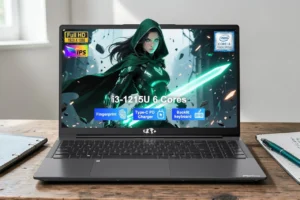


When you shut down your laptop, everything should turn off, including the keyboard backlight. However, if the keyboard light stays on even after shutdown, as seems to be the case with your laptop, it could be due to your firmware settings, power settings, connected peripherals, or an issue with the internal controller.
The laptop keyboard backlight stays on after shutdown issue is not always caused by Windows itself. In fact, some laptops manage their lighting through hardware controls that continue to work after the operating system closes. Fortunately, you can check a few settings before assuming there is a hardware fault. Here are five practical fixes to try on a Windows 11 laptop.
Why Does the Keyboard Light Stay On After Shutdown?
When the keyboard light stays on when laptop is off, one of five things is usually behind it.
- Keyboard lighting profile: Some laptops save the last brightness level or lighting effect. The keyboard may retain that state after you shut down the laptop.
- Hybrid shutdown. Microsoft’s own documentation explains that Fast Startup logs off your user session and saves the kernel state to a hibernation file before powering down which can leave device drivers and lighting states unreset instead of doing a clean, full off.
- Always-On USB Charging: Many laptops keep power flowing to their USB ports after shutdown so you can charge your phone while the lid is closed. That same standby power often feeds into your keyboard lights, keeping them glowing.
- Firmware Glitches: A dedicated hardware chip manages your physical buttons, battery charging, and lighting circuits. If this chip freezes during a power cycle, your laptop keyboard backlight won’t turn off even after Windows exits completely.
- BIOS power options: Certain laptops have settings that allow selected ports to remain powered even when the computer is off.
5 Ways to Fix a Laptop Keyboard Backlight That Stays On
1. Check Keyboard Lighting Settings
Start with the simplest fix. Your laptop may have a dedicated keyboard shortcut or manufacturer application that controls the backlight. On some models, the last lighting profile remains active after shutdown. You may be able to switch it off before powering down.
Windows 11 does not offer one universal control for every laptop keyboard. The available options depend pretty much on your laptop model.
How to do it
- Turn on your laptop and sign in to Windows.
- Look for a backlight symbol on the function key row. It usually resembles a small keyboard with rays of light.
- Press the key once to change the brightness.
- If nothing happens, hold the Fn key and press the backlight key.
- Continue until the lighting switches off.
- Open your manufacturer’s control application if your laptop has one.
- Check the lighting or keyboard section for an option that controls shutdown behavior.
- Save the profile if the application offers that option.
- Shut down the laptop and check whether the light goes out.
Gaming laptops may use RGB lighting software to control individual keys, colors, and lighting effects. ASUS Armoury Crate, Alienware Command Center, MSI Center, and similar applications have different controls. Look for a shutdown or power off lighting option if your particular model provides one.
Another Good Read: Laptop Volume Keys Not Working in Windows 11? Try These 10 Fixes!
2. Disable Fast Startup in Windows
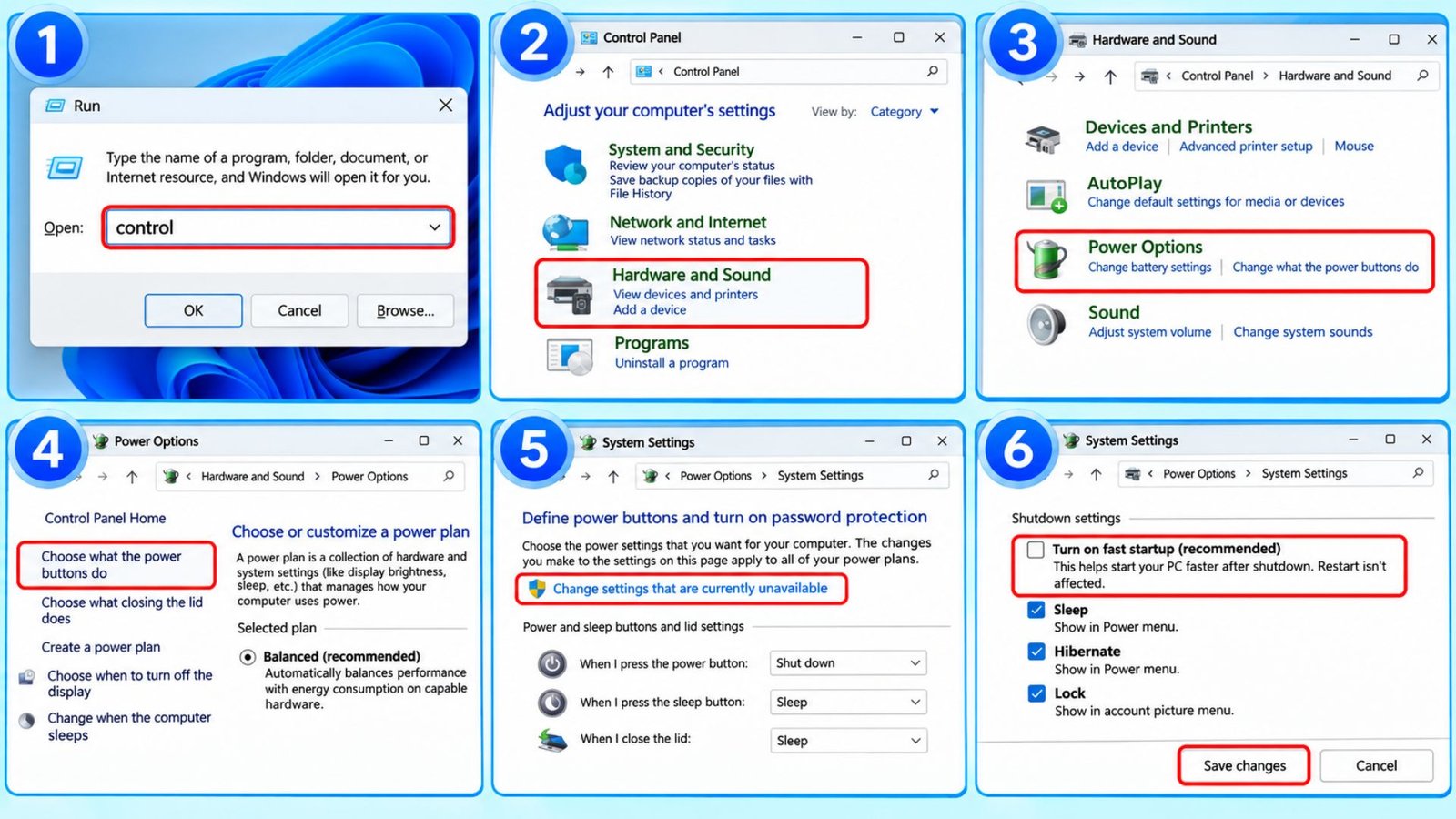
Fast Startup is a power setting inside windows. This essentially means the system will save a portion of the state when you shut the computer down so it can boot up faster.
Turning this off can be a good test to see if there is an issue with your laptop. While it may not directly control the keyboard lights, this can rule out windows’ power state.
How to do it
- Press Windows key + R.
- Type in control and press enter.
- Select Hardware and Sound.
- Click on Power Options.
- Click on choose what the power buttons do in the left panel.
- Select Change settings that are currently unavailable.
- Find Turn on fast startup (recommended).
- Untick the checkbox.
- Click Save changes.
- Shut down your laptop and check the keyboard light.
If the Fast Startup checkbox is missing, your laptop may not have the option available in its current configuration. You can skip this step. You can also test a full shutdown directly:
- Press Windows + R.
- Type shutdown /s /t 0.
- Press Enter.
- Wait until the screen, fans, and power indicators switch off.
- Check the keyboard backlight.
If the light is still on then the cause may not relate to a regular shutdown of windows.
3. Unplug Docks and Check Sleep Settings
Modern laptops rely on a low power state called Modern Standby. It which keeps network cards and USB ports awake like a smartphone. According to Microsoft hardware documentation on Modern Standby power states, connected peripherals can prevent a system from transitioning into its lowest power floor.
- Unplug all USB Type C hubs, external monitors, and wireless mouse dongles before shutting down your laptop.
- Open Settings, click System, and select Power & battery.
- Expand the Screen, sleep, & hibernate timeouts section.
- Set your device to Hibernate after a short period on battery power so Windows writes all data to disk and cuts circuit voltage completely.
4. Turn Off Always On USB Power in BIOS
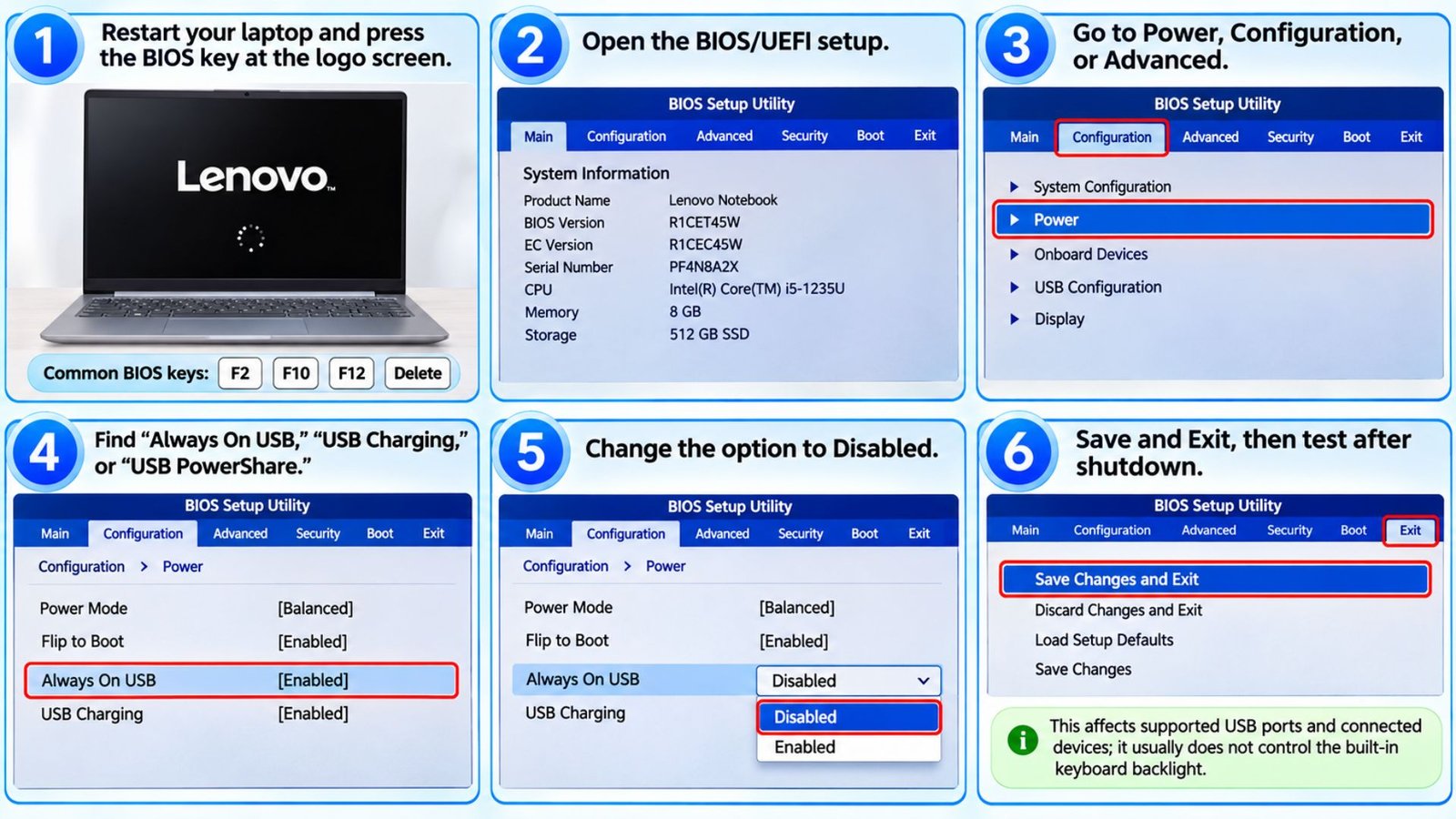
When you turn your laptop off it could still power certain USB ports. Like i said earler, this would let you charge your phone or use another accessory without having to turn your computer on.
Lenovo calls one version of this feature Always On USB, while Dell uses the name USB power share on supported models. If your external keyboard or dock is still lighting up then this could be the issue. Disabling the USB ports will not usually affect your internal keyboard backlight, but will be useful if your devices are lighting up.
How to do it
- Save your work and restart your laptop.
- As soon as you see the manufacturers logo press the key to enter BIOS. This can vary between manufacturers obviously but common keys include F2, F10, F12 and Delete.
- Go into Power, Configuration or Advanced.
- Find the option called Always On USB, USB Charging or similar.
- If your laptop has this option disable it.
- Save and exit.
- Turn Windows off and check your keyboard backlight.
5. Reset the Embedded Controller (EC) and Update BIOS
If you haven’t had any luck so far there may be an issue with the Embedded Controller. This is a small chip which keeps track of power and lighting status. If it has become corrupted this can cause the laptop keyboard backlight to stay on.
To reset it you can perform a reboot. Updating the BIOS will also fix any issues with the EC firmware. If you are updating your BIOS make sure to keep your charger plugged in and wait for the update to fully complete with zero interruption.
How to do it
- Turn off your laptop and disconnect the charger and all accessories.
- Take the battery out if it’s removable.
- Press and hold the power button for 30 seconds. Some Dell/HP models require between 15-30 seconds.
- Plug the charger back in, wait a minute, then power on.
- Go to Settings > Windows Update > Check for updates > Advanced options > Optional updates. Install any firmware updates.
- Use your manufacturers update tool (Lenovo Vantage, MyASUS, Dell Command Update or HP Support Assistant) and install BIOS and EC updates.
Frequently Asked Questions (FAQs)
Does the Keyboard Light Staying On Drain the Laptop Battery?
Yes! It does drain your battery if it stays on for a long time. Standard white or single-color keyboard backlights draw between 0.5 and 1.5 watts of power, while bright multi-zone RGB arrays can pull up to 3 watts. Turns out if your laptop keyboard backlight stays on after shutdown, it could continue to drain the battery. How much battery it consumes depends on the backlight’s power requirements, how long it stays on, and your battery’s capacity and condition.
Should I remove the battery if my keyboard light won’t turn off?
You do not need to take out your battery to fix this problem. Most modern laptops seal their batteries beneath the bottom chassis anyway. You could instead press the power button for 30 seconds to disengage the battery circuit electronically. This hard reset can solve your problem without having to open up the laptop.
How do I turn off my laptop keyboard light permanently?
Use your hotkey, usually Fn with a function key or the space bar, to cycle to off. Then open your maker’s app and set the timeout to a short time or off. Some BIOS menus also offer a Keyboard Backlight option.
Wrapping Up…
When your laptop keyboard backlight won’t turn off, don’t assume the keyboard is broken. It’s almost always a setting. Check the lighting options, switch off the hybrid shutdown feature, unplug accessories, disable the USB power option, then reset the controller. Most people win by step two. Jot down which change worked, because a big update can undo it.