

Running 4K on a laptop is indeed possible, though it does demand going beyond plugging in a high-resolution monitor and hitting launch. To fully optimize a gaming laptop for 4K gaming, you need an appropriate hardware foundation, a high refresh rate monitor, and a GPU that can genuinely push pixels at that resolution.
Beyond the hardware, the real gains come from the settings side. Increasing power options to maximum, closing every unnecessary background application, configuring GPU scaling correctly, and dialing in your in-game settings with precision could nearly change the game and let you enjoy your AAA titles in 4K quality.
After hovering over forums, researching on the web, and drawing on my personal gaming experience with high-end titles, including Far Cry 5, Cyberpunk 2077, and The Last of Us, I’m here to help you optimize a gaming laptop for 4k gaming. Keep scrolling!
What Is 4K Gaming?

4K gaming means rendering games at 3840 x 2160 resolution. And that is clearly up to 4 times the pixel density of a standard 1080p display. With it, you’d see crystal-clear visuals with sharp details across every part of the frame, from distant textures to fine character models. If you could have done this pretty well, 4K puts you at the centre of the action with a visual fidelity that lower resolutions literally cannot come close to.
The challenge on a laptop is that achieving smooth responsiveness and vivid colors at this resolution demands substantially more from your GPU, CPU, and cooling system than 1080p or 1440p gaming does.
What Hardware Do You Need for 4K Gaming?
Not every gaming laptop can handle 4K, and being honest about hardware requirements saves you a lot of frustration before you kick off tweaking settings.
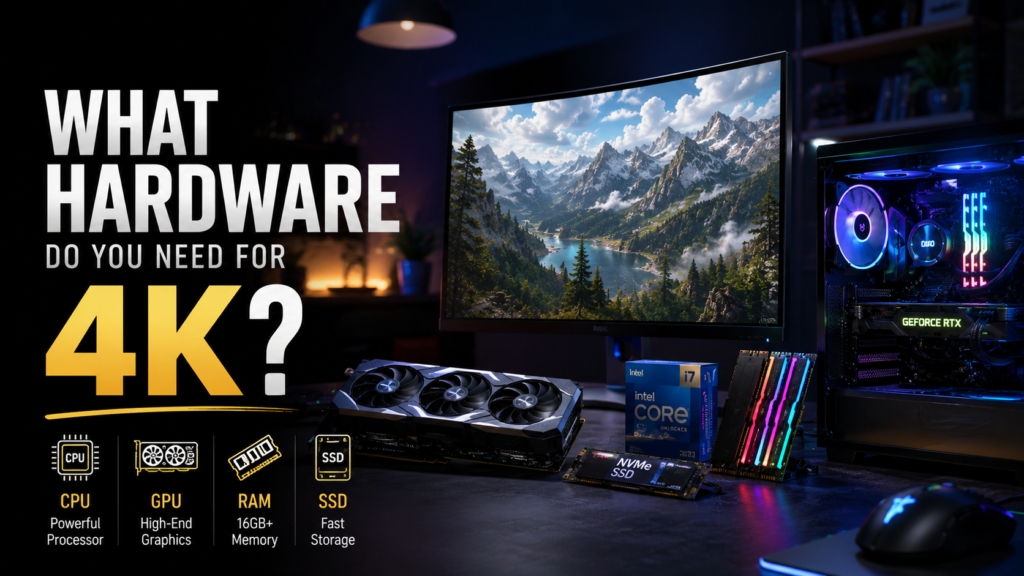
GPU: This is the most important component. For a 4K gaming laptop in 2026, you need at minimum an NVIDIA RTX 4070 laptop GPU, and an RTX 4080 or 4090 laptop GPU to play high-end titles in absolute best settings (obviously 4k).
AMD RX 7900M class GPUs are also viable. Anything below that tier will strive to maintain playable frame rates at native 4K in modern games.
Display or external monitor: The laptop display itself does not play that much of a role, you might think, for 4K gaming, since most gaming laptops run 1080p or 1440p internal panels. You will likely be connecting to an external 4K monitor, which should offer at least a high refresh rate of 120Hz or higher. A 60Hz 4K panel works tho wastes the frame rate potential your GPU could otherwise deliver.
RAM and storage: 16GB of DDR5 RAM is the functional minimum for a 4K gaming laptop setup in 2026. 32GB gives you more headroom for background processes without touching game performance. A fast NVMe SSD trim down texture streaming stutters that become more noticeable at 4K casue asset sizes scale with resolution.
CPU: A modern Intel Core i7 or i9, or AMD Ryzen 7 or 9 series mobile processor, handles the CPU-side demands of 4K gaming without significant bottlenecks. The CPU matters less than the GPU for pure frame rate, though it becomes relevant in open-world titles with heavy simulation loads.
What Software Optimizations Do You Need to Make to Play in 4K?
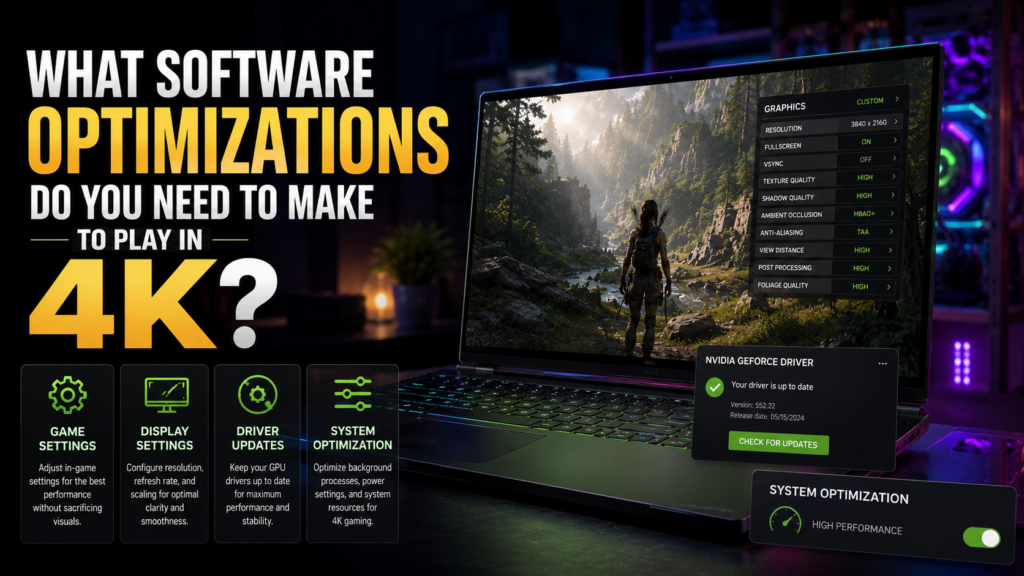
Hardware sets your ceiling. Software determines how close you actually get to it.
Keep GPU Drivers Up to Date
NVIDIA and AMD both release driver updates that include specific performance optimizations for new game releases. Running an outdated driver could cost you a measurable percentage of your available frame rate, and in some cases, cause stability issues at 4K that simply do not exist on the current driver. Check for updates through GeForce Experience for NVIDIA cards or AMD Software: Adrenalin Edition for AMD.
Utilize Built-in Upscalers
DLSS for NVIDIA and FSR for AMD are the two technologies that make 4K gaming genuinely practical on laptop hardware. Both work by rendering the game at a lower internal resolution and upscaling the output to 4K, with the result looking close to or, in some cases, indistinguishable from native 4K at a fraction of the performance cost.
In the NVIDIA Control Panel
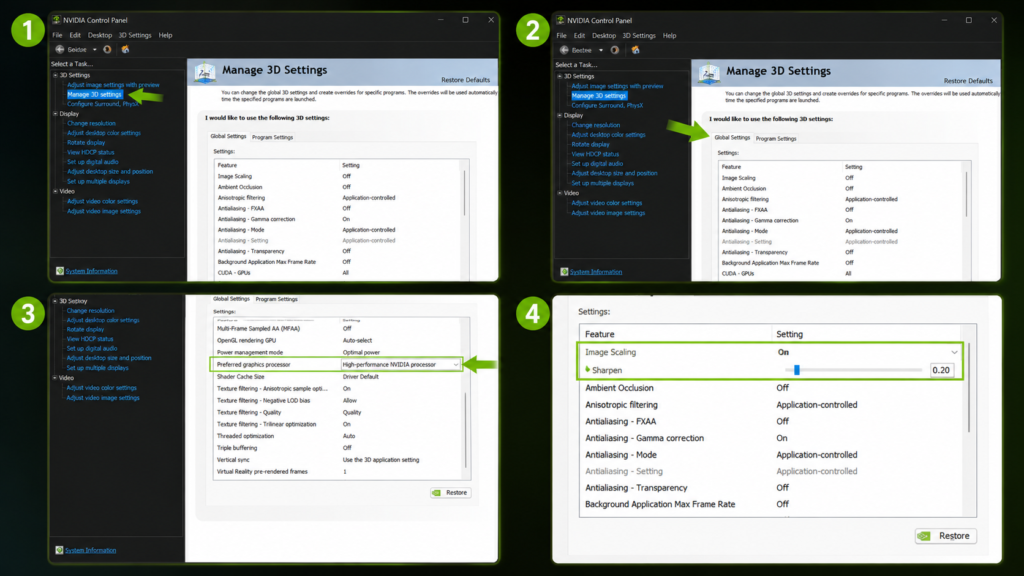
- Go to Manage 3D Settings
- Then Global Settings
- Set the preferred graphics processor to the high-performance NVIDIA processor
- Turn on Image Scaling with sharpening set to around 20%.
This alone produces a noticeable improvement in the clarity of upscaled output, and this does not even put any meaningful load on your GPU.
Adjusting PC Power Settings to Performance
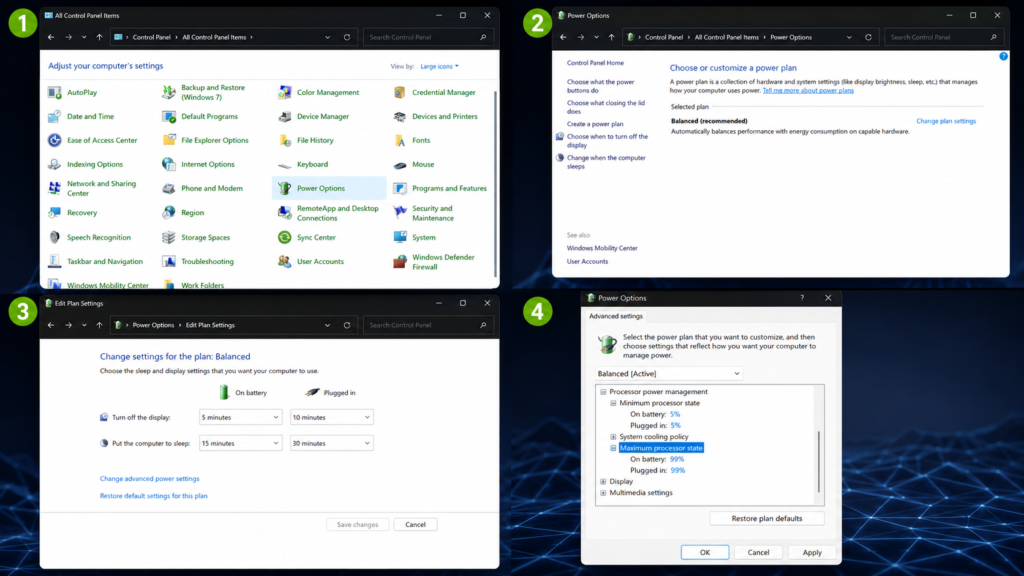
I have seen multiple times that many gamers do skip this step cause they think neither this step could benefit them nor make their laptop run any better, though. The reality is, it does make a noticeable impact when you adjust it along with doing all the rest of the settings.
- Go to Control Panel > Power Options
- Select the Balanced plan > click Change Plan Settings > Change Advanced Power Settings.
- Find Processor Power Management in the list.
- Set the Maximum Processor State to 99% on both battery and plugged-in configurations.
- This effectively disables the CPU Turbo Boost feature without any third-party software.
- The trade-off is straightforward: you lose around 10 percent of peak CPU speed, tho you gain complete thermal stability because the processor stops spiking into the thermal ceiling.
- For sustained 4K gaming sessions, that stability is worth considerably more than the occasional burst of extra clock speed that thermal throttling immediately takes back anyway.
I recommend keeping the laptop plugged into mains power during 4K gaming. Battery-powered operation cuts available GPU and CPU power significantly, regardless of your power settings.
Disable Xbox Game Bar
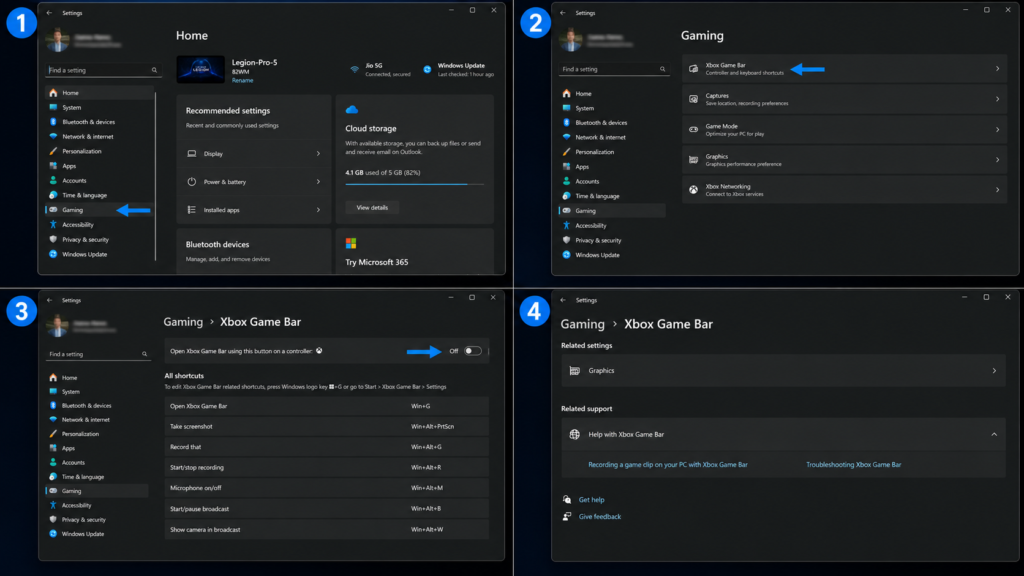
The Xbox Game Bar runs in the background, burns through memory and CPU time, and occasionally interferes with game capture systems.
- Go to Settings > Gaming > Xbox Game Bar > turn it off entirely
- Turn off everything in this section except your actual game launcher.
- Background processes at 4K resolution are more expensive than at 1080p because the system is already under heavier load, and clearing that overhead consistently produces better frame time stability.
In-Game Graphics Settings for Best Performance
Getting the most out of a 4K gaming laptop setup requires treating each game’s settings menu as a performance tool rather than a visual preference list.
Resolution scaling and upscaling: In every title that supports it, enable DLSS 3 on NVIDIA hardware or FSR 3 on AMD. Use Quality mode as your starting point. It renders at roughly 67 percent of your target resolution and upscales to 4K with minimal visible quality loss. Frame Generation, available in DLSS 3 and FSR 3, inserts AI-generated frames between rendered frames and can effectively double your visible frame rate in supported titles. Enable it when your base frame rate is above 40 FPS for the smoothest results.
Ray tracing: Ray tracing at 4K is extremely demanding and should be either turned off completely or limited to one or two effects. Ambient occlusion and reflections in ray-traced form add visual quality but carry a heavy performance cost. On an RTX 4070 laptop, turning ray tracing off and letting rasterization handle lighting allows you to run 4K settings at playable frame rates where full ray tracing would drop you below 30 FPS.
Texture quality: Keep textures at high or ultra even when pulling other settings down, because texture quality has the most direct visual impact at 4K and carries relatively modest VRAM cost compared to effects like MSAA. Running high textures at 4K with medium shadows and low effects is significantly better than running ultra textures with anti-aliasing modes that your laptop cannot sustain.
Per-category recommendations:
- Textures: Medium to High (low makes distant detail noticeably worse at 4K; ultra taxes VRAM)
- Shadows: Off or Low (this produces the largest single FPS boost of any setting)
- Effects: Low (reduces GPU load during particle-heavy moments without affecting core visual quality)
- Anti-aliasing: FXAA or Off when using DLSS/FSR, because upscalers handle edge smoothing internally
Before and after benchmarks from community testing consistently show that moving shadows from Ultra to Low recovers between 15 and 25 percent of frame rate in demanding titles at 4K, making it the single highest-value adjustment available in most games.
Cooling Management and Thermal Optimization
A 4K gaming laptop under sustained load generates substantially more heat than the same machine running 1080p. Managing that heat directly affects whether your performance is consistent or whether you lose frame rate to thermal throttling mid-session.
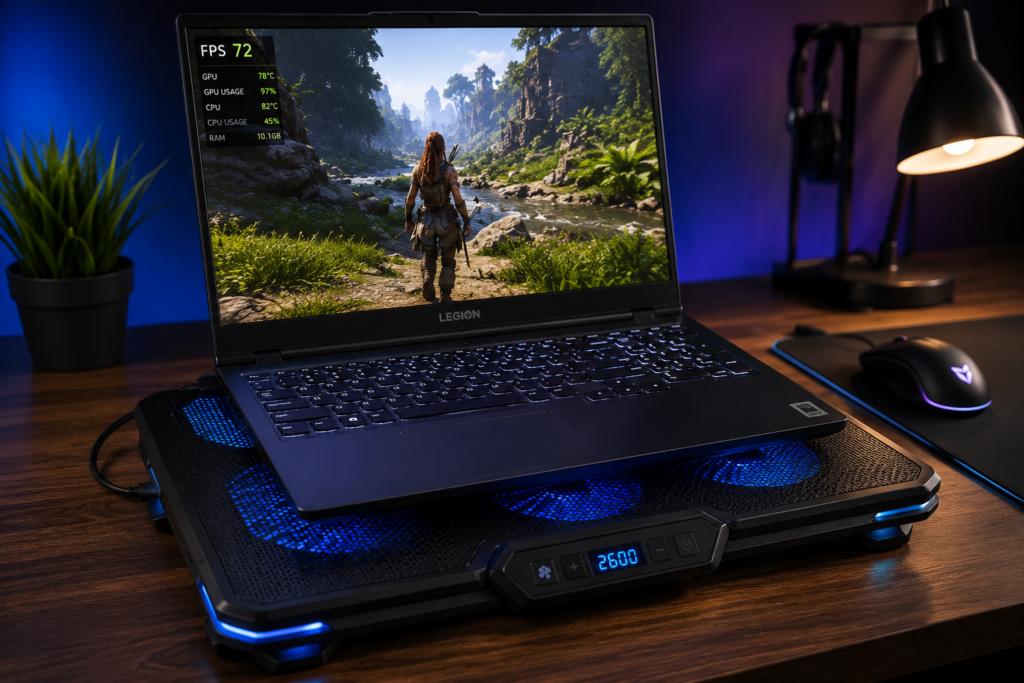
A cooling pad lifts the laptop base off the desk surface and directs airflow across the vents more effectively than the laptop sitting flat. Propping the back of the laptop up two inches with a stand or even a solid book achieves a similar result by improving the intake angle on the bottom vents. Both approaches consistently produce lower sustained temperatures during long gaming sessions.
Monitor temperatures using a tool like HWiNFO64 while gaming. GPU temperatures above 90 degrees Celsius and CPU temperatures consistently above 95 degrees indicate throttling is occurring. If you see these numbers regularly, thermal paste replacement on the GPU and CPU is worth considering on laptops that are more than two years old, as factory thermal paste degrades meaningfully over time.
For the undervolt process, tools like Intel XTU for Intel CPUs or Ryzen Controller for AMD allow you to reduce the voltage supplied to the processor without reducing its clock speed. A successful undervolt of 80 to 100 millivolts on the CPU typically drops temperatures by 8 to 12 degrees Celsius with no performance loss, which gives the GPU more thermal headroom to sustain its boost clocks.
Use cooling pads to prevent overheating during extended 4K sessions rather than reacting to throttling after it has already affected your frame rate.
Monitoring Tools and Benchmarking
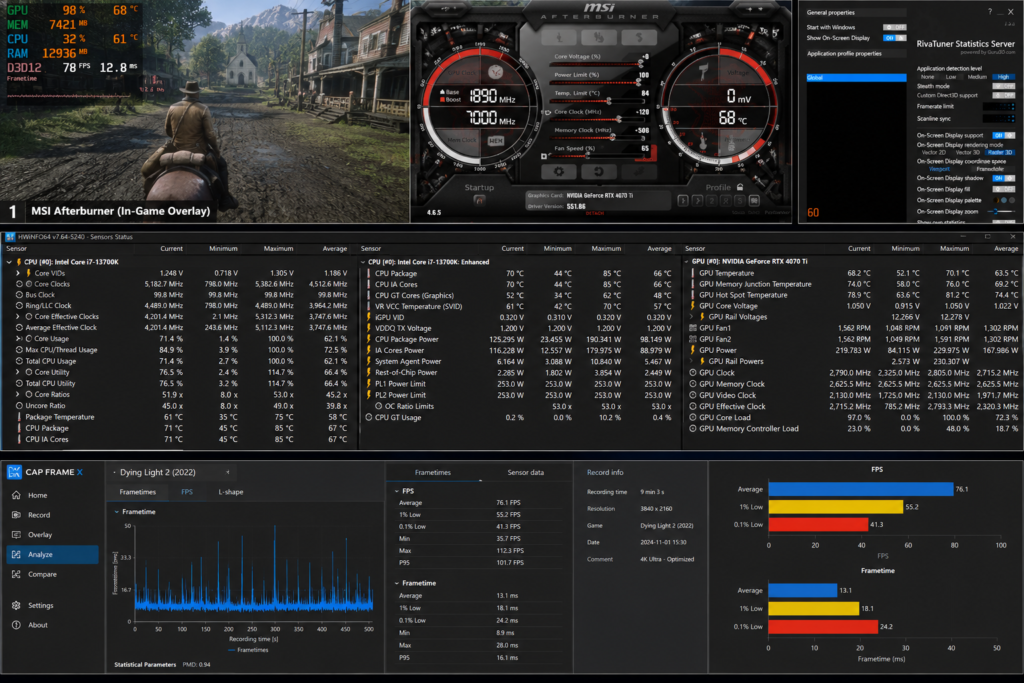
You cannot confirm your optimizations are working without measuring the before and after state, and the tools for doing that are all free.
MSI Afterburner overlays real-time GPU load, temperature, frame rate, and VRAM usage directly onto your screen during gameplay. Set it up on a second monitor or as a corner overlay on your primary display and check it after each settings change.
HWiNFO64 provides more granular system data than Afterburner and is particularly useful for tracking CPU power limits and thermal junction temperatures that Afterburner does not surface.
CapFrameX records frame time data across a gaming session and produces detailed graphs showing average frame rate, 1 percent lows, and frame time spikes. For 4K gaming specifically, the 1 percent low figure is the most relevant metric because it measures the worst-case moments that produce visible stutters rather than just the average performance across a session.
Run a benchmark pass before any optimization changes, record your numbers, apply one change at a time, and benchmark again. This process confirms which changes are actually producing gains rather than which ones feel like they should.
Frequently Asked Questions (FAQs)
Can any gaming laptop run 4K games smoothly?
The hardware determines the ceiling, and most budget and mid-range gaming laptops cannot reach smooth 4K frame rates in demanding titles without heavy upscaling. An RTX 4070 laptop GPU represents the practical minimum for a 4K gaming laptop experience that delivers consistent playability in current-generation titles. Below that GPU tier, native 4K is generally not viable and upscaling becomes the entire performance strategy rather than a supplementary one.
How do you optimize a gaming PC for 4K?
The process on a desktop PC follows similar logic to that of a laptop. Update GPU drivers, enable DLSS or FSR in supported titles, set Windows power management to High Performance rather than Balanced, close background applications before launching games, and adjust in-game settings to prioritize shadows and effects reduction over texture quality reduction. Desktop PCs benefit from better cooling headroom, which means overclocking the GPU through tools like MSI Afterburner is more viable and more impactful than on laptop hardware.
Is a 120Hz laptop better than a 144Hz laptop?
At 4K resolution, the difference between 120Hz and 144Hz is less significant than the jump from 60Hz to 120Hz. If your 4K gaming laptop is sustaining frame rates between 60 and 90 FPS in most games after optimization, the practical difference between 120Hz and 144Hz panels is minimal. Prioritize the GPU tier and resolution support over the panel refresh rate difference at the higher end of the range.
Is undervolting safe for gaming laptops?
Undervolting is broadly safe when done incrementally and tested for stability after each reduction. The process lowers the voltage supplied to the CPU, which reduces heat output without affecting clock speeds when done within stable limits. The worst realistic outcome from an unstable undervolt is a system crash or blue screen that reverts your settings, not hardware damage. Start with a conservative reduction of 50 millivolts and test stability before going further.
Does an external monitor help 4K performance?
An external monitor does not directly increase GPU performance, but it changes how that performance is delivered. Most gaming laptops output to an external monitor through the dedicated GPU directly, which bypasses the MUX switch limitation that routes some laptop displays through the integrated graphics chip. Connecting a 4K external monitor to your laptop’s dedicated GPU output gives you the full GPU performance without integrated graphics overhead.
Wrapping Up…
Getting the most out of a 4K gaming laptop comes down to working both sides of the equation consistently. The hardware side needs the right GPU, a proper external monitor, and a laptop kept plugged in with active thermal management throughout every session. The software side needs updated NVIDIA or AMD drivers, DLSS or FSR enabled in every supported title, power settings configured to 99 percent processor state, and background processes cleared before you launch anything.
Use cooling pads to prevent overheating from undermining the settings work you have done. Apply the graphics settings framework above as your starting point, monitor your temperatures and frame times, and adjust from there. The performance difference between an unoptimized and properly optimized 4K gaming laptop is substantial and entirely within your control.