
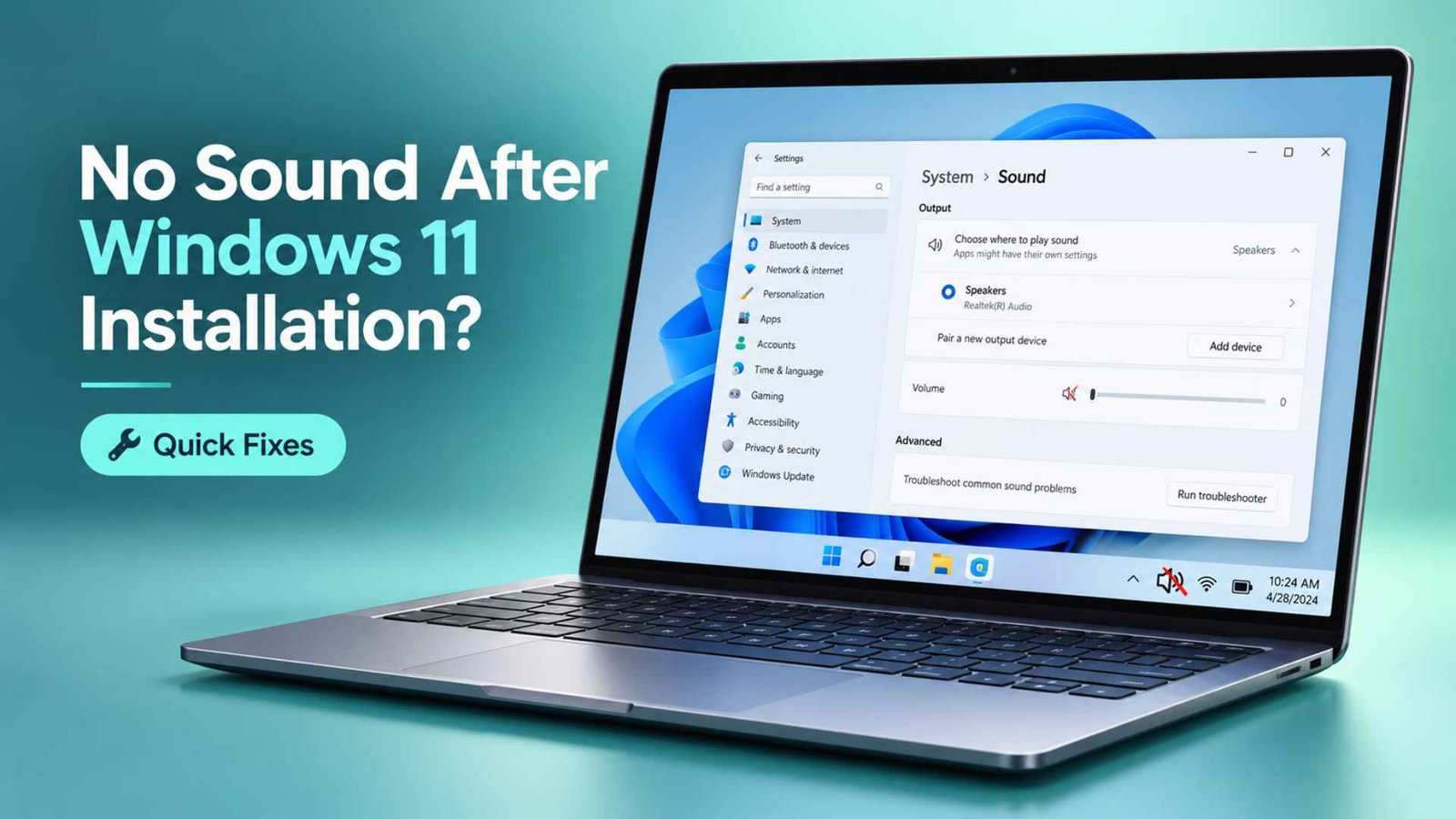
Typing no sound Windows 11 into a search bar is how plenty of people spend the first hour on a fresh install. The desktop loads, the setup wraps up, and your speakers sit there like furniture. Frustrating, sure, but fixable.
Microsoft officially ended support for Windows 10 back on October 14, 2025. That deadline forced a massive wave of Windows 11 upgrades as people rushed to move over to the new system. But for a ton of users who installed the upgrade on their current machines, the transition brought a massive headache. The update frequently knocks out sound drivers completely. You finish the installation only to find your laptop is suddenly stuck on absolute mute.
Here’s the short story. Windows grabs generic drivers during setup, and sometimes the one it picks talks to your hardware badly or not at all.
We’ll walk you through six fixes in the order worth trying them, with exact clicks for current builds. If your laptop sound not working problem started right after the upgrade, begin with Solution 1. It’s the usual suspect.
Why Sound Can Stop Working After Installing Windows 11
Sound failures after an install nearly always trace back to drivers. Windows 11 ships with a basic Microsoft High Definition Audio driver. It plays sound on plenty of desktops, but laptops are pickier.
They route audio through a specific codec chip, and the maker often supplies tuning software that Windows can’t fetch on its own. Miss that piece and you land in audio not working Windows 11 territory even though every device looks fine.
Other causes show up too. The wrong output may be selected, a background service may have stopped, or a feature update may have swapped your tuned Audio Driver for a generic one. Even a clean setup can leave the Windows 11 sound driver half configured. Work through the fixes below and you’ll cover all of it.
Solution 1: Install the Laptop Manufacturer’s Audio Driver
This is the Windows 11 audio fix that works most often, and it did for me. When I installed Windows 11 on my Dell Precision 5530, everything looked normal at first. I went through Windows Update and installed every driver it showed in Settings, so I expected the laptop to be fully ready to use. But for some reason, the sound just would not come back.
I tried several different fixes, but none of them worked. What finally fixed it for me was downloading and installing the Dell-specific Realtek High Definition Audio driver for the Precision 5530 directly from Dell’s support page.
After I installed that driver and restarted the laptop, the sound started working again. Dell’s own Windows 11 driver pack for the Precision 5530 lists the Realtek High Definition Audio Driver, version 6.0.8991.1, which is the correct OEM audio package for this model.
Even though if you are not willing to search your specific model you could also just search your brand name and the sound driver for windows 11. I’ve attached a link to the Dell sound driver in case your specific machine is from Dell, and you are searching for windows 11 sound driver randomly. It’s better to try downloading the official sound drivers from the brand site to get sound back almost instantly.
The same idea applies to HP, Lenovo, ASUS, Acer, and other brands too. Use the audio driver made for your specific laptop.
First, run a quick Driver Update check through Windows itself:
- Open Settings > Windows Update.
- Click Advanced options > Optional updates.
- Expand Driver updates and tick any audio entries.
- Click Download & install, then restart.
If nothing shows up, go straight to the source:
- On any working device, open your laptop maker’s support site.
- Enter your exact model name, serial number or Service Tag.
- Choose Windows 11 as the operating system.
- Open the Audio category and download the Realtek audio driver Windows 11 package, or the Intel Smart Sound one if that’s what your model lists.
- Run the installer, then restart.
Stick with the OEM audio driver from your laptop’s own support page. Generic driver sites often hand you the wrong build.
Solution 2: Check the Correct Audio Output Device
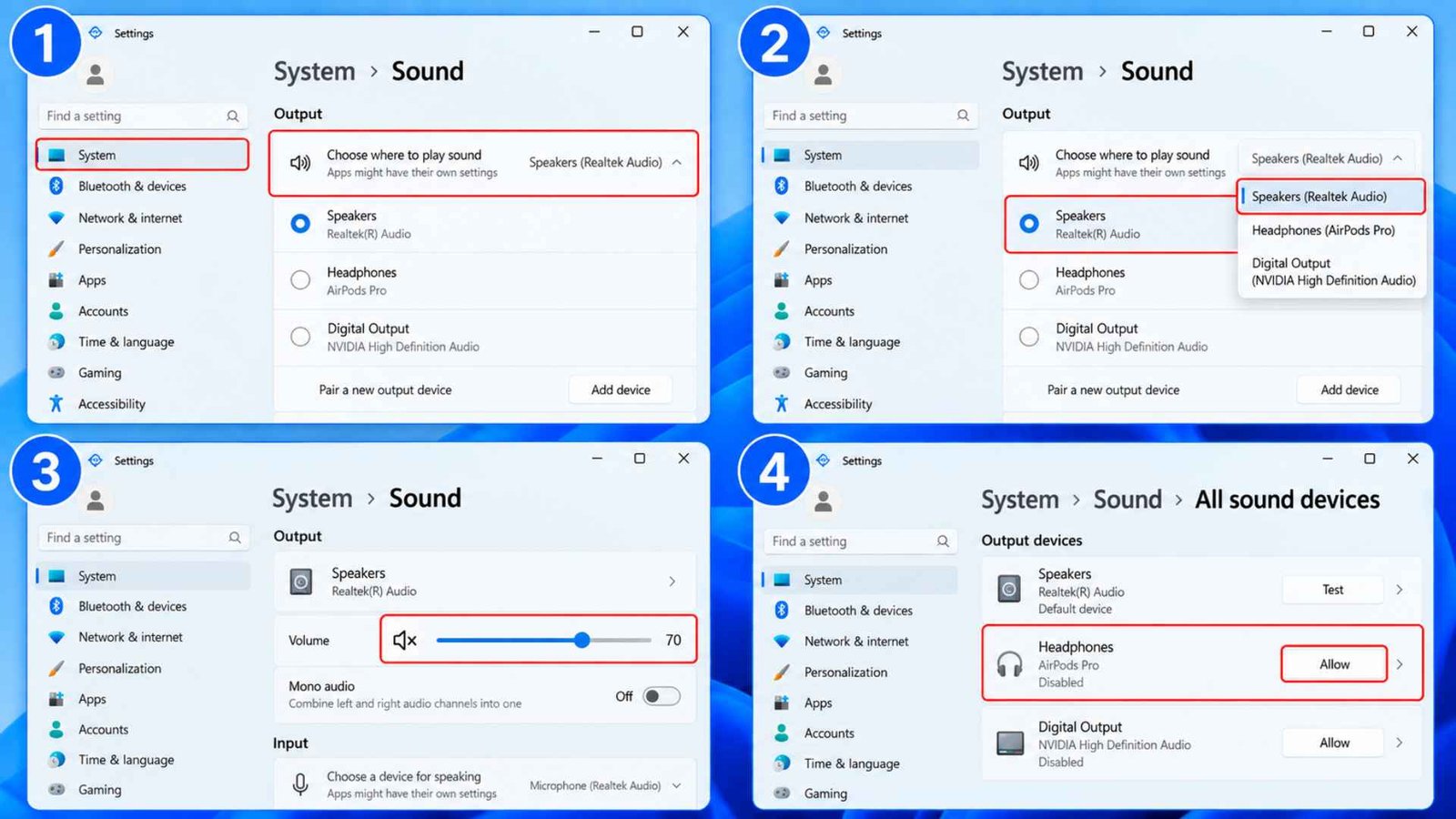
The majority of the time, your sound should return once you finish my first solution, but in case it didn’t, you might want to try this method. Sometimes the driver is fine and Windows is simply playing sound somewhere else, like a monitor or a Bluetooth speaker you paired last month. If you hit Windows 11 no audio output even though the driver looks healthy, check this next.
- Open Settings > System > Sound Settings.
- Under Output, pick the device you actually use, such as Speakers or Headphones.
- Check that the volume slider isn’t at zero or muted.
- Scroll down, open Advanced > All sound devices, and look under Disabled. Click any entry you need and choose Allow.
- Test with a short video or the Test button.
Solution 3: Reinstall the Audio Driver in Device Manager
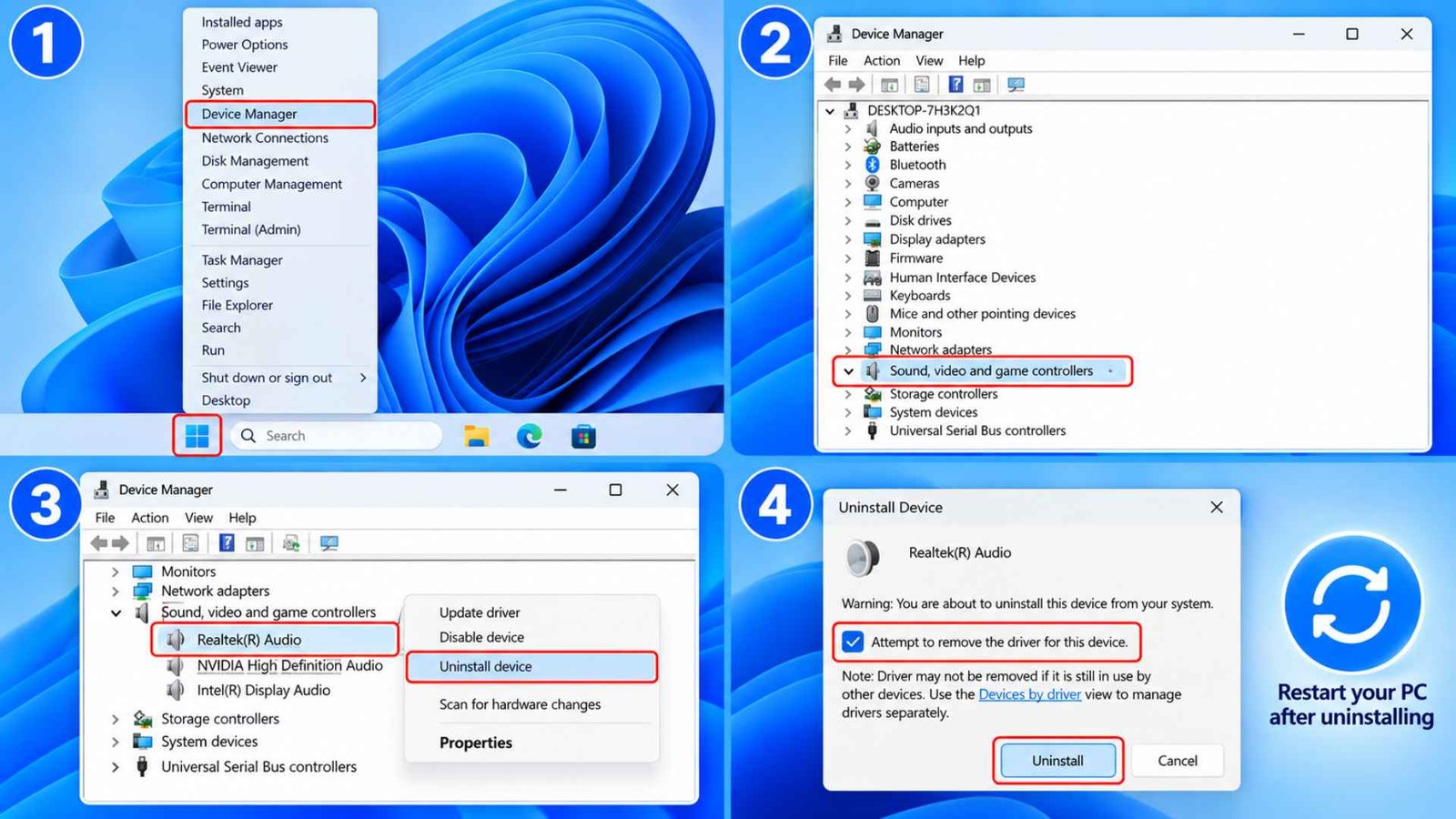
A corrupted sound driver could look installed and still stay silent. Wiping it forces a clean rebuild of the Windows 11 sound driver.
- Right click the Start button and open Device Manager.
- Expand Sound, video and game controllers.
- Right click your audio device, such as Realtek High Definition Audio, and choose Uninstall device.
- If you see a box labeled Attempt to remove the driver for this device, tick it.
- Restart your PC.
Windows will reinstall a driver on boot. If the sound stays quiet, repeat Solution 1 for the full Windows 11 audio fix with your maker’s package.
Another Good Read: How to Fix the Black Screen on a Laptop
Solution 4: Check for Missing Audio Devices
Use this when Windows says “No audio output device is installed.” That message means it can’t see any playback hardware. Open Device Manager. Look under:
- Sound, video and game controllers
- Audio inputs and outputs
- System devices
- Other devices
Watch for warning icons. A yellow triangle marks trouble, and an Unknown device under Other devices usually means sound driver missing Windows 11. Click View > Show hidden devices too, since a greyed out entry can hide the culprit. Right click it, choose Update driver, or go back to Solution 1.
Solution 5: Restart Windows Audio Services
Sound stops cold when a background service hangs. Restarting Windows audio services takes about thirty seconds.
- Press Windows + R.
- Type services.msc and hit Enter.
- Find Windows Audio, right click it and choose Restart.
- Do the same for Windows Audio Endpoint Builder.
- Double click each one and confirm Startup type says Automatic.
Solution 6: Run the Windows Audio Troubleshooter
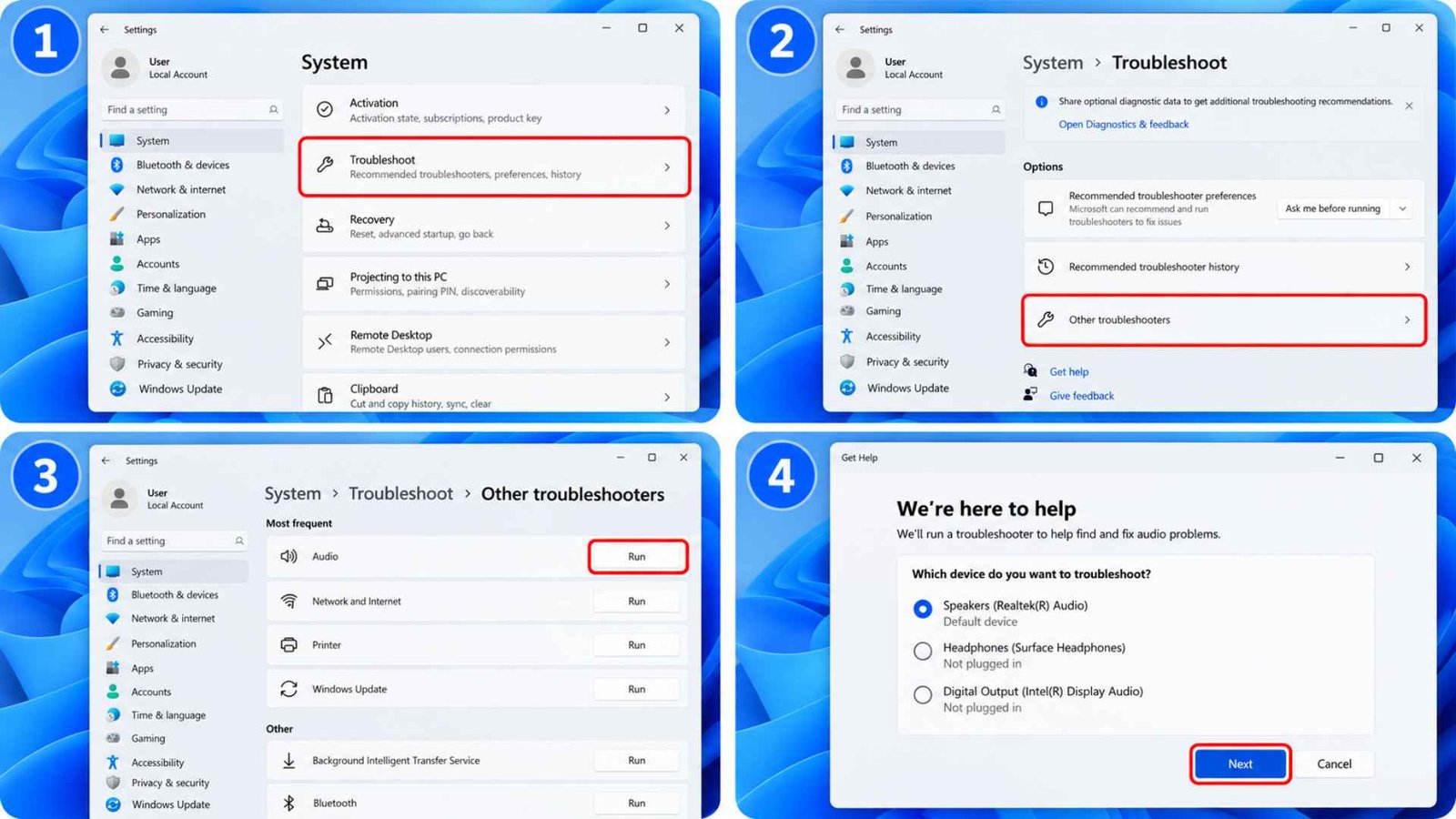
Last on the list, but quick. The built in Sound Troubleshooter catches muted devices and stalled services.
- Open Settings > System > Troubleshoot.
- Click Other troubleshooters.
- Find Audio (some builds label it Playing Audio) and click Run.
- Pick the device that’s silent and follow the prompts.
On newer builds the tool may open inside the Get Help app. That’s normal.
Frequently Asked Questions (FAQs)
Why is there no sound after I upgraded to Windows 11?
The most frequent reason is that the upgrade left you with a generic driver instead of the tuned one. A wrong output device and stopped audio service could also be the reason.
Why does Windows Update say all drivers are installed but sound still does not work?
Windows counts a generic driver as good enough. Your maker’s package often never reaches Windows Update, so the Windows 11 sound driver stays basic until you download the right one yourself.
Can reinstalling Windows remove the audio driver?
Yes, you can, as a fresh Windows will leave you with a generic audio driver instead of the one your system was using. Make sure to save your maker’s audio package on a flash drive before you do a clean install.
How do I reset my PC audio?
The process will require you to restart the audio services and run the Volume mixer in Sound settings, using the reset button for sound devices and application volumes. The system will need to be restarted after this.
Wrapping Up…
Fix No Sound After Windows 11 installation problems in this order: the maker’s driver, the output device, a clean reinstall in Device Manager, the missing device check, the audio services and then the troubleshooter. Nearly every case lands in one of those buckets.
Keep a copy of the Windows 11 audio fix that worked, meaning the exact driver installer, on a USB drive or in cloud storage. Next time you wipe the machine, you’ll be back to full volume in five minutes. If nothing here works, the speakers or the audio jack could have a hardware fault, and that’s a job for the manufacturer’s support team.