
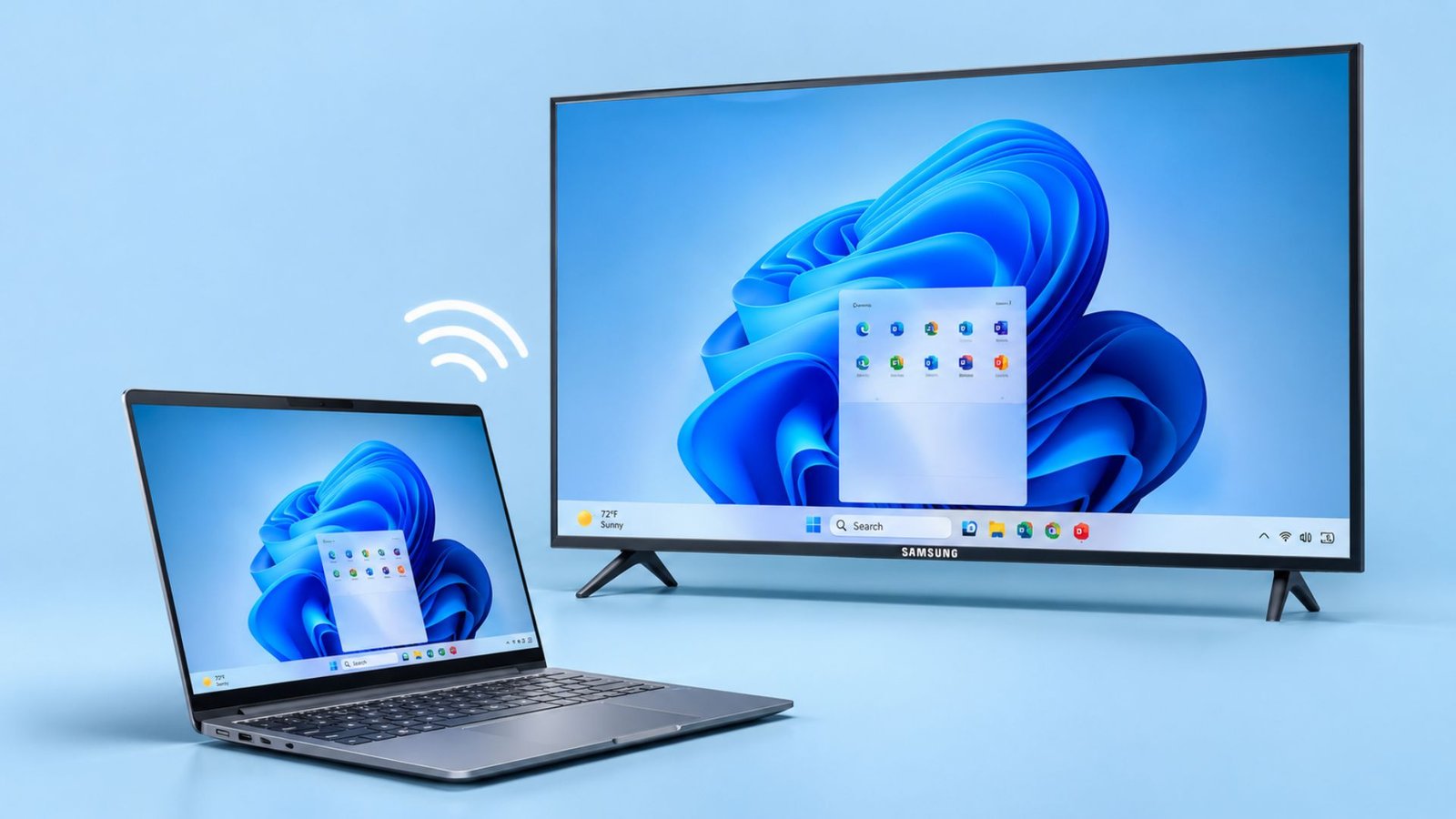
When connecting your laptop to a Smart TV from Samsung, you’ll be able to have more space for working, watching videos and even sharing presentations and viewing photos.
With Windows 11, there certainly are several options for connecting to your Samsung TV, these include using wireless mirroring, HDMI cable, or casting through your browser. Depending on what you want to view and what features your TV has, you can choose the best method that will work for you.
Typically, the easiest option is to use the wireless projection feature on your Windows 11 laptop. This will not require any additional software if both your devices support Miracast. Using HDMI will provide a more reliable connection and chrome and Edge can also be useful if all you want to do is view a web page or video. Here is how each method works and what you need to check before you begin.
| Method | Latency | Setup speed |
|---|---|---|
| Wireless (Miracast) | Small delay, fine for slides and video | About one minute |
| Samsung Easy Connection to Screen | Depends on network and PC performance | 2-3 Minutes |
| HDMI | Lowest lag of the three | About two minutes |
Method 1: Wireless Mirroring Using Windows Cast
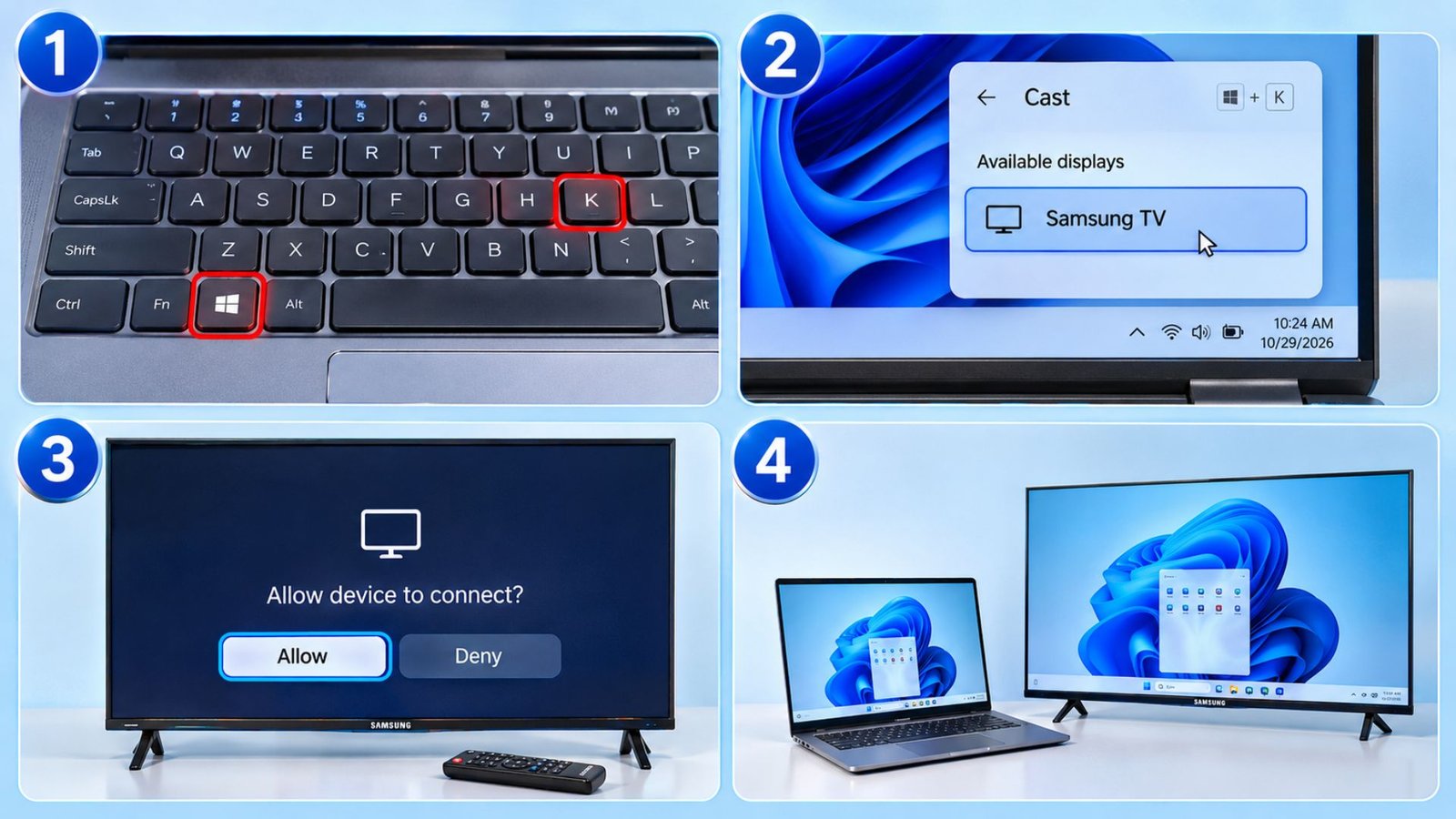
The fastest way to connect Windows 11 to Samsung TV wirelessly relies on a built-in protocol called Miracast. This is a ‘built-in’ function that allows you to connect directly between your PC & TV. The advantage of this is that your video data isn’t being sent over your home router, which can help reduce network-related delays.
To get started, wake up your Samsung Smart TV and make sure Wi-Fi is enabled on both your TV and your laptop (neither device needs to be connected to the same router, though both Wi-Fi radios must be turned on).
Follow these exact steps to mirror your display:
- Press Windows key + K on your keyboard at the same time to open the quick Cast panel in the bottom-right corner of Windows 11. (If your hardware does not support Miracast, this panel will display a message stating that your PC doesn’t support Miracast.)
- Wait a few seconds while Windows scans for nearby wireless screens.
- Click your Samsung TV model name once it pops up on the list.
- Grab your TV remote and select Allow when the connection prompt appears on your television screen.
- Your desktop will appear on the big screen right away.
If the keyboard shortcut fails to respond, you can trigger the exact same menu through your Windows Settings:
- Click the Start button, type Bluetooth & devices, and press Enter.
- Click Add device at the top of the window, then select Wireless display or dock.
- Click your Samsung TV once its name appears in the scan list. If prompted, select Allow on your TV.
- Your PC’s screen will mirror to the TV within moments.
Method 2: Connect via HDMI Cable for Zero Lag
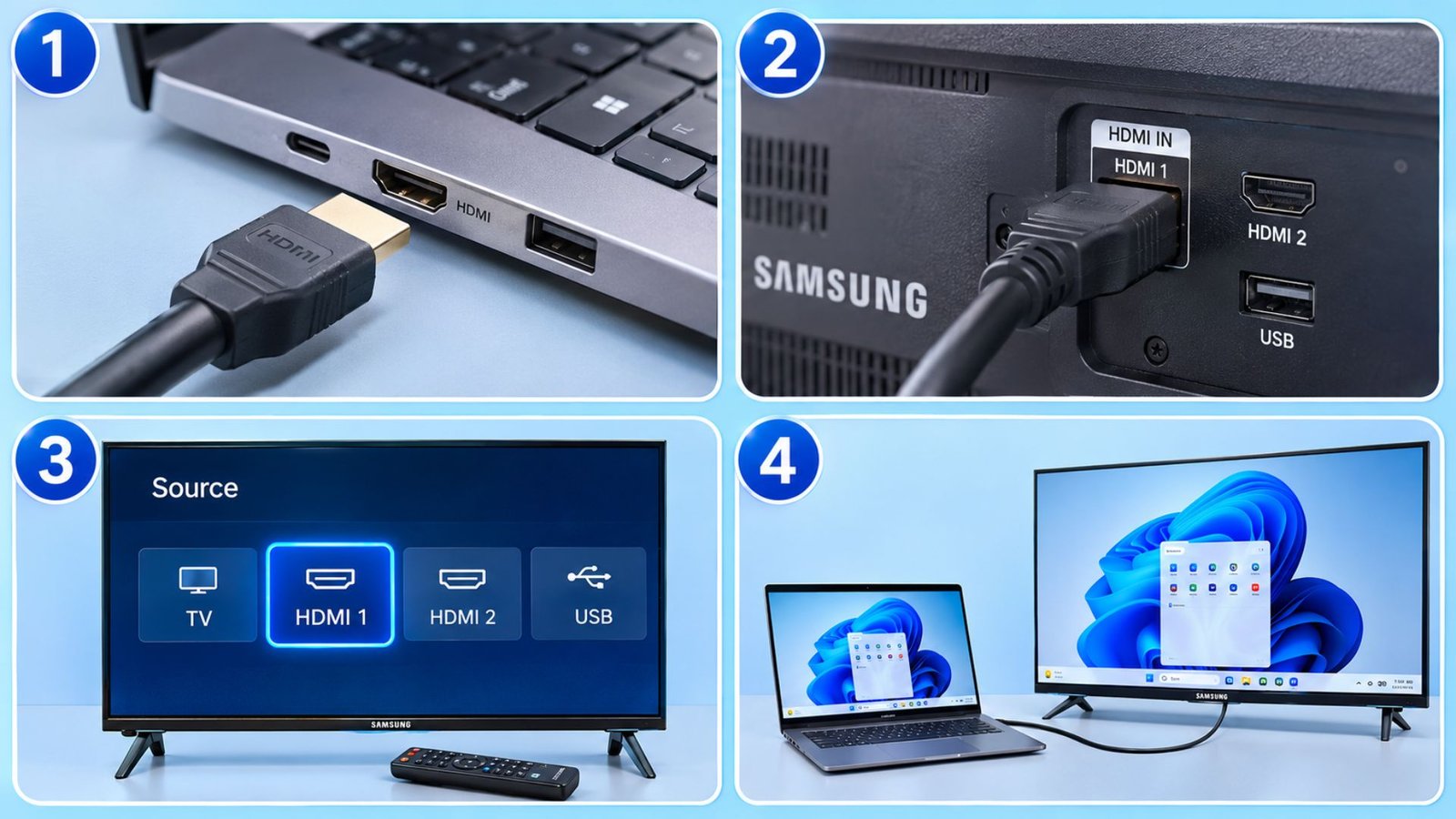
Wireless casting works great for slideshows, yet it ain’t ideal when you need split second responsiveness for gaming or high bitrate cinema. In this regard, a physical HDMI Connection remains the gold standard for uncompressed video and zero lag performance.
Most modern Samsung TVs have multiple HDMI ports on the back, side, or One Connect Box. If you have a thin laptop without a full-sized port, you will need a USB-C to HDMI adapter. Plug one end of a Premium or Ultra High Speed HDMI cable into your laptop and plug the other end securely into any free HDMI port on your TV.
Once the physical cord is secure, follow these steps to bring up your desktop:
- Turn on both your laptop and your Samsung television.
- Pick up your Samsung remote and press the Source or Input button.
- Highlight the exact HDMI port number you plugged the cable into, such as HDMI 1 or HDMI 2, and press Enter.
- Your laptop screen will flash once and lock onto the television resolution automatically.
- If the picture looks cropped around the edges, open your TV Settings menu, head to Picture Size, and switch the aspect ratio to Fit to Screen.
Another Good Read: Laptop Volume Keys Not Working in Windows 11? Try These 10 Fixes!
Method 3: Cast Browser Tabs with Chrome or Edge
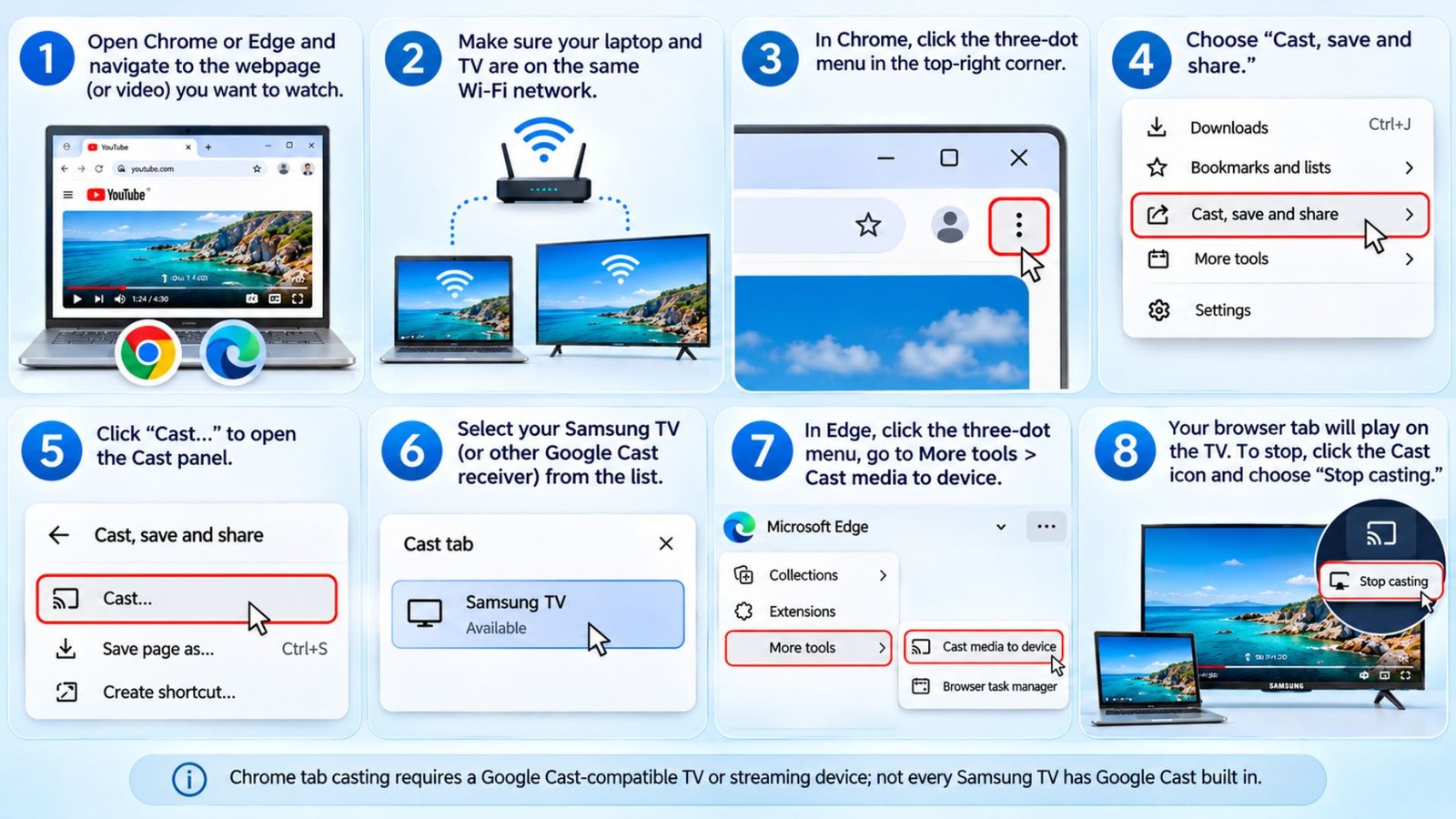
Sometimes you do not want your entire desktop, private emails, and messy taskbar showing up on the living room screen. When you only want to cast from laptop to tv for a YouTube video or a live sports stream, browser casting is your cleanest move.
Google Chrome supports Google Cast, which lets you send a browser tab or supported content to a compatible receiver. Microsoft Edge also includes a Cast media to device option, but it uses a different casting workflow and does not guarantee that every Samsung TV will appear in its device list.
Here is how to launch a browser tab onto your Samsung screen:
- Open Google Chrome or Microsoft Edge on your laptop and navigate to the webpage you want to watch.
- Ensure your computer and your Samsung TV are signed into the exact same local router.
- Click the three vertical dots in the upper right corner of Chrome, or the three horizontal dots in Microsoft Edge.
- Hover over the Cast, save, and share option in Chrome, or select More tools and then Cast media to device in Edge.
- Click your Samsung TV from the small dropdown box that appears.
- Your active browser tab will immediately beam over to the television screen.
Note: Chrome casting requires a Chromecast, Google TV device, or television with built-in Google Cast support. Google Cast is available on supported Samsung TV models, including the 2026 lineup and certain earlier models with compatible software updates. However, availability depends on the specific model and firmware version. If your Samsung TV does not appear in Chrome’s Cast menu, check its specifications or connect a Chromecast or Google TV streamer through an HDMI port. An ordinary Samsung Smart TV does not automatically support Google Cast.
Method 4: Use the Samsung SmartThings Windows App
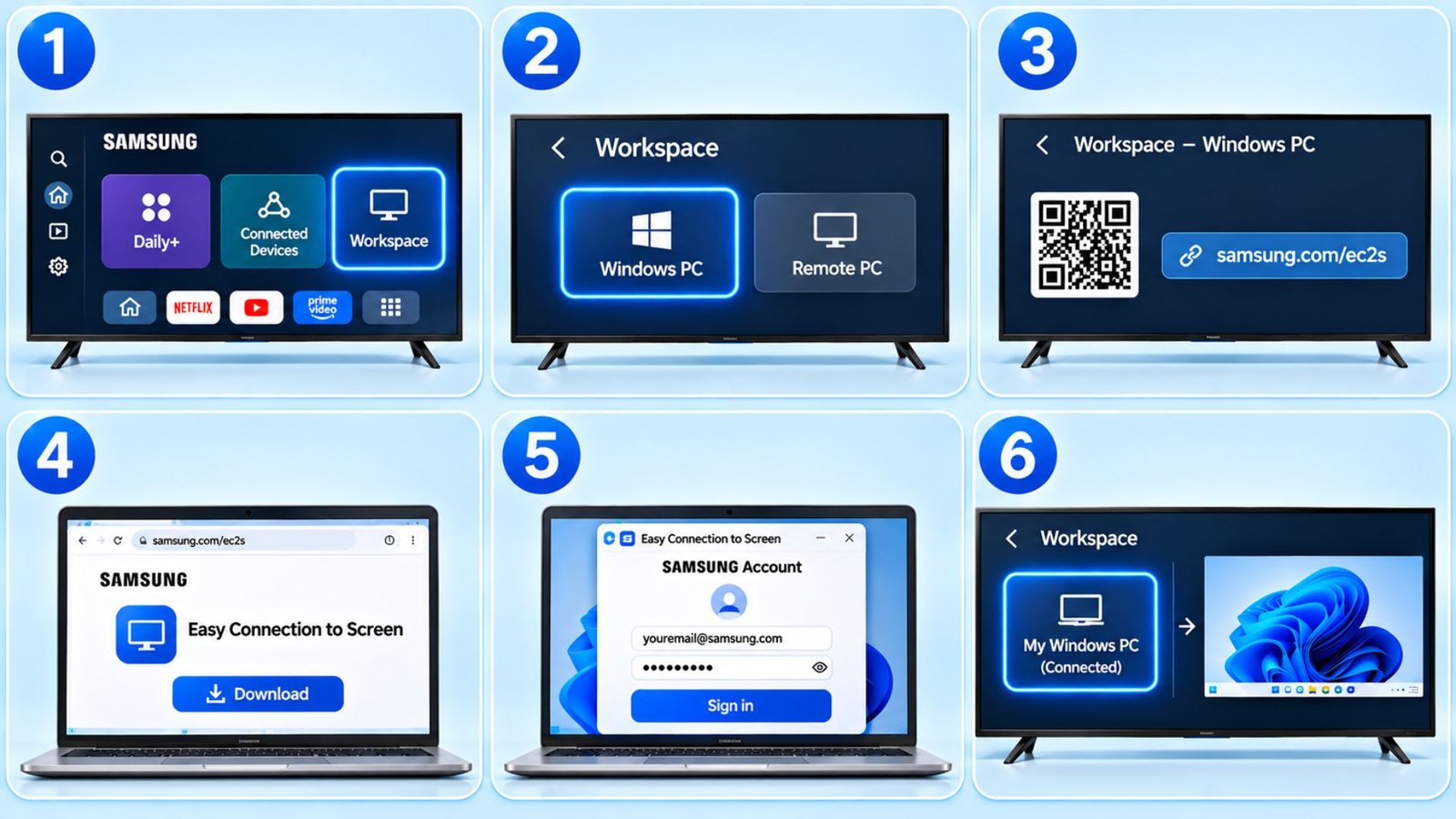
All modern Samsung Smart TVs and Smart Monitors run on the Tizen operating system (now featuring Samsung’s One UI interface), which includes built-in PC integration tools. While the Samsung SmartThings Windows app only handles smart home controls and basic remote functions, Samsung offers a dedicated Easy Connection to Screen app for mirroring and controlling Windows PCs.
Follow these instructions to connect through Samsung’s official desktop app:
- On your Samsung TV, open the Daily+ hub (or Connected Devices) and select Workspace, then choose Windows PC.
- Follow the on-screen link on your PC browser to download and install the Easy Connection to Screen app from Samsung’s official support site.
- Launch the Easy Connection to Screen app on your laptop and sign in using the exact same Samsung account logged into your TV.
- On your TV’s Workspace screen, select your connected Windows PC profile.
- Confirm the connection prompt on your laptop or TV if asked, and your desktop will appear on the television.
Switch Between Mirror and Second Screen Modes
When you have connected your Windows 11 laptop to your Samsung TV using either Windows Cast or an HDMI cable, your PC will normally duplicate its display. This is great for watching movies. However, you can take advantage of having two screens by opening multiple windows at once. For example having a spreadsheet on the large TV while also having your messages open on your laptop. Plus, there are no complicated display settings to get into.
Use this quick keyboard shortcut to switch modes on the fly:
- Hold down the Windows key and tap P.
- Look at the Project panel that slides out on the right side of your screen.
- Pick Duplicate if you want the exact same picture on both screens.
- Pick Extend to turn your TV into a giant second monitor where you can drag and drop windows freely.
- Pick the second screen only to shut off your laptop screen completely.
What To Do If Windows 11 Laptop Does Not Connect to Samsung TV?
Unfortunately, if there are any background updates happening on Windows or a random setting enabled on your TV, the cast feature might not work. If your Samsung TV isn’t appearing in the windows cast menu, or keeps dropping out after connecting, follow these 5 troubleshooting steps below.
- Check your Wi-Fi and firewall settings: Although Miracast does create a direct connection between your laptop and TV, Windows does require both devices to have Wi-Fi enabled. If you’re using a 3rd party antivirus (Norton, McAfee, Bitdefender etc.) disable the firewall temporarily. This is because most aggressive firewalls will stop wireless displays.
- Clear your laptop from the TV’s blocked list: If someone accidentally clicked Deny the first time your laptop tried to connect, your Samsung TV will silently block every future attempt. Grab your remote, open Settings > General & Privacy (or General on older models), go to External Device Manager > Device Connection Manager > Device List, and remove your PC from the denied list.
- Disconnect your VPN: Active VPN connections route your traffic away from your local home network, making your TV invisible to Windows. Disconnect your VPN completely (or enable local network sharing in your VPN’s settings) before trying to cast again.
- Verify that your laptop actually supports Miracast: Older desktop PCs and budget laptops with outdated Wi-Fi cards sometimes lack the hardware needed for wireless projection. Press Windows + R, type dxdiag, and hit Enter. Click Save All Information, open the saved DxDiag.txt file, and press Ctrl + F to search for Miracast. If it says Not Supported, you will need to use an HDMI cable or cast via Chrome or Edge instead.
- Update your Wi-Fi and graphics drivers: Wireless casting relies on both your GPU and wireless card working together. Right-click the Start button, open Device Manager, expand Display adapters and Network adapters, right-click your primary graphics and Wi-Fi hardware, and select Update driver.
Frequently Asked Questions (FAQs)
Can I cast my Windows 11 laptop to my TV?
Yes. Press the Windows key and K and choose your TV. Most Samsung Smart TVs accept the connection because Miracast support is built in. You can connect laptop to samsung tv wirelessly this way, or use an HDMI cable if your laptop lacks Miracast.
Do My Laptop and Samsung TV Need to Be on the Same Wi Fi Network?
It depends entirely on which connection method you pick. If you use the Windows Cast menu via Miracast, your devices communicate directly through Wi Fi Direct. Turns out, they only need their Wi Fi radios turned on. However, if you cast through Google Chrome, Microsoft Edge, or the Samsung SmartThings app, both devices must sit on the exact same router.
Do I Need Samsung Smart View to Connect My Laptop?
Samsung retired the Smart View app ecosystem in October 2020, so you do not need to hunt down old installer files online. Built-in Windows tools handle everything the old program used to do with much better stability. You can press Windows Key + K to mirror your screen via Windows Cast, or right-click media files in File Explorer and select “Cast to Device” to stream local videos and music. If you also want a virtual TV remote on your computer, you can optionally pair this with the modern Samsung SmartThings app from the Microsoft Store.
Can I Use My Samsung TV as a Second Monitor?
Yes, you can easily turn your television into an extended workspace. After connecting via HDMI or wireless casting, press the Windows key + P on your keyboard and select Extend. You can then drag browser windows, documents, and media players right off the edge of your laptop monitor onto your television.
Is HDMI Better Than Wireless Screen Mirroring?
It depends on your needs. HDMI generally offers a more stable connection and lower latency, which makes it suitable for gaming and presentations. Wireless mirroring is more convenient because you do not need a cable, but performance depends on device compatibility and wireless conditions.
Why Is There No Sound When Screen Mirroring From Windows 11 to a Samsung TV?
Windows 11 may still be routing audio to your computer’s internal speakers or another connected device instead of the TV. Click the speaker or network icon on the bottom-right taskbar to open Quick Settings, click the Select a sound output icon next to the volume slider, and choose your Samsung TV. Also make sure your TV is not muted, its volume is turned up, and your Windows graphics and audio drivers are up to date.
Wrapping Up…
Getting your computer onto the big screen takes minimal effort once you pick the right tool for your setup. If you want zero lag for gaming or high definition movies, grab a solid HDMI cable and plug straight into the back of your television. When you prefer a clean, cord free living room, pressing Windows + K lets you mirror your desktop in seconds without installing extra clutter. Keep your drivers current, stick to a strong 5 GHz wireless band, and check your TV permission settings if a connection ever stalls. With these steps in your back pocket, turning your Samsung television into a massive computer monitor becomes effortless every single time.