

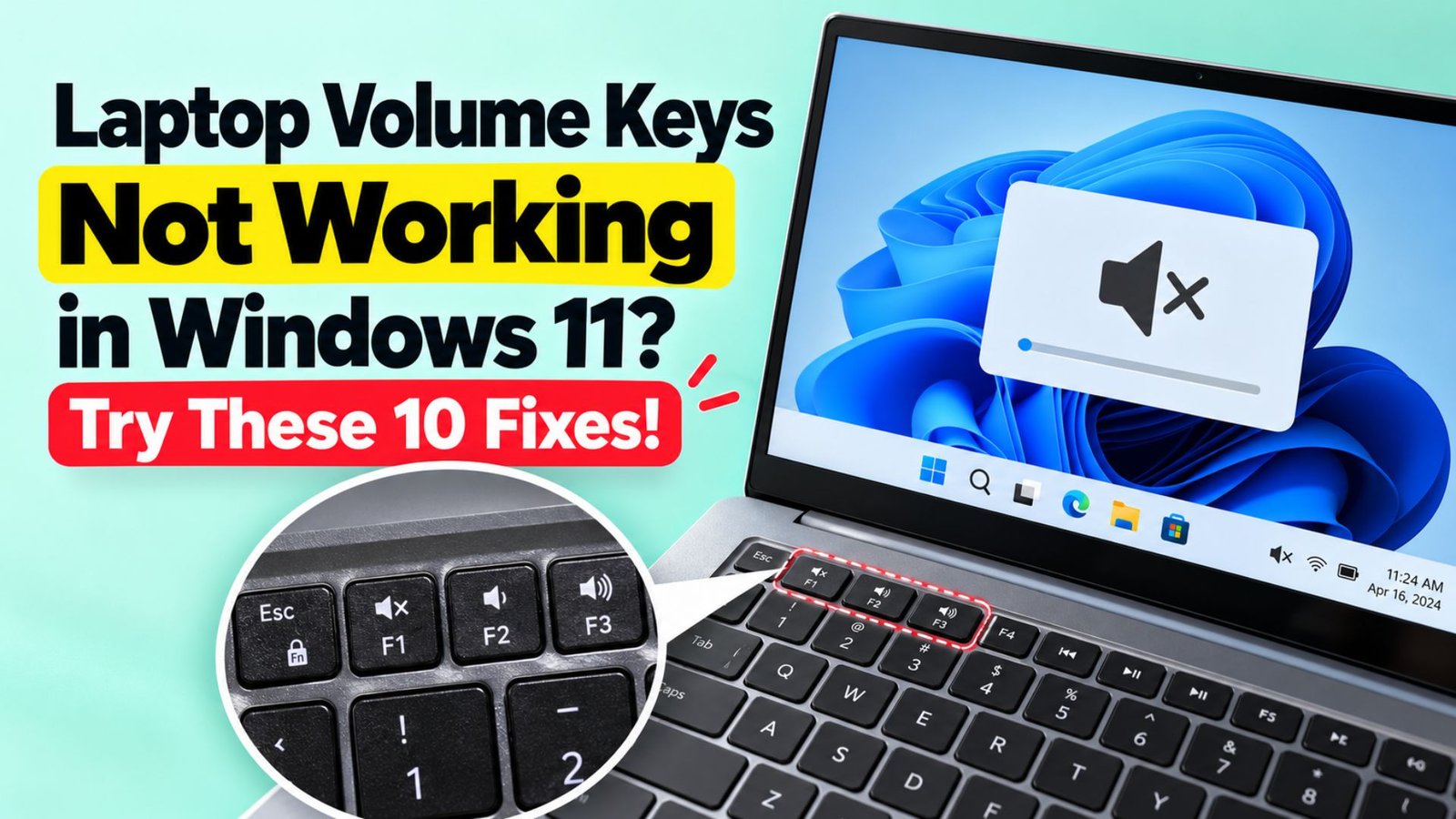
You clicked the volume key, but nothing happened. No reaction on the laptop display, no change in the video’s volume. It may be confusing, but the keyboard is rarely to blame. If your laptop’s volume keys aren’t working in Windows 11, the cause is most likely related to software. A service that stalled, a function key mode that flipped, or a driver that took a bad hit during an update.
Before attempting any of the following solutions, perform a simple test: open Settings > System > Sound and change the system volume with your mouse. If the system volume is working, the problem is most likely related to your laptop’s function keys (F1, F2, and F3). If this test fails, move on to solutions 5, 7, and 8.
This list is divided into ten steps, ranging from the simplest and fastest to the most complex. Navigate to the top of the page and go one by one until you find the solution that works for you.
Key Takeaways
- Try Fn Lock before changing anything else. It takes a few seconds and can fix volume keys that suddenly started acting like regular function keys.
- Windows relies on Human Interface Device services for many keyboard controls. If that service hangs or stops, media keys can stop responding too.
- HP, Dell, Lenovo, and other laptop brands use their own hotkey utilities. Missing or broken OEM software can leave the volume buttons dead even when Windows audio still works.
- If the problem started right after a Windows or driver update, check the keyboard driver next. Rolling back the recent driver is a quick way to test it.
- Use the Windows volume slider as a clue. If it changes the sound normally, the issue is probably on the keyboard side. If Windows cannot control the sound either, move your attention to the audio device and services.
How to Fix Laptop Volume Keys Not Working in Windows 11
Solution 1: Check Fn and Fn Lock
Volume buttons often share the same top row as F1 through F12. If the keyboard switches to regular function mode, pressing the volume key alone may do nothing to the sound.
Dell uses this setup on many laptops. On supported models, Fn + F2 lowers the volume, Fn + F3 raises it, and Fn + Esc switches Fn Lock on or off. The exact keys can vary by model.
How to do it:
- Hold Fn and press your volume up or volume down key.
- Press Fn + Esc once if your laptop supports Fn Lock.
- Look for an Fn Lock symbol on the keyboard.
- Test both volume keys again.
- If those shortcuts do not match your keyboard, check the manual for your model.
If the Fn key combination above works, it indicates that the laptop’s audio system was not the issue. Instead, the laptop keyboard was using the alternate function.
Another Good Read: How to Fix the Black Screen on a Laptop
Solution 2: Install Your Laptop Manufacturer’s Hotkey Software
This is one of the most important fixes in the entire guide. Windows can recognize your keyboard, but that doesn’t always mean the software to handle special controls has been installed. Typing normally will work in the situation, but volume, brightness, airplane mode, microphone mute, or other Function Keys may fail.
Dell documents that QuickSet added keyboard audio controls on older systems. Dell later replaced it with ControlPoint and Dell Feature Enhancement Pack on newer product families. Lenovo still provides Windows 11 Hotkey Features Integration packages specifically to enable special keyboard buttons.
If Laptop volume keys not working started after a fresh Windows setup, this step should come before random registry edits or third party utilities. The same applies when Fn volume keys not working appears beside broken brightness or microphone shortcuts.
How to do it:
- Go to the official support website for Dell, HP, Lenovo, ASUS, Acer, MSI, or your laptop brand.
- Search using the exact model number, serial number, or Service Tag.
- Open the Drivers or Software section.
- Look for hotkey support, system interface software, function key utility, keyboard control software, chipset packages, or equivalent manufacturer tools.
- Download the latest package approved for your exact Windows 11 model.
- Install the Hotkey Driver or equivalent utility.
- Restart the laptop after installation.
- Test the laptop volume keys again.
Avoid downloading a random laptop hotkey driver from an unrelated model. Brand software often contains model specific components, and the wrong package can create a second problem.
Solution 3: Check Function Key Behavior in BIOS
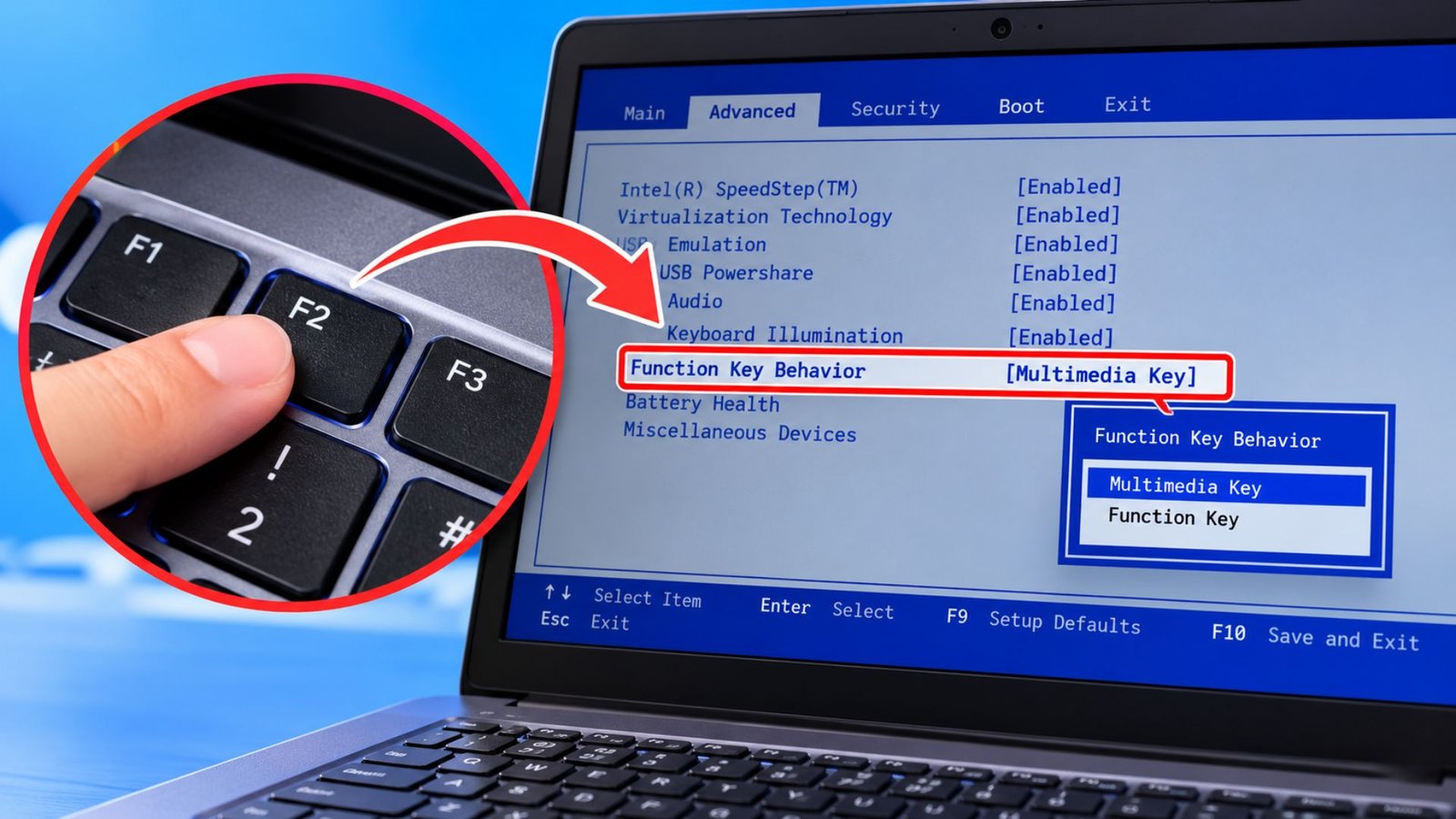
This fix is especially useful when function keys not working in Windows 11 starts after a BIOS reset, firmware update, battery disconnect, or system repair.
How to do it:
- Restart the laptop.
- Press the manufacturer BIOS key during startup. Common keys include F2, F10, F12, Esc, or Delete.
- Find BIOS Settings related to the keyboard.
- Look for Function Key Behavior, Action Keys Mode, Hotkey Mode, or Multimedia Key Mode.
- Change the function key behavior to match how you want the top row to work.
- Save the setting and exit BIOS.
- Restart Windows and test the volume buttons.
Solution 4: Restart the Human Interface Device Service
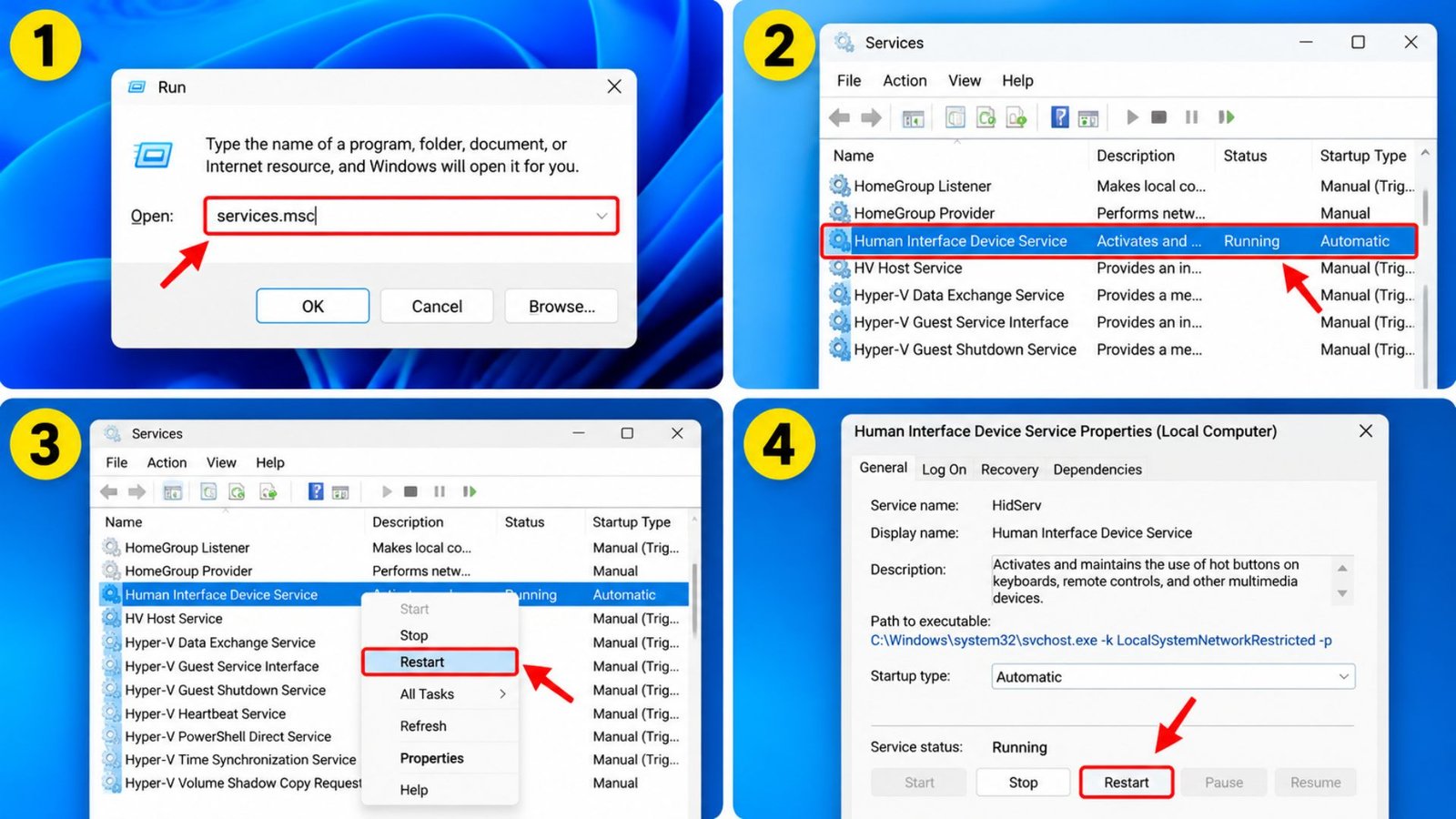
Windows uses Human Interface Device Service, commonly called HidServ, to support special buttons on keyboards and other multimedia devices. If that service stops responding, ordinary letters may still type normally while special controls fail.
How to do it:
- Press Windows Key + R.
- Type services.msc.
- Press Enter.
- Scroll to Human Interface Device Service.
- Right click the service.
- Choose Restart if it is already active.
- Choose Start if it is stopped.
- Test the volume keys again.
Do not force the service to a different startup type unless your laptop manufacturer specifically instructs you to do that. Restarting it is enough for this troubleshooting step.
Solution 5: Restart Windows Explorer
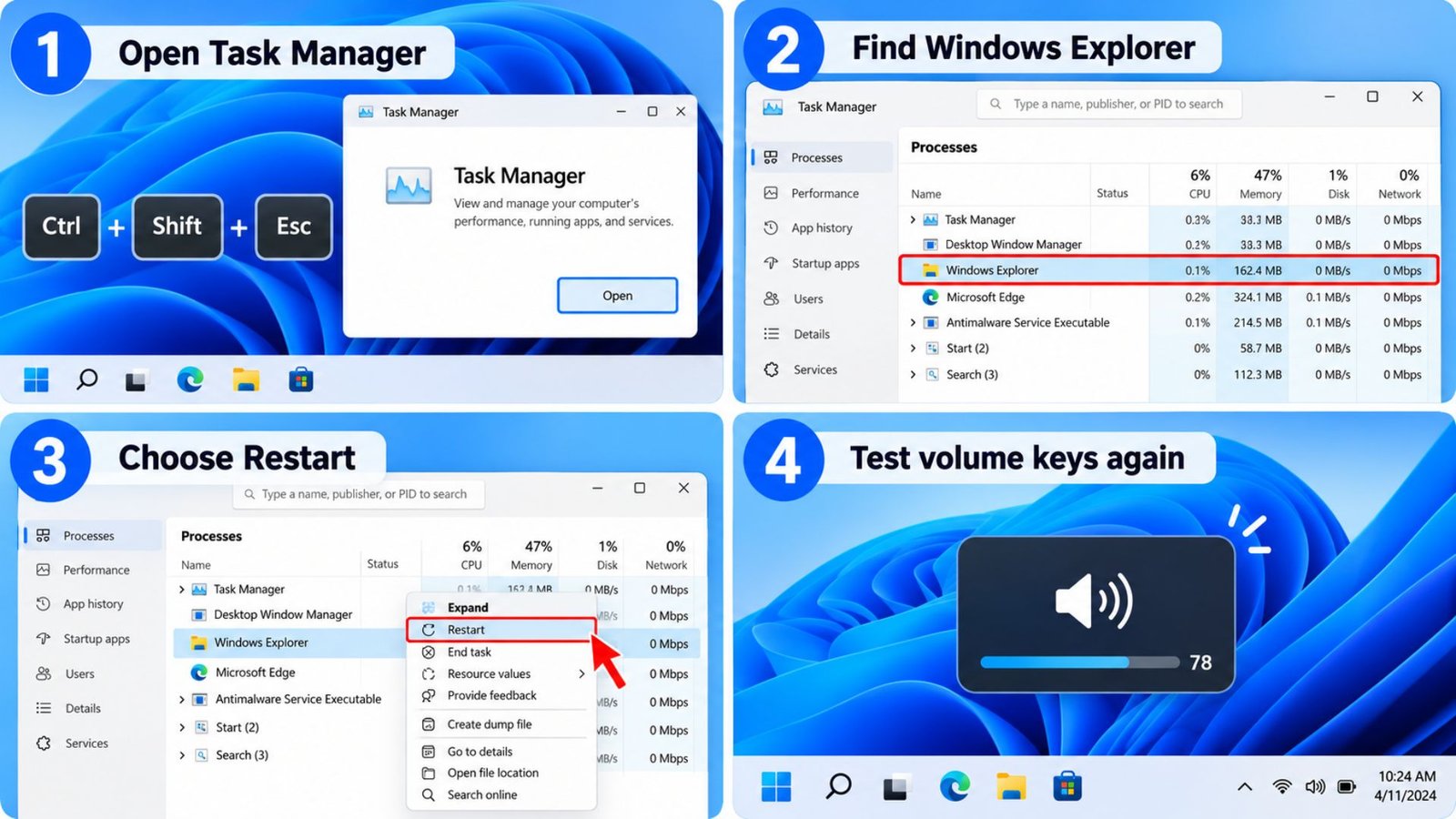
Sometimes the keyboard command reaches Windows, yet the shell fails to refresh the taskbar or volume interface properly. You may press the key and see a delayed response, a frozen overlay, or no volume popup at all.
Restarting Windows Explorer gives the desktop shell a clean refresh. This is most useful when the Volume Keys work inconsistently or the volume indicator behaves strangely.
How to do it:
- Press Ctrl + Shift + Esc to open Task Manager.
- Find Windows Explorer under Processes.
- Right click Windows Explorer.
- Choose Restart.
- Wait for the taskbar to disappear and return.
- Press the volume keys again.
This fix will most likely not repair a missing manufacturer utility. It is mainly a quick reset for the Windows interface.
Solution 6: Reinstall the Keyboard and Audio Drivers
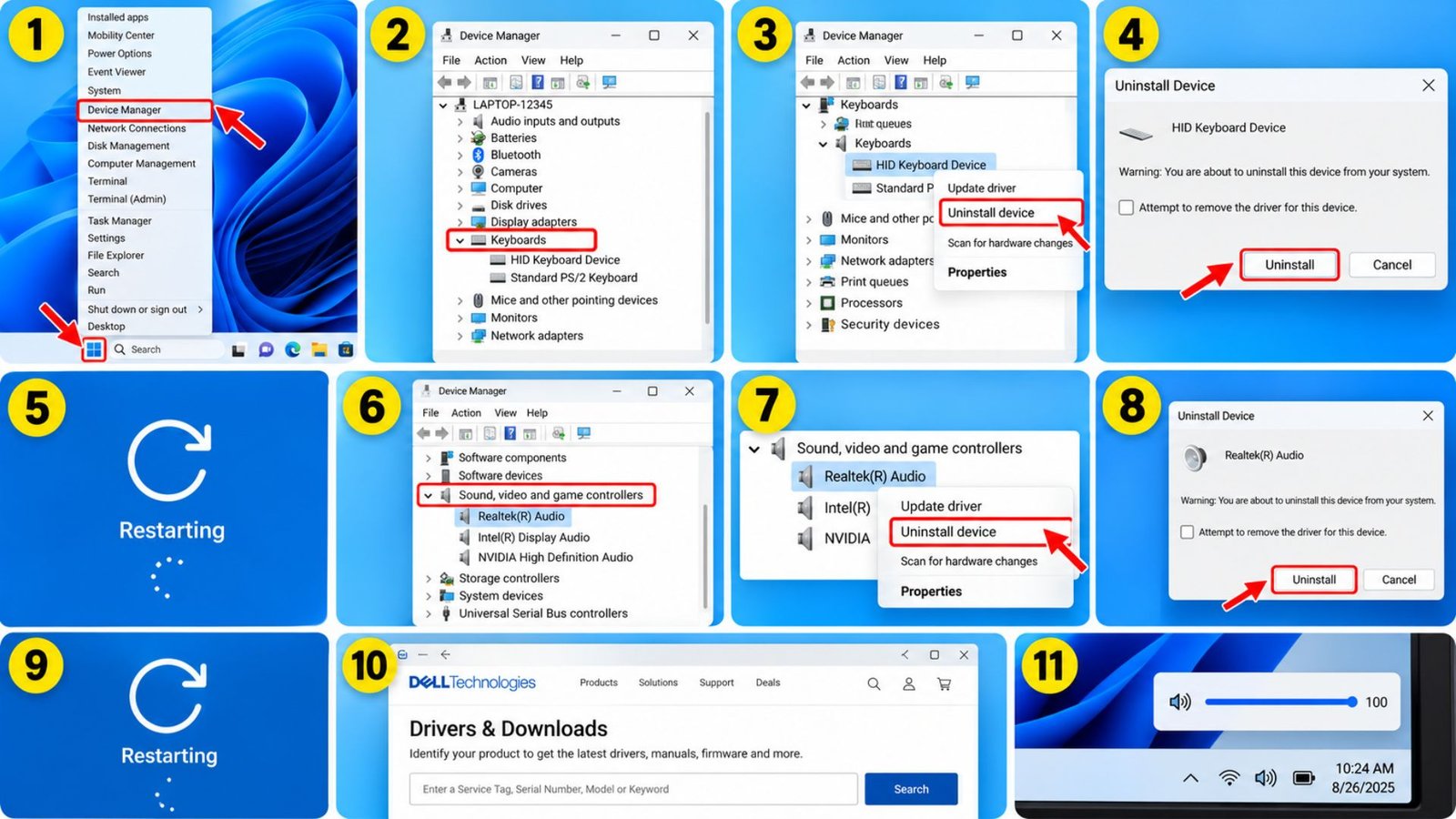
The driver issues are more likely to occur if the Fn keys, manufacturer’s software, BIOS settings, and HID drivers have been deemed operational. Microsoft officially recommends reinstalling the audio driver in the case of the persistent operating system audio issues. It also suggests downloading the latest version of the driver from the PC manufacturer’s website if the Windows OS is unable to provide an updated utility.
If the Laptop Volume Keys Not Working issue appeared after the Windows reinstallation, repair both the keyboard shortcut and audio command channels as they are closely related. The keyboard is supposed to transmit the signal, and the audio driver is designed to perform the action.
How to do it:
- Right click Start.
- Open Device Manager.
- Expand Keyboards.
- Right click the built in keyboard device.
- Choose Uninstall device.
- Restart the laptop so Windows reloads the Keyboard Driver.
- Return to Device Manager.
- Expand Sound, video and game controllers.
- Right click the main sound device.
- Choose Uninstall device.
- Restart Windows again.
- If sound features are still incomplete, install the manufacturer Audio Driver for your exact model.
Solution 7: Check the Selected Audio Output
The keys combination does not always work, and sometimes the sound does not change even though you press the key. The problem is that Windows thinks that you are using a different audio output than the one you are using.
It can be a monitor connected to a computer via HDMI or a Bluetooth speaker, so you need to check all possible devices.
Go to the Settings > System > Sound and take a look at the Output section. Make sure that the active device is the one you are using to listen to audio, and try changing the sound again. Alternatively, you can click on the volume icon in the Taskbar and change the audio output using the drop-down menu there.
Solution 8: Restart Windows Audio Services
How to do it:
- Press Windows Key + R.
- Type services.msc.
- Press Enter.
- Find Windows Audio.
- Right click it and choose Restart.
- Find Windows Audio Endpoint Builder.
- Restart that service too.
- Test sound from the taskbar.
- Test the keyboard volume controls afterward.
Solution 9: Roll Back a Recent Driver Update
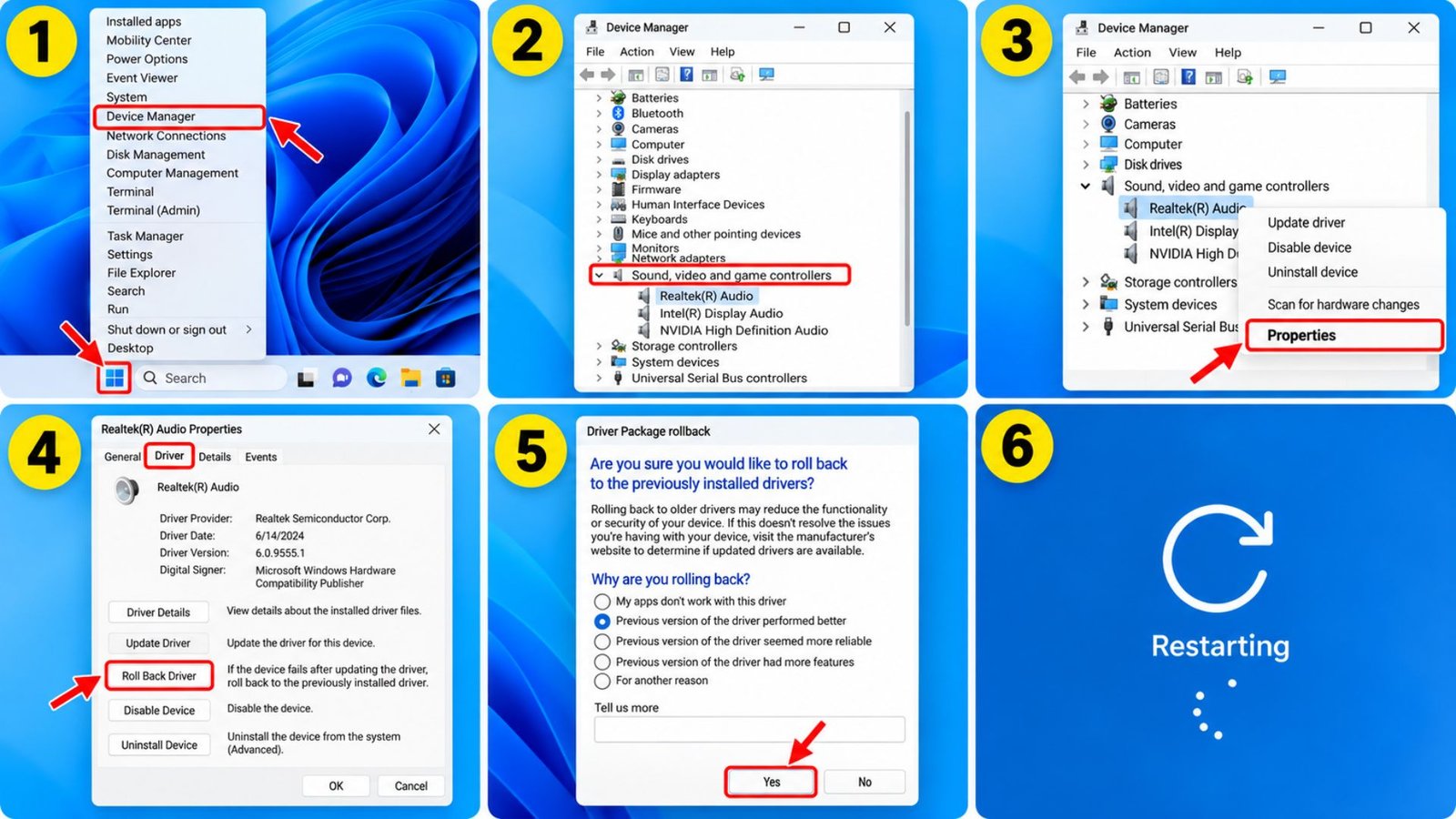
If Windows 11 volume keys not working began on the same day as an update, timing gives you a useful clue. A sudden laptop volume buttons not working problem after months of normal use deserves a rollback check before deeper repairs.
How to do it:
- Open Device Manager.
- Expand Sound, video and game controllers.
- Right click the audio device.
- Select Properties.
- Open the Driver tab.
- Select Roll Back Driver if the option is active.
- Follow the prompts.
- Restart the laptop.
- Test the volume keys.
If Roll Back Driver is grayed out, Windows no longer has the previous package available. Use your laptop manufacturer’s support page and reinstall its approved driver manually.
Solution 10: Run the Windows Audio Troubleshooter
Keep Microsoft’s automated troubleshooter near the end of this sequence because a dead volume shortcut is often a keyboard issue first. The troubleshooter becomes more useful when the volume keys respond but audio output remains wrong.
How to do it:
- Open Start.
- Search for Get Help.
- Open the app.
- Type audio troubleshooter in the search field.
- Start the Audio troubleshooter.
- Allow diagnostics when prompted.
- Follow the recommended steps.
- Restart the laptop if requested.
- Test the volume keys again.
If the troubleshooter reports no audio fault and the taskbar slider works normally, return your attention to the hotkey software, HID service, Fn mode, or keyboard side of the problem.
Frequently Asked Questions (FAQs)
How to fix unresponsive volume button on laptop keyboard?
Start with Fn Lock and a restart of the Human Interface Device Service. Both take about two minutes, and neither needs a download. If they don’t help, install the official manufacturer hotkey software for your laptop model.
Why do my volume keys work only with Fn?
There is a good chance that you have set the function keys in the wrong mode. Make sure that the Fn key is not active on your laptop; otherwise, you will need to use it with the multimedia layer keys. This setting can be changed in the Fn Lock utility or the firmware.
Why does the volume icon appear but the sound level does not change?
The keyboard shortcut may be getting through to Windows, but there’s an issue with the audio path. Check Settings, System, Sound and make sure the right output device is selected. Restart Windows Audio and Windows Audio Endpoint Builder. You might need to reinstall the manufacturer’s audio driver if the problem persists.
Why aren’t my F2 and F3 keys working for volume?
F2 and F3 don’t control the volume on all laptops. On a lot of Dell’s, F2 decreases the volume and F3 increases it. Other brands use different keys. If your volume down key not working symptom affects the matching volume up shortcut too, test Fn and check the laptop manual before assuming the keyboard has failed.
Can Windows Update break volume keys?
It might install an incompatible or partially installed audio driver. Microsoft has documented known issues related to audio after a Windows update, which suggest reinstalling the driver, rolling back the update, or restarting the audio services depending on the situation.
Wrapping Up…
Laptop volume keys not working does not automatically mean the keyboard needs replacement. The first place to start looking is the shortcut layer, as both the Fn mode and manufacturer software play a significant role in a laptop’s media key behavior. Check Fn first. Then move through BIOS behavior, HID service, Explorer, drivers, sound output, and audio services in that order.
This approach saves time because each step tests a different part of the chain. If the keyboard command never appears, stay focused on the keyboard side. If the command appears but sound refuses to change, move toward the audio side. That distinction is the easiest way to keep a simple shortcut problem from turning into hours of random Windows troubleshooting.