

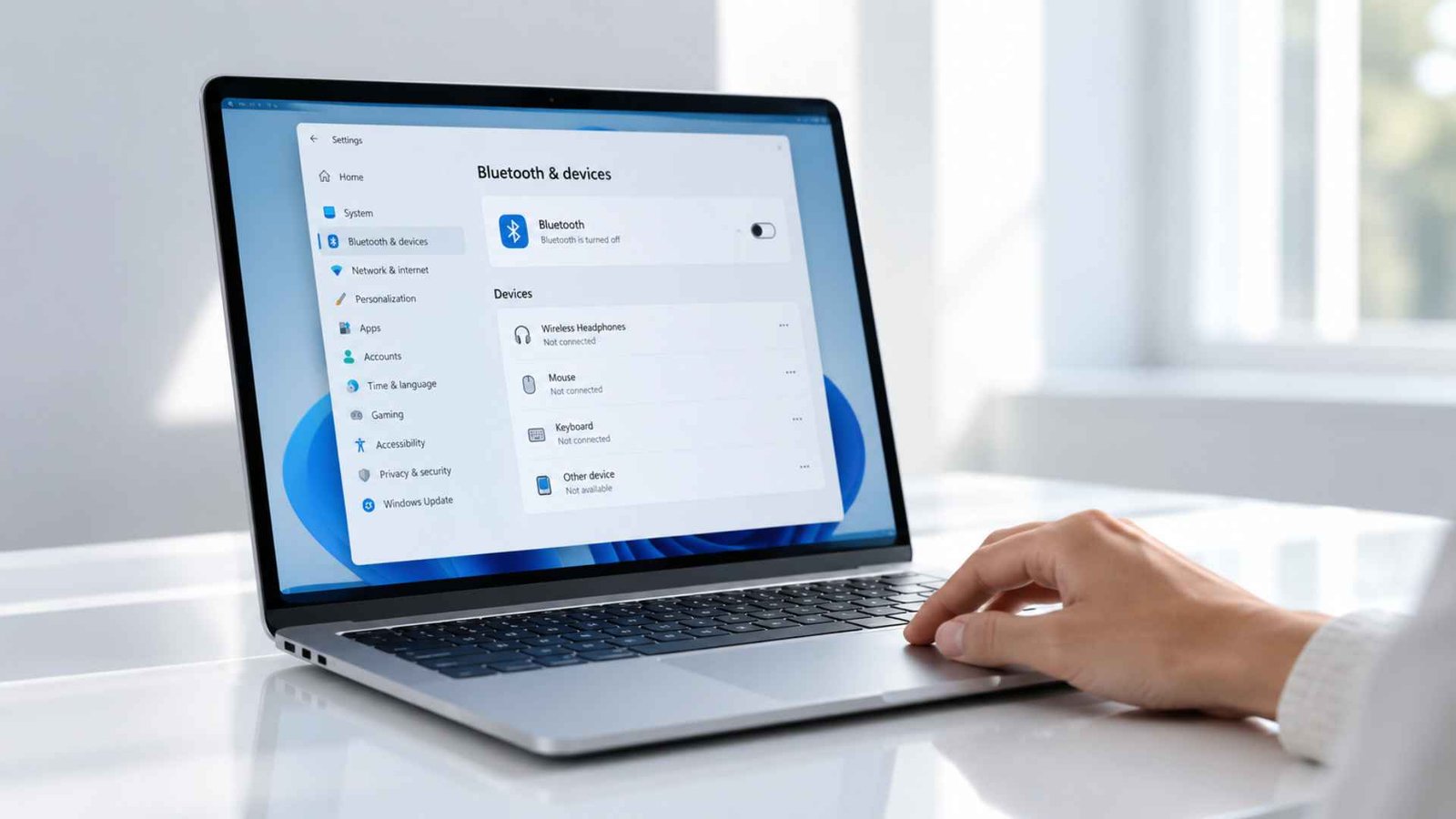
One of the stranger Windows 11 Bluetooth problems happens after sleep. Everything works normally, you close the lid or let the laptop sleep, and when it wakes up the Bluetooth icon is gone. In some cases, the adapter disappears from Device Manager too, which makes this feel more serious than a simple setting being turned off.
Laptop Bluetooth disappearing after sleep is related to issues with power management, Bluetooth services not starting, or drivers failing to load properly once the laptop comes out of sleep. Well, you could literally restore Bluetooth and fix this problem.
We walk through the best ways to fix Bluetooth disappearing after sleep, starting with the settings that are most likely to cause the problem.
1. Prevent Windows From Disabling Bluetooth Power
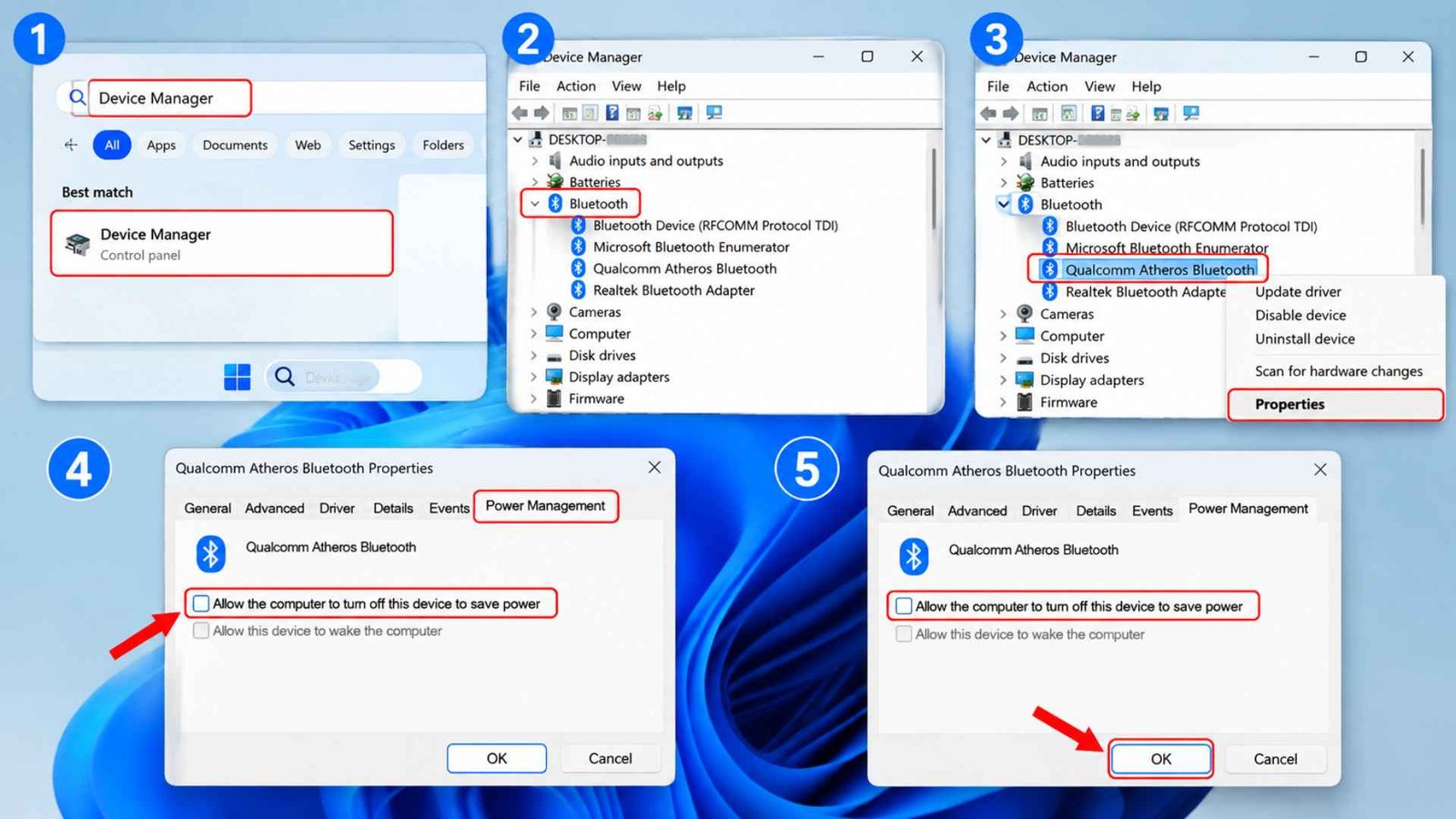
Windows can be a little too aggressive with power saving, and Bluetooth adapters sometimes get caught in the middle. After sleep, the system may fail to bring the radio back properly, which is why this setting is worth checking first.
- Open Device Manager
- Expand Bluetooth
- Find your Bluetooth adapter
- Right click it → Select Properties
- Go to the Power Management tab and clear Allow the computer to turn off this device to save power.
This simple change can fix Bluetooth missing after sleep on many laptops because it prevents Windows from cutting power to the adapter in the first place. If your Dell, Lenovo, HP, or another laptop uses a USB based Bluetooth module, check the USB Root Hub entries in Device Manager as well. Windows can apply separate power saving rules there.
2. Change Bluetooth Service Configuration to Automatic
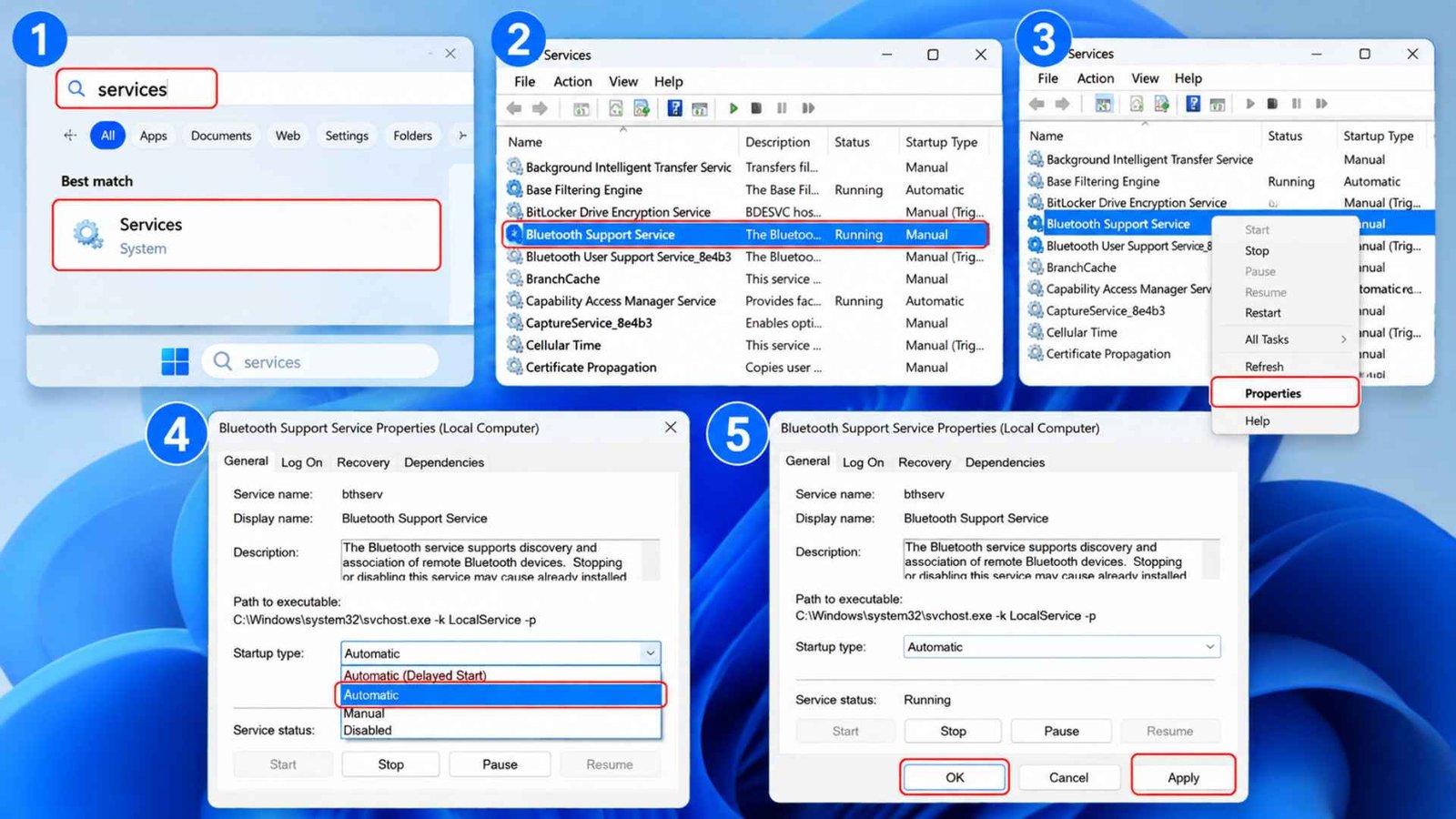
Behind the scenes, Windows runs a background process called the Bluetooth Support Service, listed as bthserv, that handles device discovery and pairing.
If this service fails to restart properly after sleep, Bluetooth can appear entirely missing even though the hardware itself is fine.
- Open the Services app
- Find Bluetooth Support Service
- Right-click it → Select Properties
- Set Startup type to Automatic → Click Apply → Click OK.
It would in turn address cases where Bluetooth stops working after sleep specifically because the service never relaunches on its own after the system wakes.
You can also stop and restart the service manually through this same window as a quick test, without a full reboot, to see whether that alone temporarily restores functionality. It is indeed a useful diagnostic step even if it’s not a permanent fix on its own.
Another Good Read: How to Check Laptop Battery Health on Windows 10, 11 and macOS
3. Update or Roll Back Wireless Hardware Drivers
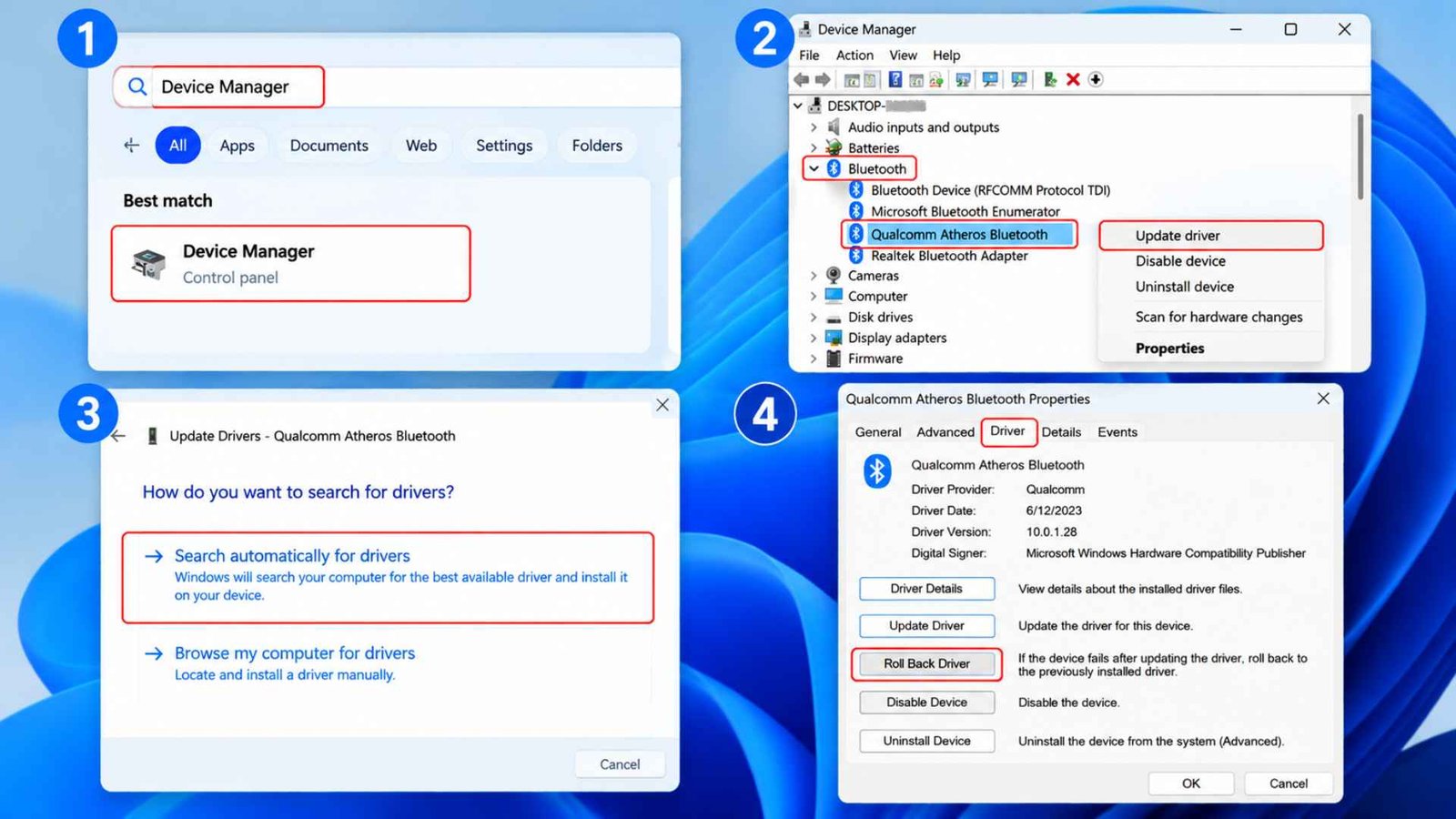
A bad or mismatched driver can easily cause this kind of Bluetooth problem, and the fix can go in either direction. If the issue started after a recent driver update, rolling back to the previous version through Device Manager may restore normal behavior. If the driver is old, updating it may be enough to fix the wake issue.
Some Bluetooth driver problem cases happen because Windows installs a generic driver that does not work as well as the one supplied by the laptop manufacturer. If Device Manager does not find anything useful, check the support page for your Dell, Lenovo, HP, or other laptop model directly.
When Bluetooth stops working after sleep, getting the correct driver installed is often one of the more lasting fixes because it restores proper communication during the sleep and wake cycle.
4. Reinstall the Network Adapter in Device Manager
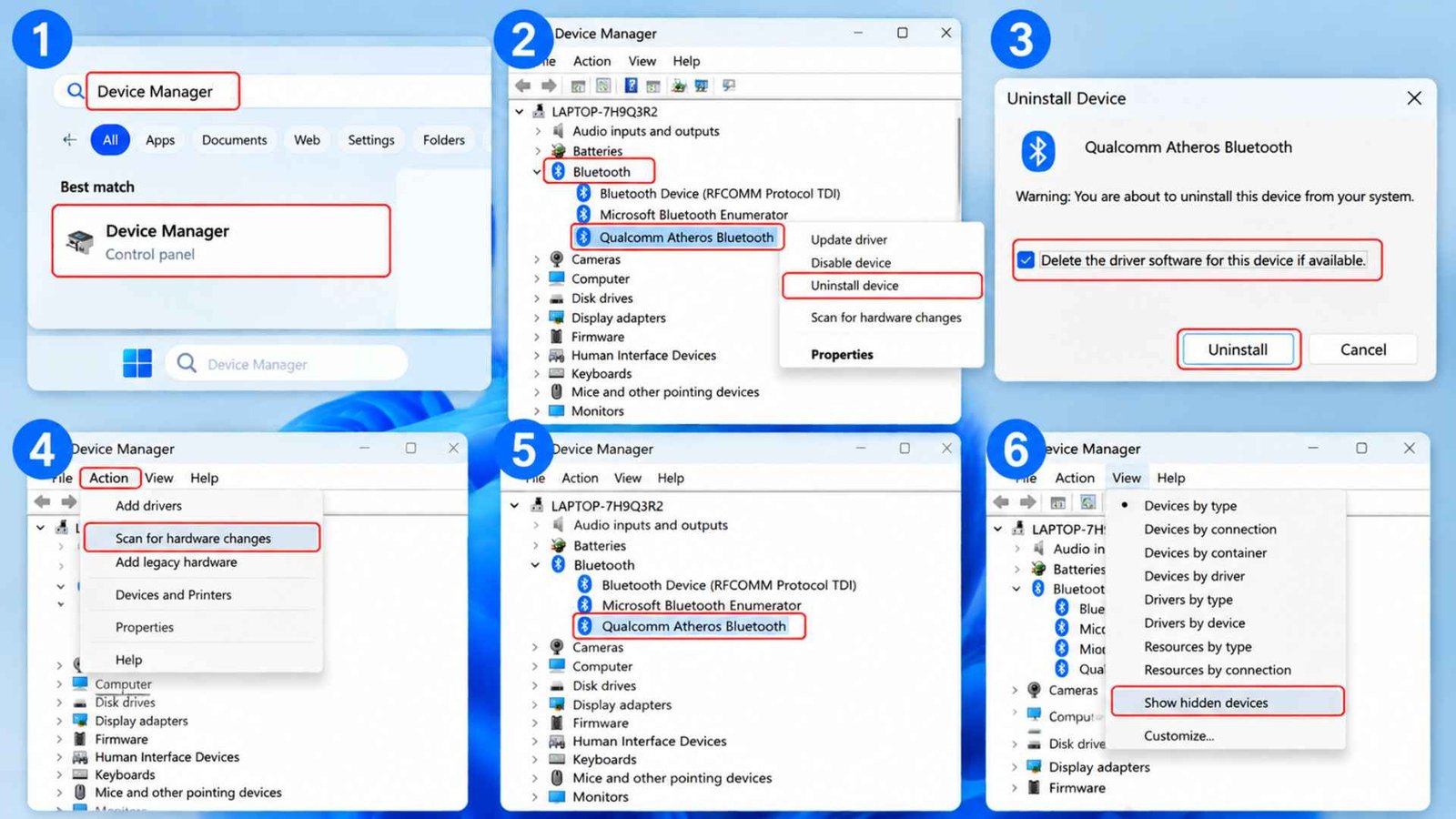
When the adapter entry itself goes missing rather than just malfunctioning, a clean reinstall often brings it back faster than chasing driver versions individually.
- Open Device Manager
- Find the Bluetooth adapter
- Right-click it → Select Uninstall device
- Check Delete the driver software for this device if available
- Click Uninstall → Click Action → Select Scan for hardware changes
- Windows performs a fresh hardware scan and redirects the Bluetooth adapter
It works best if the Bluetooth adapter was completely erased from the system so that its entry disappeared not only from the list but also from the list of devices not connected to any power source. If nothing shows up after scanning, check View, Show hidden devices, since Windows sometimes leaves a ghosted entry behind that the standard scan won’t touch.
5. Execute a Hard Reset to Drain Residual Power
Modern laptops hold a small charge in internal components even after shutting down, and that residual power can sometimes keep a Bluetooth module stuck in a bad state across a normal restart.
Shut the laptop down completely, disconnect the charger, and hold the power button for about 15 to 20 seconds. It’ll force a full drain and it’s a genuinely useful step when other fixes haven’t stuck.
You can also check the advanced power plan settings for PCI Express and Link State Power Management. Turning that option off may help on some systems where aggressive power saving interferes with how wireless hardware wakes from sleep.
6. Launch the Native Windows Troubleshooter
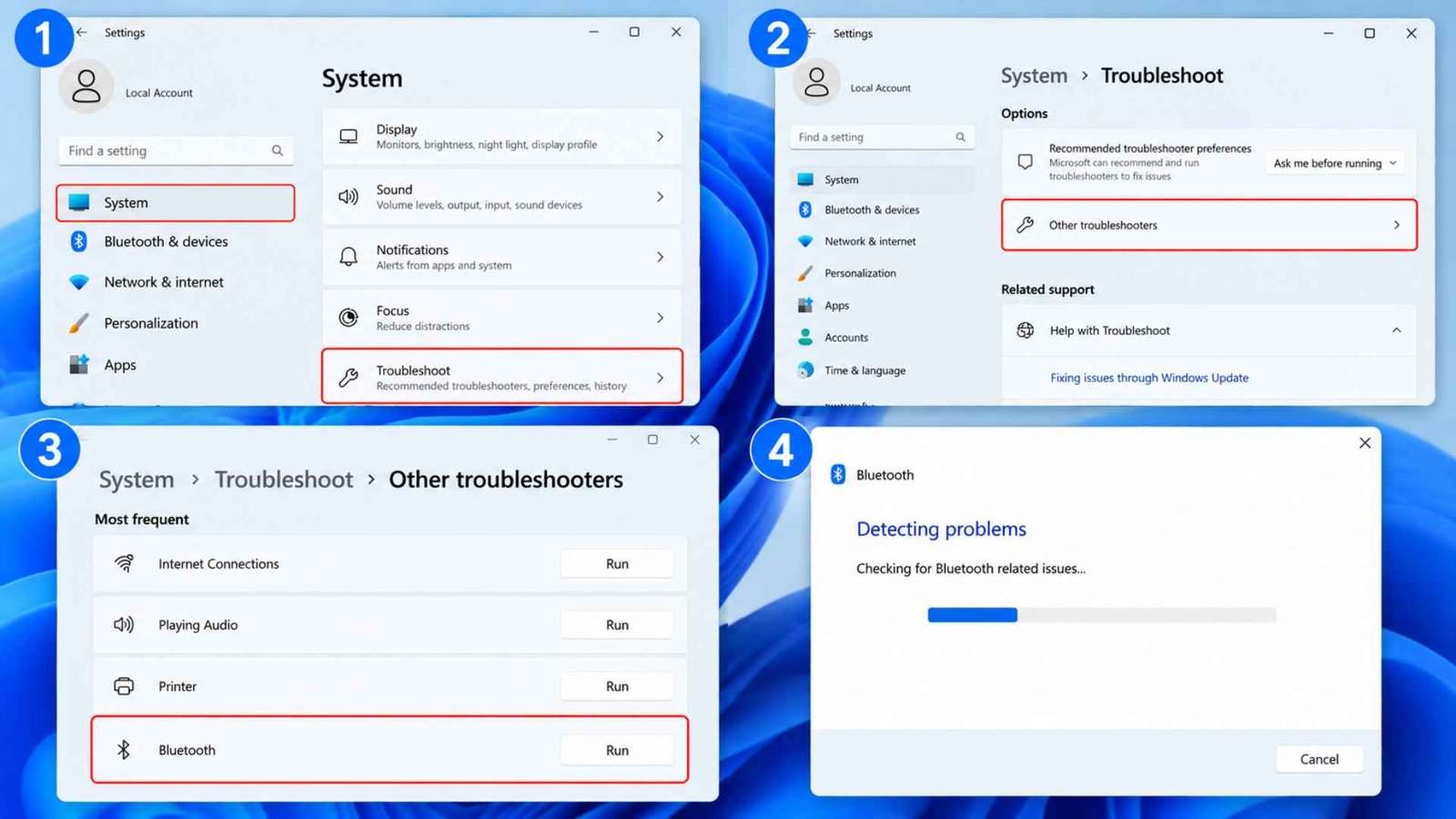
Before diving deeper into manual fixes, running the built in Bluetooth Troubleshooter is worth doing early. It’s non destructive and catches a handful of common misconfigurations automatically.
- Go to Settings → System → Troubleshoot
- Other troubleshooters and run the Bluetooth entry
It checks for things like Airplane Mode being accidentally enabled, missing driver components, and a few service level issues without requiring you to dig through Device Manager manually.
This quick fix won’t reliably fix Bluetooth disappearing after sleep for every case, especially the more stubborn ones tied to firmware or chipset level issues, but it’s a fast, safe first pass worth running before or alongside the other methods here.
What If Bluetooth Is Present but Devices Will Not Reconnect?
Sometimes Bluetooth itself comes back after sleep, but your mouse, headphones, or other paired devices refuse to reconnect automatically. That is a different problem from the adapter disappearing completely, and it usually points more toward a driver, firmware, or connection issue.
If Bluetooth keeps disconnecting, check Windows Update history for any recent wireless, Bluetooth, chipset, or Thunderbolt related updates. A driver or firmware update that did not install cleanly can leave paired devices behaving strangely after sleep. In that case, reinstalling the correct version from your laptop manufacturer’s support page may help.
You can also switch Bluetooth off in Settings, wait a few seconds, and turn it back on. That forces Windows to start a fresh connection attempt and can sometimes restore devices that failed to reconnect after waking.
Frequently Asked Questions (FAQs)
Why has my Bluetooth toggle disappeared from my Laptop?
If the Bluetooth toggle is completely gone, Windows may no longer be detecting the adapter. A driver that failed to reload after sleep or a problem introduced by Windows Update can cause the hardware to temporarily disappear from the system.
Why did my Bluetooth all of a sudden stop working?
A recent driver update, a Windows Update that changed power management defaults, or a stalled Bluetooth Support Service are the most common sudden causes, especially if nothing else about your setup changed.
How do I reinstall the Bluetooth driver in Windows 11?
Open Device Manager, right click your Bluetooth adapter, and choose Uninstall device. Remove the driver too if Windows gives you that option. Then restart the laptop or use Action > Scan for hardware changes to let Windows detect the adapter and reinstall the driver.
Wrapping Up…
Most cases of Bluetooth missing after sleep Windows 11 trace back to power management settings that are too aggressive for the hardware to recover from cleanly, and disabling that setting on the adapter solves it more often than any other single fix. Work through the service, driver, and reinstall steps in order if the first fix doesn’t hold, and don’t skip the built in troubleshooter, since it catches a few common causes automatically. For most laptops, fix Bluetooth disappearing after sleep issues resolve with the power management and service changes alone, without needing a full driver reinstall or a hardware level workaround.