

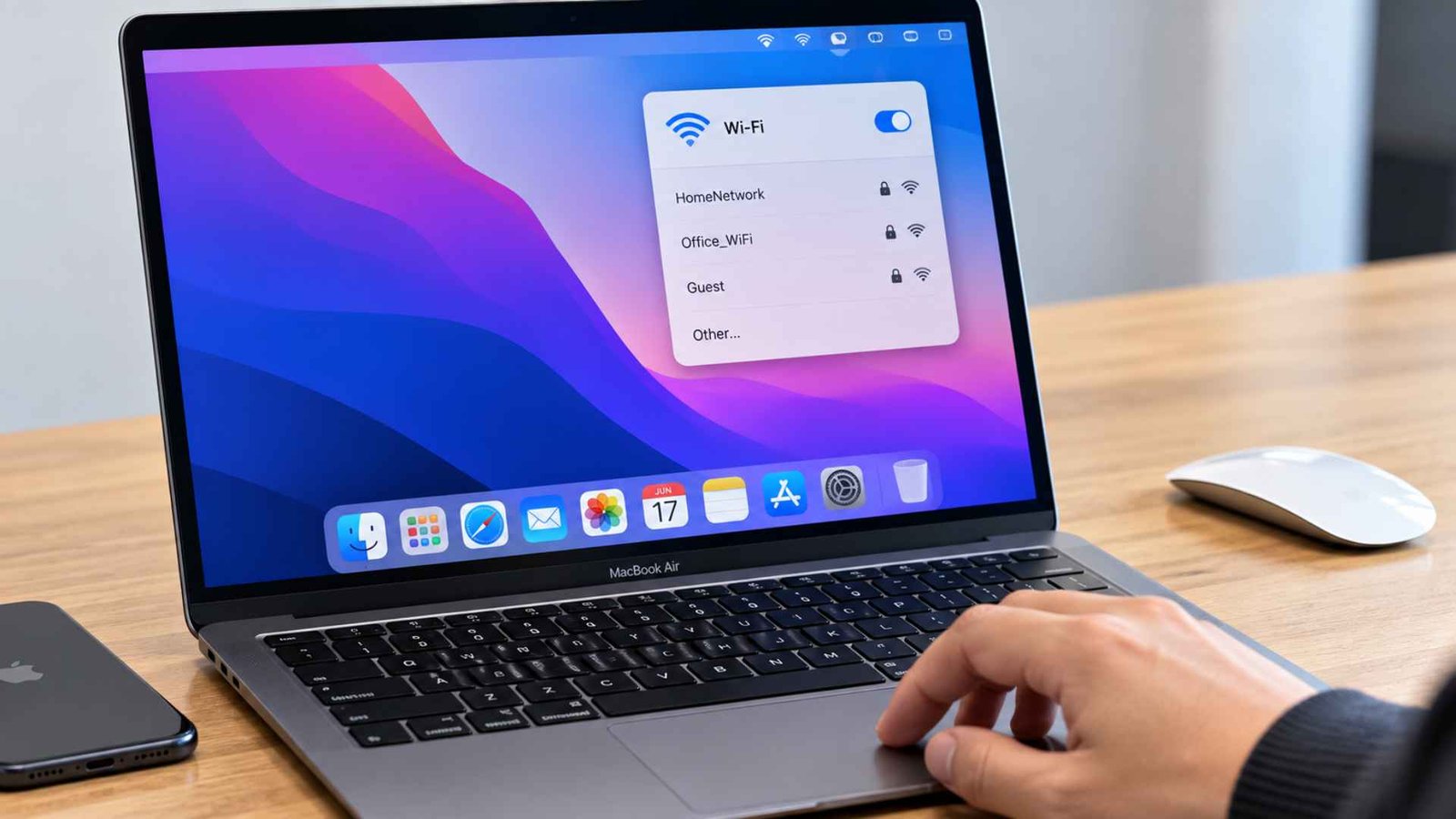
I have a MacBook Pro M4, and my brother has a MacBook Pro 2015. We both have faced issues with WiFi reconnecting, even though there’s a huge gap between the two models. We know how frustrating and stressful it can be when you turn your Mac back on from sleep and find out that the WiFi isn’t connecting. Even worse, you know your WiFi is working perfectly fine on your iPhone, but it still won’t work on your Mac.
There are a few things you can try to get yourself out of that situation, and some of them may work only sometimes on certain MacBook versions. So, you should give all 8 fixes I have shared below a try if your MacBook WiFi is not reconnecting after sleep. One of them might be all you need to get your connection back.
8 Ways to Fix MacBook WiFi Not Reconnecting After Sleep
Fix 1: Turn WiFi Off and Back On
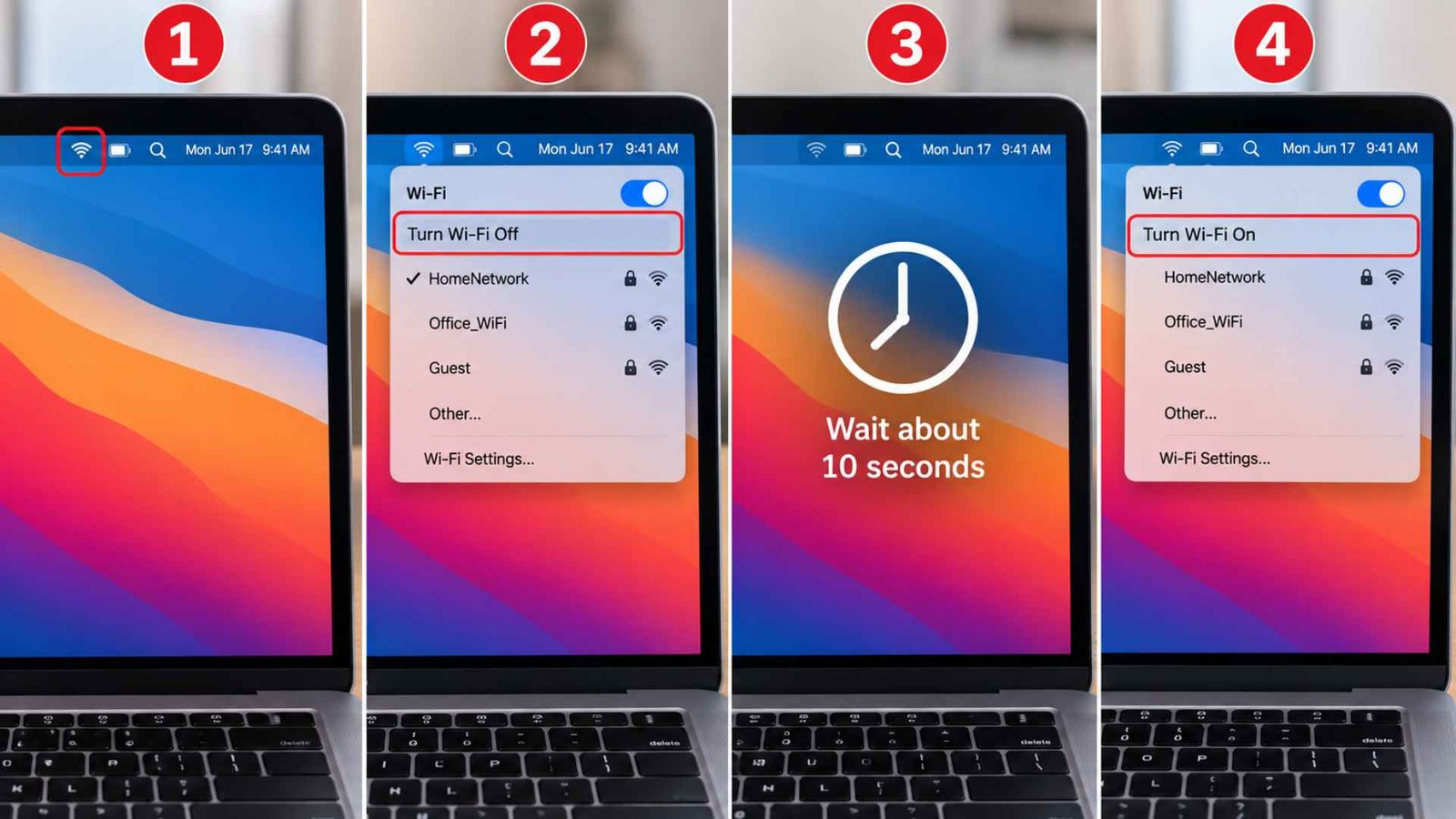
To be honest it barely fixes wifi reconnecting issues after sleep, but it’s worth giving it a shot.
Click the WiFi icon in the menu bar → Turn WiFi off → Wait about 10 seconds → Turn it back on
Give the Mac a moment to rejoin the network automatically. If this works, congratulations, though it’s worth noting that a fix this basic rarely holds for long if the underlying problem keeps happening after every sleep cycle.
Fix 2: Restart the MacBook and WiFi Router
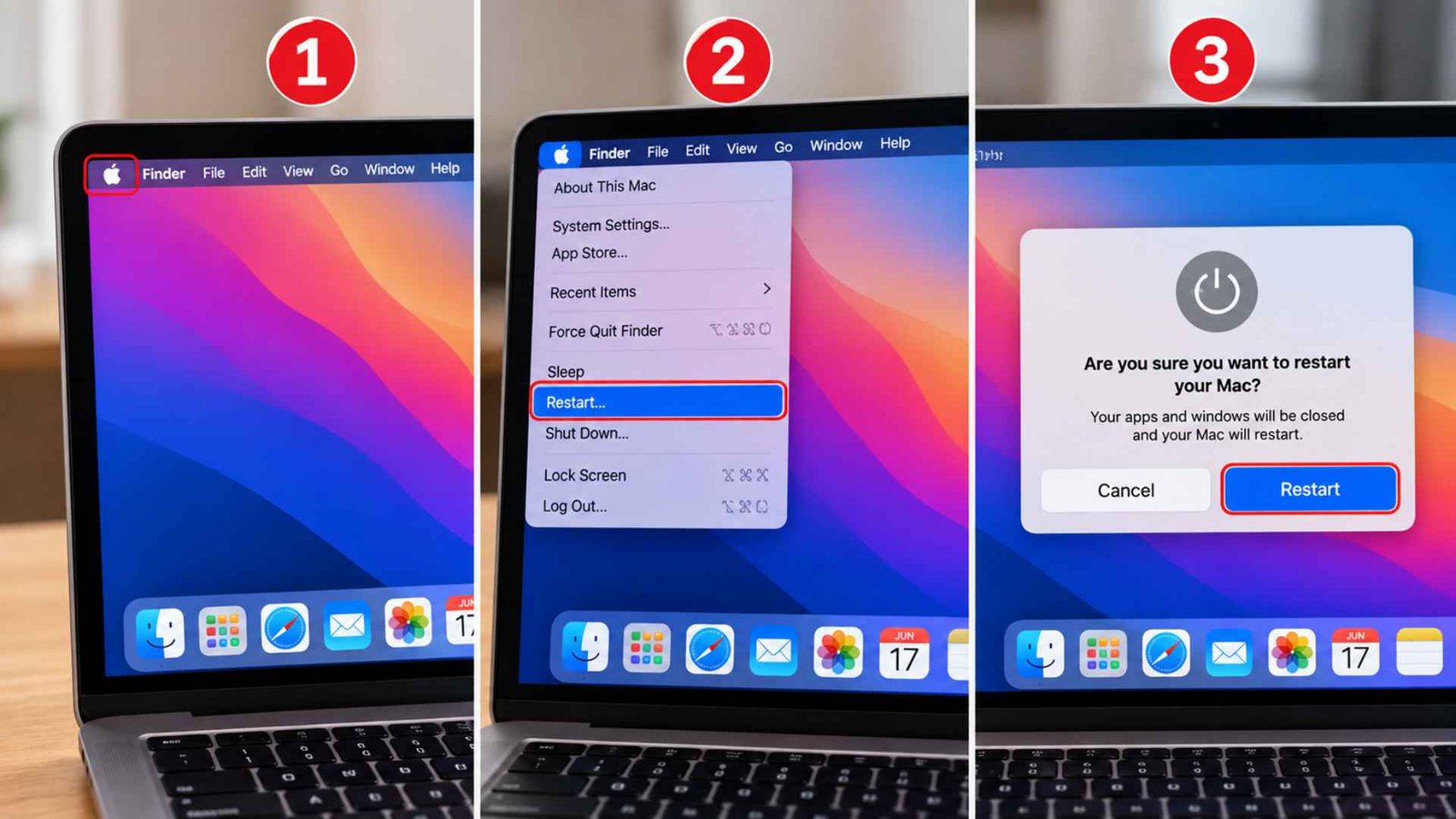
Although reboot helps fix a lot of networking issues, it essentially just clears whatever temporary state got stuck, it doesn’t address why the state got stuck in the first place. Restart the Mac fully, and separately, unplug the router for about thirty seconds before plugging it back in.
On your MacBook: Click the Apple menu → Restart → Click Restart.
On your router: Unplug the router from the power outlet → Wait about 30 seconds → Plug it back in → Wait a few minutes for the WiFi to come back → Connect your MacBook to WiFi.
Fix 3: Forget and Rejoin Your WiFi Network
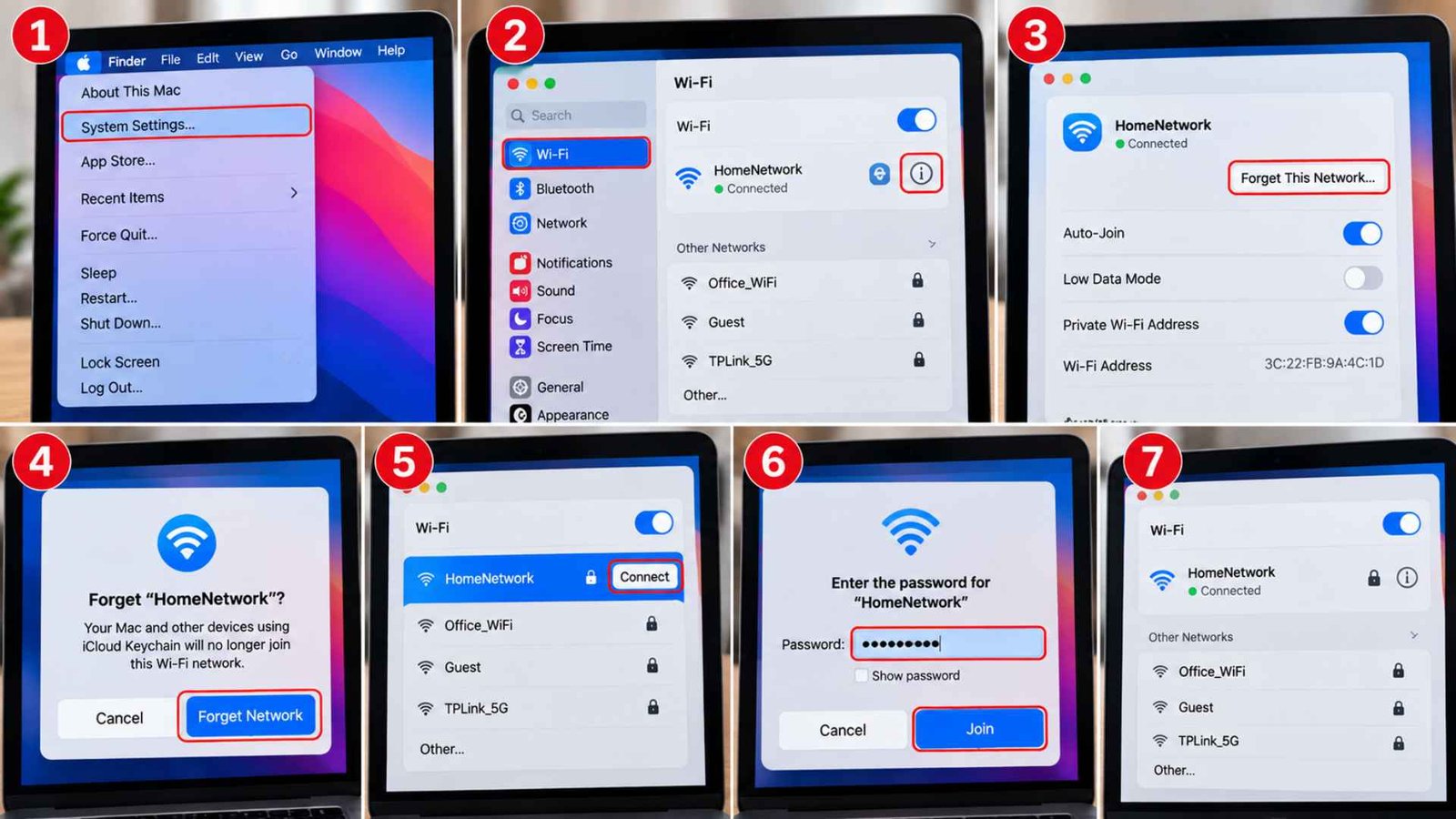
Sometimes the saved network profile on your Mac gets corrupted in a way that only shows up after sleep specifically.
Open System Settings → Click WiFi → Click the info icon next to your network name → Choose Forget This Network → Click Forget Network to confirm → Reconnect to the WiFi → Enter your WiFi password.
This forces macOS to rebuild the connection profile from scratch instead of reusing whatever broken configuration was causing MacBook WiFi to drop after sleep in the first place.
Fix 4: Renew the DHCP Lease
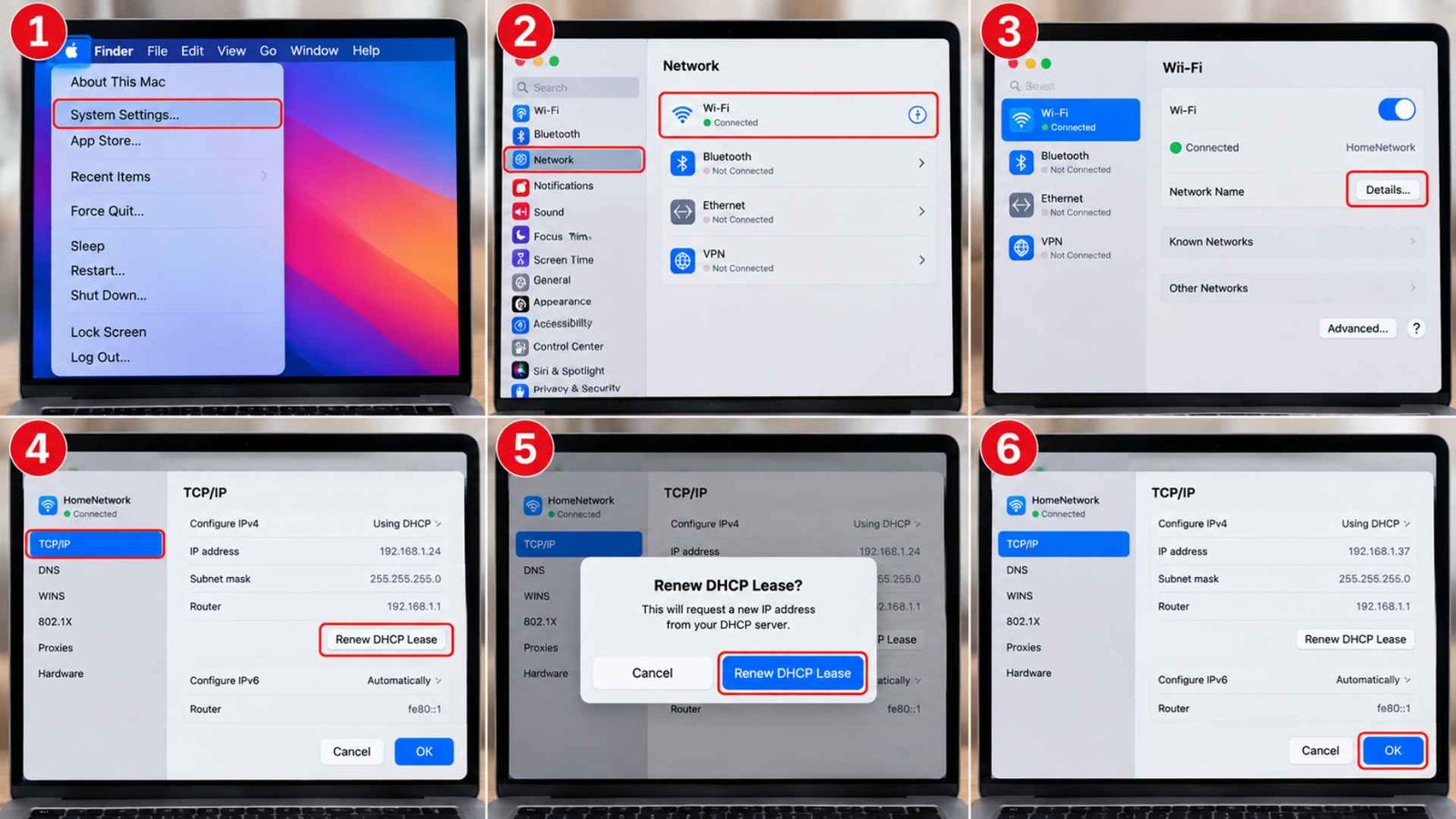
Your router assigns your Mac an IP address through DHCP, and that lease occasionally gets confused after waking from sleep, especially if another device grabbed the same address while your Mac was asleep.
Go to System Settings → Click Network → Select WiFi → Click Details → Open the TCP/IP tab → Click Renew DHCP Lease → Click OK.
This forces the router to hand out a fresh, unclaimed address, which resolves a meaningful share of cases where a Mac shows connected but can’t actually reach the internet.
Fix 5: Update macOS and Check Network Software
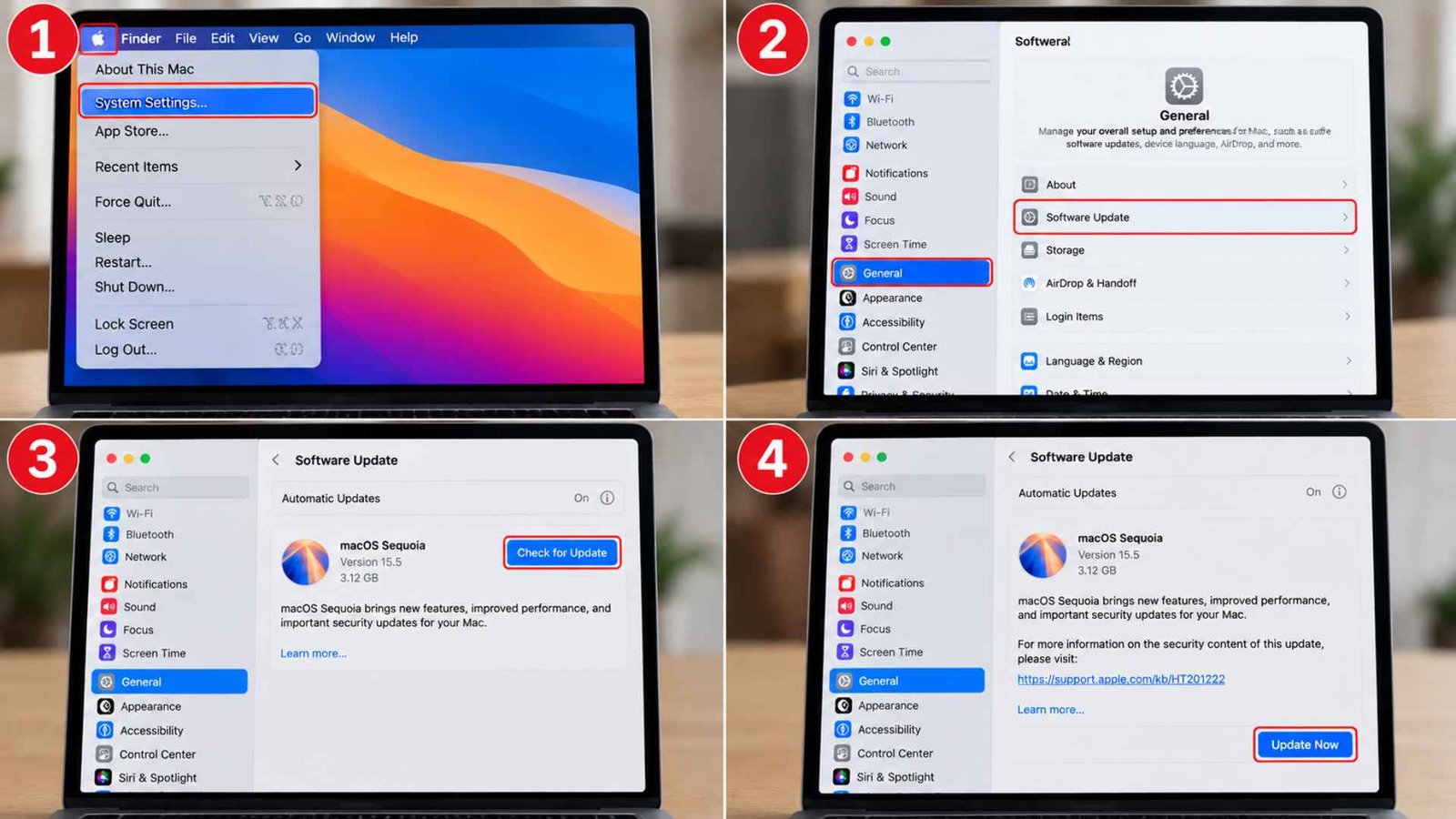
Apple regularly patches WiFi related bugs through macOS updates, and running an outdated version is a common, often overlooked cause of a MacBook wireless connection problem that only appears after sleep.
Open System Settings → Click General → Click Software Update → Check for available updates → Click Update Now or Upgrade Now if an update is available.
While you’re in there, it’s worth checking for any third party VPN or firewall software running in the background, since these can interfere with how WiFi reconnects after the Mac wakes up.
Fix 6: Run Wireless Diagnostics on Your MacBook
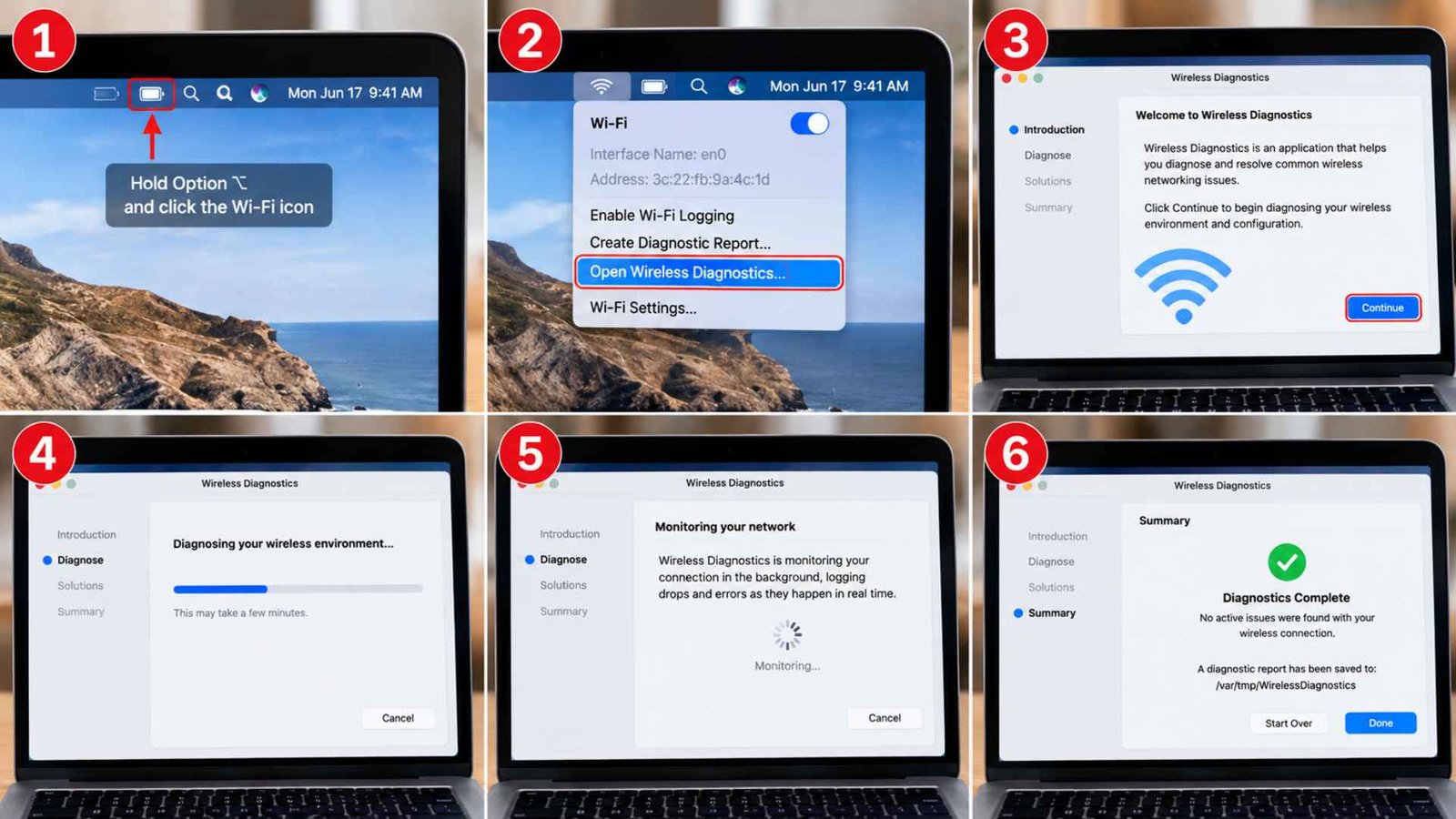
Apple built a diagnostic tool specifically for chasing down exactly this kind of intermittent problem.
Hold Option and click the WiFi icon in the menu bar, then choose Open Wireless Diagnostics. Follow the prompts, and the tool monitors your connection in the background, logging drops and errors as they happen in real time.
Running Wireless Diagnostics on Mac won’t fix anything by itself, but the report it generates often points directly at what’s actually failing, whether that’s the router, the network hardware, or a software conflict on the Mac itself.
Fix 7: Adjust Power Settings
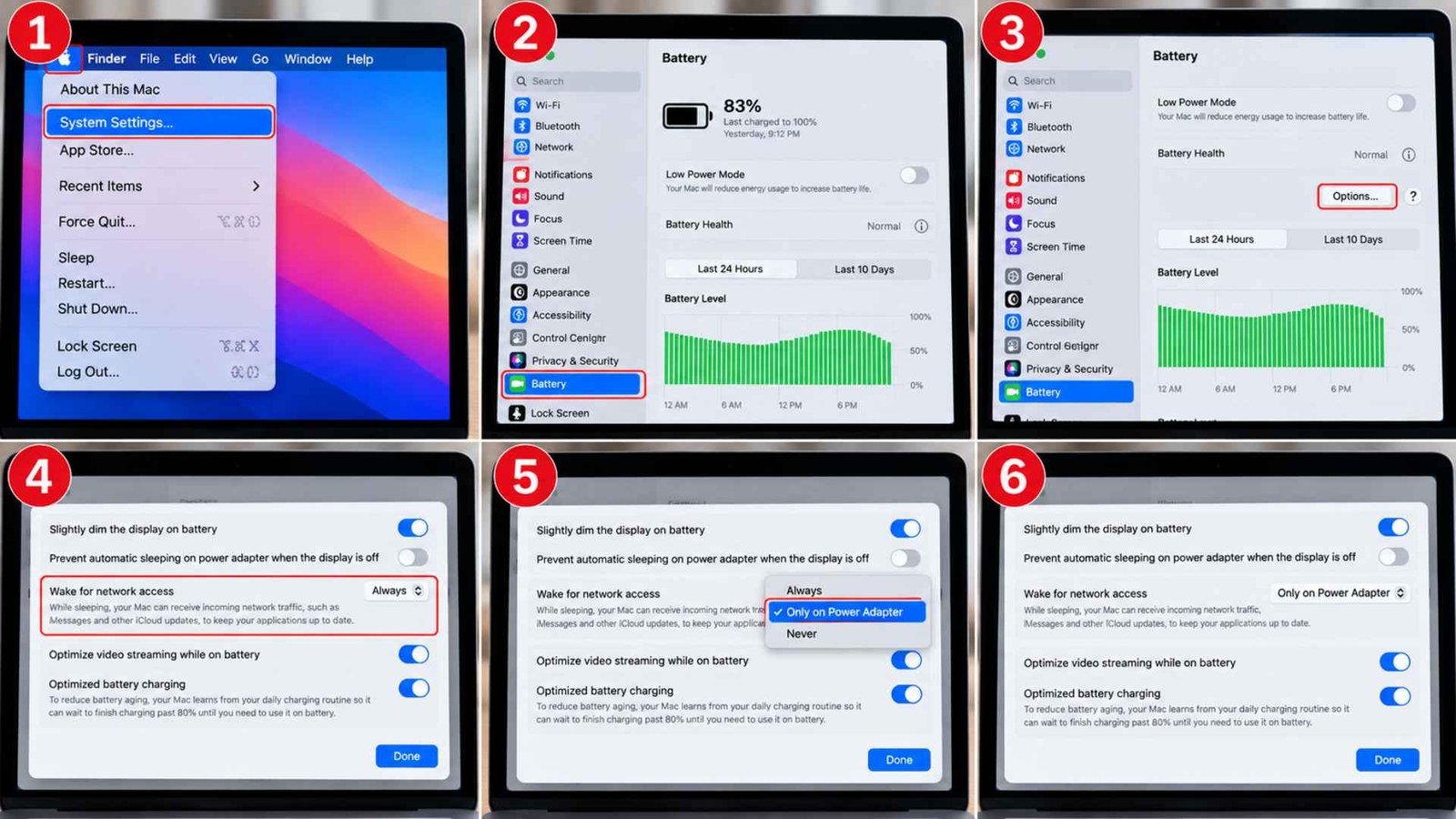
This is the fix that solved it for us, and it’s buried deep enough in System Settings that most people never stumble onto it.
Open System Settings → Click Battery → Click Options → Find “Wake for network access” → Set it to “Only on Power Adapter” or turn it off if you don’t need your Mac reachable while it’s asleep on battery.
This setting controls whether your Mac keeps its network hardware partially active during sleep, and on certain models that partial activity is exactly what causes WiFi to fail silently when the Mac fully wakes back up.
Fix 8: Delete the Network Preference Files
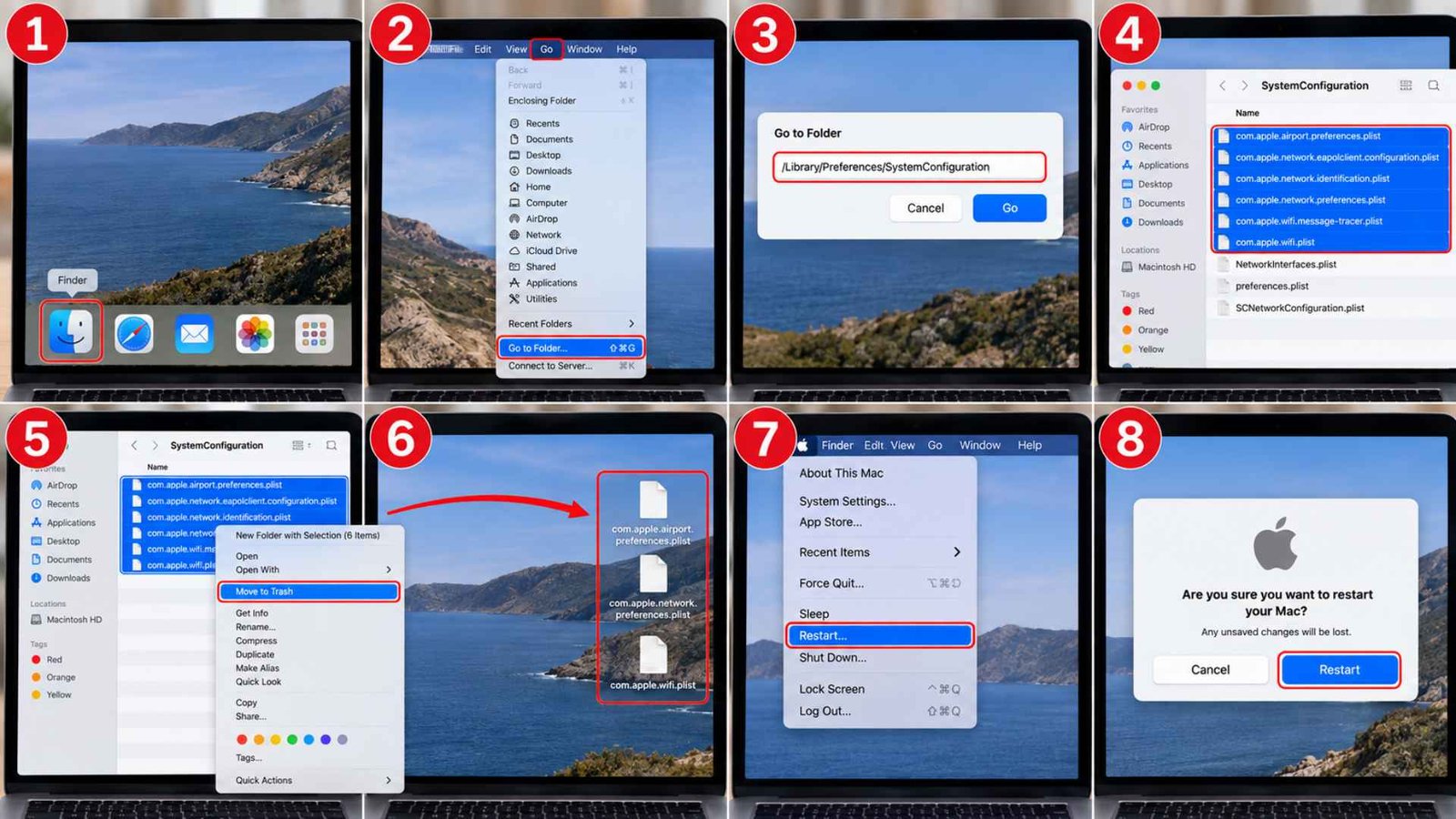
If nothing above has worked, the problem may be a corrupted preference file left over from an old network configuration.
macOS stores WiFi settings in a handful of system files, and one of these occasionally gets damaged in a way that only manifests after sleep.
Open Finder → Press Command + Shift + G → Enter /Library/Preferences/SystemConfiguration → Press Enter → Find files starting with com.apple.airport, com.apple.network, and com.apple.wifi → Move them to the desktop as a backup → Restart your Mac.
It’ll rebuild these files fresh, and if a corrupted file was the actual cause, this fix usually resolves it permanently rather than temporarily.
If you’ve worked through every fix here and MacBook WiFi after sleep is still unreliable, the issue might be a hardware problem with the wireless card itself, and at that point it’s worth taking it in to have it looked at by someone with actual diagnostic equipment.
What If Your MacBook Says It Is Connected but Has No Internet?
- Check the Router: Confirm other devices on the same network can actually load pages. If they can’t either, the problem sits with your router or your internet provider.
- Check the IP Address. Go to Network Settings and look at your assigned IP. An address starting with 169.254 means your Mac failed to get a real address from the router at all.
- Renew DHCP: Follow the same steps from Fix 4 above. This alone resolves a large share of connected but no internet situations.
- Check VPN: A VPN that reconnects incorrectly after sleep can report a working connection while actually blocking traffic. Disconnect it fully and test again without it running.
- Try Another Network: Connect to a phone hotspot briefly. If that works fine, the problem is specific to your home network rather than your Mac.
One older setting worth knowing about, particularly on Macs still configured for a PPPoE or dial up style connection, lives under Network settings.
For consistency with your other steps, I’d write it like this:
Click the Apple menu → Open System Preferences → Click Network → Select your modem port or PPPoE configuration from the list on the left → Click Advanced → Click PPP.
Make sure “Prompt every certain number of minutes to maintain connection” isn’t checked, or if it is, increase the idle time allowed before it disconnects automatically.
This setting usually doesn’t apply to a standard WiFi setup, but it’s worth ruling out if your connection keeps dropping after sitting idle for a few moments, not just after sleep specifically.
Frequently Asked Questions (FAQs)
Why is my MacBook suddenly not connecting to Wi-Fi?
This headache usually comes down to a few basic issues, specifically a glitched network profile, an outdated macOS version, or a home router that needs a quick reboot. The good news is that you do not need to call in the experts just yet. If you simply run through a quick DHCP renewal and tell your laptop to forget the network, you will usually kick the bug right out and fix the problem without any extra drama.
Why does my MacBook keep getting disconnected from Wi-Fi?
Repeated disconnects, especially right after sleep, often point to the Wake for network access setting under Battery options, or occasionally to interference from a VPN or firewall app running quietly in the background.
How to run Wi-Fi diagnostics on Mac?
Hold the Option key > click the WiFi icon in your menu bar > select Open Wireless Diagnostics. The built in tool monitors your connection and generates a report showing where the actual failure is occurring.
Wrapping Up…
A MacBook that loses WiFi after waking is frustrating precisely because it looks fine right up until you try to actually use it. Working through these fixes in order, starting simple and moving toward the deeper settings, resolves the overwhelming majority of cases without requiring a trip to an Apple Store. If you’ve tried everything here and the problem persists, that’s a reasonable signal the wireless hardware itself needs a closer look.