

A laptop touchpad that stops responding after sleep usually points to a driver, power management, or hardware initialization problem. Windows may wake up normally while the touchpad fails to reconnect, and this would leave you with a working keyboard but no way to move the cursor.
If your laptop touchpad freezes after sleep, you do not need to restart your computer every time. A touchpad shortcut, a driver reinstall, or a firmware update may solve the problem, depending on its cause.
We walk you through 7 fixes that work when a touchpad stops working after you wake your laptop up from sleep. You can start at the very top and work your way down.
Key Takeaways
- Check the touchpad shortcut and Windows settings first.
- Update or reinstall the touchpad and I2C HID drivers if the problem persists.
- Check optional driver updates through Windows Update.
- Use an EC reset or BIOS update only when appropriate for your laptop model.
- If the Laptop touchpad stop working after sleep issue keeps returning, look for a recurring driver or firmware problem.
Why Does a Laptop Touchpad Freeze After Sleep?
When a laptop enters Sleep Mode, Windows reduces power use and places certain hardware components into a low power state. Once the computer wakes up, those components must resume normal operation. Sometimes the touchpad driver or its hardware controller fails to reconnect properly.
In turn, your keyboard and screen may work normally the way they do, though your touchpad gets frozen. A damaged or outdated driver can cause the same symptom, as can a device initialization problem or a firmware bug. On Windows 11, this problem can occur after a driver update or a change to device settings.
How to Fix a Laptop Touchpad That Freezes After Sleep
1. Toggle the Hardware Switch or Touchpad Hotkey
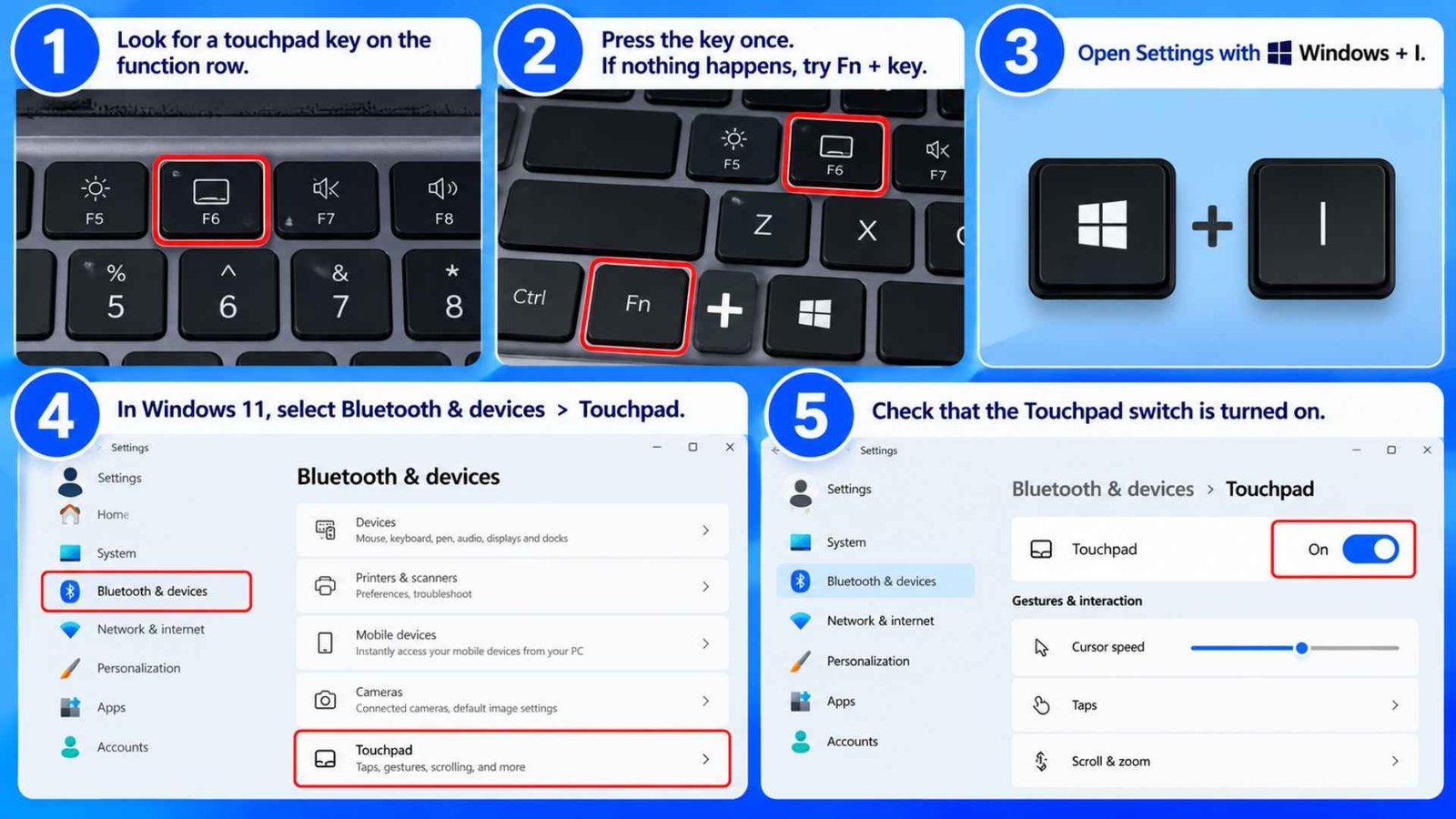
Kick off with the simplest possibility. Some laptops have a hotkey (typically among the function keys) that turns the touchpad off. You may have accidentally hit this key while using the function keys for other features like adjusting the display brightness or volume. Windows may continue to think the touchpad is disabled, even if it is not.
Another place to check is the touchpad settings in Windows. The keys you are looking for will vary by manufacturer, but there should be a key that has a touchpad symbol on it. This may be among the function keys along the top row of your keyboard.
How to do it:
- Look along the function row for a touchpad icon.
- Press that key once. If nothing changes, try holding Fn while you press it.
- Open Settings with Windows + I.
- In Windows 11, select Bluetooth & devices > Touchpad.
- Check that the Touchpad switch is turned on.
These steps cover the basic enable touchpad settings check. If the setting is already enabled and the shortcut makes no difference, continue to the driver and power settings.
2. Adjust I2C HID Device Power Management Settings
If the physical switches do not yield results, the problem could lie within how your system manages its hardware power rails.
The main culprit behind a situation where a laptop touchpad freezes after sleep is an aggressive power-saving policy.
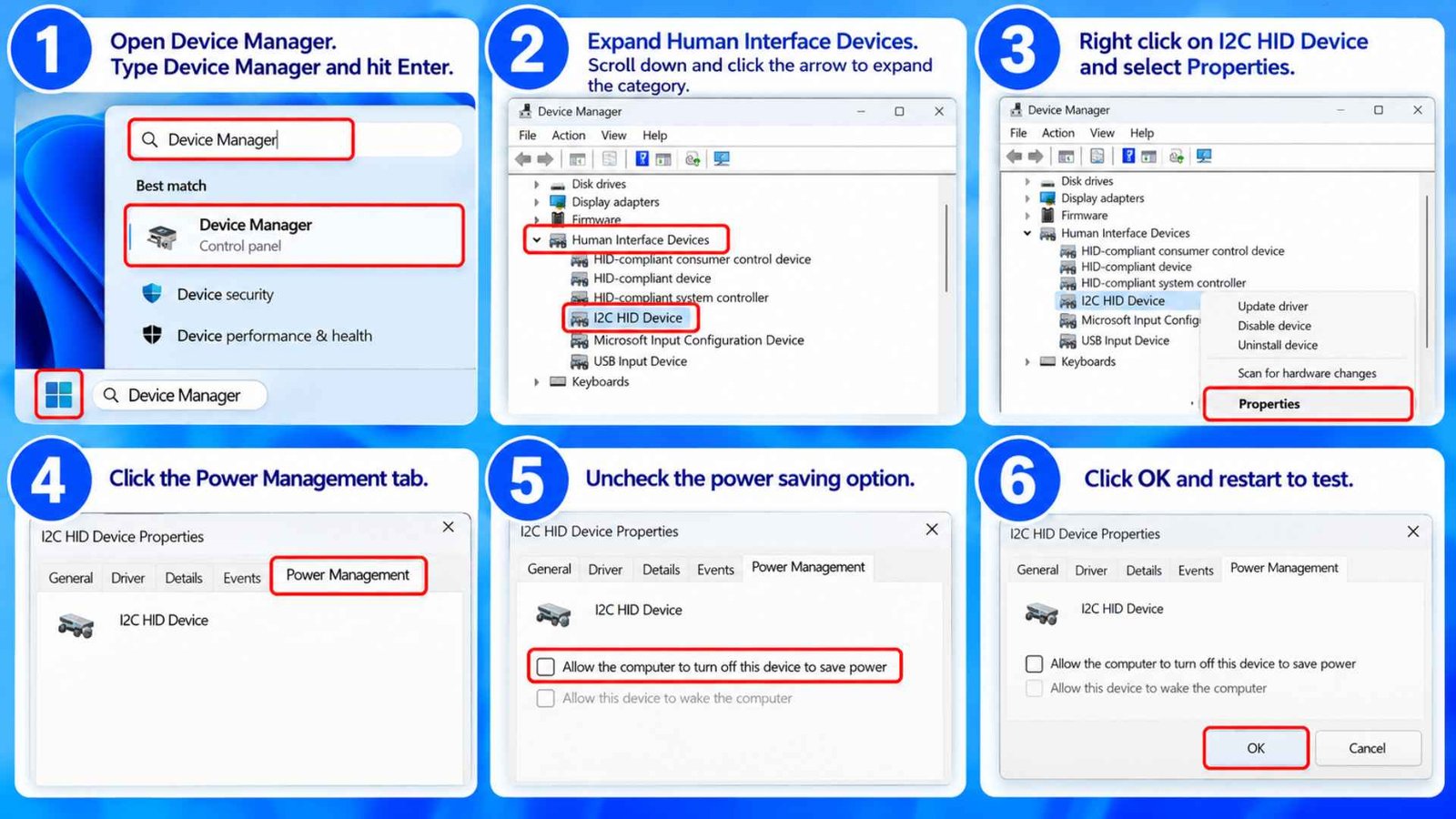
Windows regularly shuts off the tracking pipeline to keep your battery from draining when your laptop sits idle. If the wake command fails, the system could pretty much leave the pipeline dark. You must modify these properties inside the Device Manager to keep the pipeline open.
How to do it:
- Use an External Mouse or tap your Windows key, type the words Device Manager, and hit enter.
- Scroll down the alphabetical list and click the arrow next to Human Interface Devices to expand the category.
- Right click on the entry labeled I2C HID device error or standard I2C HID Device and select Properties.
- Click over to the touchpad power management tab located at the far right of the top menu bar.
- Uncheck the box that says Allow the computer to turn off this device to save power.
- Click OK to save your changes, shut the laptop lid for thirty seconds, and open it back up to test the tracking capability.
3. Turn Off Windows Fast Startup
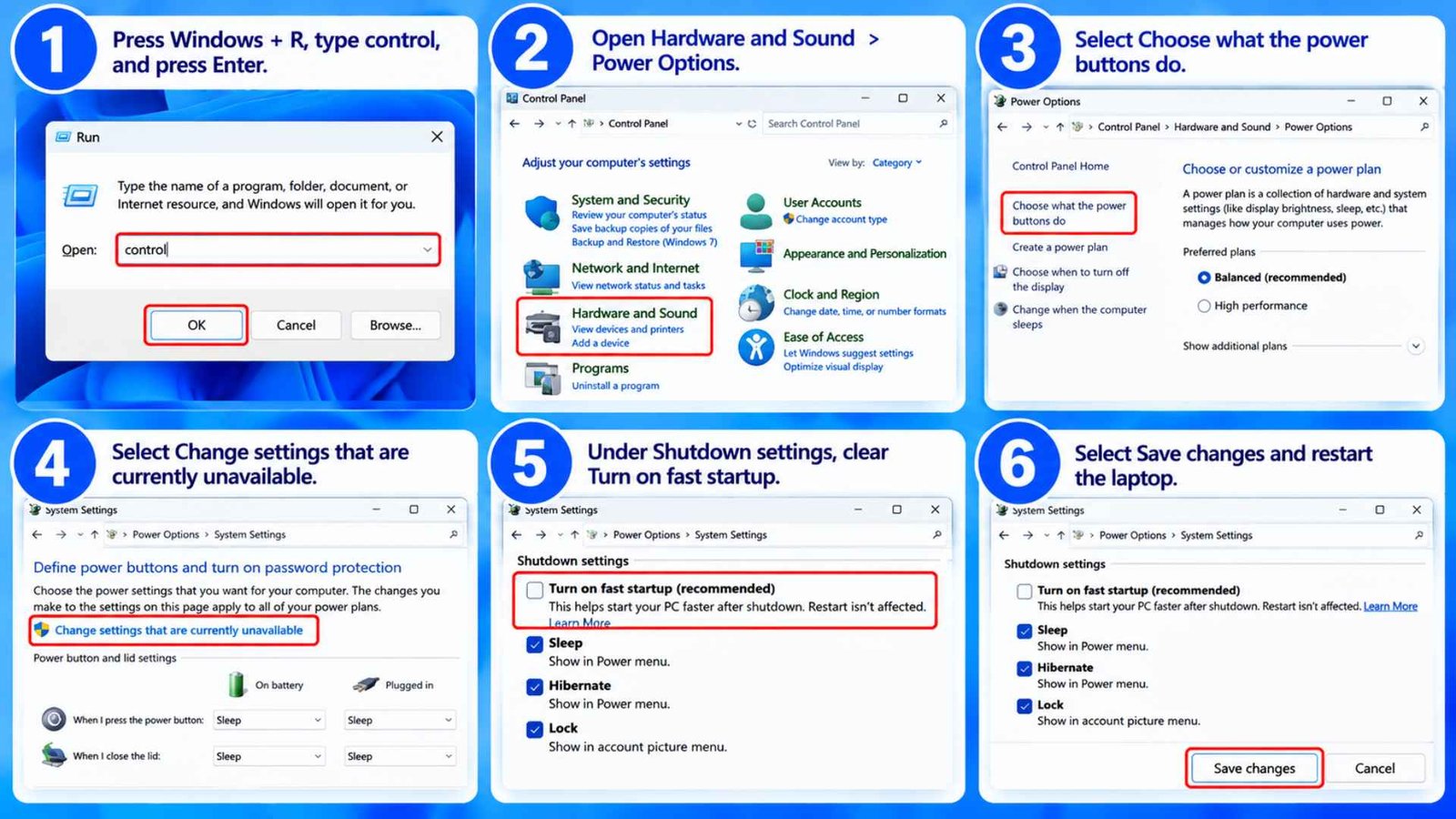
Fast Startup saves part of the Windows system state during shutdown so the next startup can happen more quickly. It is different from the normal Sleep function, so turning it off is not a guaranteed fix for a touchpad that fails only after sleep. However, it is worth testing if the problem also appears after shutdown or hibernation.
How to do it:
- Press Windows + R, type control, and press Enter.
- Open Hardware and Sound > Power Options.
- Select Choose what the power buttons do.
- Select Change settings that are currently unavailable.
- Under Shutdown settings, clear Turn on fast startup, if the option appears.
- Select Save changes and restart the laptop.
These are the classic Control Panel Power Settings. The option may be unavailable on some systems, and that is fine. Test the laptop after a full shutdown and after sleep to see whether the change makes any difference.
If the touchpad still freezes only after sleep, focus on the driver and firmware fixes below. Fast Startup primarily affects the startup process after shutdown, not the normal resume from Sleep.
Another Good Read: How to Fix the Black Screen on a Laptop
4. Reinstall the I2C HID and Touchpad Drivers
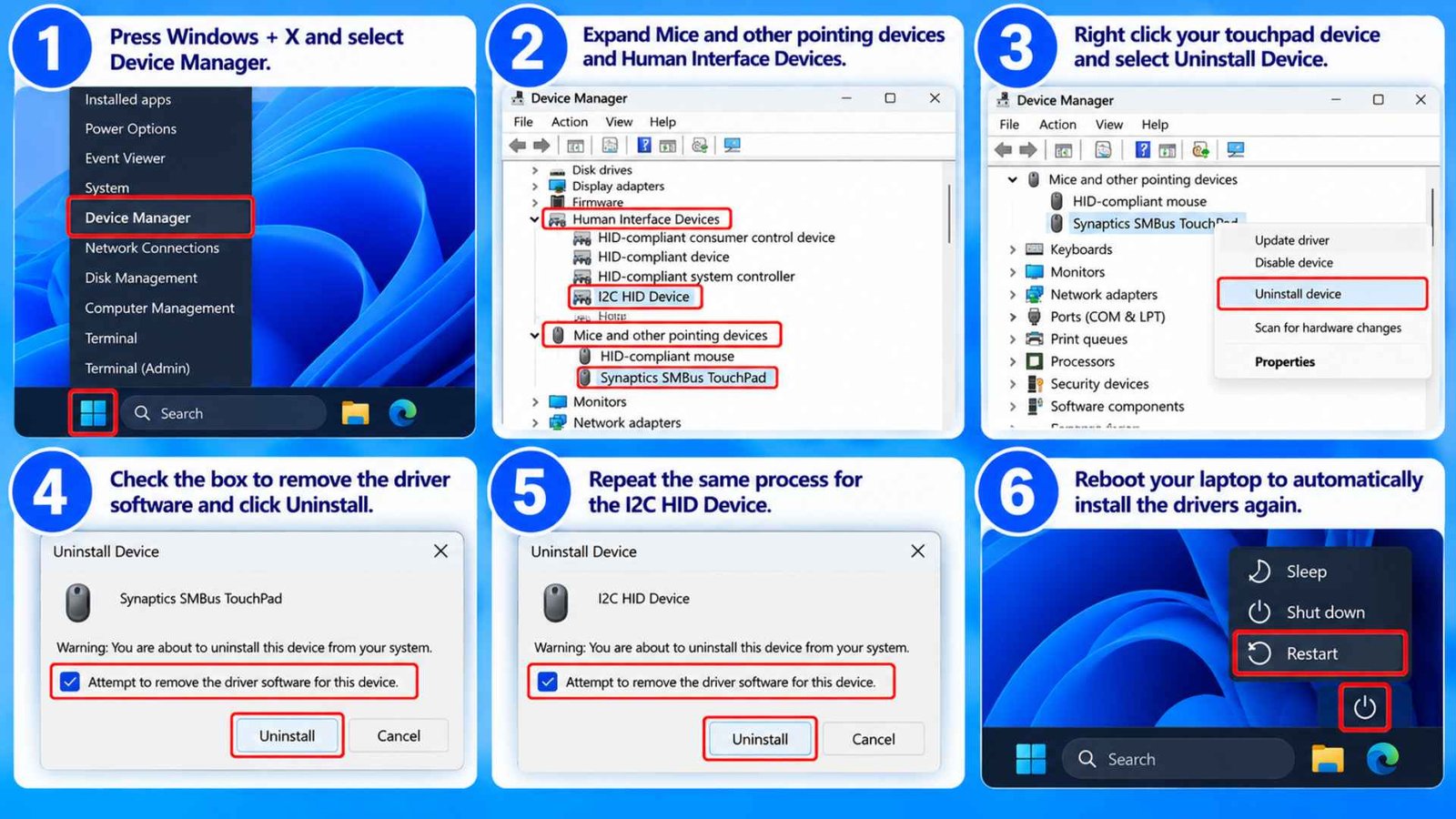
When a simple power adjustment fails, it usually points to a corrupted instruction set inside your primary Touchpad Driver. If the file architecture contains broken lines of code, the system cannot interpret the wake up commands correctly.
In these instances, your touchpad is non responsive, and you must force Windows to completely rebuild the input stack from scratch. You can accomplish this by purging the existing controller entries and letting the system source fresh files upon its next initialization.
How to do it:
- Open up your Device Manager touchpad settings by pressing the Windows Key + X and selecting the utility from the power user menu.
- Expand the Mice and other pointing devices section along with the Human Interface Devices section.
- Right click your primary pointing device, select the option to reinstall touchpad driver structures, or choose Uninstall Device.
- Check the box that asks if you want to completely remove the driver software for this device if the prompt appears, then click Uninstall.
- Repeat this identical uninstallation process for the primary I2C HID Device entry to clear out the communication bus.
- Reboot your laptop using your physical power button or keyboard shortcuts so Windows can automatically scan your hardware and install a clean factory driver stack.
5. Pull Vendor Drivers Through Windows Optional Updates
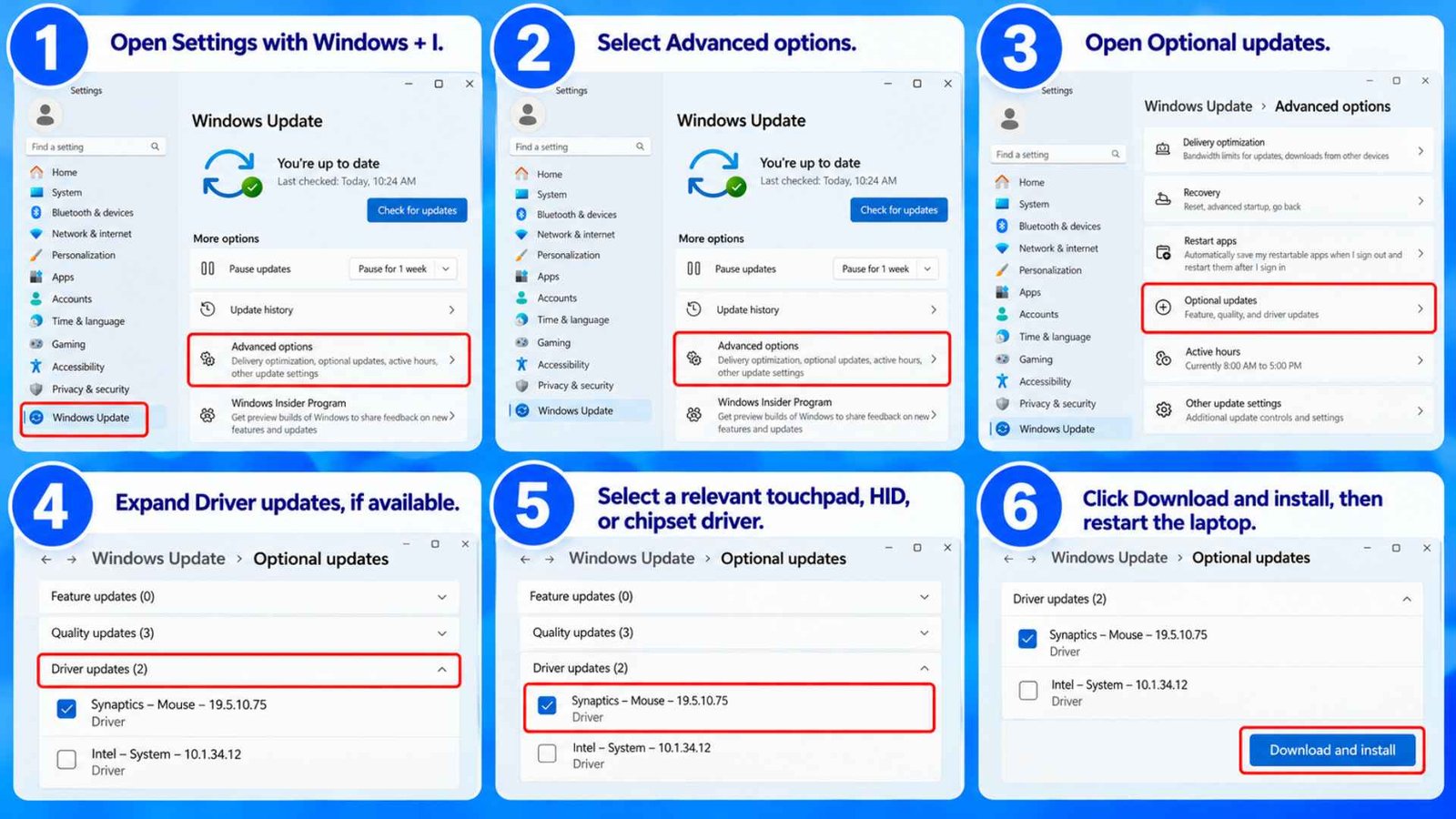
You might have updated drivers and reinstalled them when you faced this issue over and over again, but it didn’t work. You likely did that with a generic Windows driver. Windows can deliver recommended hardware drivers automatically, but some driver updates appear under Optional updates. These may include a driver that addresses compatibility problems after sleep. If you have not checked this area, it is worth doing before you attempt a firmware update.
How to do it:
- Open Settings with Windows + I.
- Select Windows Update.
- Select Advanced options.
- Under Additional options, open Optional updates.
- Expand Driver updates, if available.
- Select a relevant touchpad, HID, or chipset driver.
- Choose Download and install, then restart the laptop.
After the restart, test the touchpad through several sleep and wake cycles. If the problem started after a recent driver update, check the laptop manufacturer’s support page for a recommended version before installing unrelated drivers.
6. Perform an EC Reset or Hard Power Cycle
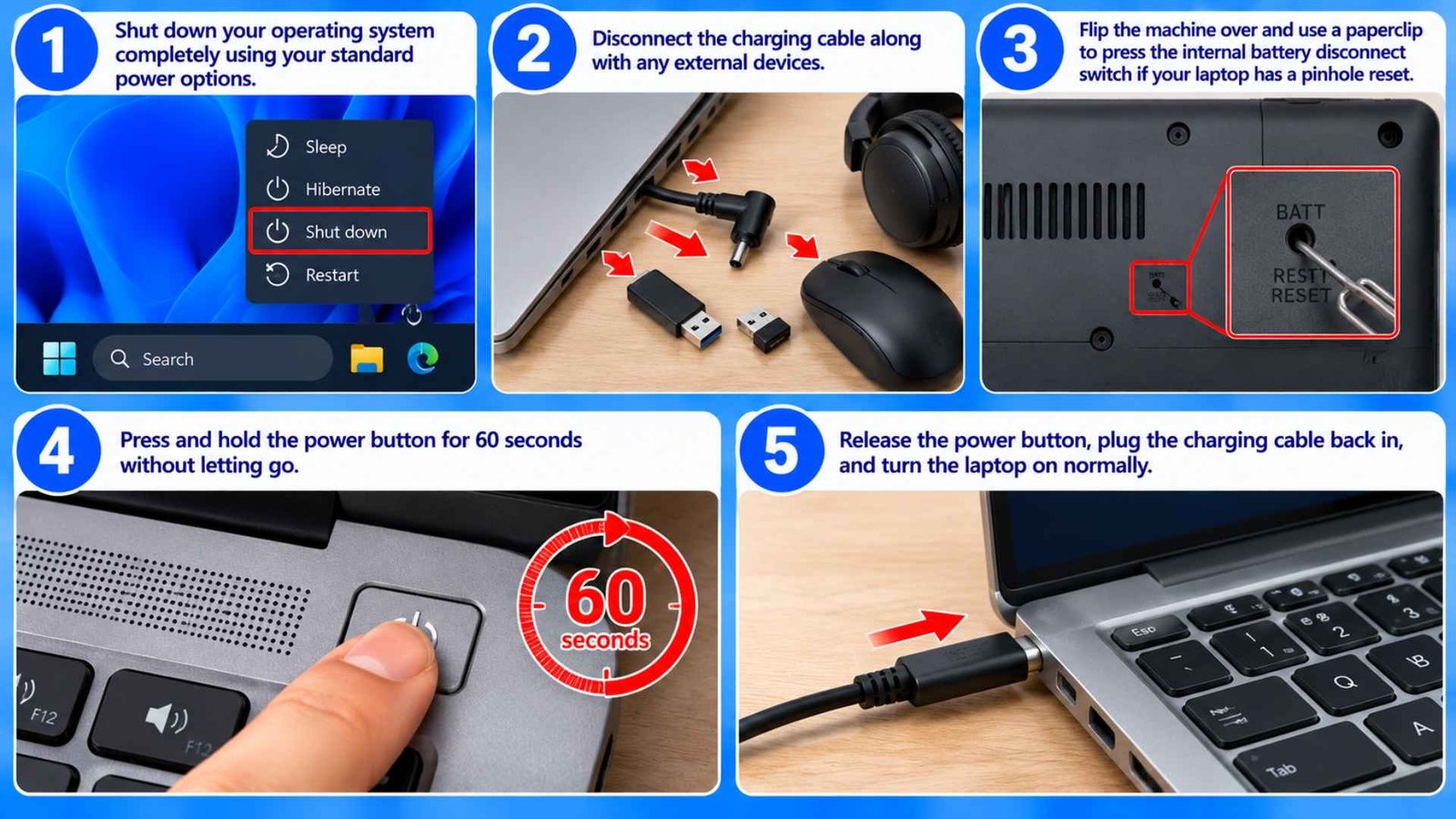
The embedded controller, often called the EC, helps manage hardware functions such as power, charging, and input devices. On some laptops, a controller state problem can affect the touchpad after the system wakes. An EC reset or hard power cycle could clear that state. The exact process depends pretty much on your laptop brand and the model.
How to do it:
- Shut down your operating system completely using your standard power options.
- Disconnect the charging cable along with any external storage drives, mouse dongles, or audio headsets.
- Flip the machine over and use a paperclip to press the internal battery disconnect switch if your modern machine features an external pinhole reset.
- Press down on the main chassis power button and hold it continuously for a full 60 seconds without letting go.
- Release the power button, plug your factory charging cable back into the wall outlet and the laptop, and turn the system back on normally.
Some ASUS models use a 20 or 40 second power button procedure, while certain Lenovo models support a power drain or an emergency reset hole. Those methods are model specific. Do not open the laptop or disconnect its internal battery unless the manufacturer explicitly instructs you to do so.
7. Apply a BIOS or System Firmware Update
If you tried every driver tweak and your system still acts up, you are likely dealing with a structural bug embedded within the motherboard code. When this happens, you can try a critical BIOS Update to fix how the motherboard handles sleeping instructions. Updating this foundational software ensures that your hardware paths line up perfectly with modern OS expectations.
How to do it:
- Type System Information into your start menu bar and check your current BIOS version and date against the official support site.
- Open your manufacturer utility app like Lenovo Vantage, MyASUS, or HP Support Assistant to check for automated firmware updates.
- Navigate directly to the official support page for your exact laptop model number if you prefer manual installations.
- Download the latest firmware executable file directly to your local storage drive.
- Connect your charging cable to ensure your machine does not lose power during the modification process.
- Run the downloaded utility file as an administrator, accept the terms, and allow the system to reboot into its firmware updating screen without touching any keys until the desktop reloads.
Honestly, a BIOS Update carries more risk than a normal driver update. Never install firmware intended for a different model, and keep your BitLocker recovery key available if device encryption is enabled. If there is no relevant update, do not flash the BIOS simply to try something else.
If the Touchpad Still Freezes After These Fixes
If the issue is still present, try to determine the pattern. Does the touchpad only malfunction after being asleep, or does it freeze after restart as well? Does the keyboard still work? Is there an error in the Device Manager, or does the Device Manager state that the touchpad is missing completely?
The issue may be driver-related if the touchpad starts working properly after being reinstalled. The problem may be firmware-related if the laptop manufacturer reports the same issue for your specific laptop model. The touchpad may have a hardware issue if none of the above steps worked and the touchpad is not working in any operating system or it is not detected at all by your PC.
If the touchpad is still dead, you should contact the manufacturer’s support team with your model number and any Device Manager error code.
Frequently Asked Questions (FAQs)
How do I unfreeze my laptop touchpad?
First, try using the touchpad shortcut key, and check the Settings > Bluetooth & devices > Touchpad. If these methods don’t resolve the issue, restart your Windows and update or reinstall your touchpad driver. If it still doesn’t work, try checking the I2C HID device, your laptop manufacturer’s drivers, and other options.
Why does my touchpad on my laptop keep freezing?
The driver may fail to resume properly after Sleep, or a related hardware controller may not reconnect. An outdated driver, firmware issue, or touchpad shortcut could be the culprit. If this becomes one of your regular problems, it’s worth checking Device Manager for an error and installing the correct driver for your model.
How do I fix my laptop’s frozen touchpad without a mouse?
Use the keyboard. Press Windows + I to open Settings, then use Tab, the arrow keys, and Enter to move through the options. If you need to restart, press Ctrl + Alt + Delete, use Tab to reach the power icon, press Enter, select Restart with the arrow keys, and press Enter.
Wrapping Up…
Dealing with a pointer that refuses to wake up after a long session can slow down your entire day, but it is rarely a reason to visit a repair shop. By targeting the power settings inside your operating system, you can easily fix laptop touchpad after sleep failures on your own. Most instances resolve completely once you take away the permission for Windows to shut down the input controller to save power. Keep your system firmware updated and make sure you pull authentic driver packages from your hardware vendor to maintain a stable laptop.