
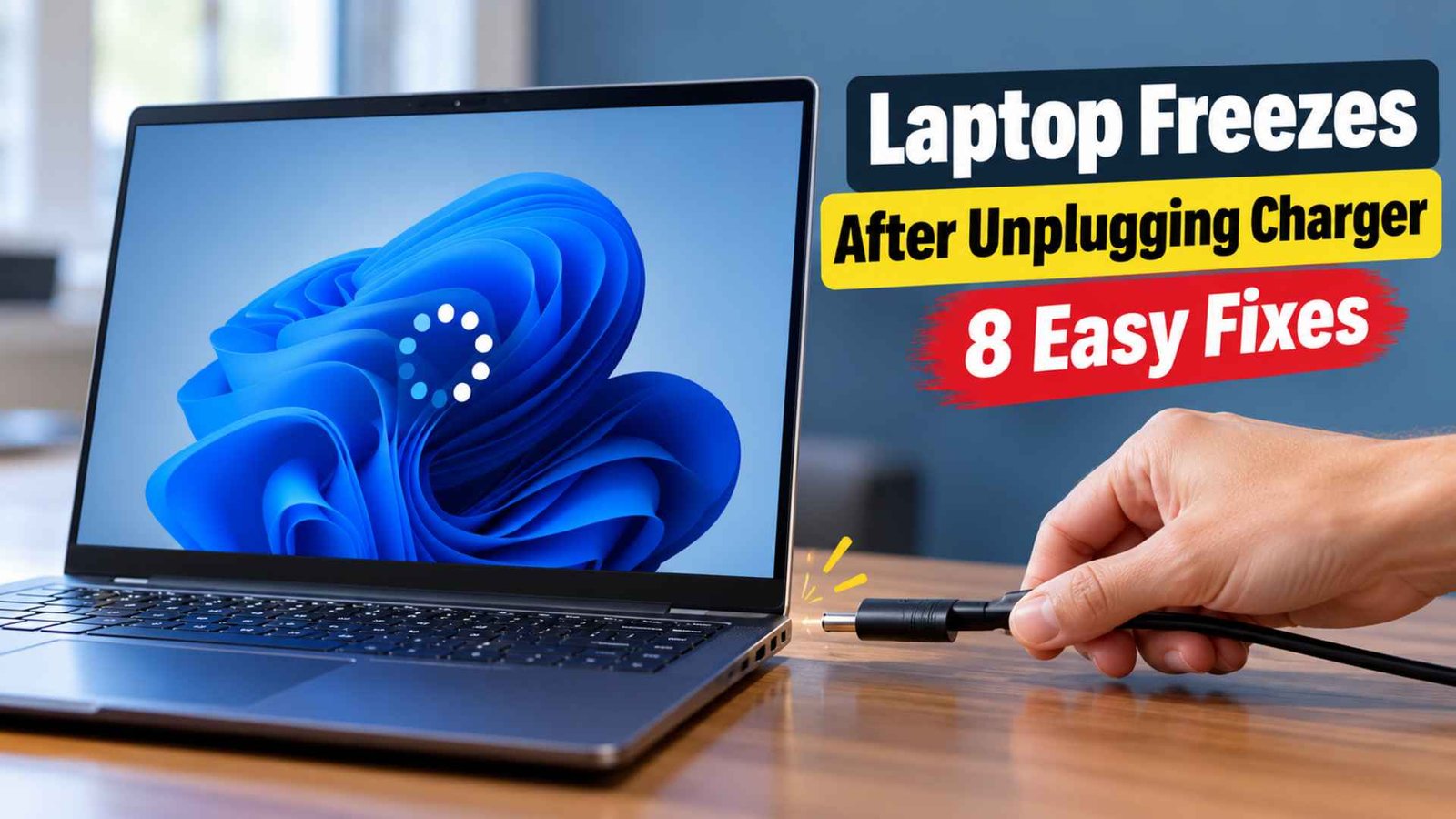
If you’re here because your laptop freezes or completely locks up every time you unplug the charger, you’ll find 8 easy fixes you can try one by one to get rid of this frustrating problem.
This issue mainly stems from advanced power-saving microcode configurations or critical driver handshakes that stumble when shifting from AC power to internal cell juice.
After researching the issue and looking into solutions that are still working, especially on Windows 11, we’ve narrowed down the fixes to those that appear most promising.
Key Takeaways
- Start with Windows power and energy settings because they change as soon as AC power disappears.
- Check PCIe power saving and the battery driver next.
- Intel display power features can cause trouble on some laptops.
- OEM graphics and chipset drivers are worth checking.
- Firmware and manufacturer utilities belong near the end of the list.
8 Fixes for a Laptop That Freezes After Unplugging Charger
1. Adjust Windows Power Status and Energy Saver Settings
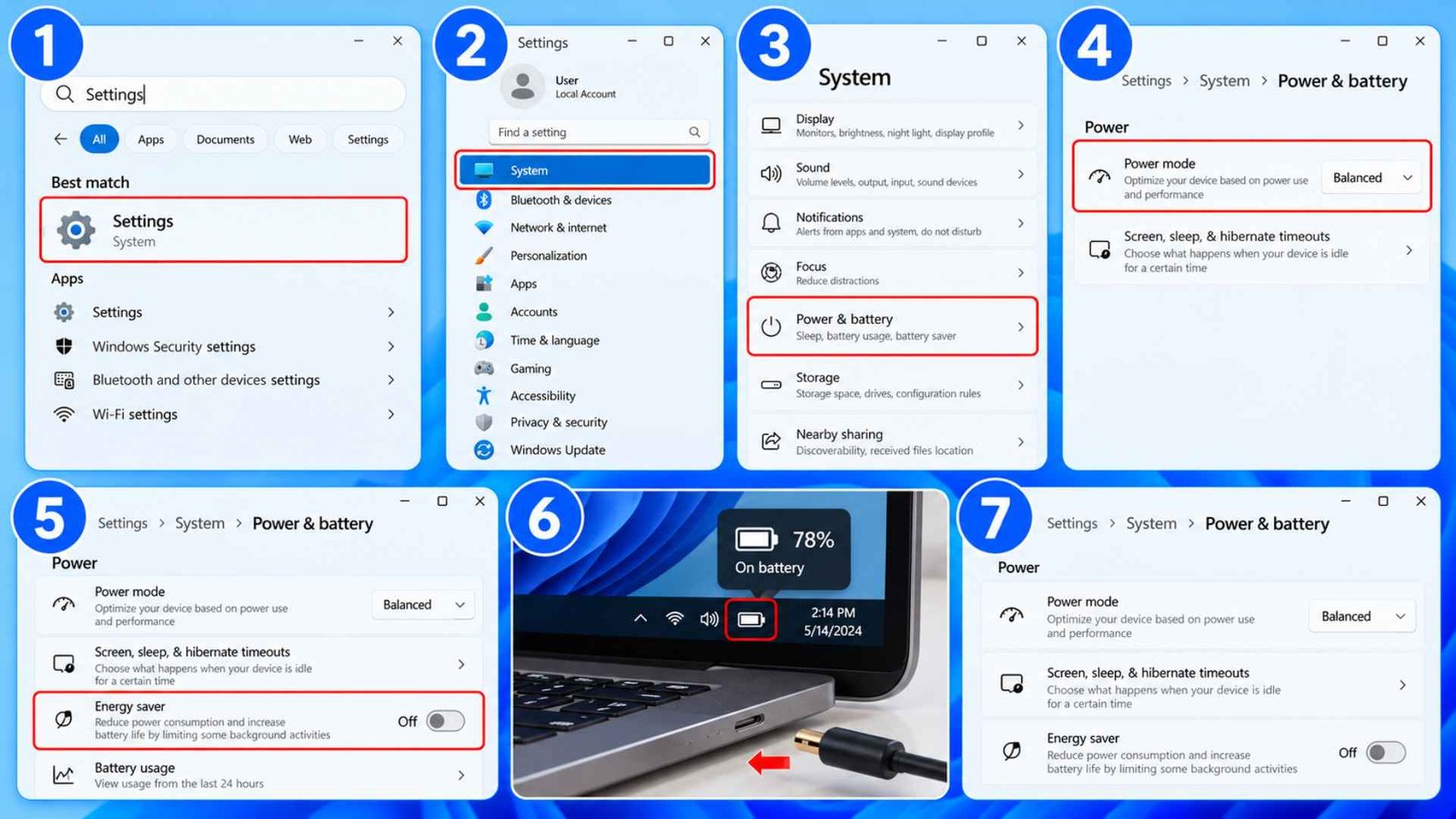
Windows can apply a different performance policy as soon as the charger comes out. That can expose a bad driver or an unstable power profile even when the laptop is flawless on wall power. If laptop freezes when unplugged, you could indeed start off here because it is the fastest test and it does not change any drivers.
Use Balanced first. It gives the system a middle ground between aggressive power saving and maximum performance. If the freeze happens only when Energy Saver turns on, disable it for testing too. You can choose separate plugged in and on battery behavior on supported systems, and Energy Saver can also activate at a set battery level.
How to do it
- Open Settings.
- Select System.
- Open Power and battery.
- Find Power Mode and choose Balanced for battery use.
- Open Energy Saver and turn it off temporarily.
- Unplug the charger and use the laptop for several minutes.
- If the freeze disappears, switch one setting back at a time until you find the trigger.
Another Good Read: Laptop Volume Keys Not Working in Windows 11
2. Disable PCIe Link State Power Management
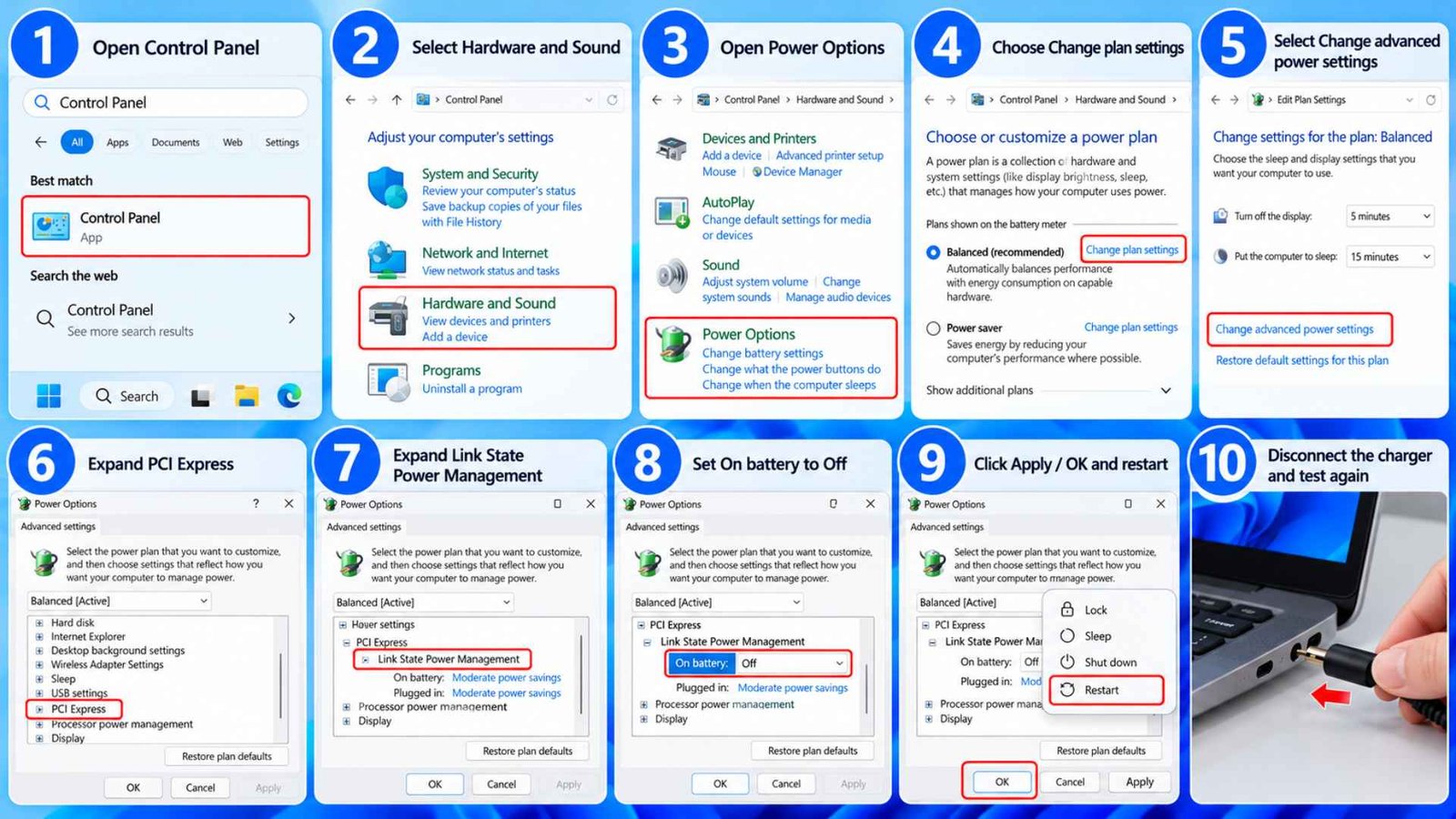
The PCIe Link State Power Management lets Windows decrease the power consumption for the PCI Express links whenever the system is not demanding full performance.
Normally, on a healthy laptop, you should never notice it, though. On a faulty machine with some driver, firmware or hardware issues it can lead to a sudden freeze after AC removal.
This setting is most useful as a diagnostic test. Turning it off does not prove the PCIe hardware is bad. It tells you whether the freeze is tied to a more aggressive link power state. This can be relevant on systems with dedicated graphics, NVMe storage, Wi Fi hardware, or other PCIe devices.
How to do it
- Open Control Panel.
- Select Hardware and Sound.
- Open Power Options.
- Choose Change plan settings beside your active plan.
- Select Change advanced power settings.
- Expand PCI Express.
- Expand Link State Power Management.
- Set On battery to Off.
- Apply the change and restart the laptop.
- Disconnect the charger and test again.
Note: some laptops of recent years have this option disabled by default, because the manufacturer controls power states through firmware. If you do not see it, skip this fix and move on.
3. Reinstall the Microsoft ACPI Compliant Battery Driver
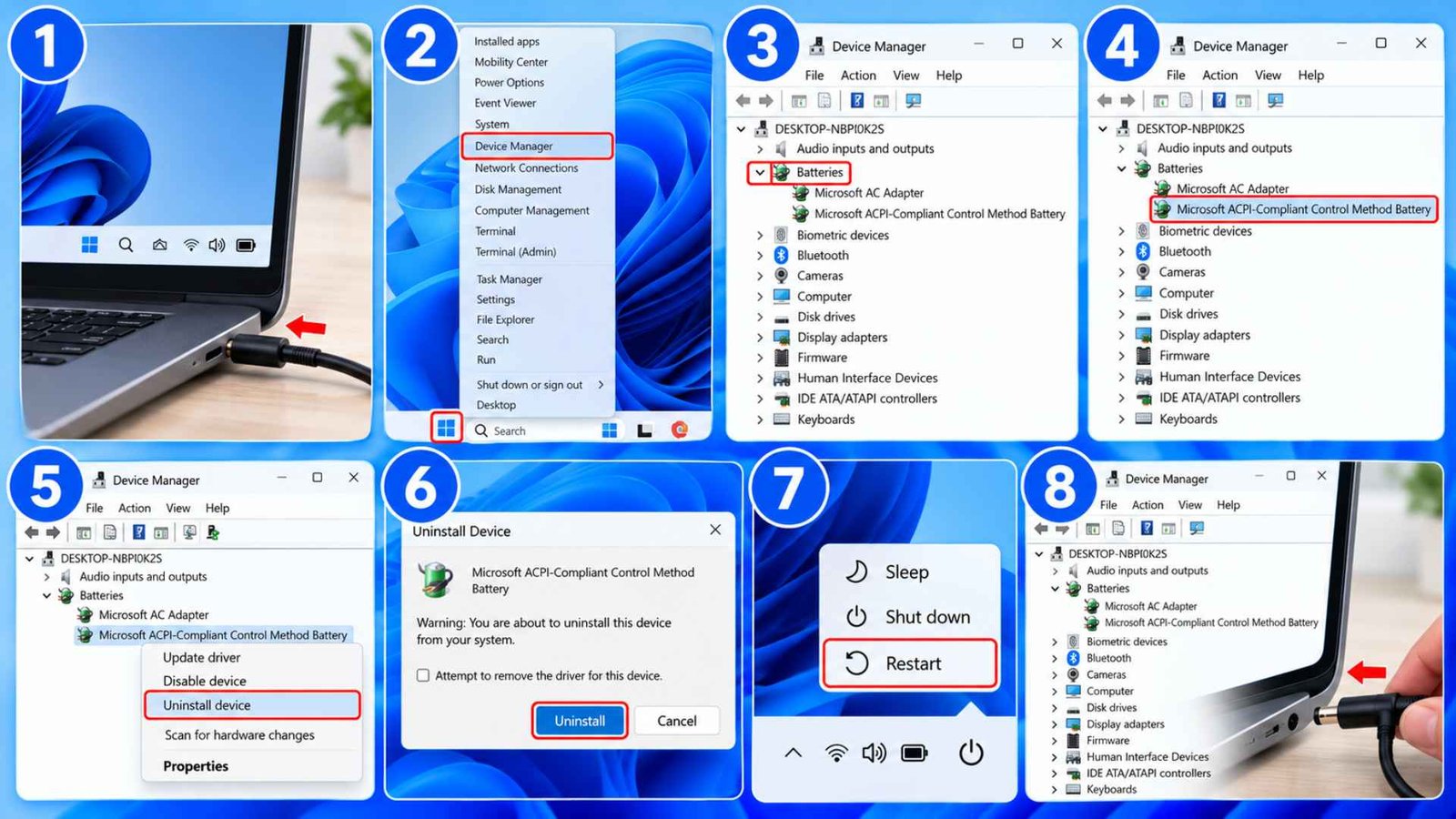
Windows relies on ACPI to read battery status and react when the power source changes. A damaged or confused battery device entry can leave the operating system in a dire state at the exact moment the charger is disconnected. Turns out, a battery driver laptop freeze is worth checking when the lockup happens instantly.
Reinstalling the battery device is simple because Windows normally detects it again after a restart. This step does not erase battery data or reset the physical battery. It refreshes the Windows device entry that handles battery communication.
How to do it
- Connect the charger.
- Right click Start and open Device Manager.
- Expand Batteries.
- Right click Microsoft ACPI Compliant Control Method Battery.
- Choose Uninstall device.
- Confirm the removal.
- Restart the laptop.
- Open Device Manager again and confirm the battery entry has returned.
- Disconnect AC power and test.
If the battery percentage also jumps around, disappears, or reports the wrong status, this fix deserves extra attention. The Battery Driver is part of the power transition Windows has to handle correctly.
4. Turn Off Intel Panel Self Refresh and Display Power Saving
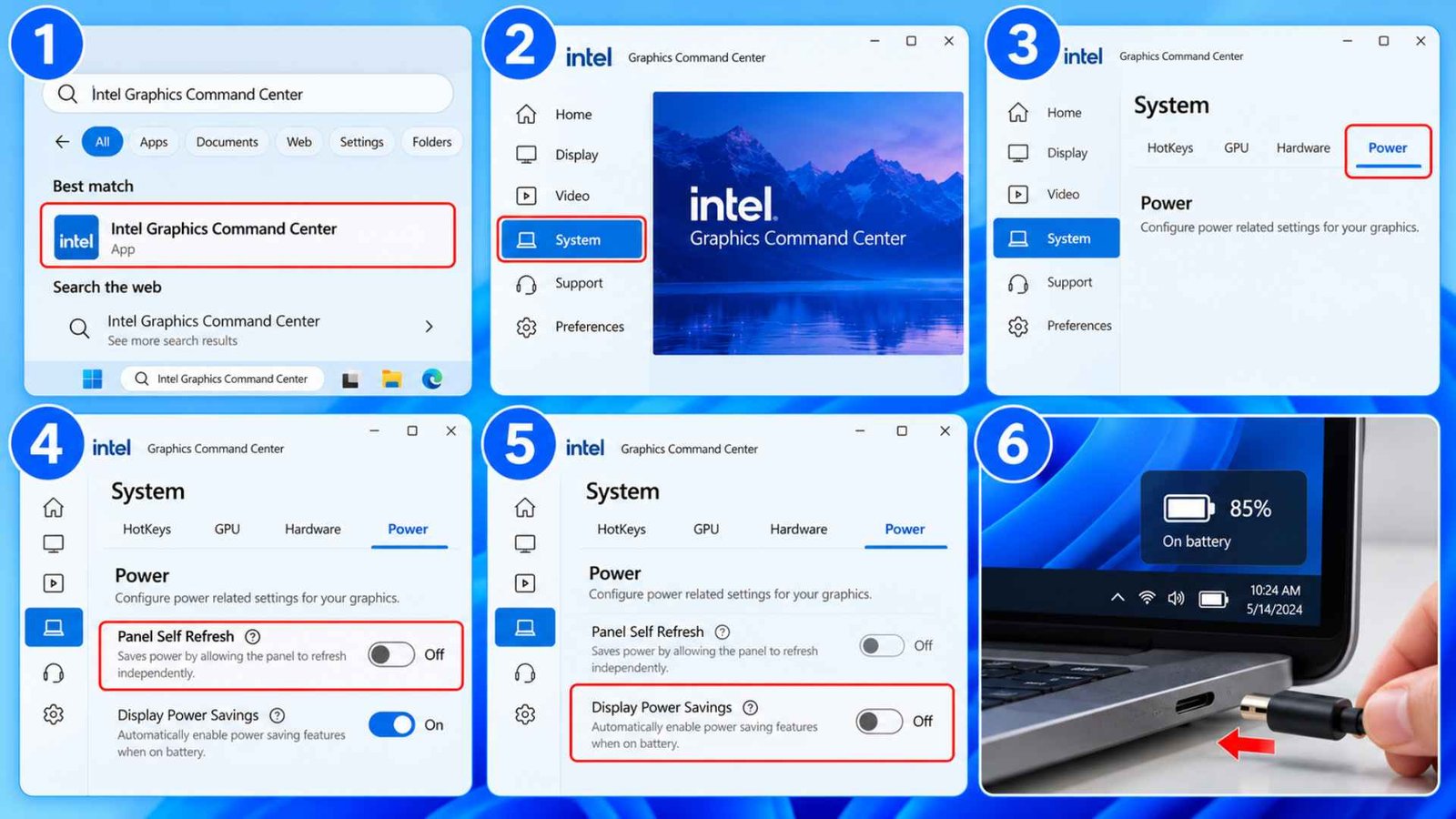
Intel laptops can change display behavior on battery even when Windows itself looks unchanged. Panel Self Refresh lets a supported internal display hold a static image with less graphics activity. Intel Display Power Saving can also alter panel power use when the laptop is off the charger.
Most systems handle these features cleanly. Some combinations of panel firmware and graphics drivers do not. A graphics driver battery freeze can therefore look like a total system lock when the display path stops responding. If the cursor, keyboard, and screen all appear frozen right after unplugging, it is worth testing these Intel controls.
How to do it
- Open Intel Graphics Command Center.
- Select System.
- Open the Power section.
- Turn off Panel Self Refresh if the option appears.
- In the On Battery section, turn off Display Power Savings.
- Restart the laptop.
- Disconnect the charger and test.
Do not worry if one or both options are missing. Intel only exposes them on supported systems, and some laptop makers control the same behavior through firmware. If laptop freezes on battery and the Intel settings are unavailable, continue to the OEM driver step.
5. Deploy the Laptop Manufacturer’s Dedicated OEM Graphics Driver
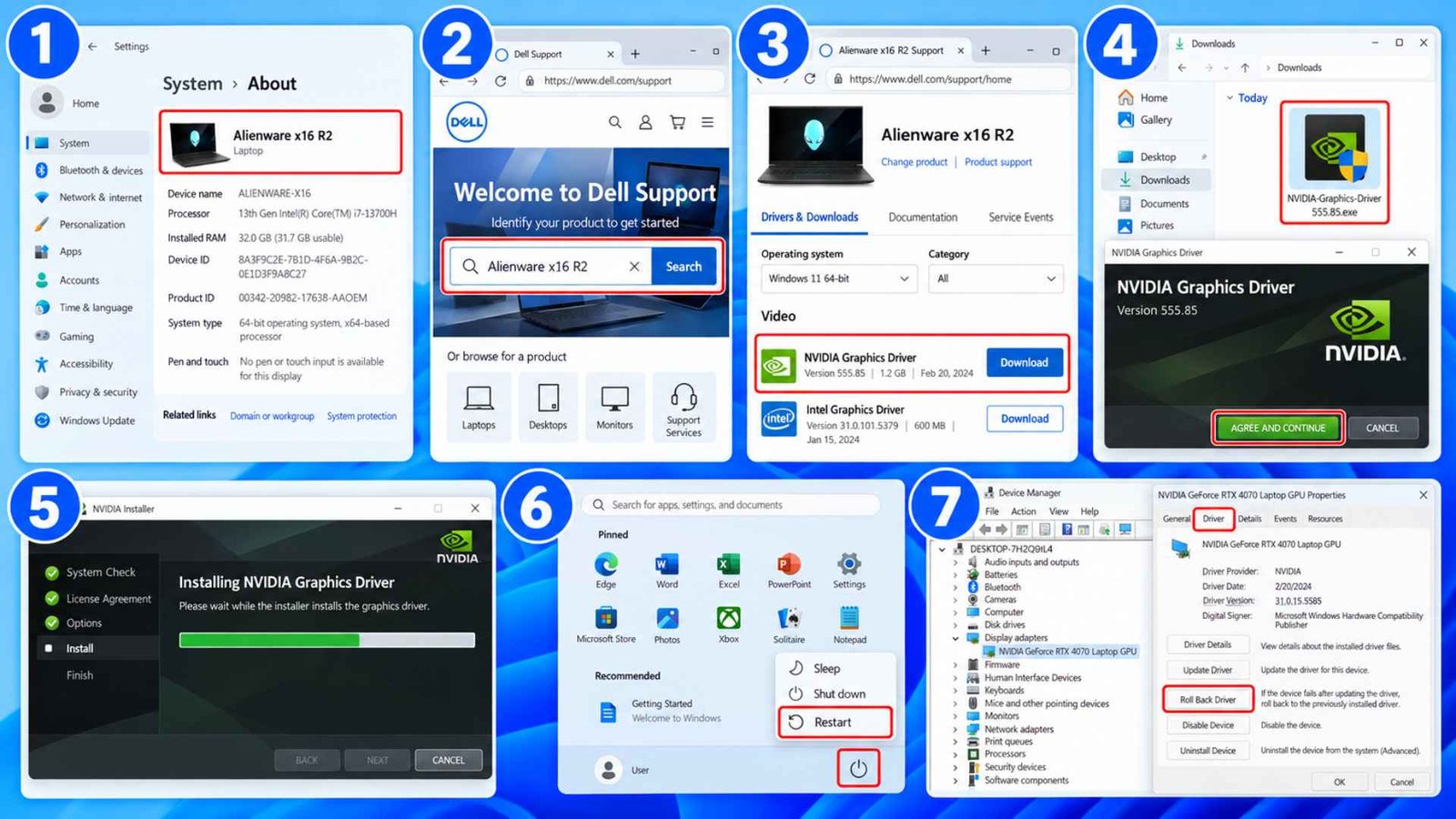
Laptop graphics drivers are more tied to the rest of the platform than many desktop users expect. Dell, HP, Lenovo, ASUS, Acer, and other manufacturers can ship graphics packages that are validated with a specific panel, BIOS, chipset, and hybrid graphics design.
That becomes important when laptop freezes when switching to battery. The GPU may move into a lower power state when AC power disappears. On systems with integrated and dedicated graphics, the platform may also change how workloads are handled. A generic driver can work perfectly on the charger yet behave badly during that transition.
For this test, use the driver from the laptop maker first. Do not jump straight to the newest generic Intel, AMD, or NVIDIA package.
How to do it
- Find the exact laptop model or service tag.
- Open the manufacturer’s official support page.
- Download the recommended Graphics Driver for your Windows version.
- Install the driver package.
- Restart the laptop.
- Test it on battery.
- If the problem began after a recent driver update, use Roll Back Driver in Device Manager when that option is available.
This is one of the stronger fixes for Windows 11 laptop freezing that appears only after the charger is removed.
6. Update the Motherboard Chipset and Intel or AMD Power Drivers
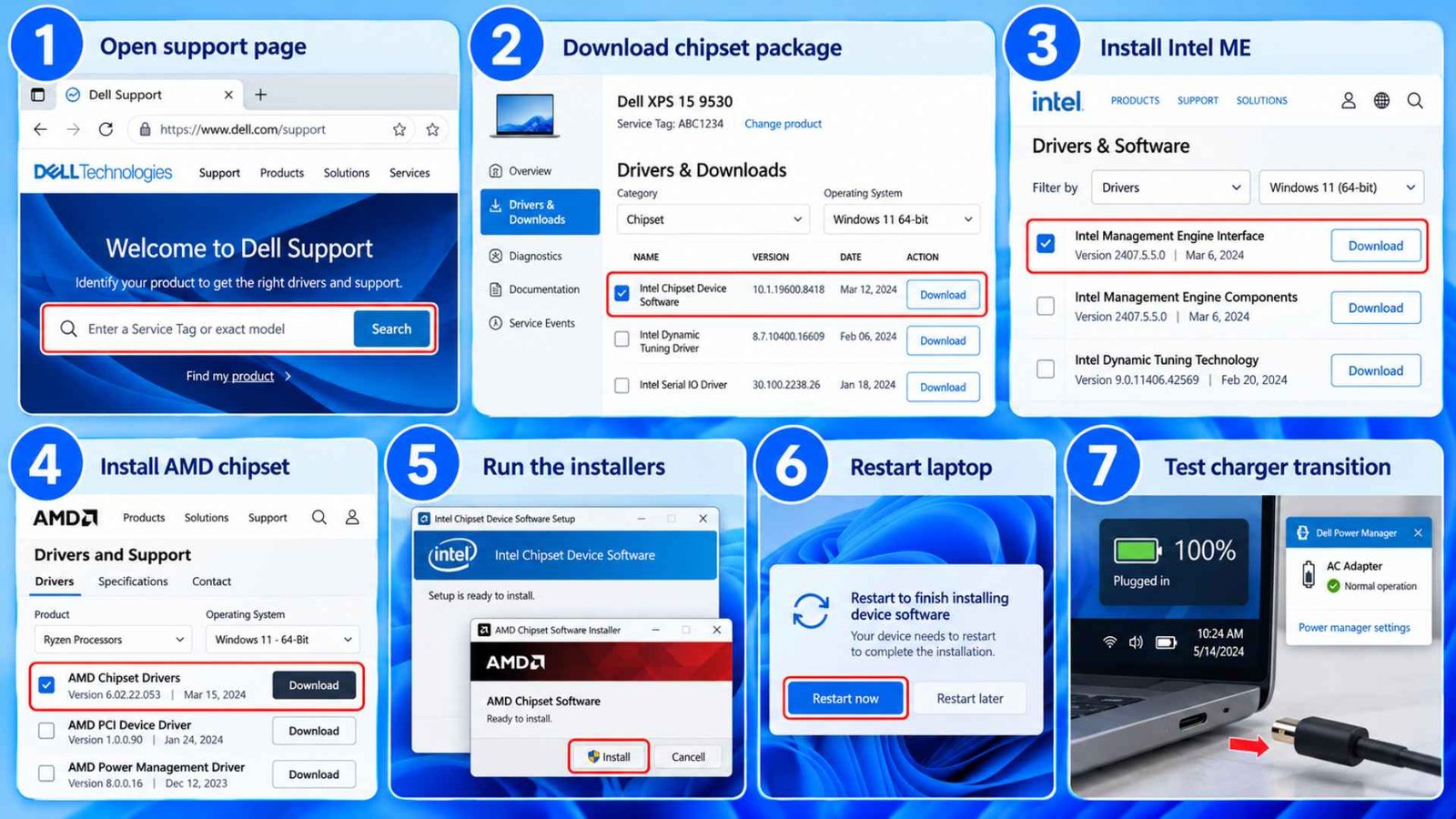
The graphics package is only part of the power path. Chipset software helps Windows communicate with the processor, PCIe devices, storage controllers, and platform power features. Intel systems may also use Management Engine components, while AMD laptops rely on AMD chipset packages for several platform drivers.
Old or mismatched platform drivers can show up in a very specific way. The laptop works on AC, then the switch to battery exposes the unstable state. That pattern is easy to misread as a bad battery.
Use the laptop maker’s support page as the first stop. Install only the packages that match your exact model.
How to do it
- Open the official support page for your laptop.
- Download the current chipset package.
- Install Intel Management Engine components if your model lists them.
- On AMD systems, install the OEM AMD chipset package.
- Restart after the installs finish.
- Test the charger transition again.
- If you use a docking utility or OEM power service, update that package too.
This step is especially useful when laptop hangs after unplugging charger after a clean Windows install or a major system update.
7. Apply the Latest System BIOS or UEFI Update
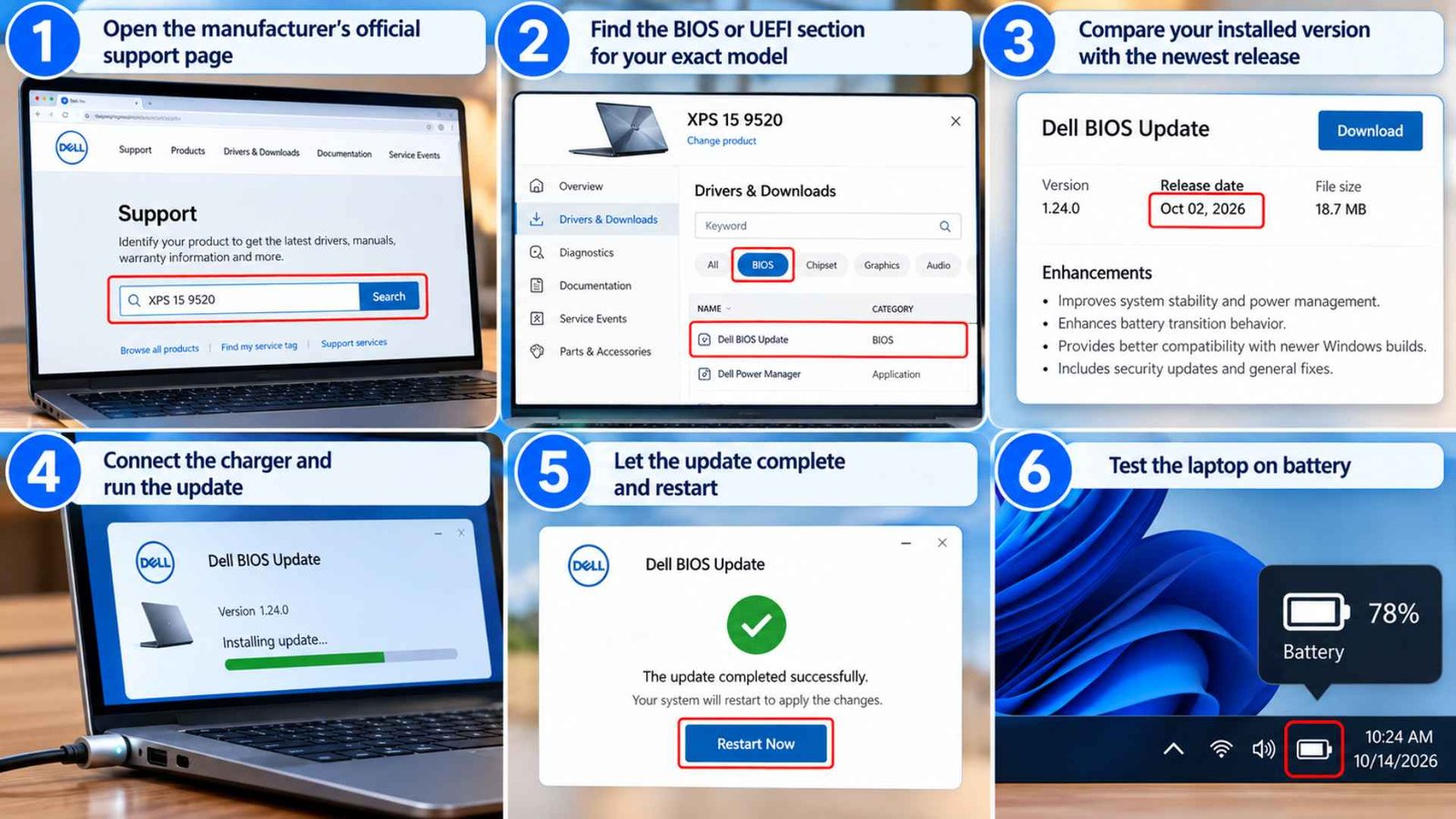
If drivers look clean and the freeze keeps returning, move below Windows. BIOS and UEFI firmware control a large part of the system’s hardware initialization and power behavior. A laptop maker may release firmware that improves battery transitions, device stability, thermal control, or compatibility with newer operating system builds.
Read the release notes before you update. If your current version is several revisions behind, a BIOS Update is worth serious consideration. Keep the charger connected during the update and do not interrupt the process.
How to do it
- Open the manufacturer’s official support page.
- Find the BIOS or UEFI section for your exact model.
- Compare your installed version with the newest release.
- Read the notes for power, stability, battery, graphics, or chipset changes.
- Connect the charger and make sure the battery has a healthy charge.
- Run the update exactly as the manufacturer directs.
- Restart and test on battery.
HP users can also use the built in UEFI diagnostics to rule out an adapter problem. Shut the computer down first. Turn it on and tap F2 once every second until the UEFI Hardware Diagnostics screen appears. Open Component Tests, select Power, then choose the AC Adapter test. Follow the onscreen instructions. If the test passes, the adapter itself is not the fault reported by that diagnostic. If it fails, write down the failure information before contacting HP support.
8. Disable Proprietary Manufacturer Power Optimization Software
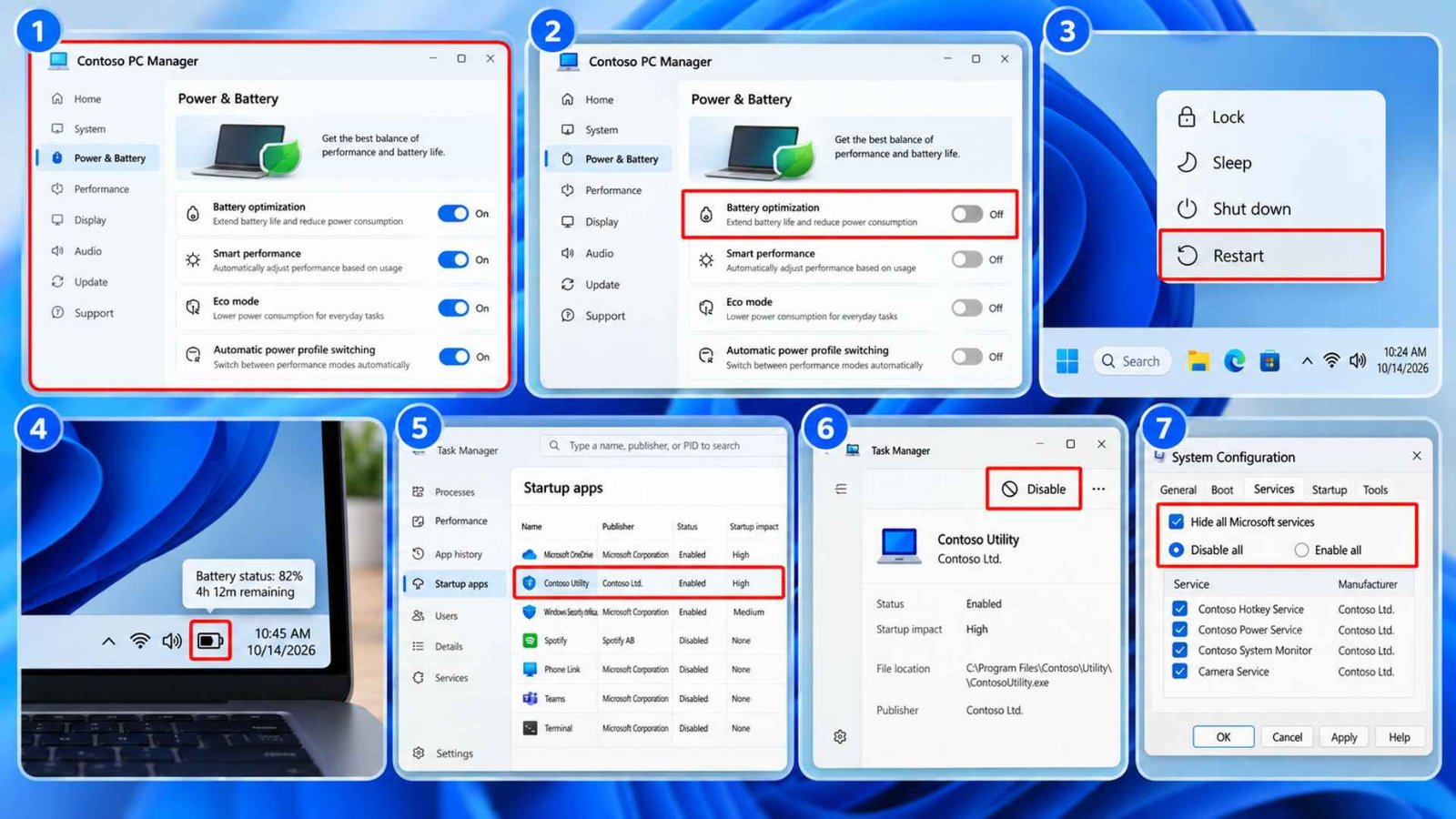
OEM control apps can quietly change performance profiles when the charger is removed. Lenovo Vantage, MyASUS, Dell utilities, HP software, MSI Center, Acer tools, and similar packages can control battery conservation, fan behavior, graphics modes, charge limits, or performance presets.
Those tools are useful when they work properly. Trouble starts when an old utility conflicts with a newer BIOS, driver, or Windows build. A laptop battery causing freezes may actually turn out to be a software service that fires when the system changes power source.
Do not uninstall everything at once. First disable the power optimization feature or stop the utility from launching with Windows. If the freeze disappears, update that software or leave the conflicting feature off.
How to do it
- Open the manufacturer’s control app.
- Turn off battery optimization, smart performance, eco mode, or automatic power profile switching.
- Restart the laptop.
- Test on battery.
- If the problem remains, open Task Manager and disable the OEM utility from Startup apps.
- Restart and test again.
- For a deeper test, use a Clean Boot and reenable third party services gradually.
This is also a good way to fix laptop freezing on battery when every driver looks current but the problem survives.
Frequently Asked Questions (FAQs)
How to Fix Laptop Turning Off When Charger Is Unplugged?
When the machine turns off completely after you unplug it, treat that as a different symptom from a freeze. Check Battery Health first. Look for a battery that no longer holds charge, a percentage that drops sharply, or swelling around the chassis. You can also run the manufacturer’s battery diagnostic. If the machine stays powered but stops responding, focus more heavily on drivers, firmware, and Power Settings.
Should I Reinstall Windows If My Laptop Freezes After Unplugging?
Not first. A full reinstall is a big job and it can leave the same problem in place if the cause is firmware, a battery fault, or an OEM power utility. Work through power settings, PCIe power management, the battery device, graphics, chipset drivers, and firmware before you consider reinstalling Windows 11.
Is It Safe to Keep Using a Laptop That Freezes on Battery?
Occasional software freezes are usually a troubleshooting issue, but stop using the machine if the battery is swollen or very hot or if it leaks or gives off an unusual smell. If the computer simply locks up and the power light remains on, force a shutdown only when normal controls no longer respond. Repeated forced shutdowns can cost you unsaved work.
What Causes Laptop to Freeze After Unplugging Charger?
The common pattern is a failed transition from AC operation to a battery power state. That can involve a power profile, PCIe link power management, the ACPI battery device, Intel display power features, graphics drivers, chipset software, firmware, or an OEM utility.
If laptop freezes when unplugged at the exact same point every time, test the components that react to that transition first.
Wrapping Up
When laptop freezes after unplugging charger, do not rush to replace the battery. The timing of the freeze tells you where to look. Windows changes power policy, graphics behavior, PCIe activity, and manufacturer power features as soon as the charger is removed. One unstable part of that transition can lock the machine even when it works perfectly on wall power.
Start with Windows power settings and PCIe link power management. Refresh the battery device, then move through Intel display controls, OEM graphics, chipset drivers, and firmware. Leave manufacturer utilities for the final software check.
If laptop freezes on battery power after every one of those steps, run the laptop maker’s hardware diagnostics and check the battery itself. At that point, hardware service becomes a much more reasonable next move.