

You click the power icon, hit shut down, and close the lid, expecting your laptop to power off, though. Right after 3 to 5 seconds, the fans spin back on, and so does your PC. Sound familiar? Well, in most cases, the problem may involve fast startup, incorrect power settings, a faulty driver, or a Windows system error. If you’re dealing with this annoying glitch in Windows 11, you’re going to find the fix in this post.
Key Points
- Disable Fast Startup to test whether it is interfering with shutdown.
- Check power button settings and disconnect unnecessary USB devices.
- Install Windows updates and compatible drivers.
- Disable automatic restart temporarily if you suspect a system crash.
- Run Windows repair tools and test Safe Mode if the problem continues.
Why Does My Laptop Restart Instead of Shutting Down?
A bunch of problems can cause a laptop to turn back on after you select Shut down. The important thing is to identify whether Windows is failing to shut down or the computer is powering on again after it has already turned off.
- Fast Startup feature: Fast Startup saves some system information to help Windows boot more quickly. On certain systems, it can contribute to shutdown problems.
- Outdated drivers or BIOS: An incompatible chipset, graphics, or power management driver may interfere with the shutdown process. Firmware issues can also affect how the laptop handles power.
- Windows errors: Corrupted system files or a crash during shutdown may cause Windows to restart automatically.
- Network adapter wake settings: Some devices support Wake on LAN or similar features that can turn a computer back on in response to a network signal.
- Connected devices: USB accessories, docking stations, and external hardware may contribute to power related problems.
If your Laptop restarts when shut down, do not assume Fast Startup is automatically responsible. The symptom can have several causes, so test the likely fixes in order to actually figure out the main culprit.
How to Fix a Laptop That Restarts After Shutdown
1. Force a Full Shutdown
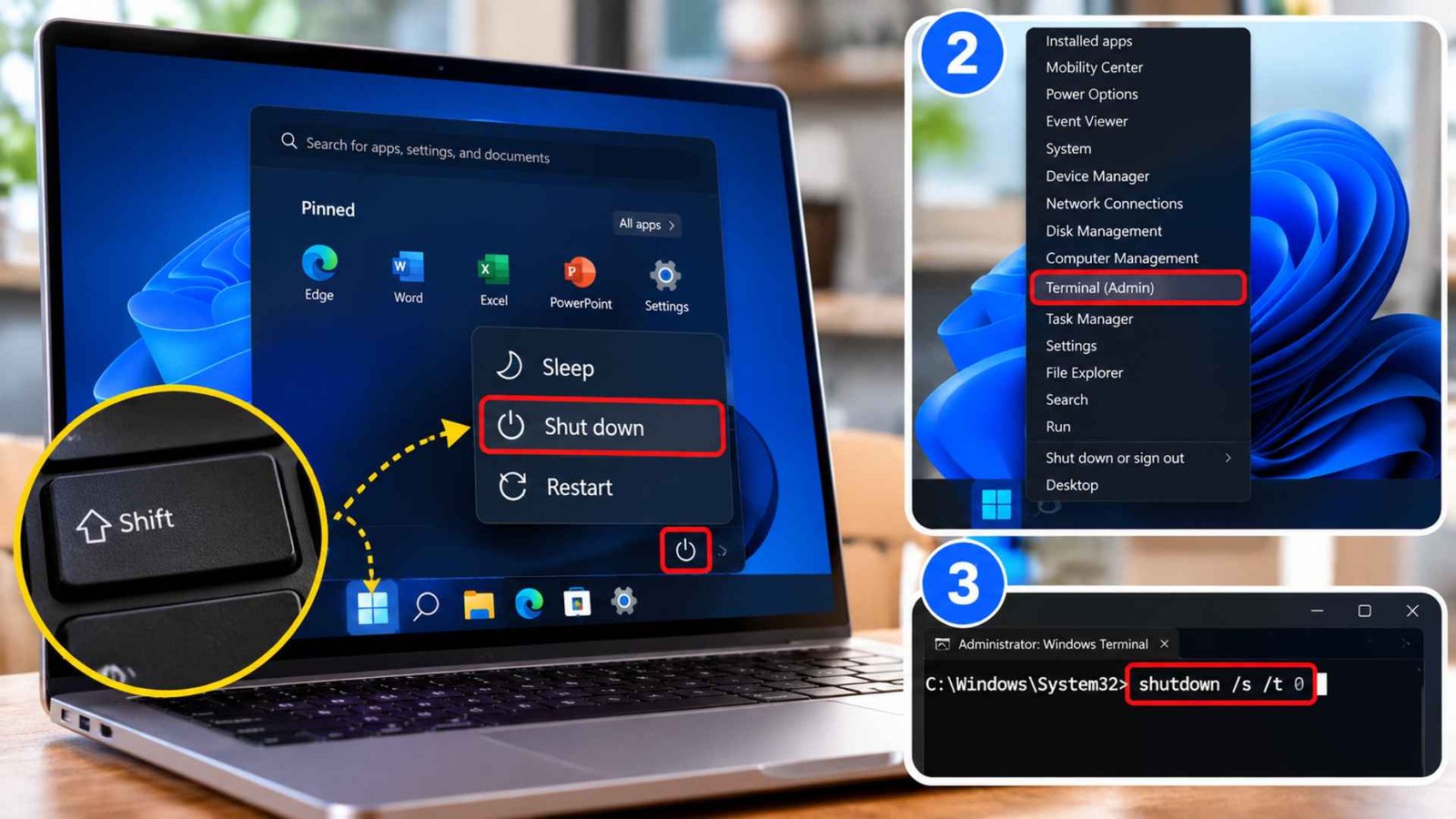
When your windows 11 won’t shut down just restarts, you must bypass the standard hybrid boot process to determine if the issue is software or hardware based.
Windows often caches temporary data that gets stuck in a loop. Forcing a hard, clean shutdown clears the system memory completely without saving the corrupt kernel state.
To execute this;
- Hold the Shift key and select Start, Power, Shut down.
- Or press Windows key + X, choose Terminal (Admin), type shutdown /s /t 0, and press Enter.
2. Disable Fast Startup
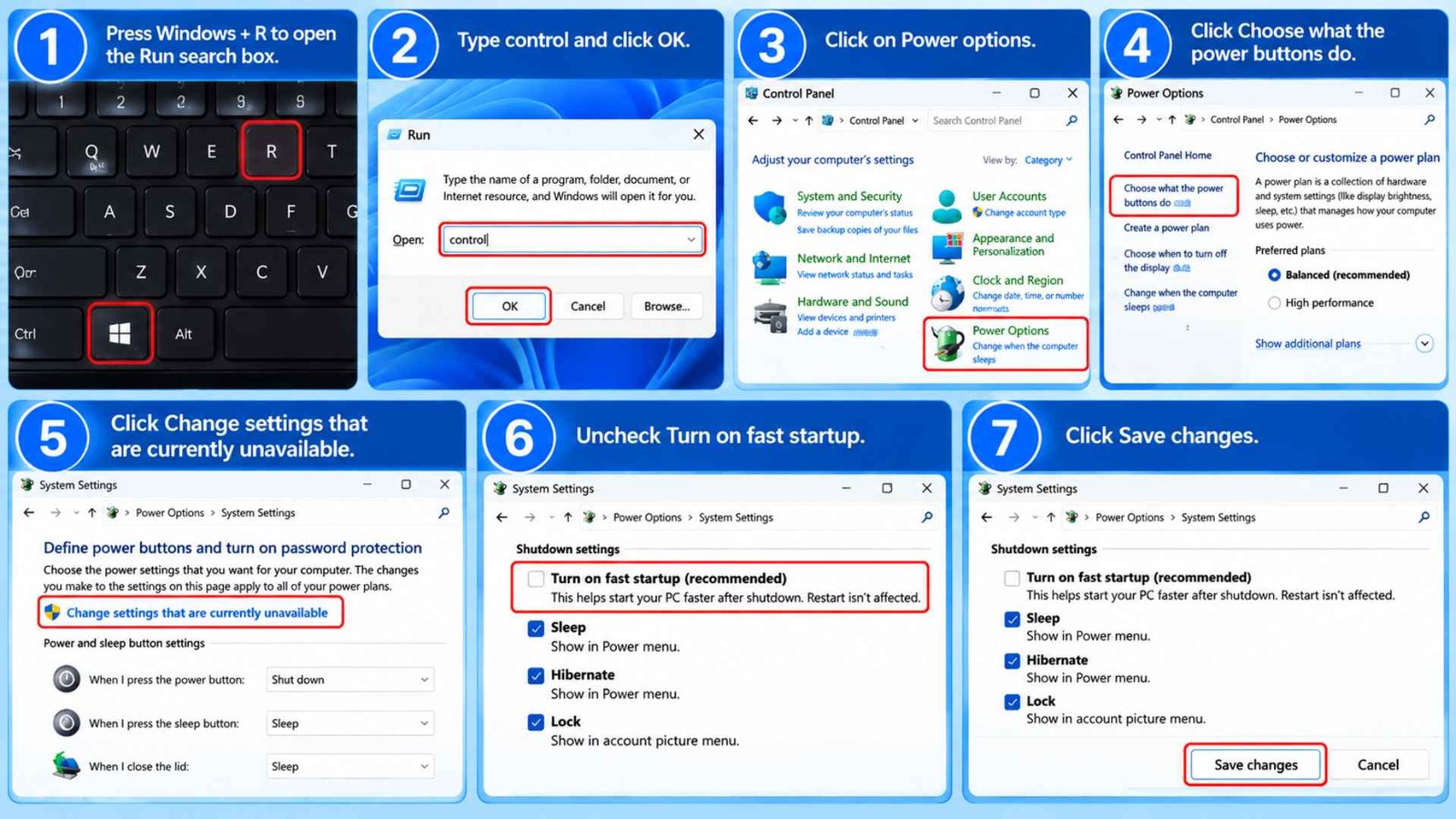
The primary suspect behind a Windows 11 shutdown problem is the hybrid power configuration. This feature does not perform a traditional shutdown but rather hibernates the core operating system kernel. If you are experiencing a situation where whenever I shutdown my Pc, comes back on, this setting is likely the cause.
- Press the Windows key and the R key to open the Run search box.
- Type in control, click on OK to launch the traditional Control Panel interface.
- Navigate to and click on Power options.
- Select the option on the left side that says Choose what the power buttons do.
- Click the administrative link at the top labeled Change settings that are currently unavailable.
- Go down to the Shutdown settings section and uncheck the box for Turn on fast startup.
- Click Save changes at the bottom and test your power menu.
Another Good Read: Laptop Volume Keys Not Working in Windows 11? Try These 10 Fixes!
3. Adjust Power Button Settings
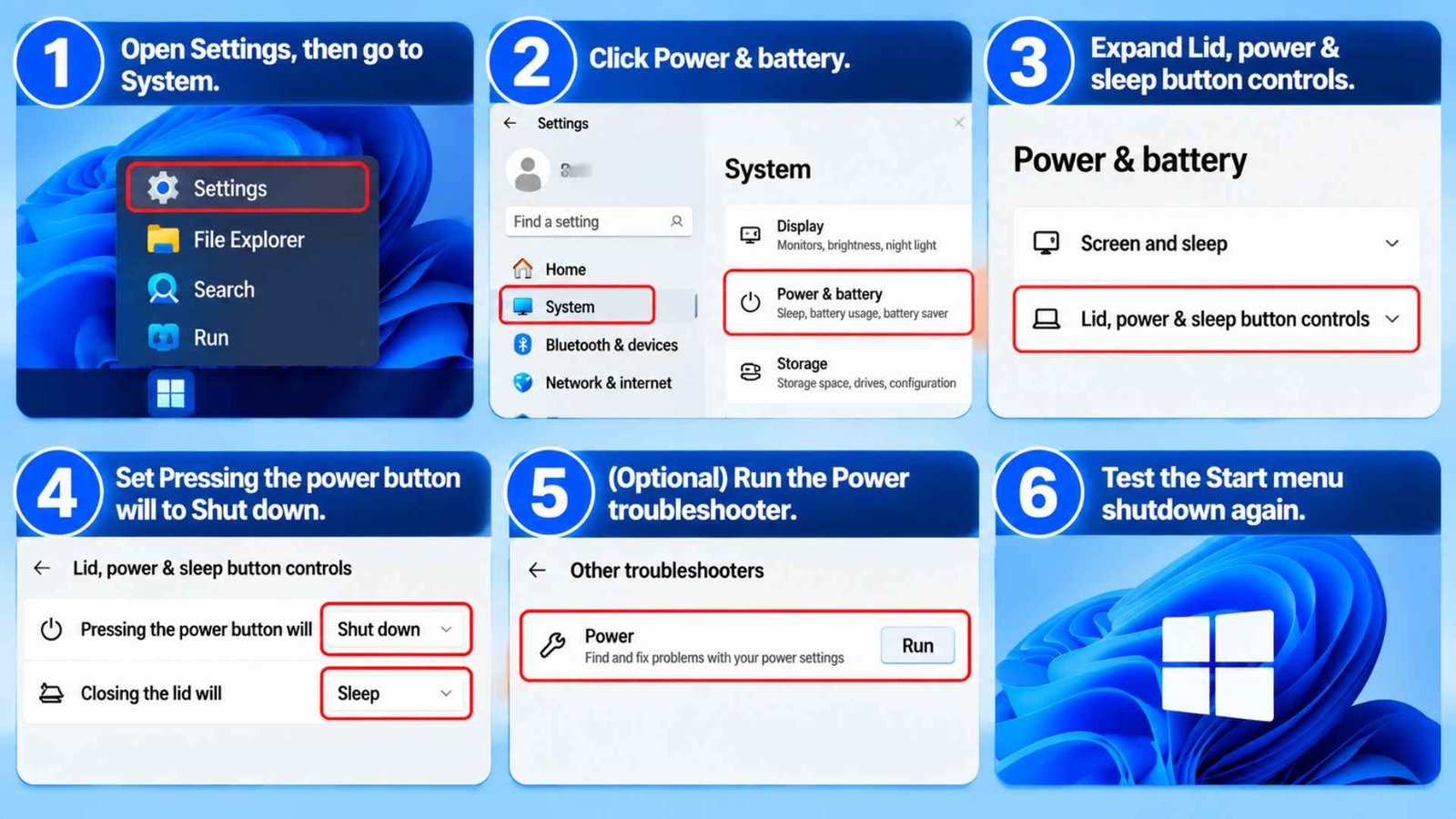
Incorrect power settings can turn a button or the lid into a restart trigger. Laptops often ship with the lid and button mapped differently, and a firmware update or a driver install can change them. If your laptop won’t shut down from the Start menu, check what each control does.
- Open Settings, then System, then Power & battery.
- Expand Lid, power & sleep button controls.
- Set Pressing the power button will to Shut down.
- Set Closing the lid will to Sleep or Do nothing.
- Optionally run the Power troubleshooter under Settings, System, Troubleshoot, Other troubleshooters.
- Test the Start menu shutdown again.
4. Update Windows and Drivers
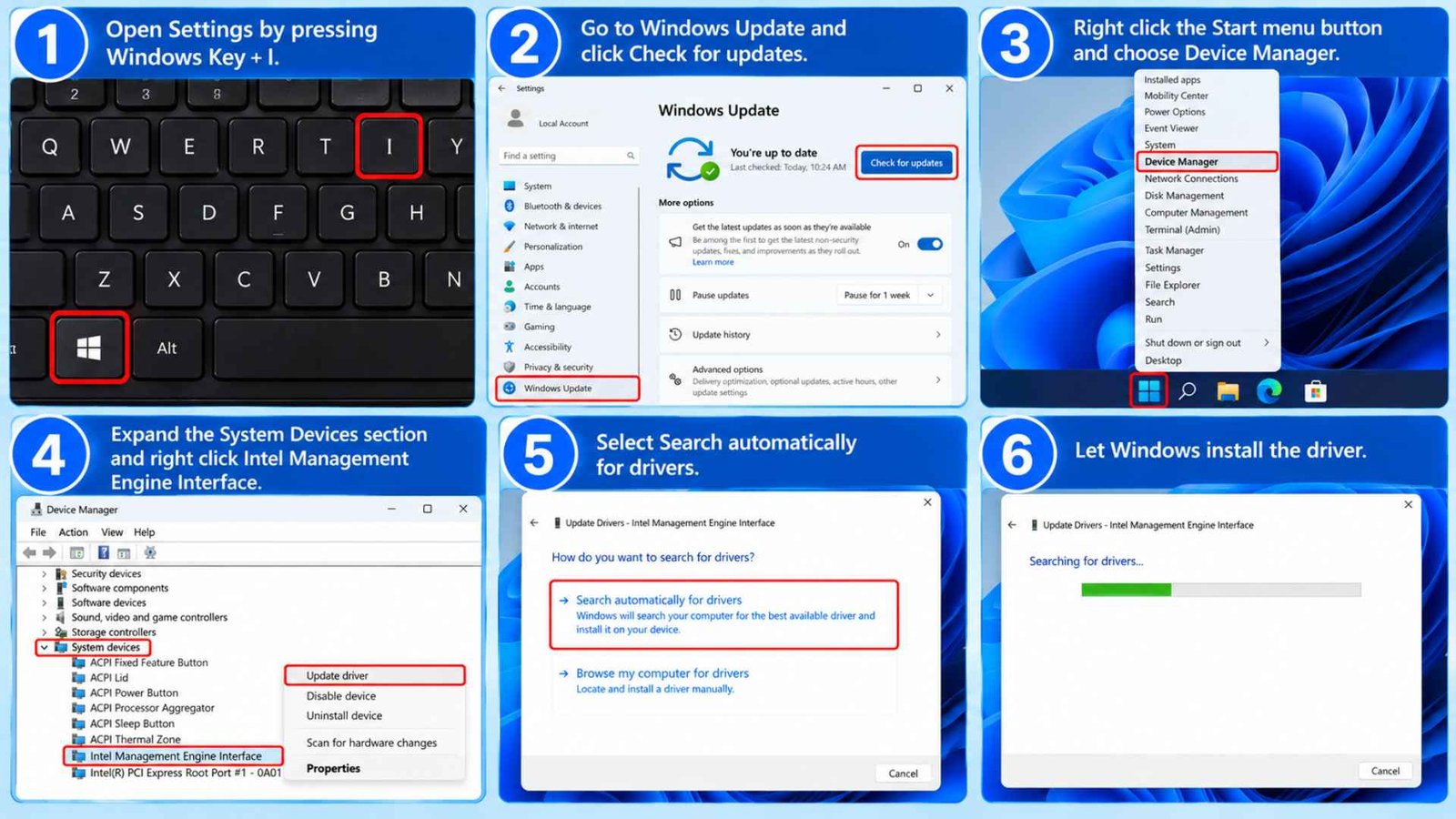
A flawed driver is a major reason why a laptop won’t shut down properly. When files run on outdated code, they fail to enter power saving modes during logoff. Microsoft regularly releases patches for these hardware interactions. Turns out, keeping your system updated is vital.
- Open your Windows 11 Settings app by pressing the Windows Key + I.
- Click on Windows Update in the left sidebar and select Check for updates to install system patches.
- Right click the Start menu button and choose Device Manager from the list.
- Expand the System Devices section near the bottom of the list.
- Right click on Intel Management Engine Interface and choose Update driver.
- Select Search automatically for drivers and let the utility complete the installation.
5. Turn Off “Automatically Restart” on Crash
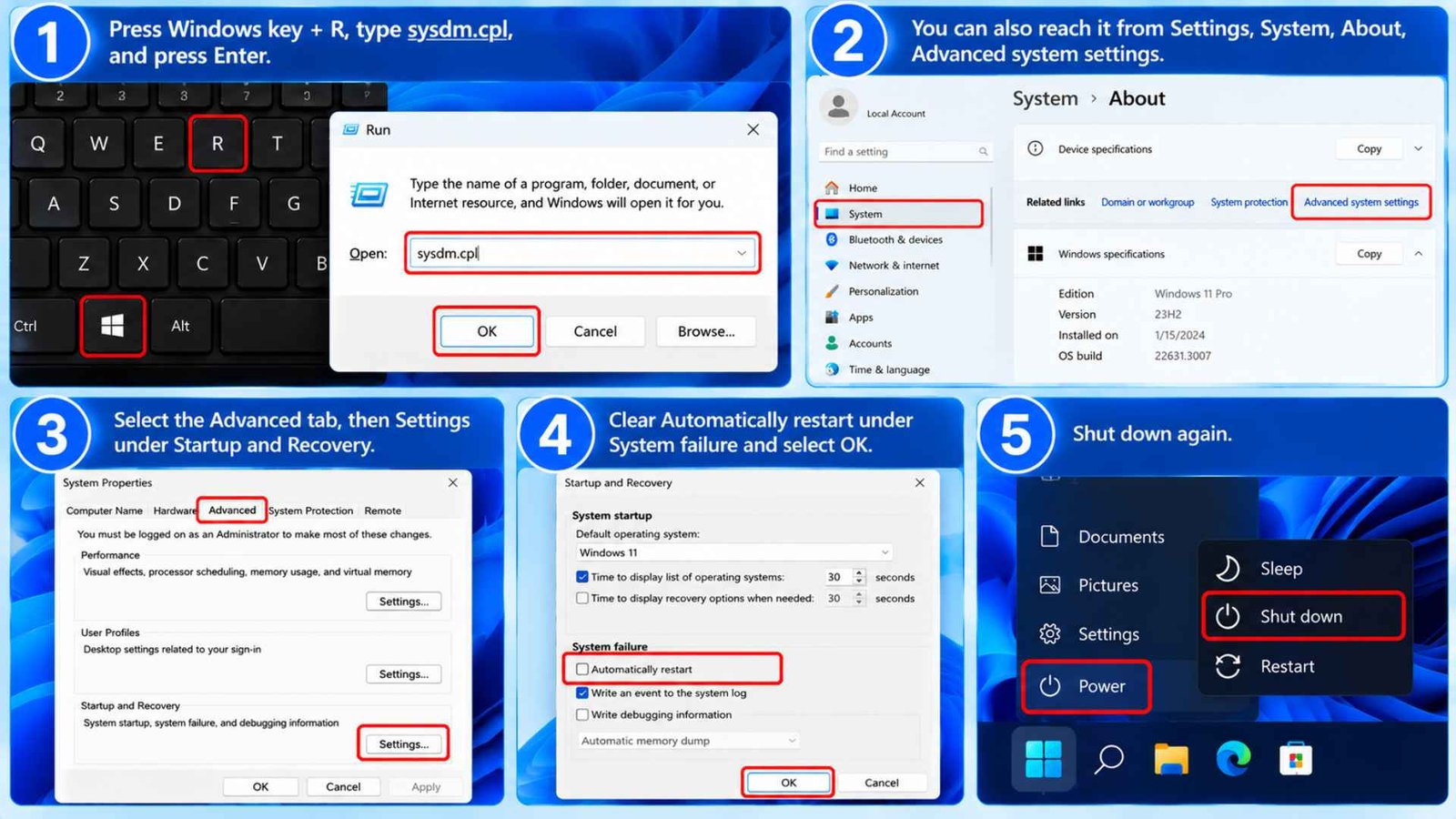
If your pc restarts instead of shutting down, Windows might be crashing right as it turns off. Because the OS is built to reboot instantly during a crash, you never see the actual error screen. Turning off this automatic setting reveals what is happening under the hood.
- Press the Windows key and the R key, type sysdm.cpl, and press Enter.
- You can also reach it from Settings, System, About, Advanced system settings.
- Select the Advanced tab, then Settings under Startup and Recovery.
- Clear Automatically restart under System failure and select OK.
- Shut down again
6. Run the Windows Repair Tools
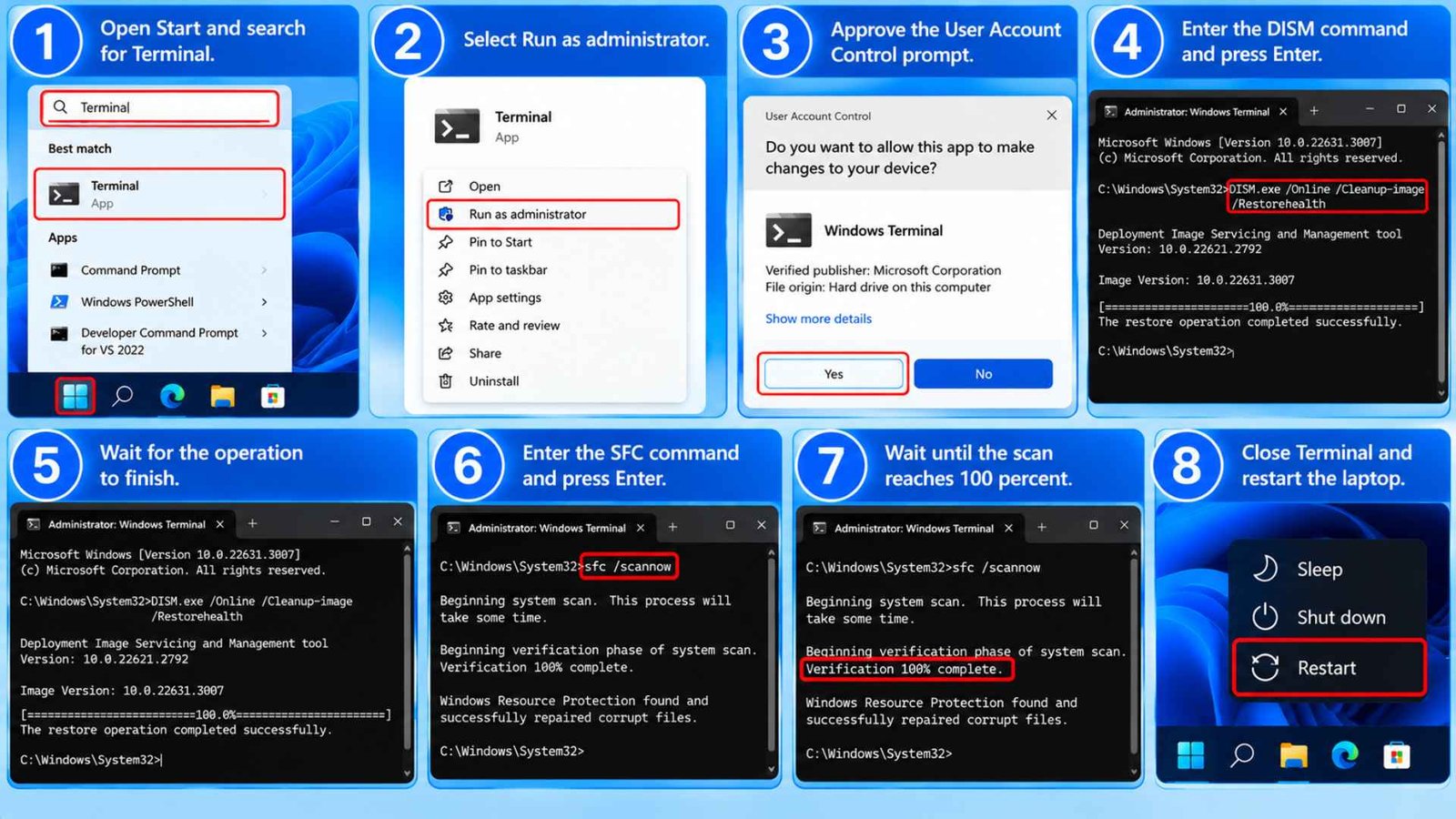
Damaged or missing system files can affect Windows functions, including shutdown. Windows includes two command line tools that can check and repair system components. They are worth trying if the simpler settings changes have not helped.
- Open Start and search for Terminal.
- Select Run as administrator.
- Approve the User Account Control prompt.
- Enter this command and press Enter:
DISM.exe /Online /Cleanup-image /Restorehealth - Wait for the operation to finish.
- Enter the following command:
sfc /scannow - Wait until the scan reaches 100 percent.
- Close Terminal and restart the laptop.
The Windows system file checker can repair certain protected Windows files, while DISM can repair the Windows image used by those tools. Run both commands as shown, including the spaces.
7. Update Your BIOS Firmware
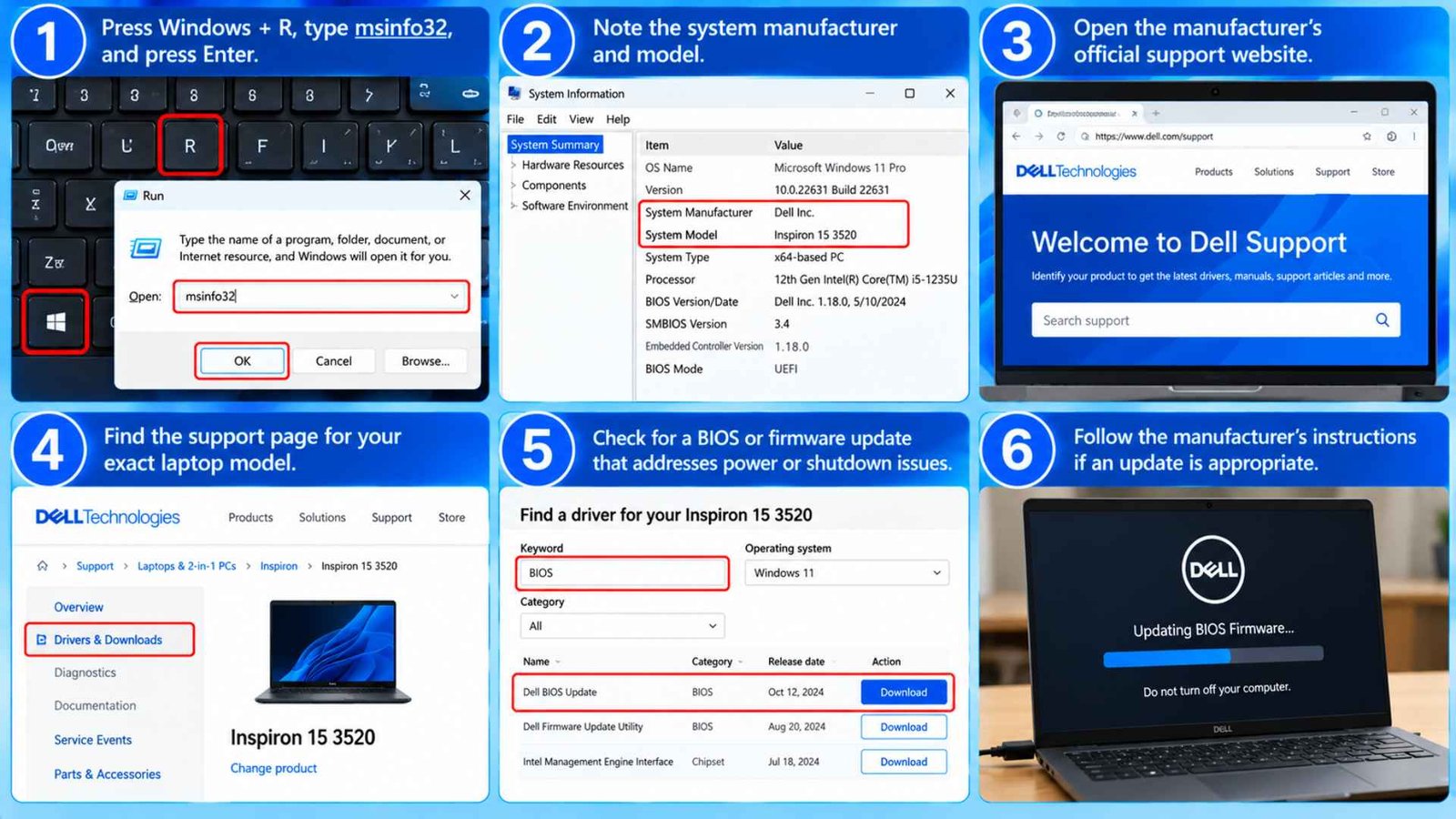
The BIOS or UEFI firmware helps the laptop communicate with its hardware before Windows loads. A firmware problem can sometimes affect power behavior, although this fix is best left until you have checked the Windows settings and drivers.
- Press Windows + R, type msinfo32, and press Enter.
- Note the system manufacturer and model.
- Open the manufacturer’s official support website.
- Find the support page for your exact laptop model (Dell, HP, Lenovo, Acer, Asus).
- Check whether a BIOS or firmware update addresses power or shutdown issues.
- Follow the manufacturer’s instructions if an update is appropriate.
Connect the laptop to reliable power and follow every instruction carefully. Never install firmware intended for another model or interrupt an update in progress. If the manufacturer has no relevant update, skip this step.
8. Test in Safe Mode
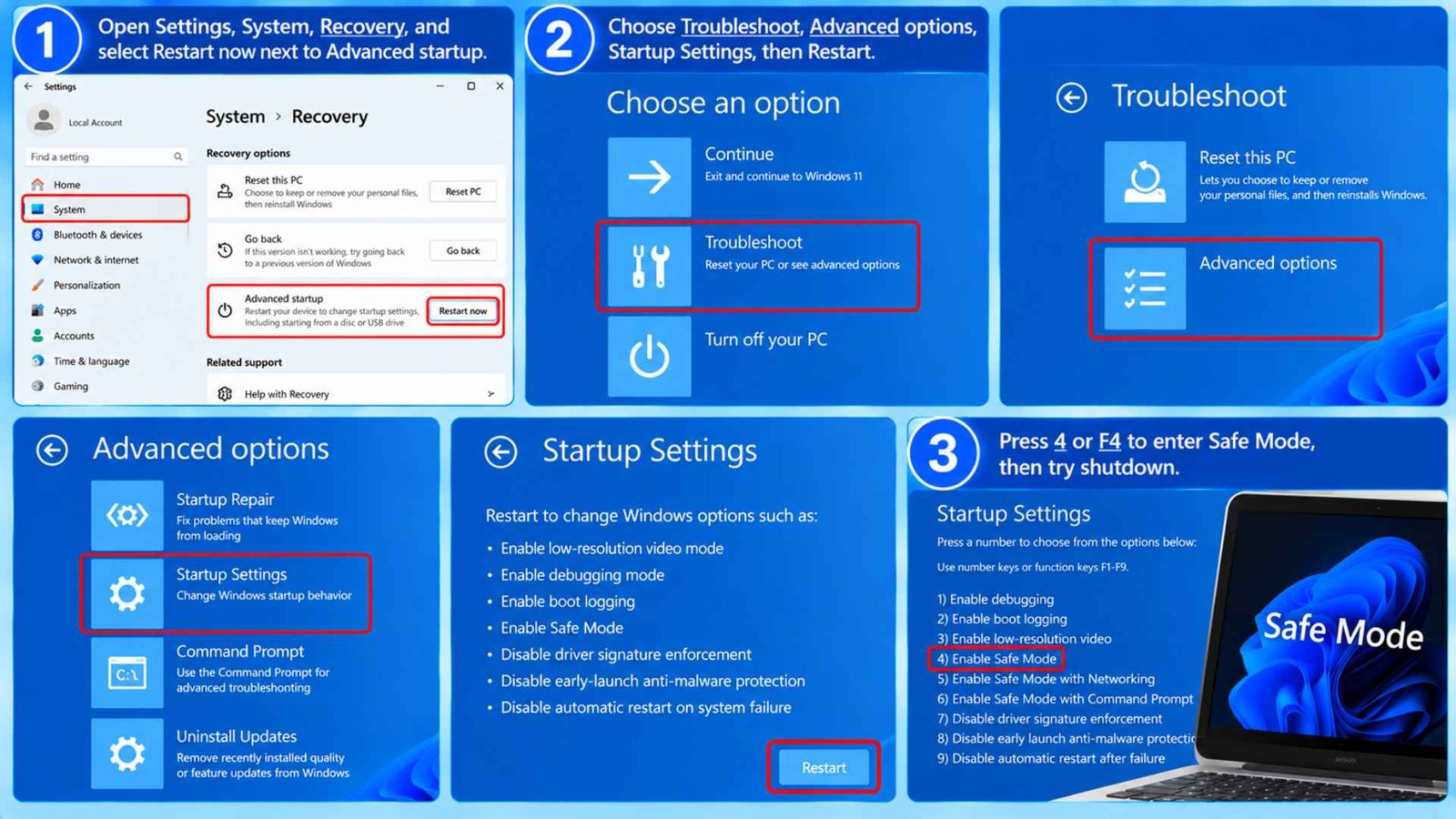
Third party applications can block the operating system from closing down properly. If a security tool or background service hangs during logoff, Windows might restart to protect the file system. Press Ctrl + Shift + Esc to open Task Manager to see if any rogue programs are running constantly, then jump into Safe Mode to test.
- Open Settings, System, Recovery, and select Restart now next to Advanced startup.
- Choose Troubleshoot, Advanced options, Startup Settings, then Restart.
- Press 4 or F4 to enter Safe Mode, then try shutdown.
Frequently Asked Questions (FAQs)
Why does my laptop turn back on when I shut it down?
This issue occurs because of conflicts inside the Fast Startup feature or because a hardware device is sending wake signals. When Windows tries to save the kernel memory state into a storage file, a driver mismatch can cause the motherboard to register a boot command instead of a power down command.
How do I stop my laptop from automatically restarting?
You can stop this behavior by turning off the automatic restart feature inside the Advanced System Settings panel. This forces Windows 11 to halt on an error screen instead of initiating a reboot cycle.
Why does my computer restart when I click update and shut down?
Windows may need to restart to finish installing updates. Check Windows Update to see whether an update is still pending. If your pc restarts instead of shutting down even when no update is being installed, continue with the troubleshooting steps above.
Can I forcefully shut down my computer?
Yes, you can hold down the physical power button on your laptop chassis for roughly five to ten seconds. This cuts off power directly at the hardware level, though it should be used carefully as a diagnostic last resort to avoid file corruption.
Wrapping Up…
When your Laptop restarts when shut down, the most useful approach is to check one cause at a time. Start with a full shutdown, disable Fast Startup, review power button settings, and install compatible Windows updates and drivers. If the problem continues, use Windows repair tools, check for a system crash, and test Safe Mode. These steps can help you Fix laptop restarting after shutdown without immediately resetting Windows or losing your files.