

Few laptop problems are more irritating than pulling a computer out of your bag and realizing it has been awake the entire time.
In most cases, this laptop waking with lid closed problem comes back to a Windows power setting, a device with permission to wake the system, or the way sleep is configured. Hardware failure is usually not the first thing to suspect.
Below, we go through the most useful fixes for a laptop screen turning on while lid is closed, beginning with the easiest settings to check and then moving into Windows diagnostics that can help identify exactly what is waking the machine.
Key Takeaways
- Windows controls what happens when you close the lid through Power Options, so that is the first setting worth checking.
- Some newer laptops use Presence Sensing hardware that can wake the system when movement is detected nearby.
- Running powercfg -lastwake in Command Prompt can show what triggered the laptop’s most recent wake event.
- If the software settings look correct, a worn or faulty Hall sensor may be causing the laptop to think the lid is open when it is actually closed.
Check What Does the Laptop Actually Do When You Close the Lid?
Before changing any settings, narrow down what’s actually happening, since the fix differs depending on the exact behavior.
- Laptop Screen Turns Off Then Comes Back On: This points to something actively waking the machine back up instead of a setting that never put it to sleep in the first place.
- Screen Never Turns Off: If your laptop display simply stays lit the moment you shut the lid, laptop screen stays on behavior like this usually traces back to a lid action set to Do Nothing.
- Laptop Sleeps but Wakes in a Bag: This is the most frustrating version, since it only shows up after the fact, when you open a bag to a warm laptop. It almost always means something is waking the machine remotely, a scheduled task, a network signal, or presence sensing hardware misfiring in an enclosed space.
Method 1: Set the Correct Lid Close Action
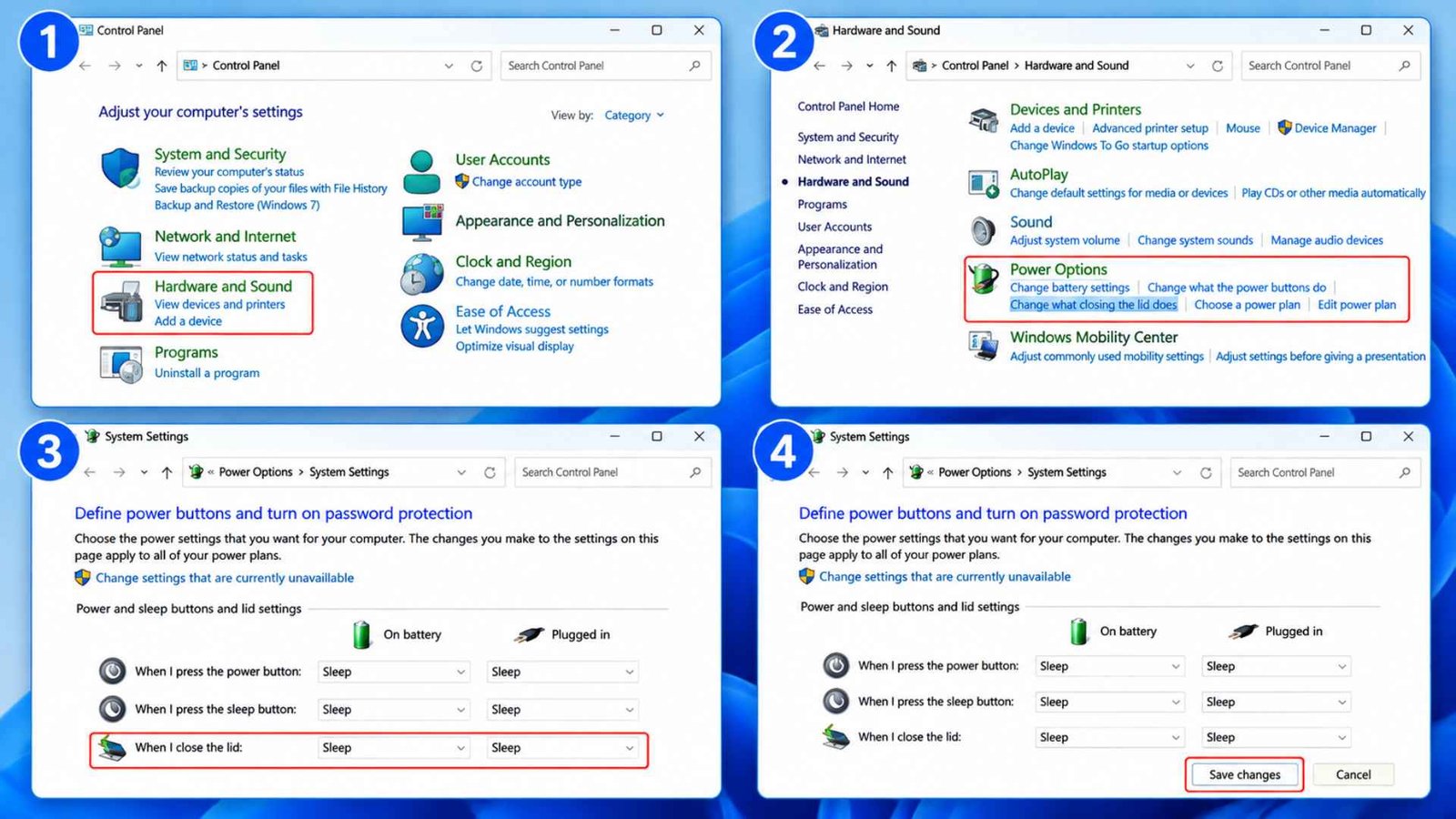
- Control Panel → Hardware and Sound
- Power Options → Choose what closing the lid does
- Under When I close the lid, select Sleep for both On battery and Plugged in
- click Save changes
Microsoft confirms this is the standard Windows path for controlling lid close behavior, and it’s the first place to check before assuming anything more complicated is going on.
Sleep dumps your open work into RAM and drops the machine into a low power state, and pressing a key or clicking the mouse afterward brings it right back.
Save the change, close the lid, wait a few seconds, then reopen it and confirm the behavior actually changed before moving to the next step.
Method 2: Disable Do Nothing if It Is Selected
If either the battery or plugged in column under this same Power Options menu says Do Nothing, Windows will keep running exactly as normal the moment you shut the lid, screen included, since nothing has told it to sleep at all.
Switch that setting to Sleep or Hibernate depending on your workflow. Hibernate writes your session to a file on the C drive and shuts down completely. When you do that it means an external mouse or keyboard won’t wake it. What it’ll wake it up is only the power button while Sleep responds to almost any input immediately.
If you actually want the lid to do nothing on purpose, for instance running an external monitor with the lid closed, Windows key + P opens the Project menu, where selecting Second Screen Only lets the built in display stay off entirely although the laptop keeps running normally behind a closed lid.
Another Good Read: How To Fix Laptop Bluetooth Disappearing After Sleep
Method 3: Turn Off Presence Sensing Wake Features
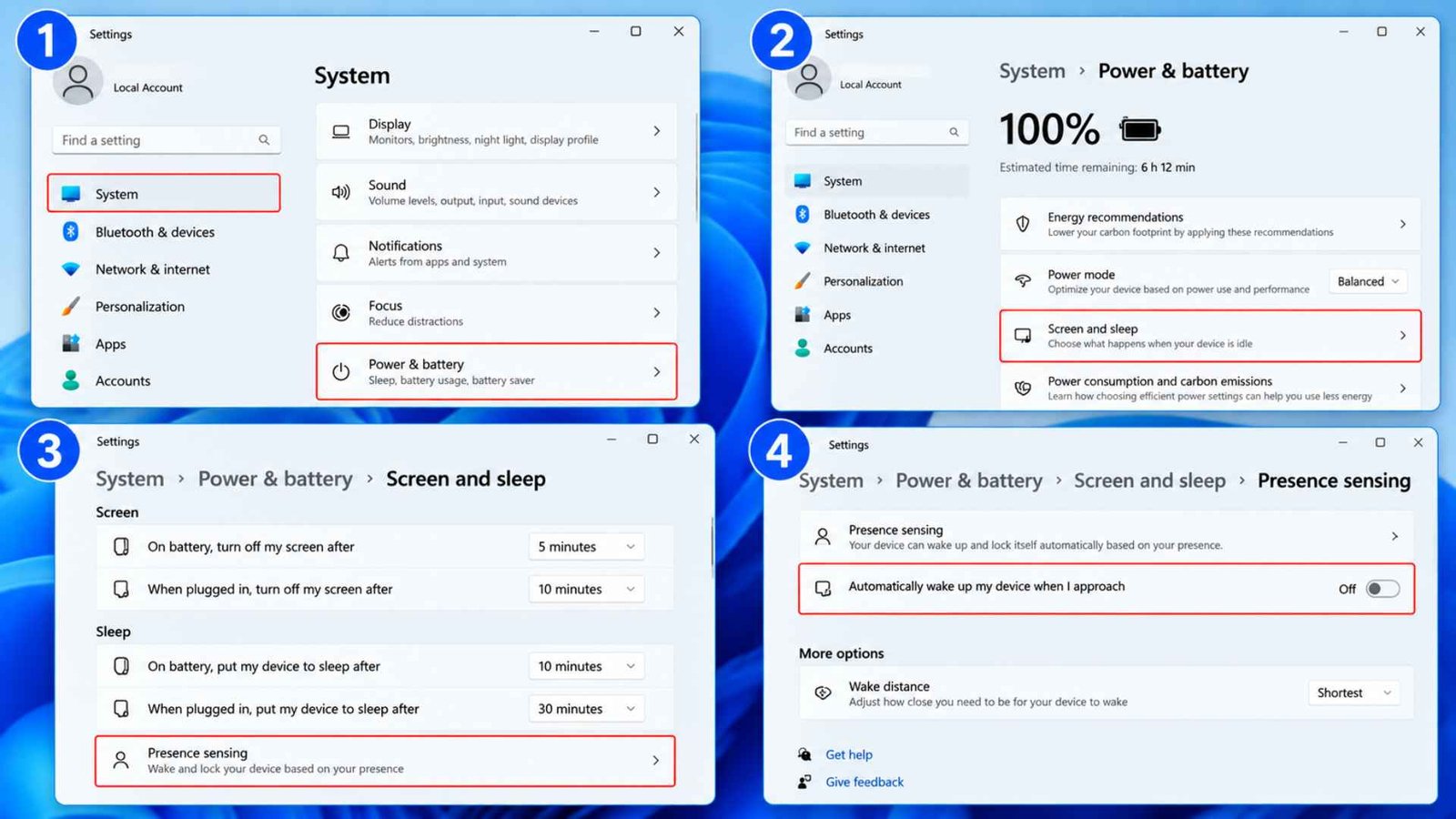
This is especially relevant on newer Windows 11 laptops.
- Go to Settings → System → Power & battery → Screen and sleep.
- On supported Windows 11 PCs, you may see Presence Sensing options such as Automatically wake up my device when I approach.
If this feature is enabled, the laptop can wake automatically when its presence sensor detects you approaching the device.
Microsoft confirms this hardware exists specifically to speed up sign in and improve security by locking the screen when you walk away, though. It can misfire in a closed bag or a crowded space, mistaking nearby movement for someone approaching the laptop itself.
Disable Automatically wake up my device when I approach, and if the option is only available under More options, check the wake distance setting there too, since even the shortest setting can still trigger inside a bag under the right conditions. Test with the lid closed afterward. If the unwanted wake stops, presence sensing was very likely the cause.
Method 4: Find the Hidden Culprit Using Command Prompt
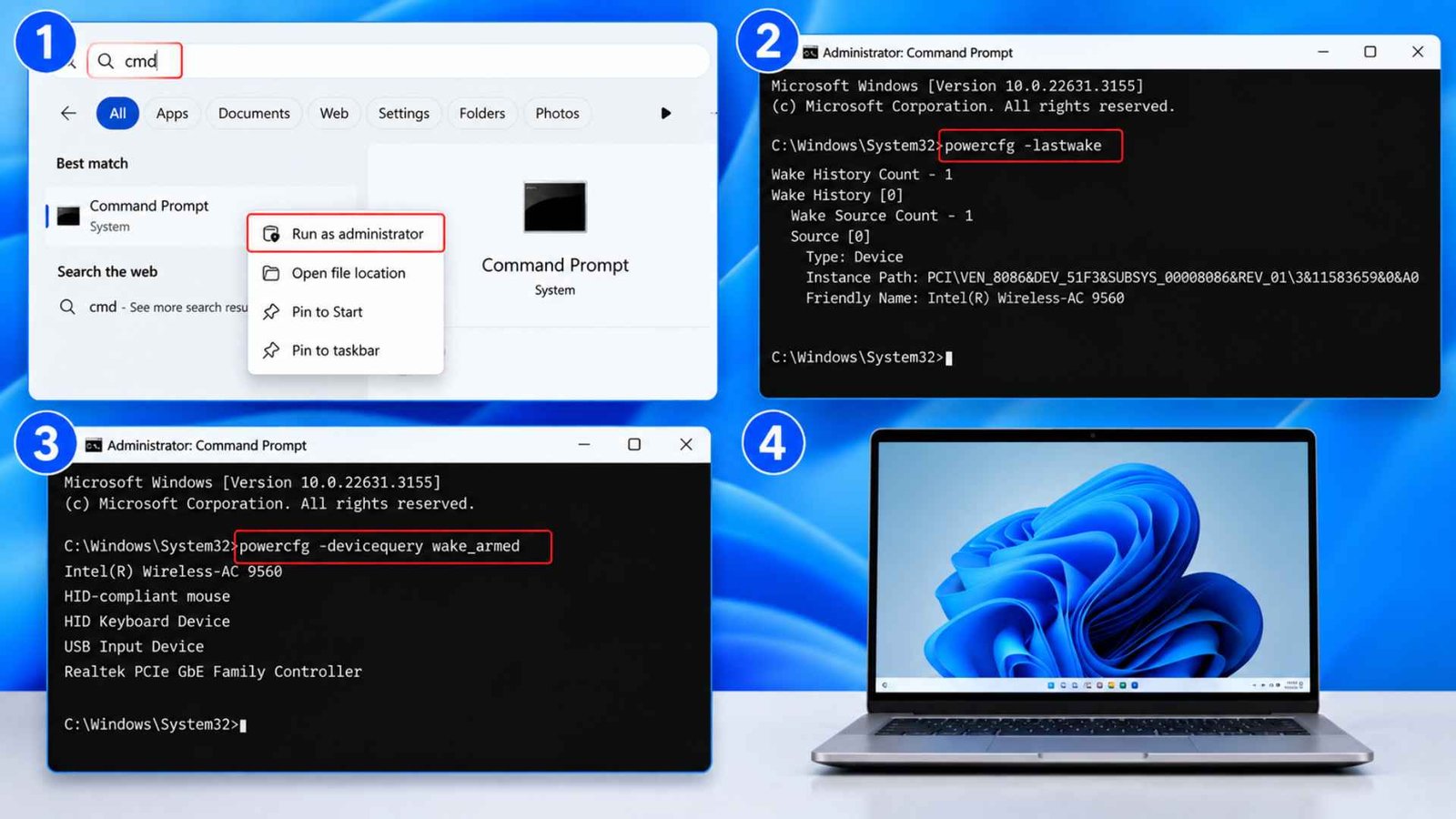
If the laptop still wakes after you have checked the power and presence settings, let Windows tell you what triggered it.
Type cmd in the search bar, right click Command Prompt, and choose Run as administrator. Then enter powercfg -lastwake and press Enter. This shows the device or event responsible for the most recent wake.
Next, run powercfg -devicequery wake_armed to see which hardware is currently allowed to wake the laptop. That list may include a network adapter, USB device, mouse, keyboard, or another component.
If the screen turns on when laptop lid is closed and the earlier fixes did nothing, these commands can narrow the problem down much faster than changing settings at random.
Method 5: Update Windows, Graphics Drivers, and BIOS
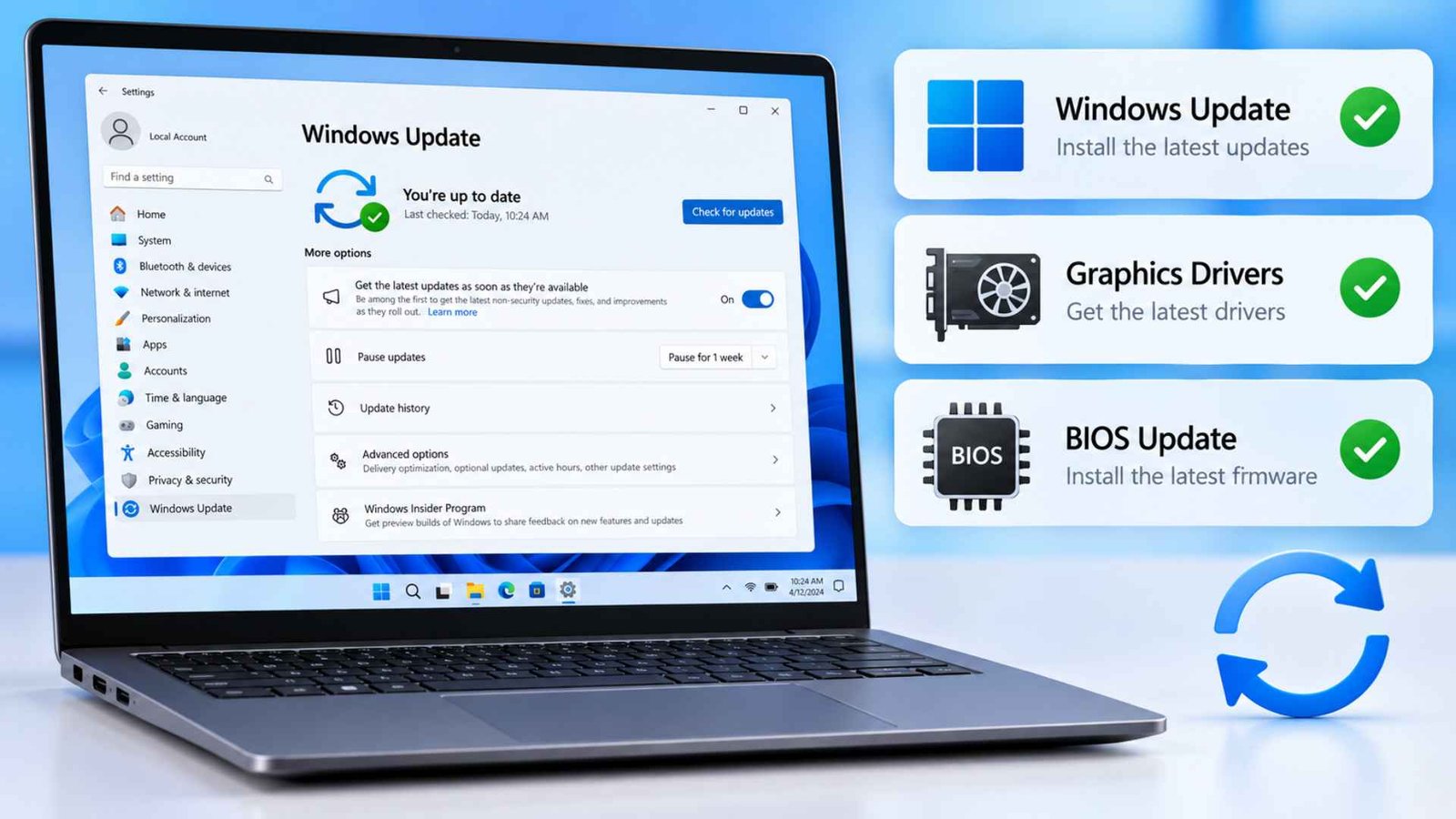
If the lid is still being detected incorrectly, outdated firmware or drivers may be part of the problem. Most laptops use a Hall sensor near the hinge to tell when the lid is open or closed, and that signal is handled partly through the system firmware.
Start by checking Windows Update, then install the latest graphics and chipset drivers from your laptop manufacturer’s support page. It is also worth applying any available BIOS update, especially if the update notes mention sleep, lid detection, power management, or system stability.
On some models, heat around the hinge area can also affect sensor behavior. Updates will only help if the manufacturer has released a fix for that specific hardware issue, but keeping the BIOS and drivers current is still one of the best ways to rule out a software or firmware fault.
Method 6: Reset Your System Power Plans
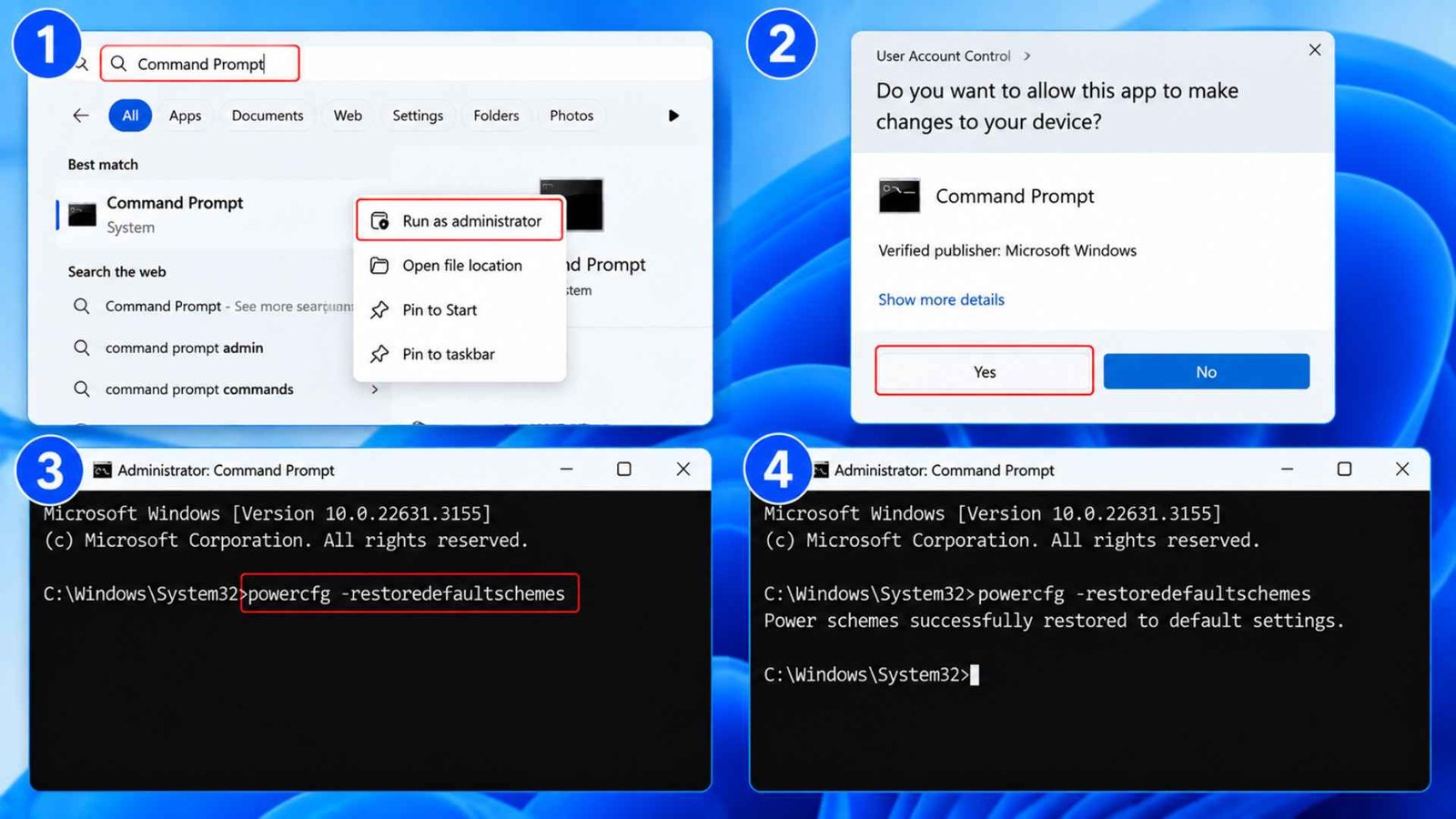
If individual settings look correct but the behavior persists, a corrupted power plan can still cause inconsistent results.
- Open Start → search for Command Prompt → right-click Command Prompt → select Run as administrator.
- Then run: powercfg -restoredefaultschemes
- Press Enter.
This clears out any conflicting or corrupted values that built up from previous setting changes, driver installs, or manufacturer utilities, and it’s a reasonable step once you’ve confirmed the problem isn’t a single obvious setting.
Frequently Asked Questions (FAQs)
How can I stop my laptop from turning on when I open the lid?
Many laptops are designed to wake as soon as the lid opens. If you do not want that behavior, check your BIOS or manufacturer power settings for an option such as Lid Open Power On or Wake on Lid Open. Fast Startup and scheduled wake events can also make the timing confusing.
How do I disable the laptop screen when the lid is closed?
Set the lid close action to Sleep or Hibernate under Power Options. It will turn the screen off and drop the system into a low power state the moment the lid shuts.
Is it better to shut down a laptop or close the lid?
For daily use, closing the lid with Sleep enabled is fine and gets you back to work faster. A full shutdown is better periodically, since it clears memory and applies pending updates that Sleep alone doesn’t touch.
Can magnets interfere with laptop lid detection?
The Hall sensor detects a small magnet built into the lid, and an external magnet placed near the hinge area can trick the sensor into reporting the lid as closed even when it’s open, or the reverse.
Should I use Sleep or Hibernate when closing the lid?
Sleep suits short breaks since it wakes almost instantly. Hibernate suits longer periods away. it fully powers down and won’t drain the battery the way Sleep can over many hours.
Wrapping Up…
Most cases of laptop screen turning on while lid is closed trace back to either an incorrect Power Options setting or a presence sensor that’s a little too eager to wake the machine. Work through the lid close action first, then presence sensing, then the command line diagnostics if the problem persists. For the rare hardware level cause, a Hall sensor affected by heat or a stray magnet, updated firmware or a service visit is the only real fix, but that’s genuinely uncommon compared to the simple setting changes covered above.