
When a laptop charging stops at 80%, your immediate assumption could be that something is broken inside the hardware. In reality, modern laptops come with safe power settings to help protect your hardware.
Lithium-ion batteries degrade over time, so it will be inevitable that your battery will not hold charge like it used to. To prevent your battery from degrading too quickly if it was constantly at 100% charge, modern computers have built-in firmware limits.
However, an unexpected charging limit can also come from a BIOS setting, an incompatible power adapter, or a battery management issue. We will walk through seven ways to troubleshoot this problem in Windows 11, including how you can bypass battery power limits, change your system settings, and get your laptop back to full capacity safely.
Why Your Laptop Stops at 80%: Possible Causes
Most cases of Windows 11 battery stuck at 80% trace back to one of five causes.
- Smart charging: Microsoft says some manufacturers turn it on in Windows 11, and the battery then stops below 100% on purpose.
- Battery care modes: Lenovo, ASUS, HP, Dell, and Acer apps include a battery conservation mode or a similar cap.
- BIOS charge threshold: Firmware can hold the limit no matter what Windows shows you.
- Charger or port trouble: Weak adapters, worn cables, and dirty USB C ports can cause slow or stalled charging.
- Worn battery or driver glitch: An aging cell or a corrupt battery driver can misreport the charge level.
7 Fixes for a Laptop That Won’t Charge Past 80% in Windows 11
If your laptop won’t charge past 80%, work through these fixes in order. Each fix lists the steps for the latest Windows 11 menus.
1. Check Windows Smart Charging
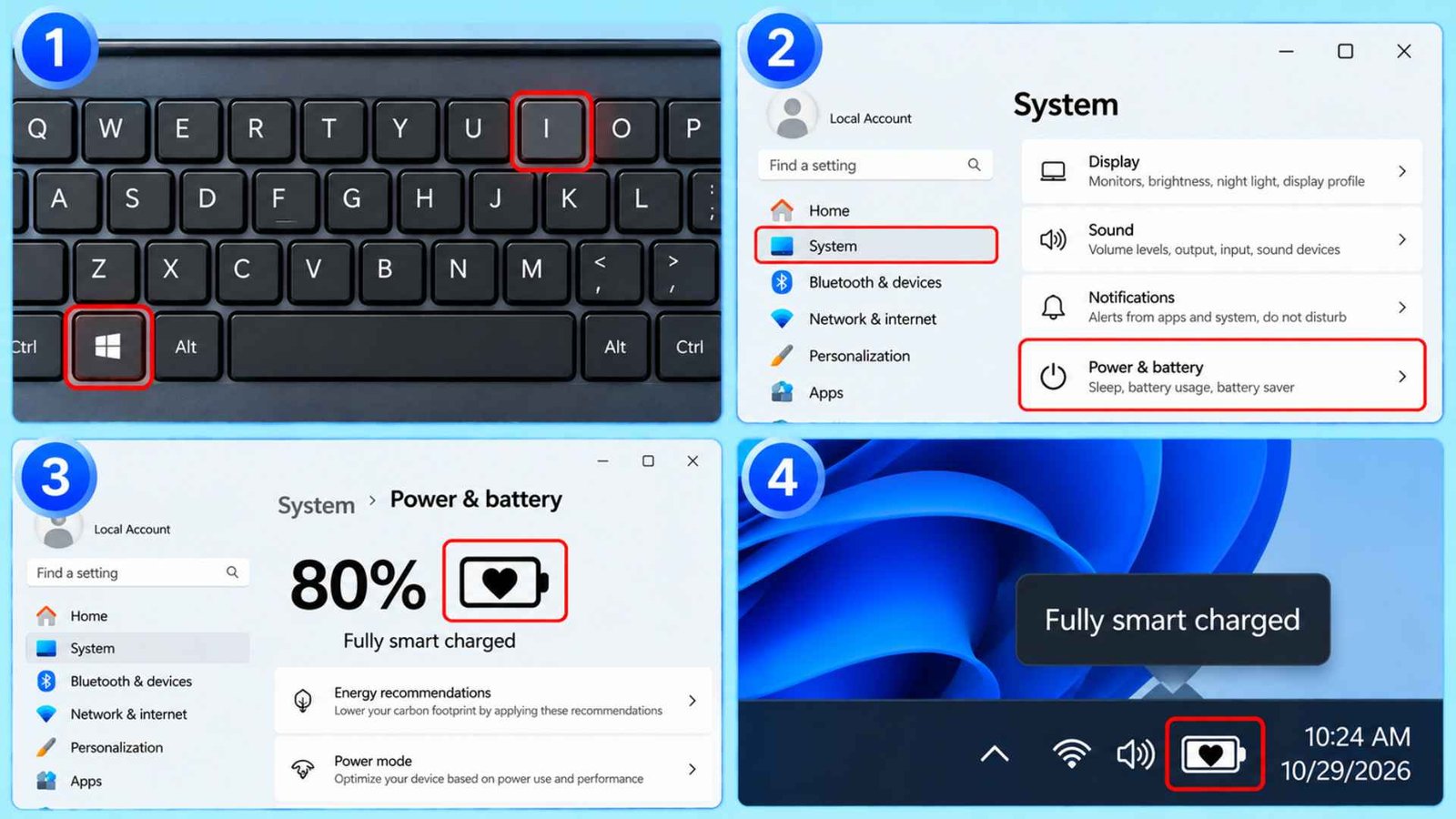
Start by confirming that smart charging Windows 11 is active. When it is, Windows shows a heart on the battery icon, and the hover text reads Fully Smart charged. The battery is plugged in and idle by design, and it may sit below 100%.
- Press the Windows key and the I key to open Settings.
- Select System, then Power & battery.
- Look near the top of that page for a battery icon with a heart.
- Hover over the battery icon in the taskbar and read the message.
- If you see the heart, go to Fix 2 to change the limit.
2. Turn Off Charging Limits
Windows 11 has no master switch. Searches for “turn off smart charging windows 11” always lead to your laptop maker’s app, because each manufacturer builds its own version. You can turn the cap back on later.
- Open your laptop maker’s app, such as Lenovo Vantage, MyASUS, HP Support Assistant, Dell Power Manager, or Acer Care Center.
- Go to the Battery or Power section.
- Find a setting named Charge Threshold, Conservation Mode, Battery Care, or Battery Health.
- Switch it off, or choose Full Capacity or Standard charging.
- Charge the laptop and watch whether it passes 80%.
3. Check the BIOS Charging Limit
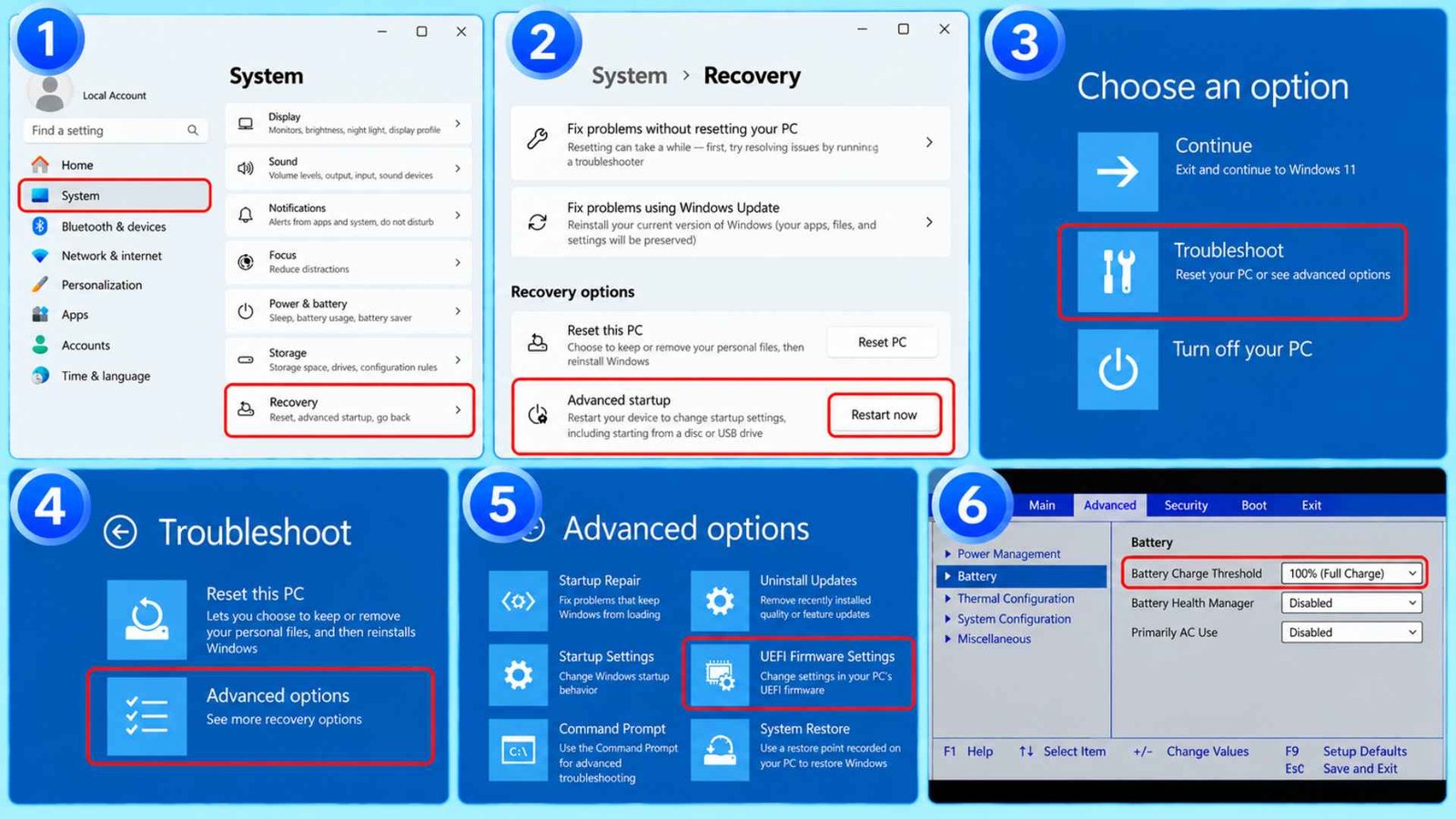
Some laptops enforce the limit in firmware, and no Windows app can override it. Dell calls it Primarily AC Use, HP calls it Battery Health Manager, and Lenovo often labels it Conservation Mode. If the UEFI option is missing, tap F2, F10, or Delete at the logo.
- Open Settings, then System, then Recovery.
- Next to Advanced startup, select Restart now.
- Choose Troubleshoot, Advanced options, then UEFI Firmware Settings, and select Restart.
- Open the Power, Battery, or Advanced tab.
- Set the Battery Charge Threshold, Battery Health Manager, or Primarily AC Use option to full charge or standard.
- Save and exit using the key shown on screen.
Another Good Read: Laptop Volume Keys Not Working in Windows 11? Try These 10 Fixes!
4. Check the Charger
Sometimes, because of low wattage or a faulty charger, the laptop battery couldn’t get past 80%. If this is the scenario you are in right now, try to charge your laptop with a different charger.
You can also try pulling the brick out of the wall outlet you were using and plug it into a different outlet to check if an AC adapter not recognized error disappears.
5. Reinstall the Battery Drivers
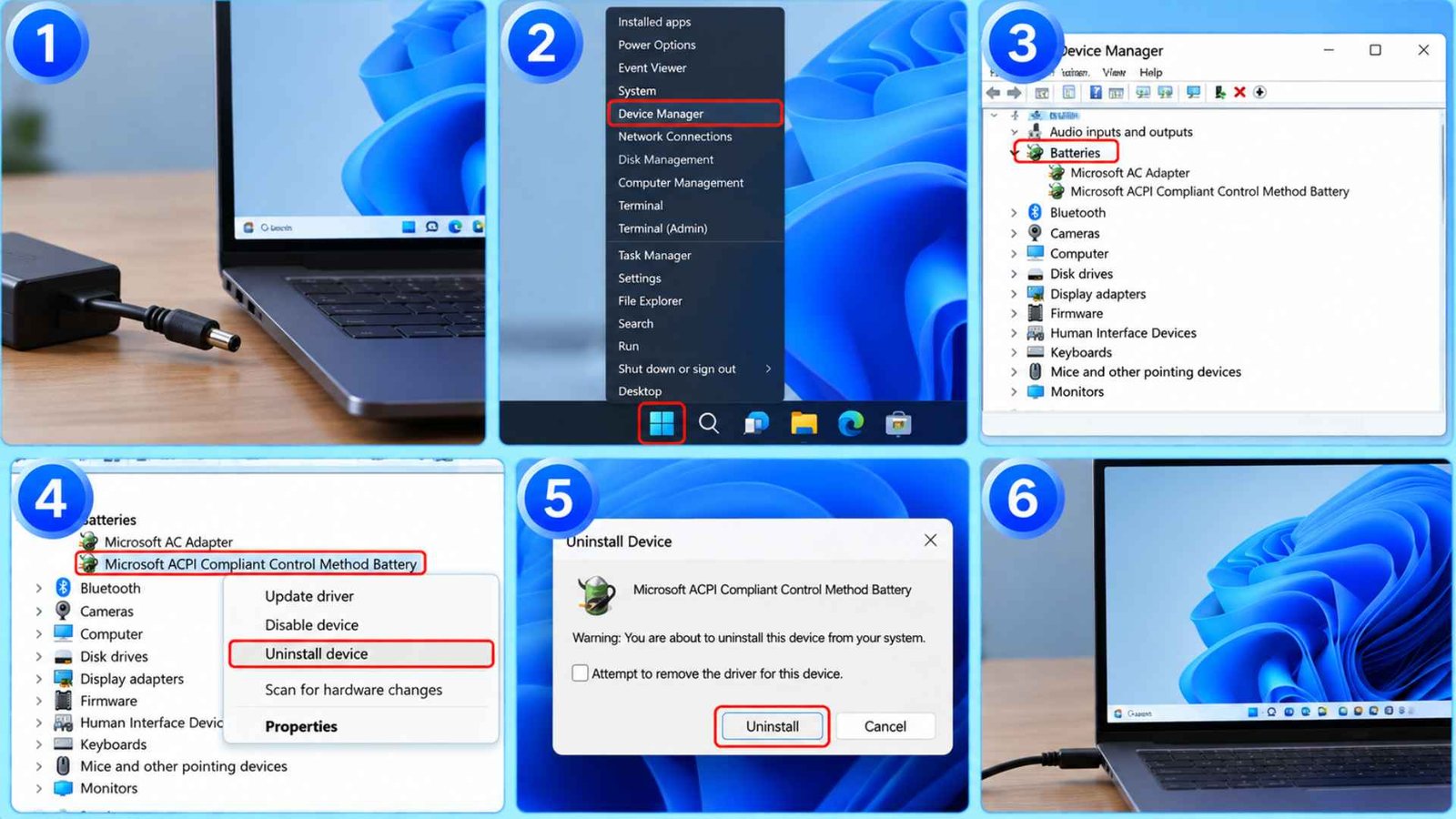
Corrupt battery drivers can misreport the charge level or block charging, and Windows rebuilds them on restart. This fix costs nothing and carries little risk, and it clears many stuck charging states. Do not download battery drivers from third party sites. If the Batteries list is empty, restart the laptop and check again.
- Unplug the charger and save your work.
- Right click Start and select Device Manager.
- Expand Batteries.
- Right click Microsoft ACPI Compliant Control Method Battery and select Uninstall device.
- Confirm the prompt, then shut down the laptop.
- Plug in the charger, turn the laptop back on, and let Windows reinstall the driver.
- Repeat for Microsoft AC Adapter if charging still fails.
6. Update Windows and Firmware
Updates often fix charging logic, and manufacturers ship battery firmware through their own tools. Release notes often mention battery or charging fixes. Charge the battery to at least half before you get into this solution. Never interrupt a BIOS update, because a failed flash can leave the laptop unable to start and put you in another problem.
- Open Settings, then Windows Update, and select Check for updates.
- Install what appears and restart.
- Select Advanced options, then Optional updates, and install any firmware or driver items.
- Open your laptop maker’s tool, such as Lenovo Vantage, MyASUS, HP Support Assistant, Dell Command Update, or Acer Care Center.
- Install BIOS and Embedded Controller updates and keep the charger plugged in.
- Restart and test charging again.
7. Run a Battery Health Report
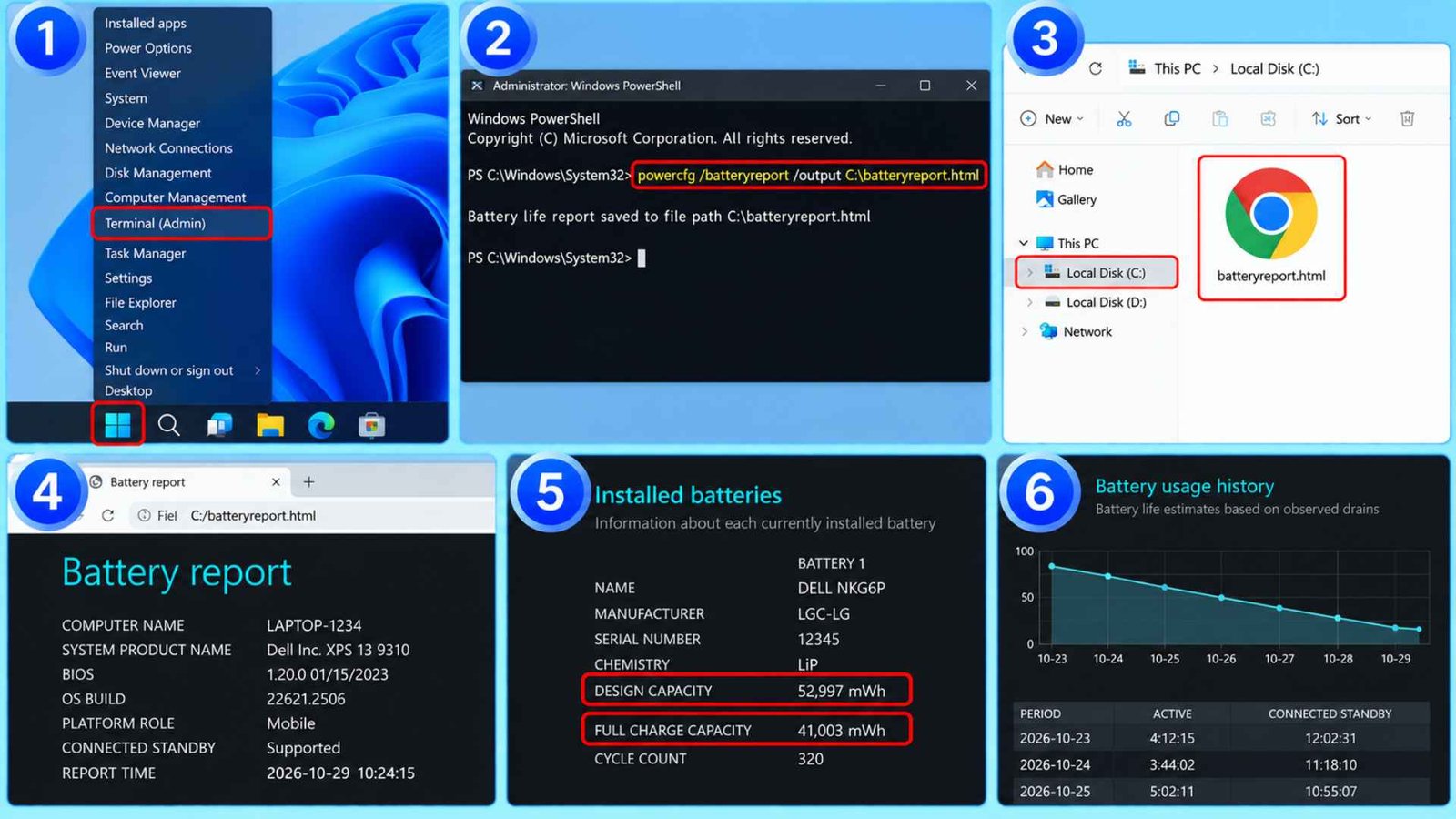
If the previous fixes do not help, check the actual condition of your battery. The Windows battery report shows whether the battery can still reach full capacity. Compare Design Capacity with Full Charge Capacity. A worn battery can also stop short of full charge as the controller protects itself. Run the report once a month to track the trend. Take a screenshot of the results for your records.
- Right click Start and select Terminal (Admin).
- Type powercfg /batteryreport /output C:\batteryreport.html and press Enter.
- Open File Explorer, select the C: drive, and open batteryreport.html in your browser.
- Find Installed batteries and compare Design Capacity with Full Charge Capacity.
- Note the cycle count and the battery usage history.
- Full Charge Capacity far below Design Capacity means a worn battery, and you need a replacement.
How to Disable the 80% Limit by Brand
Look for your laptop brand below and adjust the setting to allow a full 100% charge:
- Lenovo: Open the Lenovo Vantage app, go to Device, then Power, and adjust the Lenovo Vantage battery threshold or turn off Conservation Mode.
- ASUS: Open the MyASUS app, go to Hardware Settings, open battery health charging, and switch the MyASUS Battery Care Mode from Maximum Lifespan Mode or Balanced Mode to Full Capacity Mode (100%).
- HP: Open HP Battery Health Manager, or restart your laptop and press F10 repeatedly to enter the BIOS settings, then change the battery mode from Maximize My Battery Health to full charge.
- Dell: Open Dell Power Manager or Dell Optimizer, go to Battery Information, then use the Dell Power Manager battery settings to switch from Primarily AC Use or Adaptive to Standard charging, or disable the Custom stop charging limit.
- Acer: Open Acer Care Center or AcerSense, go to Personal Settings, and turn off Optimized Battery Charging or select Full Battery Charging.
Frequently Asked Questions (FAQs)
Is It Better to Keep My Laptop Battery at 80%?
Maintaining your capacity level at a fixed 80 percent threshold is highly beneficial if you leave your machine connected to a wall outlet all day. Lithium cells experience the highest amount of degradation when they are forced to sit at maximum voltage under constant electrical current. However, by leaving 80% battery limits enabled within the software, you won’t have to unplug your device to prevent it from charging fully.
How do I stop my laptop battery charging at 80?
Open your manufacturer’s app, switch off the threshold or battery care mode, and recharge. If the app has no option, check the BIOS under Power or Battery.
How do I turn off the 80% battery limit?
Choose Full Capacity, Standard, or Full Battery Charging in the app, or set the BIOS threshold to 100%. Since Windows 11 itself has no toggle, brand settings are the only route you can use to turn off the 80% battery limit.
Wrapping Up…
When laptop charging stops at 80% in Windows 11, the first thing you need to check is whether the manufacturer has set their battery protection on. It is very likely that you are deliberately only charging up to 80% so it does not damage the battery. If you need to fully charge your laptop, ensure your laptop can be charged to full capacity (or standard) by going into full capacity/standard. If it still limits the charge, then make sure your charger is fine, update the battery driver and run a battery report.