
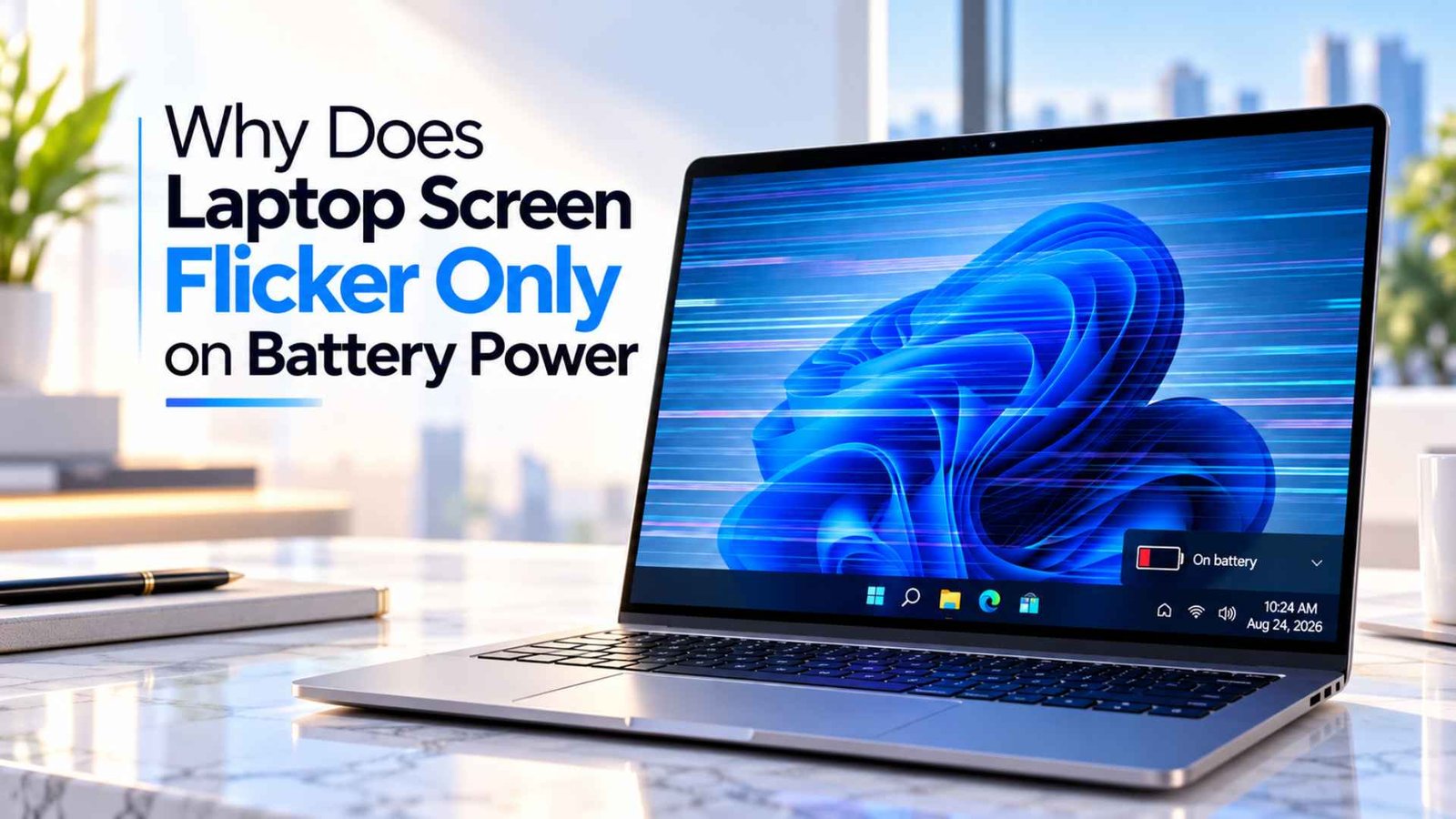
It can be so disruptive to be working on an important piece of information or going through research tabs only to see your display begin flickering as soon as you unplug the adapter.
Normally, this flicker is visible as a rapid stutter, a sudden drop in the contrast ratio of the screen, or a pulsing effect that is hard on the eyes.
Many of you might have thought your physical LCD display has failed when your laptop flickers while running on battery power, though. The real problem is rarely the hardware itself, especially if you notice the flicker distortion disappears entirely the moment you connect your charging brick.
Your real concern would be the power management. When a laptop runs on Battery Power, Windows and the graphics hardware switch on a stack of savings features. They dim the backlight, slow the refresh cycle and let parts of the display pipeline nap.
We walk you through 7 fixes you could implement to get rid of that problem, so keep scrolling!
Key Takeaways
- Flicker that starts only after unplugging the charger usually puts battery display settings, refresh rate changes, and the graphics driver high on the list.
- Windows can run Content Adaptive Brightness Control only on battery, so brightness or contrast pulsing can come from that setting.
- Try the graphics driver from your laptop manufacturer if a generic driver causes trouble.
- If the screen also flickers before Windows loads or during a built in display test, start looking harder at the panel, cable, firmware, or other hardware.
7 Fixes for a Laptop Screen That Flickers Only on Battery
1. Disable Intel Panel Self-Refresh (PSR)
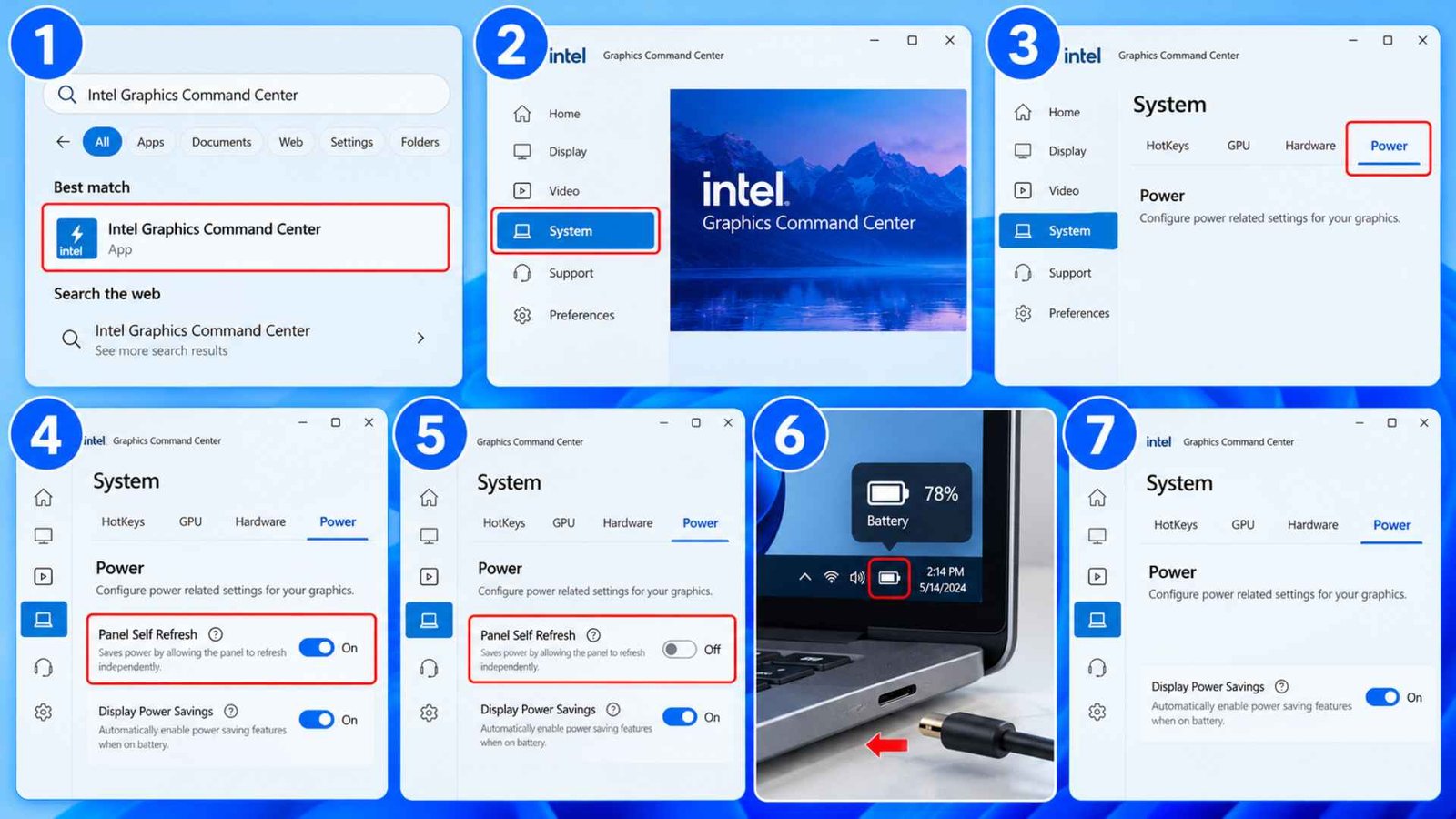
Intel Panel Self Refresh lets a supported built in panel keep a static image on screen while parts of the graphics path reduce activity to save power. Intel specifically recommends disabling it during laptop flicker troubleshooting.
If laptop screen flickers on battery and your laptop uses Intel integrated graphics, this is one of the best first checks. An Intel panel self refresh flicker often feels tied to battery use because the charger can change the graphics power profile as soon as you reconnect it.
How to do it
- Open Intel Graphics Command Center.
- Select System.
- Open Power.
- Find Panel Self Refresh.
- Turn it Off.
- Unplug the charger and test the screen.
- If the option is missing, move to the next fix.
2. Turn Off Intel Display Power Saving Technology (DPST)
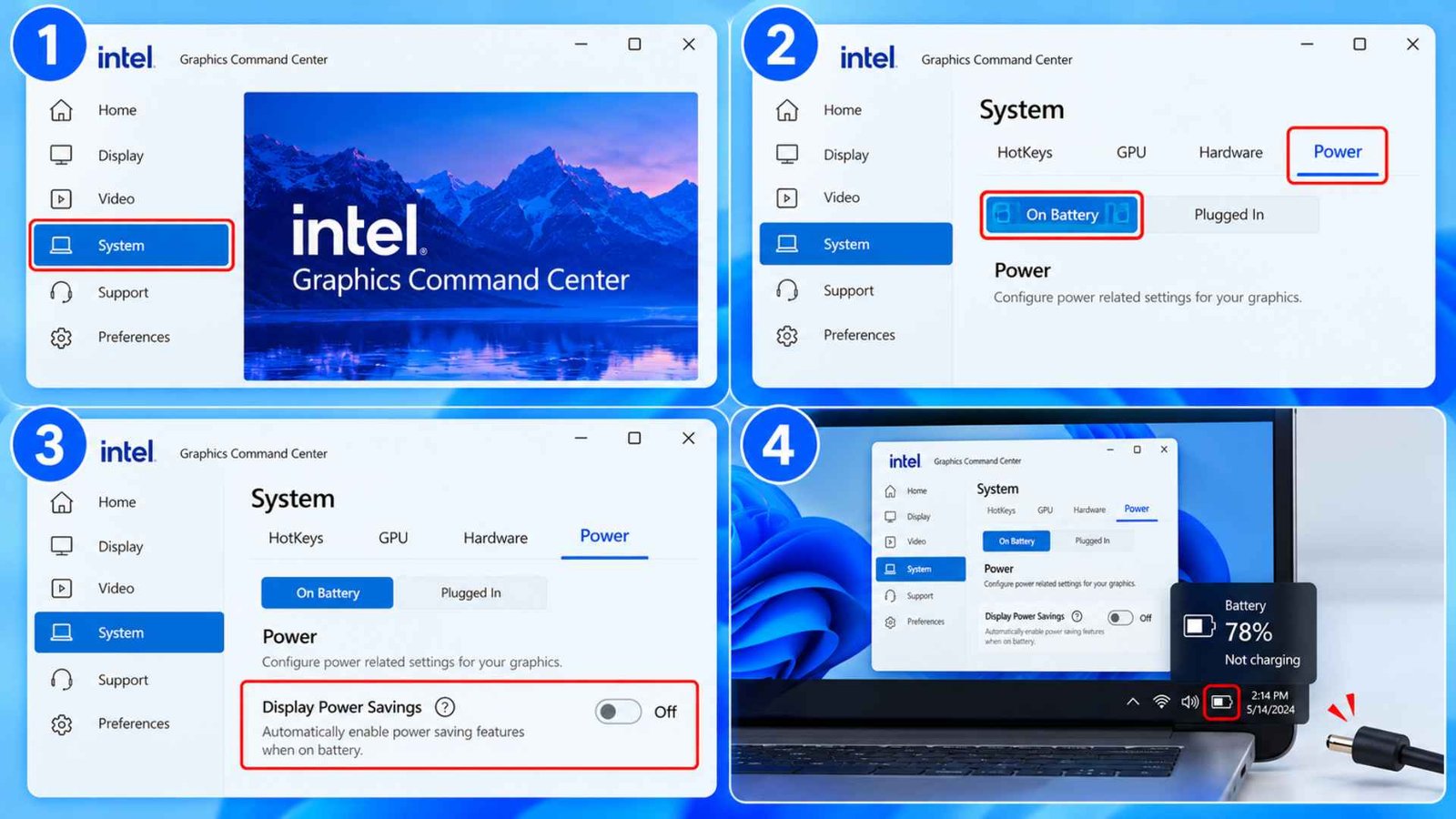
Another common cause of the sudden screen flickers only on battery is an aggressive contrast adjusting engine controlled by your graphics hardware. Display Power Saving Technology actively analyzes the overall brightness of the applications which are running on your workspace. When you move from dark text editor to a bright web browser tab, the utility lowers the backlight intensity all while artificially boosting the pixel contrast to preserve the perceived visibility. This rapid automated voltage shifting across the light-emitting diodes looks like a broken, shaky blink when your machine relies entirely on its internal battery reservoir.
How to do it:
- Open Intel Graphics Command Center.
- Select System.
- Open Power.
- Choose the On Battery section if your version shows separate power states.
- Find Display Power Savings.
- Set it to Off.
- Test again with the charger disconnected.
Another Good Read: How to Fix the Black Screen on a Laptop
3. Disable Windows 11 Content Adaptive Brightness Control (CABC)
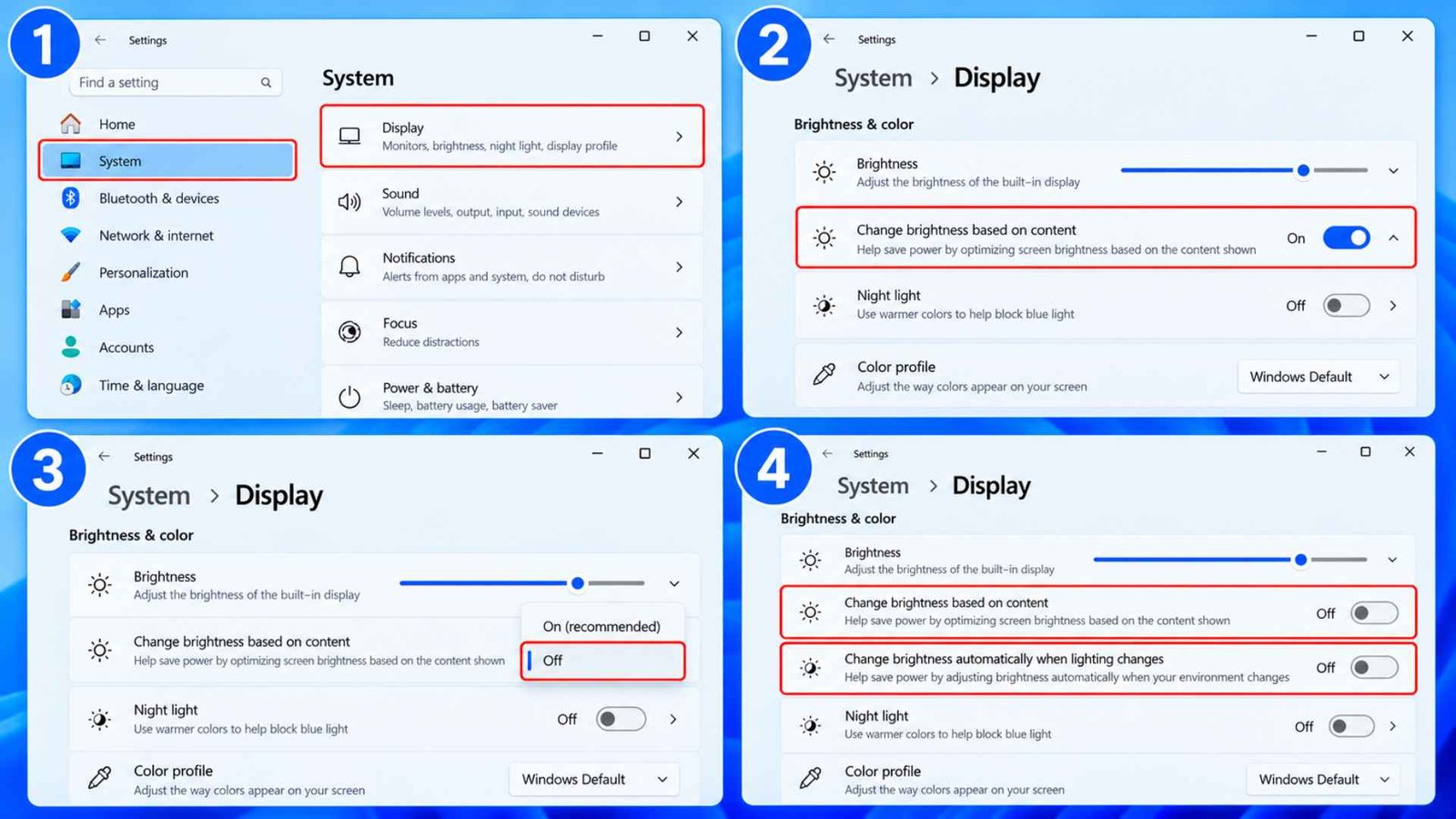
Windows 11 can adjust brightness and contrast based on what is on screen, all to stretch battery life. On some panels the steps are visible, and you get adaptive brightness screen flicker during scrolling or video. A second feature, the ambient light sensor option, is labeled Adaptive Brightness in the power plan and does similar damage. Many threads about Windows 11 screen flickering end with one of these two switches, and screen flickering on battery power often stops once both are off.
How to do it:
- Open Settings.
- Go to System.
- Select Display.
- Expand Brightness.
- Find Change brightness based on content.
- Set it to Off.
- Turn off automatic brightness from lighting changes too if that option appears.
- Check the screen again on battery.
4. Reinstall the Microsoft ACPI-Compliant Battery Driver
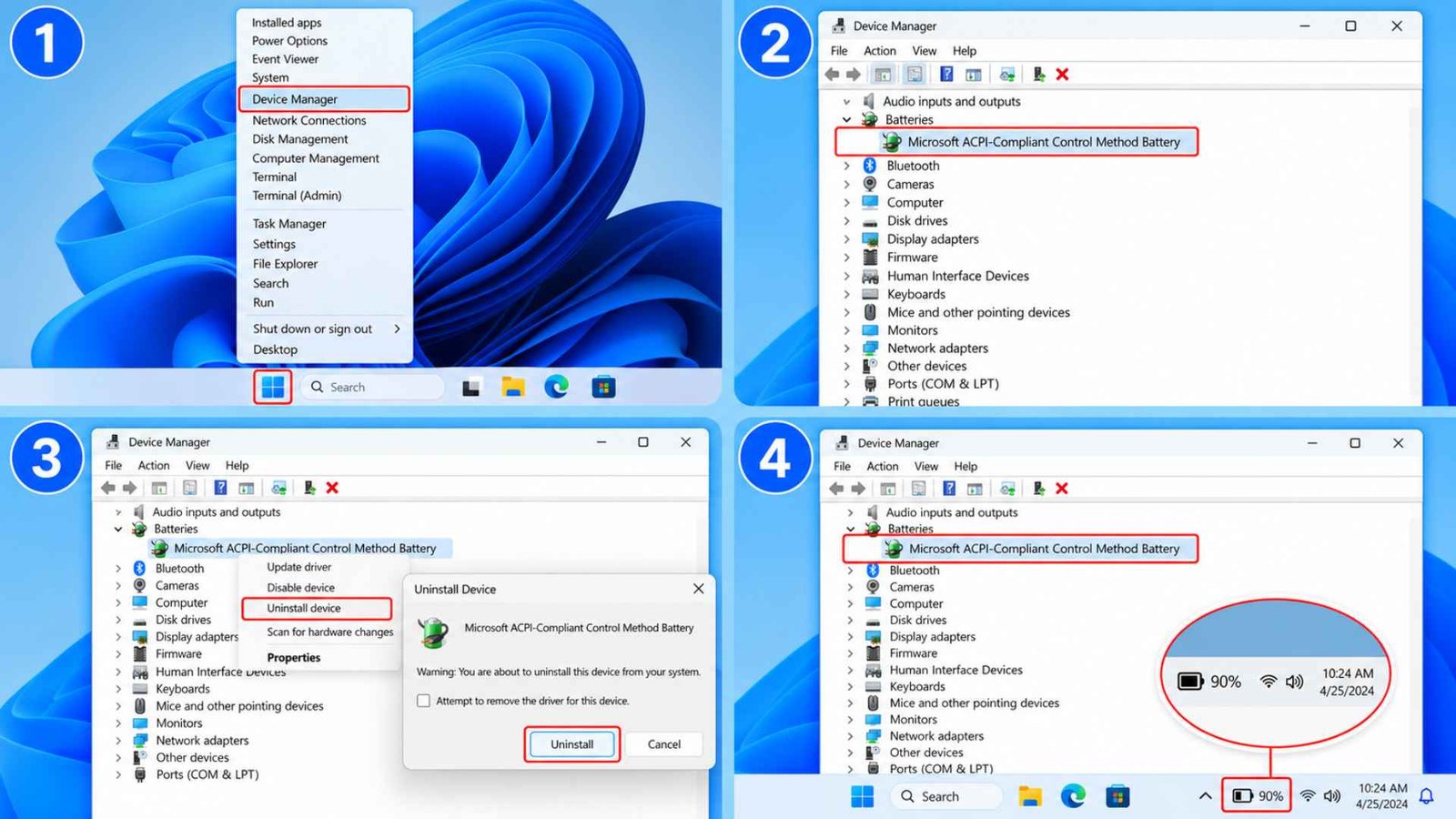
Windows uses the Microsoft ACPI-Compliant Control Method Battery driver to read battery status and detect changes between AC and battery power. If that device interface gets stuck or starts reporting power changes incorrectly, reinstalling it is a quick troubleshooting step worth trying.
You shouldn’t put this ahead of the graphics and display power settings, but it makes sense when screen flickering on battery power starts right after you unplug the charger.
How to do it:
- Right-click Start and open Device Manager.
- Expand Batteries.
- Right-click Microsoft ACPI-Compliant Control Method Battery.
- Select Uninstall device and confirm.
- Restart the laptop.
- Windows should detect the battery again and reload the driver automatically.
- Unplug the charger and test the screen again.
If the flicker stays exactly the same, move back to the graphics driver, refresh rate, and battery display settings. Those are more directly tied to how the panel behaves on battery.
5. Turn Off Dynamic Refresh Rate Switching (DRRS)
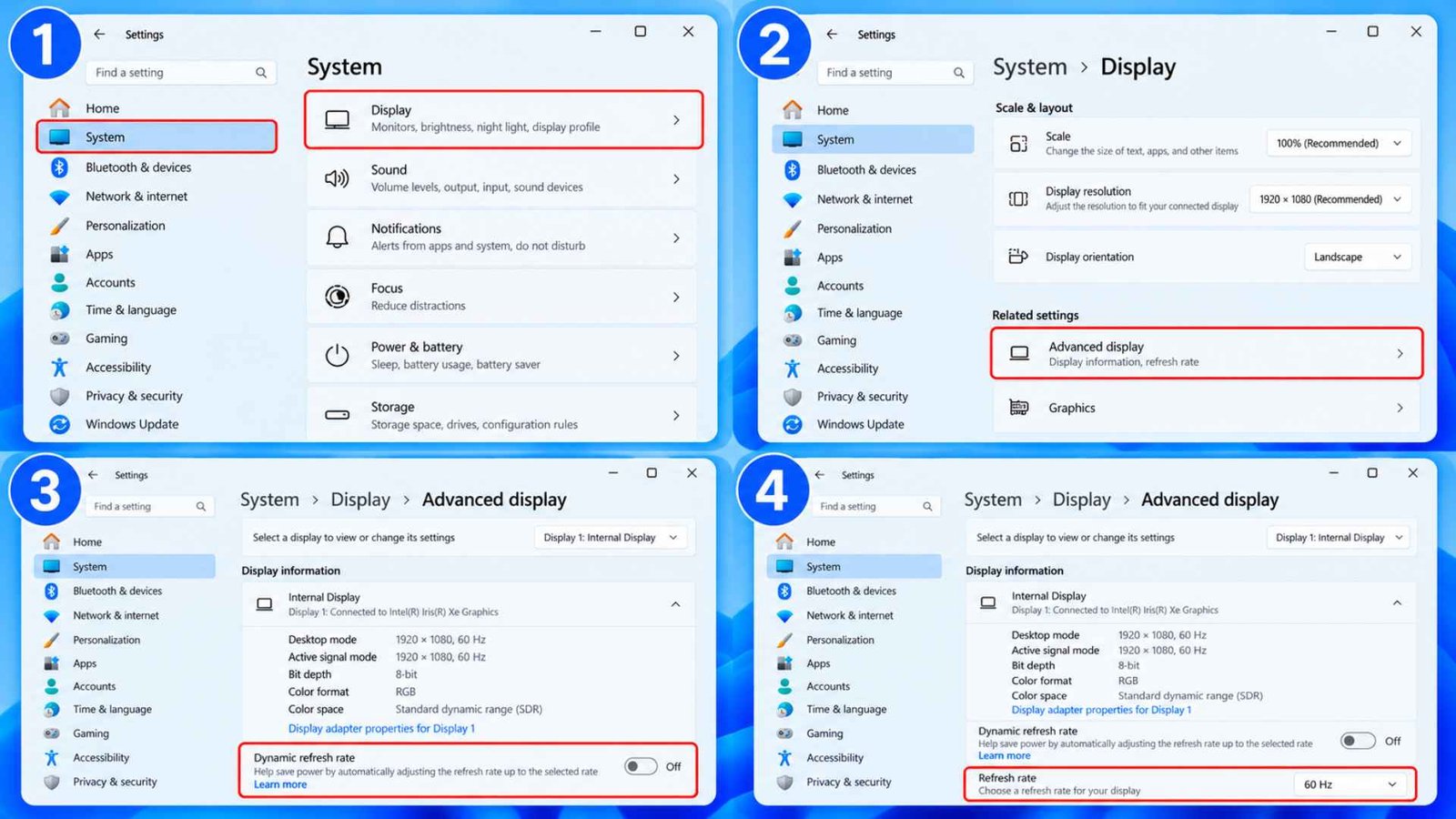
Windows 11 supports Dynamic Refresh Rate on compatible displays. DRR changes refresh rate automatically based on what you are doing, with smoother motion when useful and lower power use during lighter work.
A dynamic refresh rate flicker can appear if the panel or driver does not handle a refresh transition cleanly. If laptop screen flickers on battery but becomes stable at a fixed setting, you have narrowed the problem to display timing or the graphics path.
How to do it:
- Open Settings.
- Go to System.
- Open Display.
- Select Advanced display.
- Turn Dynamic Refresh off if your laptop supports it.
- Choose a fixed supported Refresh Rate, such as 60Hz for testing.
- Disconnect the charger and watch for flicker.
6. Deploy the Laptop Manufacturer’s Dedicated OEM Graphics Driver
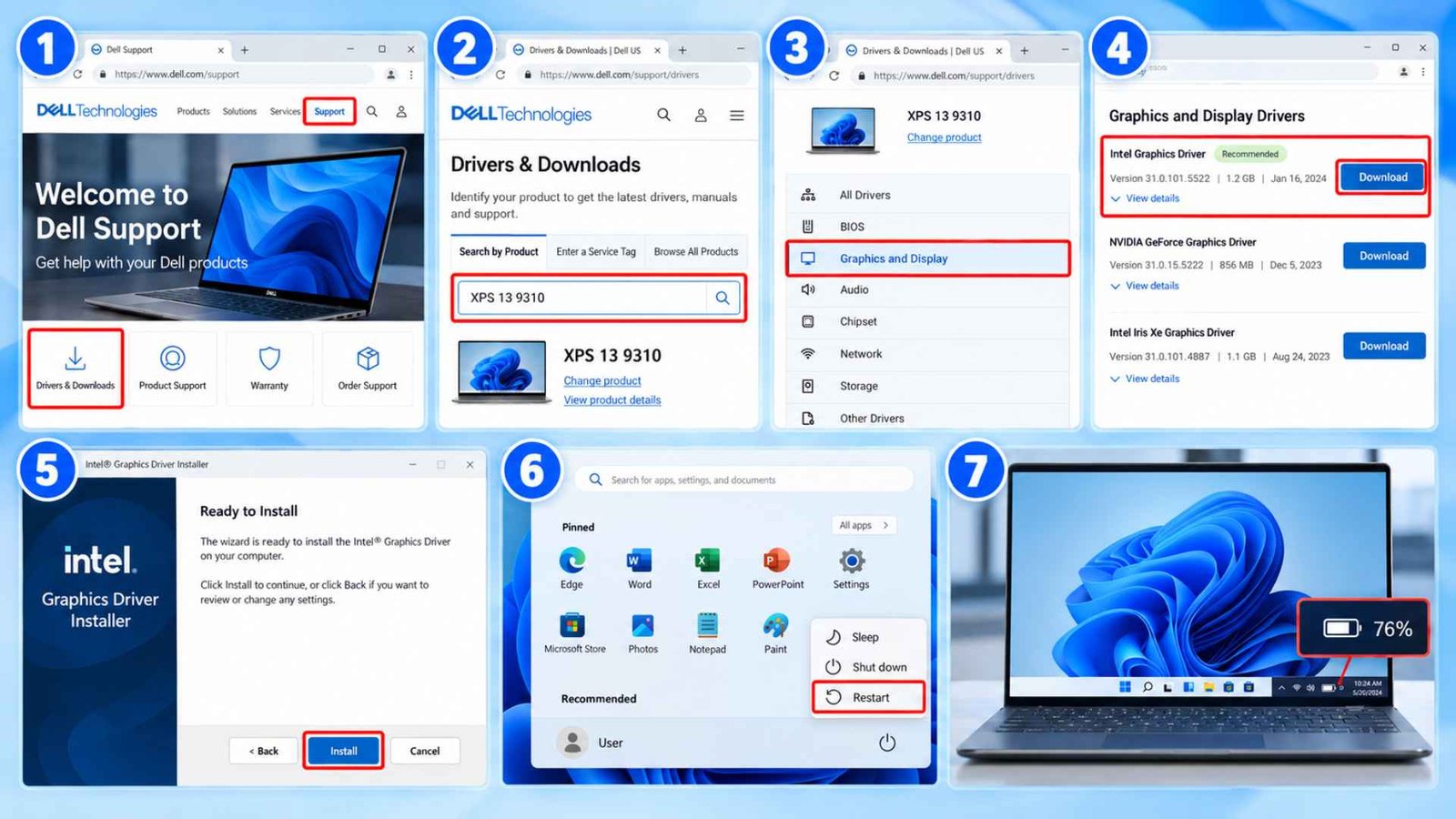
If the flicker started after a graphics update, try the driver provided by your laptop manufacturer. Dell, HP, Lenovo, ASUS, and other brands often test their Graphics Driver packages for the exact display, BIOS, and power setup used in each laptop model.
Generic Intel, AMD, or NVIDIA drivers can work perfectly fine, but they may not include every platform specific fix from the laptop maker. Intel even recommends going back to the latest OEM driver if its generic package causes flickering or other system specific problems.
How to do it:
- Open the official support website for your laptop brand.
- Search using the exact model, serial number, or service tag.
- Find the Graphics or Display driver section.
- Download the newest driver listed for your laptop and Windows version.
- Run the installer and follow the normal installation steps.
- Restart the laptop after installation.
- Unplug the charger and check whether the graphics driver screen flicker returns.
7. Apply the Latest Motherboard BIOS and Chipset Updates
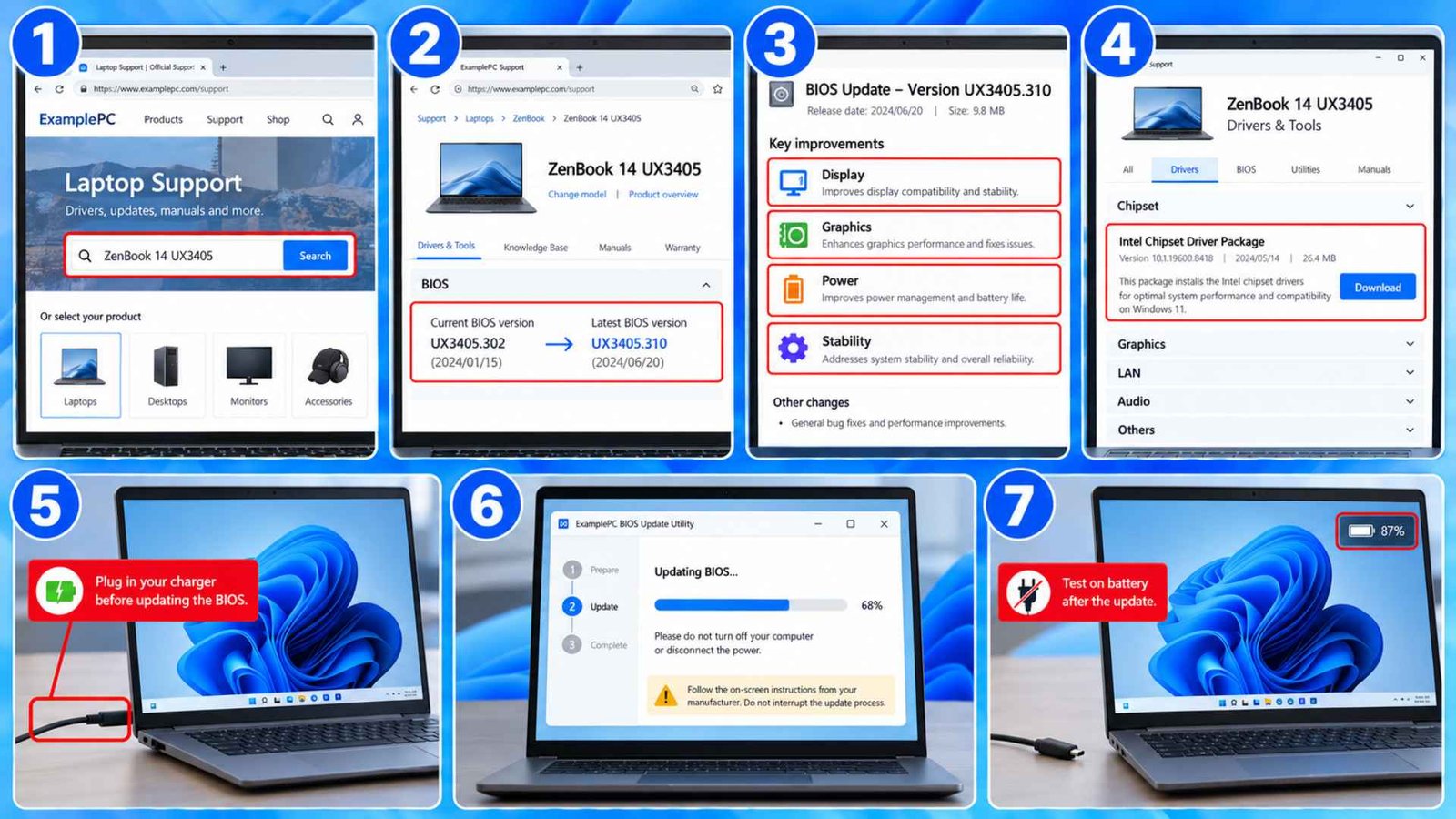
If the first six fixes do nothing, check what happens before Windows even loads. BIOS and other platform software sit below the operating system, and outdated firmware can sometimes play a part in display, power, or stability problems. A useful test is to enter the BIOS or UEFI setup on battery power and leave the screen there for a few minutes. If the laptop screen flickering still appears, Windows apps and the normal display driver are no longer your only suspects. At that point, firmware or hardware deserves a closer look.
How to do it:
- Open your laptop manufacturer’s support page.
- Compare your BIOS version with the latest release for your exact model.
- Read the release notes for display, graphics, power, or stability fixes.
- Install the current chipset package if one is available.
- Connect the charger before any BIOS update.
- Follow the manufacturer’s instructions exactly.
- Test again on battery after the update.
Frequently Asked Questions (FAQs)
Can a flickering screen be fixed?
Yes, a flickering laptop panel can absolutely be resolved when the visual distortion is linked directly to your power arrangement. If your display functions perfectly when plugged into a wall outlet, the issue is rooted entirely in software optimization profiles. Adjusting how your graphics package handles energy saving modes will easily fix the issue permanently.
How do I stop my laptop screen from flickering?
Most screen flickering on battery power traces back to PSR, DPST or content based brightness, so start there. Change one thing per restart so you know which change worked.
Can adaptive brightness cause screen flickering?
It can create quick brightness shifts that look like flicker. Microsoft lets you disable content based brightness from Display Settings under System and Display. This is especially relevant when dark and bright windows cause the screen to visibly pulse.
What is Panel Self Refresh?
Panel Self Refresh is an Intel display power saving feature on supported built in panels. It lets the panel keep a static image with less ongoing graphics activity. You should disable it during laptop flicker troubleshooting
Wrapping Up…
A laptop screen flickers on battery for a reason, and it ain’t a mystery once you know where to look. Every fix here comes down to the same trade. Power saving features swap smoothness for minutes of runtime, and some panels cannot keep up. Start with PSR, DPST and content based brightness, because they take two minutes each. Move on to the battery driver, refresh switching, the OEM graphics package and the BIOS only if the flicker hangs around. Tweak ’em one at a time and keep notes. If the BIOS Test still shows a flicker, stop troubleshooting and book a repair while the warranty is still active. You will lose a little battery life with some of these settings off, but a steady screen is worth it.