

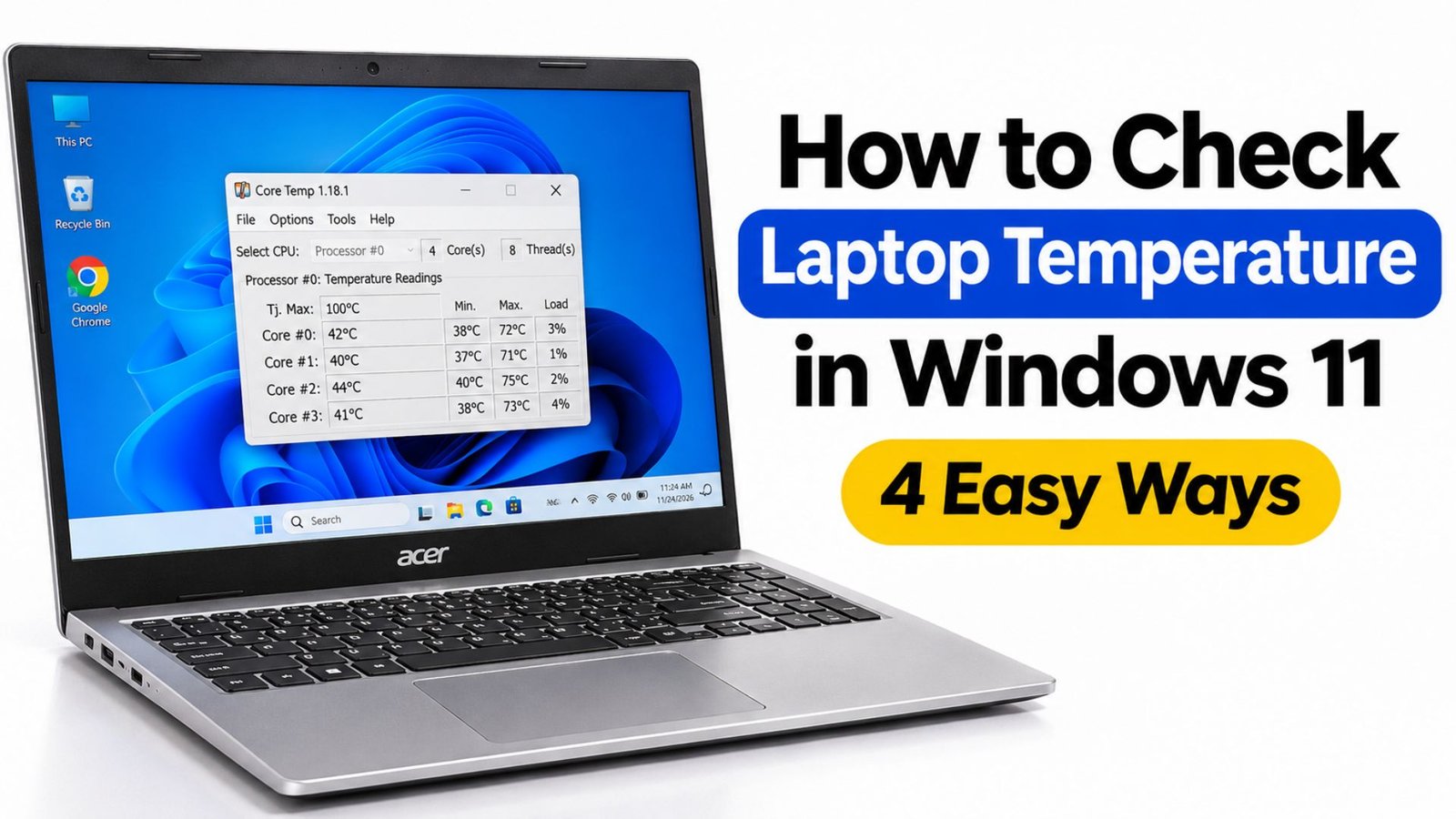
I use an older Dell Precision 5530, and its fan speeds up the moment I open big, high authority sites for content research. That happens almost every time I have 20 Chrome tabs open with Canva, Spotify, and WhatsApp running in the background. I’m pretty sure you’ve had days like that too.
Most of the time, your laptop’s heat tells you a lot about how it is holding up. A sudden spike in central processing unit (CPU) temperature usually happens from heavy use, aging parts, or blocked vents.
Either way, too much heat causes real headaches. Your PC starts lagging, the fans never stop spinning, and your battery life takes a hit. Thankfully, there are four easy ways to check laptop temperature in Windows 11 right now.
4 Simple Ways to Check Your Laptop’s Temperature
1. Check GPU Temps in Task Manager (No Download)
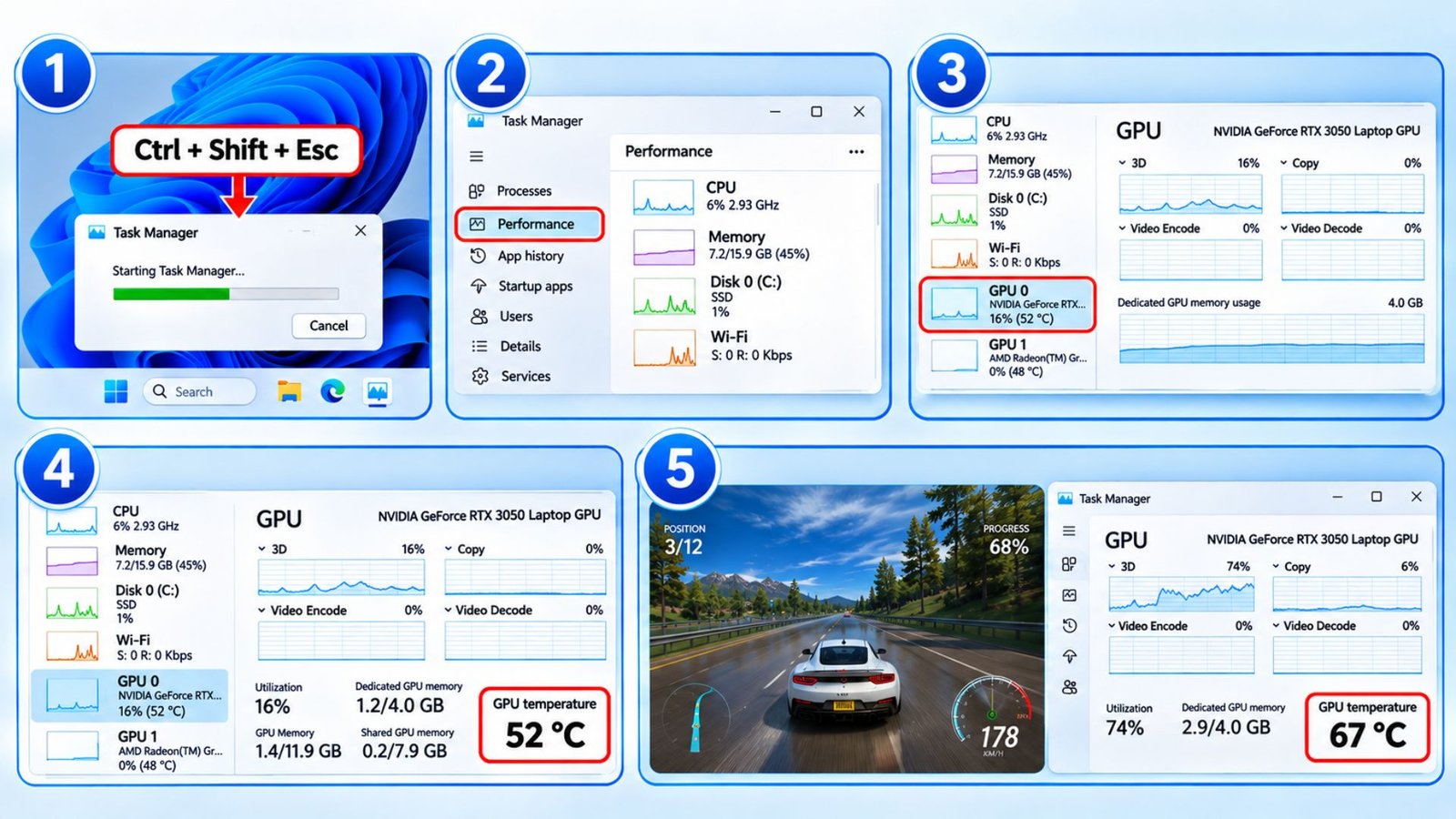
Windows 11 includes a basic hardware tracker right out of the box. The best part about this method is that it uses only your existing PC systems for monitoring. You do not have to spend extra money, install new apps, or hand over account details. It also cuts out the risk of picking the wrong software and getting hit with malware or spam. While it will not show processor heat, it tracks your GPU temperature accurately.
- Press Ctrl + Shift + Esc to open Task Manager.
- Select Performance from the left sidebar.
- Click GPU 0 or GPU 1, depending on your system.
- Look for the temperature reading on the GPU performance page.
- Keep the page open while running a game or graphics intensive application.
Note: The temperature reading may not appear on every laptop. It depends on your graphics hardware and driver support.
2. Use Your Laptop’s Built In Control Center (Most Accurate)
Your laptop maker likely ships a control app, and its readings tend to be the most accurate. It reads the same sensors that drive your fan curve. It works as a laptop temperature monitor tuned for your exact model. ASUS Armoury Crate, MSI Center, Alienware Command Center, Lenovo Vantage, and HP OMEN Gaming Hub all show temperatures. Not every brand includes a thermal readout, though.
- Click the Start menu button on your Windows 11 taskbar.
- Type the name of your laptop brand (such as Vantage, MyASUS, or SupportAssist) and press Enter.
- Open the System Health, Thermal Management, or Hardware Diagnostics section inside the app.
- Read the live processor and fan speed metrics displayed on your main dashboard.
Another Good Read: Laptop Volume Keys Not Working in Windows 11? Try These 10 Fixes!
3. Get Full Sensor Data with Third Party Apps
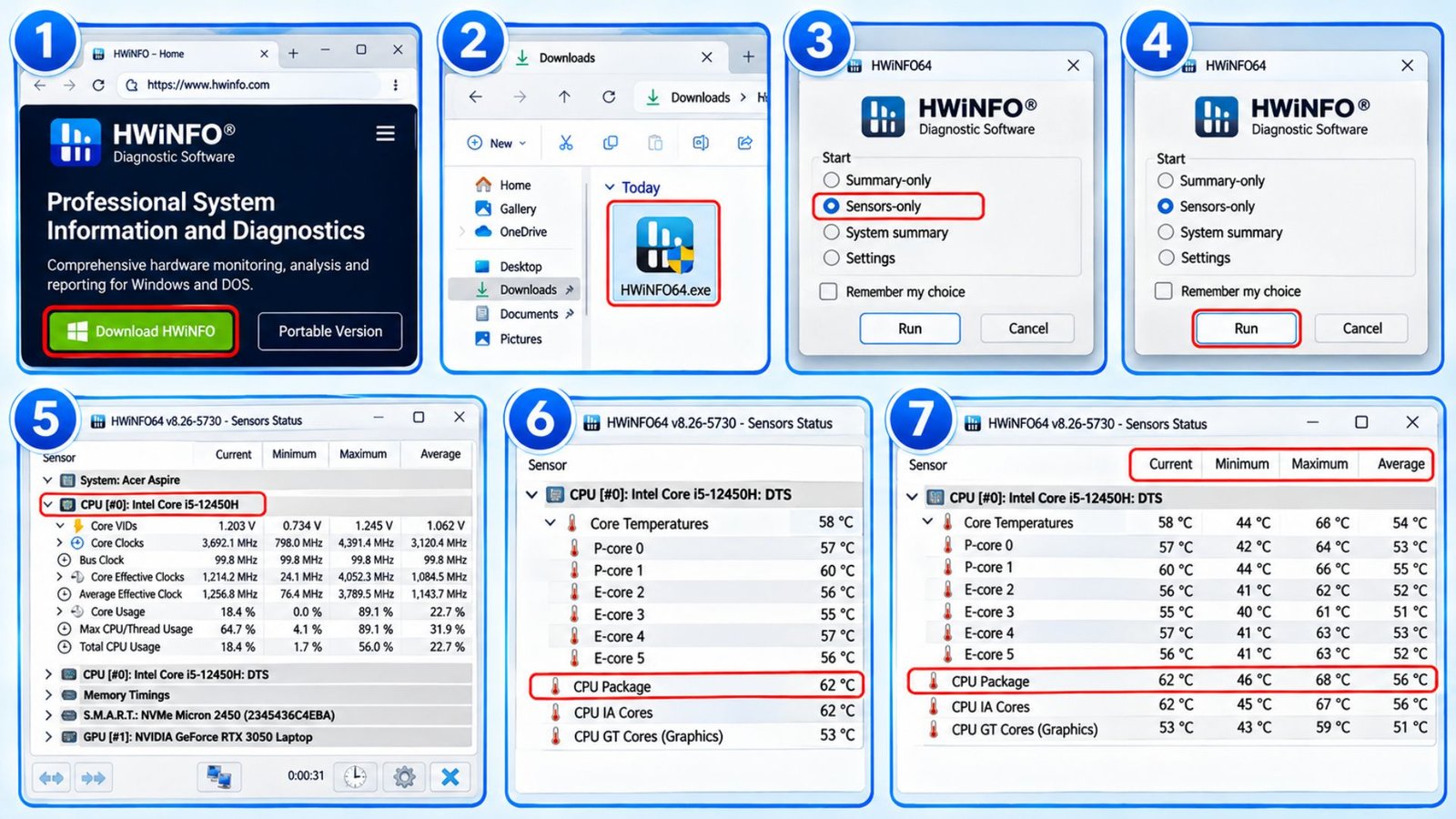
HWiNFO is the best free Windows 11 temperature monitor if you want every sensor on your machine. It’s free for personal use, and it updates in real time. Core Temp, HWMonitor, and Speccy work too. Core Temp is the lighter pick if you only want a CPU temperature checker. Its top section lists your CPU. With an AMD chip, you’ll probably see one value. Intel chips will likely show one reading per core.
- Visit the official HWiNFO download page.
- Download the appropriate Windows version and install the application.
- Open HWiNFO and select Sensors only when prompted.
- Wait a few seconds for the application to collect hardware information.
- Scroll down to the processor section.
- Look for readings such as CPU Package, Core Temperatures, or CPU Die.
- Check the Current, Minimum, Maximum, and Average columns.
4. View Temps in Your BIOS/UEFI
Sometimes Windows freezes up so badly that desktop apps refuse to open. In those moments, checking heat directly through your motherboard firmware acts as a great backup Windows 11 temperature monitor. It shows your true hardware baseline before Windows loads any background apps.
- Save your open files and click Start, then click the Power icon.
- Hold down the Shift key on your keyboard while clicking Restart.
- Select Troubleshoot, choose Advanced options, and click UEFI Firmware Settings.
- Click Restart to boot straight into your system BIOS screen.
- Navigate to the Hardware Monitor, PC Health Status, or System Information tab to read your processor heat.
Signs Your Laptop Is Overheating
A loud fan does not automatically mean your laptop has a cooling problem. However, certain symptoms are worth investigating, especially when they appear together.
Watch out for these signs:
- Fans run constantly: Your cooling fans remain loud even when you are only browsing or performing simple tasks.
- Unexpected performance drops: Applications become sluggish, games lose frame rates, or the system takes longer to respond.
- Unexpected shutdowns: Your laptop suddenly switches off or restarts during demanding tasks.
- Excessive heat around the chassis: The keyboard, palm rest, or bottom panel becomes unusually hot.
- Reduced battery life: Excessive heat can affect battery performance and accelerate battery wear.
- Thermal throttling: Your processor automatically reduces its speed to control heat.
- Frequent temperature spikes: The processor repeatedly reaches high temperatures during ordinary activities.
If you notice several of these symptoms, use a CPU temperature checker to investigate further. Also check CPU usage through Task Manager to identify applications that might be putting unnecessary pressure on your processor
What’s a Normal Laptop Temperature?
A normal laptop temperature really comes down to what you are doing on it. If you push your chip hard with 4K video editing or overclocking, your numbers will naturally climb higher than someone just checking emails.
When your machine sits untouched on the desktop, your laptop idle temperature should stay between 35°C and 50°C (95°F to 122°F). During everyday office work, an average running temperature below 140°F (60°C) is completely safe.
Cooler temps are always better for PC hardware. Every CPU has a maximum heat limit that it tries hard not to cross. That exact ceiling varies from chip to chip, though for most processors it sits between 95°C and 105°C.
Intel’s official thermal management documentation notes that modern chips automatically slow down their clock speeds at this limit to prevent permanent damage. If your machine regularly hits those numbers, it is likely throttling itself. Worse yet, if it cannot cool down fast enough, it may shut off completely to save itself.
Quick Ways to Cool Down Your Laptop
If you check cpu temp readings and see scary numbers, do not panic. Try these simple physical and software tweaks to drop your laptop temperature right away.
- Elevate the back edge: Prop the rear of your machine up by an inch with a book or laptop stand. That small gap gives your bottom intake fans fresh air to pull in.
- Stick to hard, flat surfaces: Stop resting your computer on beds, pillows, or thick blankets. Soft fabrics choke the vents and trap heat right underneath your machine.
- Tweak your Windows power mode: Open Windows Settings, go to System, and click Power & battery. Switch your mode to Best power efficiency so your chip stops running at full power during light tasks.
- Clear dust from the vents: Grab a can of compressed air and blow short bursts into the side and rear vents. Built up dust acts like a thick winter coat inside your cooling fins.
- Close background resource hogs: Open Task Manager and kick out heavy apps you no longer need. Shutting down twenty unused browser tabs instantly drops your laptop temperature by several degrees.
Frequently Asked Questions (FAQs)
Is 90 C hot for laptops?
indeed, 90°C is quite hot, though it is common during intense gaming or heavy rendering. While modern chips can survive brief spikes to 90°C, staying there for hours degrades your battery and internal parts. You should monitor cpu temp levels closely and improve your airflow if you see 90°C regularly.
Does Windows 11 Have a Built In CPU Temperature Monitor?
Windows 11 does not include a native tool to check cpu temp readings on your desktop. Task Manager only tracks your graphics card heat. To see processor numbers, you must use your laptop brand software, check your BIOS menu, or install a free third party utility like HWiNFO.
Why Does My Laptop Get Hot Even When Idle?
Several things can cause this problem. Background applications, Windows updates, browser extensions, dust buildup, and poor ventilation can all increase processor activity. Open up your Task Manager and assess the level of computer processing. If this is low and the laptop is still hotter than expected, examine the laptop fans and vents.
Wrapping Up…
Keeping your laptop temperature under control does not require fancy gear or deep technical skills. Whether you glance at Task Manager for quick graphics stats or use HWiNFO to monitor cpu temp spikes during heavy workloads, checking your numbers takes less than a minute. Pay attention to loud fans, clear dust out of your vents every few months, and keep your machine on hard desks. A few smart habits today will keep your computer fast and reliable for years.