
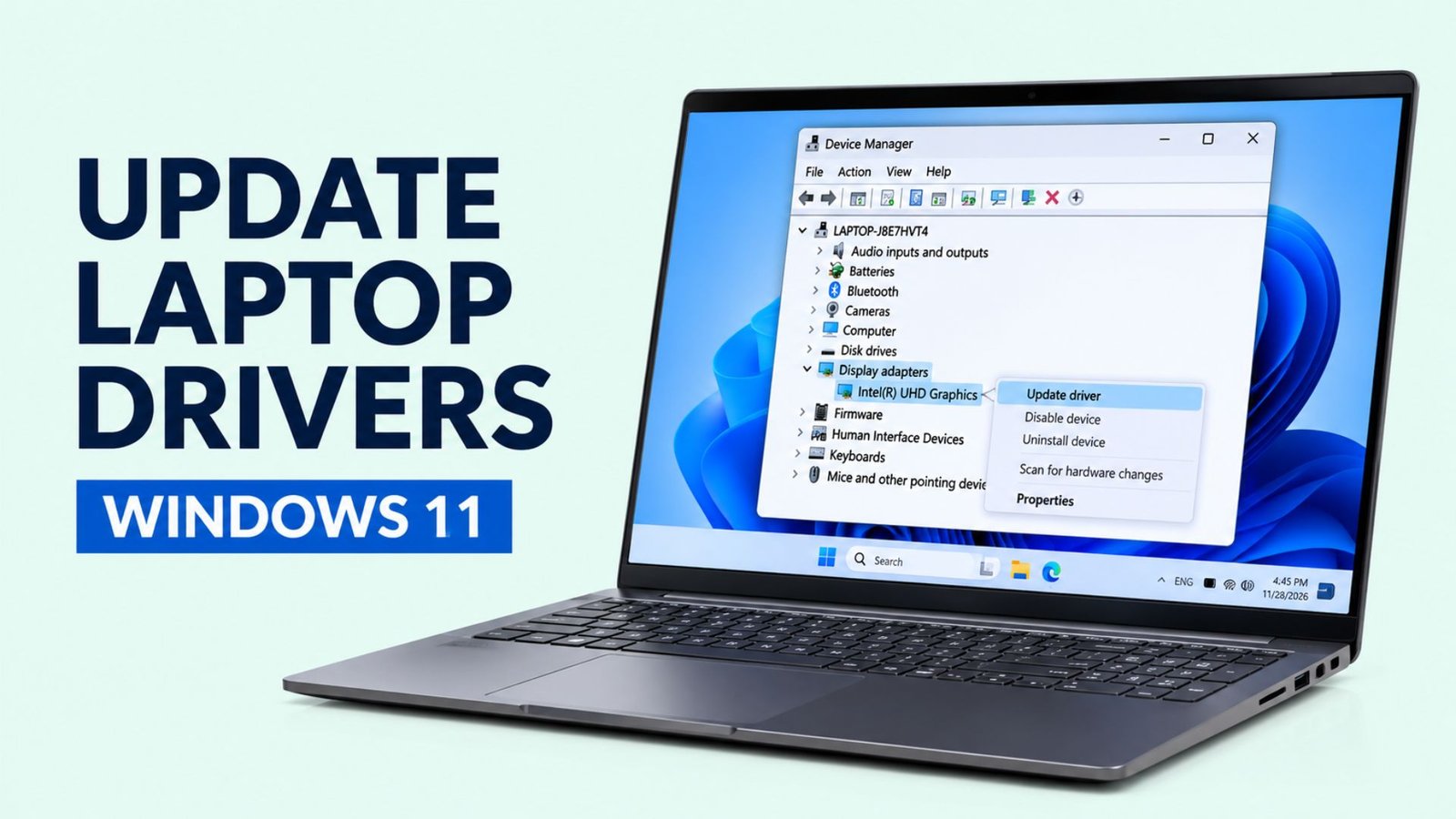
Drivers are essentially mini programmes which enable your devices to communicate with your computer. Without them, everyday parts like your graphics card, WiFi adapter, speakers, keyboard, and touchpad simply will not work the way you expect them to.
If you want to know how to update laptop drivers in Windows 11, the process takes just a few minutes through built in system menus or official brand tools. Windows handles most of this work quietly behind the scenes. Turns out, core files get automatically downloaded and installed through Windows Update as long as you didn’t pause the updates inside your settings.
Even so, it’s easy to let a driver slip through the cracks and languish on old software. Staying on top of these files gives you better performance, quick bug fixes, and compatibility with the latest software alongside all the exciting new features Microsoft rolls out. Keep scrolling!
4 Easy Ways to Update Laptop Drivers in Windows 11
| Method | Best For | Difficulty |
|---|---|---|
| Windows Update | General hardware drivers | Easy |
| Device Manager | Individual device drivers | Easy |
| Manufacturer’s website | Model specific drivers | Moderate |
| Intel, NVIDIA or AMD | Graphics drivers | Easy to Moderate |
You do not need paid software to keep your laptop healthy. Knowing how to update laptop drivers in Windows 11 cleanly does mean doing a few different things, though, depending on which part needs attention.
Microsoft explains in its hardware docs that using WHQL-certified drivers keeps Windows laptops running reliably by catching buggy driver code before it can cause crashes or blue screens. Plug in your charger before you start, then walk through these four proven paths.
1. Update Drivers Through Windows Update
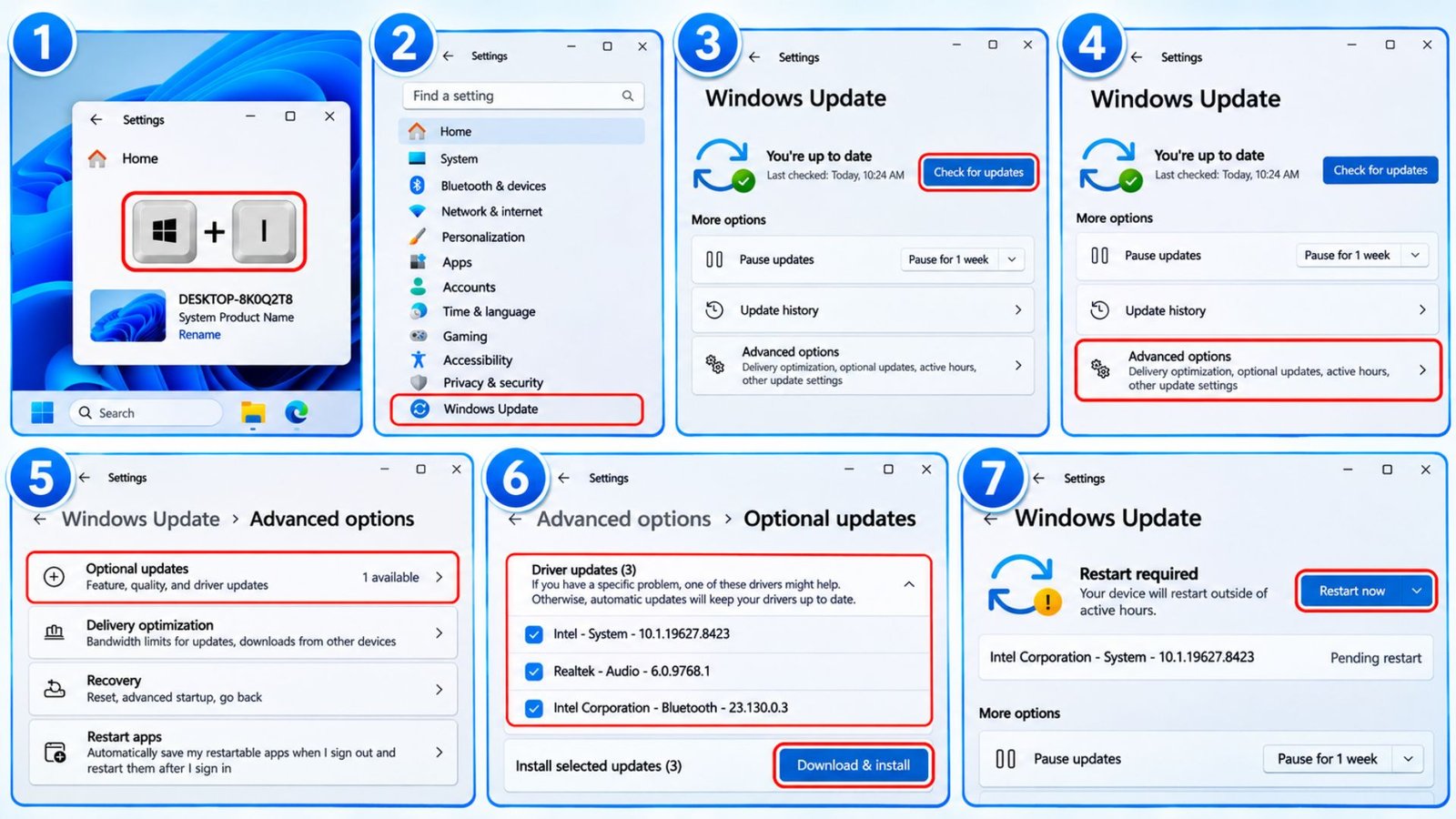
Microsoft bundles critical hardware patches right inside its main update hub. Running a standard Windows 11 driver update here is the safest first move because Microsoft tests these files before releasing them to your machine. You can also dig into the optional menu to grab specific patches that do not install on their own.
- Press the Windows key and the I key together to open your Settings menu.
- Click Windows Update on the bottom left side of your screen.
- Select the blue Check for updates button and let Windows scan your system.
- Click Advanced options right below the update list to view extra settings.
- Select Optional updates and expand the Driver updates dropdown menu if available.
- Check the boxes next to any listed items and click Download and install.
- Restarting is often required for the updates to take effect, so save your open work and reboot right away.
2. Update Laptop Drivers Using Device Manager
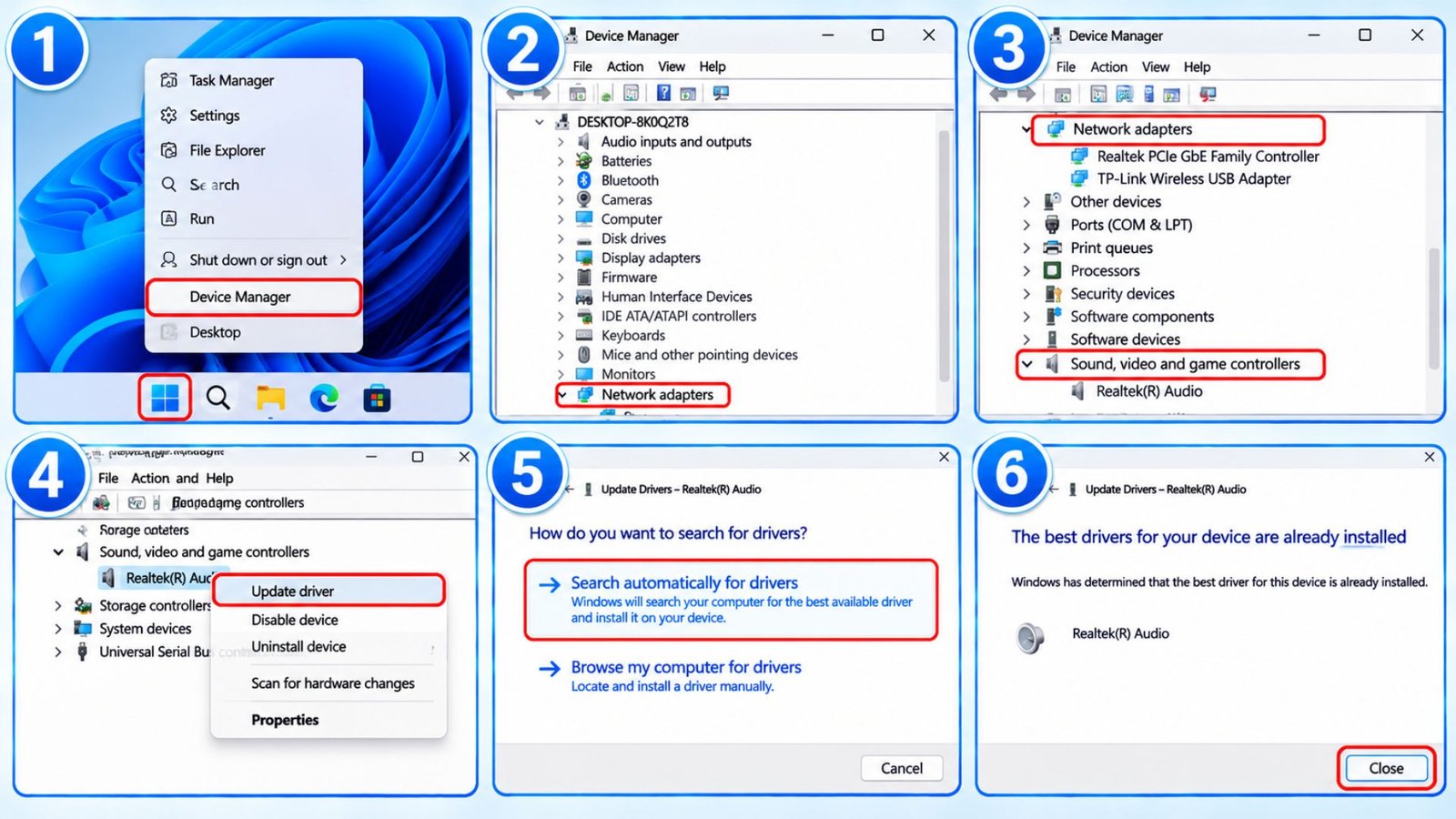
Sometimes one piece of hardware acts up while the rest of your laptop runs fine. In that case, your files can also be updated through Device Manager. This built in control panel lets you fix one broken part either automatically or manually. It comes in handy when you need to Update audio drivers after your volume goes silent or Update WiFi drivers because your connection keeps dropping.
- Right-click on the Start button down on your taskbar and pick Device Manager.
- Scan the list for any item with a small yellow warning triangle next to it.
- Expand Network adapters, Sound controllers, or whichever section needs help.
- Right click your device name and hit Update driver.
- Choose Search automatically for drivers so Windows can look for a newer version.
- If nothing shows up, Restart your computer and try again or move on to your brand tool below.
3. Grab Official Updates From Your Laptop Brand
Windows Update often falls weeks behind on custom laptop hardware. Every major PC maker gives you a free app that reads your exact serial number and then downloads quality-assured updates from their own servers.
Dell has SupportAssist, HP utilizes HP Support Assistant, and Lenovo and ASUS offer Lenovo Vantage and MyASUS, respectively. Using these tools is the smartest way to update drivers in Windows 11 for your touchpad, motherboard chipset, and battery controller all in one place.
- Open your brand’s support app, or visit the maker’s support site.
- Enter your model name, serial number, or service tag.
- Download the latest audio, WiFi, chipset, and BIOS packages for Windows 11.
- Plug in your charger before any BIOS update.
- Run each installer, and restart your computer when asked.
4. Get Graphics Drivers Straight From Intel, NVIDIA, or AMD
Graphics chips need regular tuning for modern games, video calls, and editing apps. Manually updating your graphics drivers gives you greater control over what drivers are installed than waiting around for Microsoft.
Going straight to Intel, NVIDIA, or AMD lets you update gpu drivers on release day. It also makes it simple to Update display drivers when your screen flickers or update graphic drivers for smoother frame rates. Best of all, You can easily rollback drivers to previous versions if you encounter a bug. It really does saves real headaches.
- Open the NVIDIA App, AMD Software Adrenalin Edition, or Intel Driver and Support Assistant on your PC.
- If those apps are missing, head to the official NVIDIA, AMD, or Intel support site in your browser.
- Pick your exact graphics chip from the menu or run their free auto detect scanner.
- Save the latest WHQL certified installer to your Downloads folder.
- Run the setup file and stick with the Express or Recommended install option.
- Your screen may flicker black for a second during setup, so just let it finish and restart your laptop.
How to Check If Your Laptop Drivers Are Up to Date
Checking your current driver status takes less than a minute and keeps you from downloading files you already own. You can verify exact version numbers right inside Windows without installing anything extra.
- Right click the Start button and open Device Manager.
- Expand the category for the part you want to inspect, like Display adapters.
- Right click your hardware name and pick Properties from the bottom of the menu.
- Switch to the Driver tab at the top of the new window.
- Check the Driver Date and Driver Version listed on screen.
- Compare that date against the newest release shown on your laptop maker support page. If the website shows a newer date, grab that update.
Frequently Asked Questions (FAQs)
Does Windows 11 automatically update all drivers?
Windows 11 automatically installs critical security and hardware patches through Windows Update. However, it skips many optional updates, custom laptop features, and brand new graphics releases. You still need to check Optional updates or your laptop brand utility every couple of months to catch everything.
How do I update all my laptop drivers at once?
The cleanest way to run a bulk Windows 11 driver update is through your manufacturer utility like Dell SupportAssist or Lenovo Vantage. Those official apps scan your entire laptop at once and install every missing chipset, audio, and network package in a single batch.
Should I use third-party driver updater software?
You should generally stay away from third party driver websites and cleaner tools. Most of the time, those installer packs bundle annoying ads, extra browsers like Opera, or search toolbars you never asked for. Worse yet, unofficial packs sometimes miss key files or install the wrong version for your laptop. Stick to Windows Update, Device Manager, and your official brand tools to keep your PC safe.
What should I do if a new driver causes problems?
Windows has a built in rollback option for bad updates. Open Device Manager, right click the troubled part, and click Properties. Switch to the Driver tab and select Roll Back Driver. Pick a reason, finish rolling back the driver from the list provided and click Yes or OK to confirm, then restart your laptop.
How often should i update my windows 11 drivers?
You do not need to check for updates every week. Checking your laptop brand app and graphics software once every two or three months is plenty for normal use. Only update sooner if an app or software stops working or a new game asks for a fresh version.
Do i need internet to update windows 11 drivers?
Typically yes, to either update drivers via Windows Update or directly from a manufacturer’s website. However if you want to do it offline, download the driver pack installer on another computer, put it on a USB drive, and run it on your laptop.
Wrapping Up…
Keeping your laptop drivers updated helps maintain hardware compatibility, stability, and performance. For most users, Windows Update and Device Manager are sufficient. Alternatively, you can also download drivers directly from your laptop manufacturer’s website for your graphics, sound, and/or networking. Check your laptop driver versions every month, and know how to roll back a bad driver. Those steps cover almost every driver issue you’ll meet. Skip random driver sites, and your laptop will stay stable and fast.