
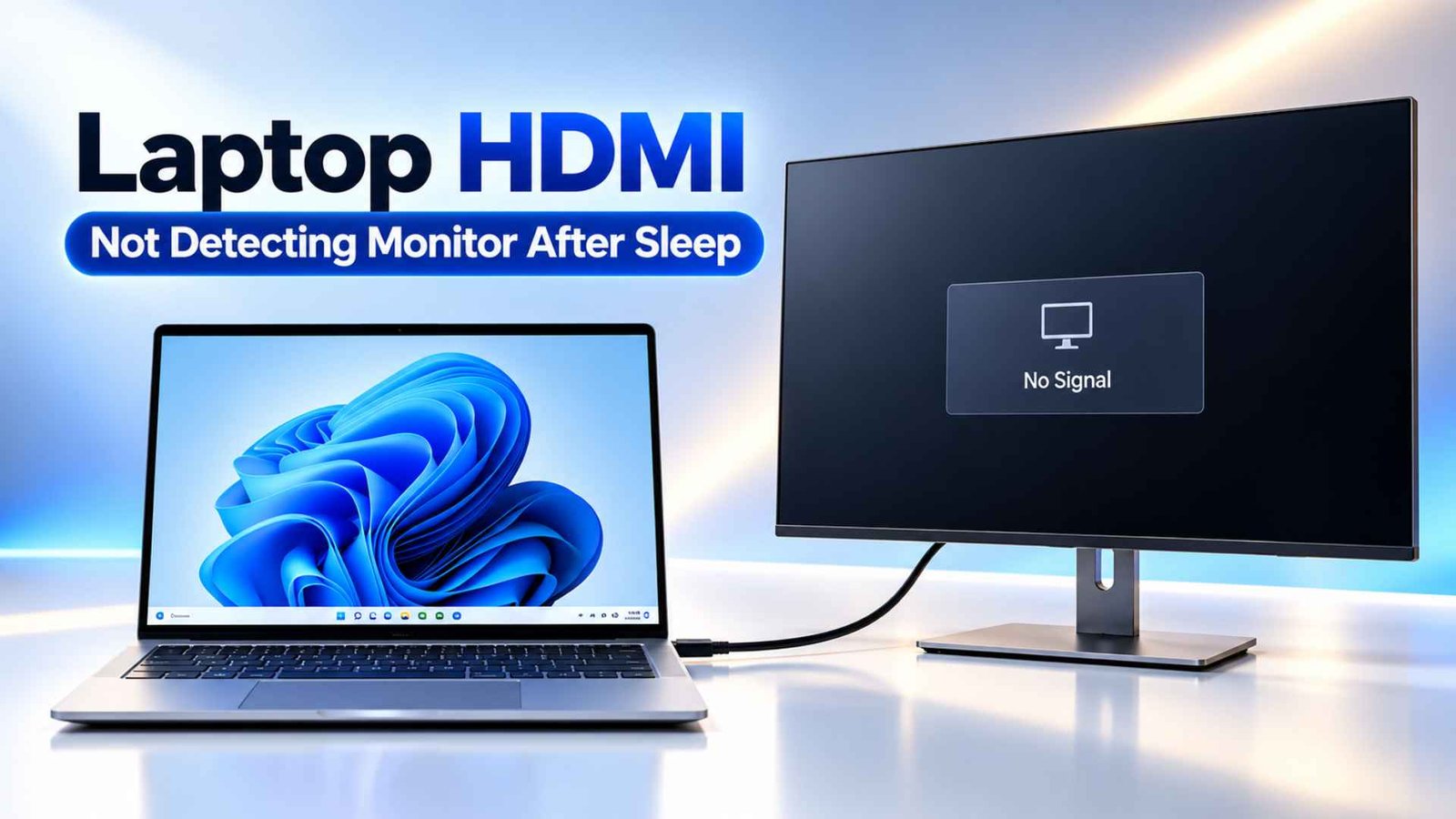
I’ve personally dealt with this HDMI not detecting monitor problem on my Dell Precision 5530, and it gets annoying very quickly when you actually use your laptop for work. I usually have Chrome open with a lot of tabs, research pages, documents, and drafts running at the same time. Everything works fine until the laptop goes to sleep.
Then I wake it up, the laptop itself is clearly running, but the external monitor just sits there with No Signal. Sometimes unplugging the HDMI cable and putting it back in does nothing. In my case, there were times when the only way to get the monitor back was to shut the laptop down completely and start again.
That is the part that makes this issue so frustrating. You know the monitor works. You know the cable works. The same setup was working a few minutes earlier.
If HDMI not detecting monitor only happens after sleep, the problem is usually somewhere in the wake process. Windows, the graphics driver, the HDMI connection, the monitor input, a dock, or even firmware can fail to come back cleanly after the laptop wakes.
This guide goes through the fixes that are actually worth trying, starting with the quick ones that can bring the display back in seconds, then moving into the driver, power, BIOS, and firmware fixes that can stop it from happening again.
Key Takeaways
- Try Windows + Ctrl + Shift + B first. It restarts the GPU driver in seconds.
- Install the laptop maker’s driver, not a generic one.
- Lock the monitor to one HDMI input and switch off deep sleep.
- Turn off PCIe and USB power saving.
- Run a full power reset, then test with Fast Startup off.
How to Fix Laptop HDMI Not Detecting Monitor After Sleep
Solution 1: Reset the Graphics Driver With Windows + Ctrl + Shift + B
When a high-performance machine resumes operation after it has been in sleep, the active Display Driver frequently locks up in a low-power loop. The laptop knows a wire is physically present in the port, but the underlying code completely stops pushing out active pixel arrays.
This precise software freeze is a core reason behind a laptop HDMI not working on an otherwise functional system. Forcing an instant reset of your video memory clears this digital bottleneck instantly. This trick allows you to bring your external panel back to life on the fly without closing out your heavy research layout.
How to do it:
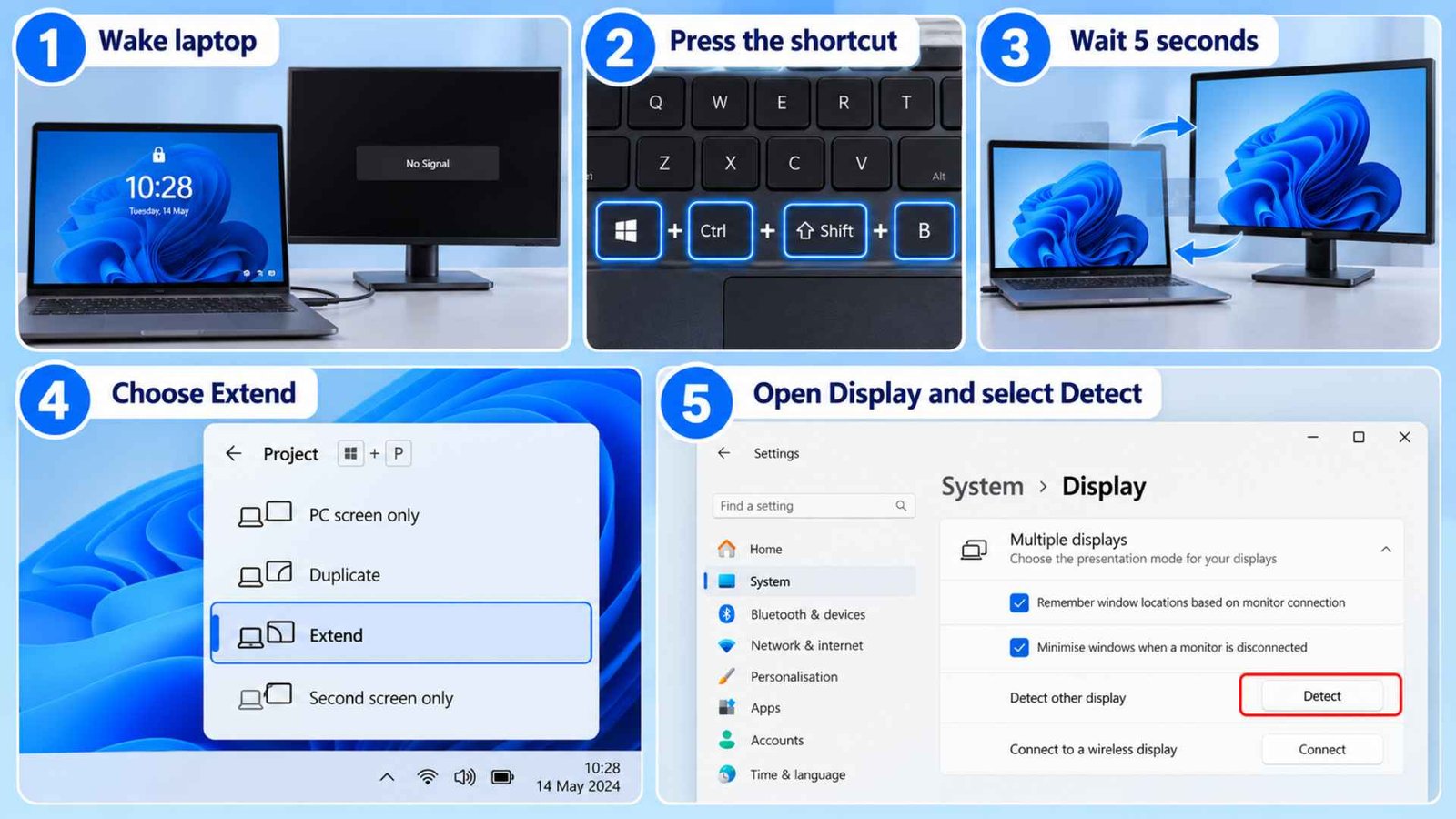
- Wake the laptop and wait for the lock screen.
- Press Windows + Ctrl + Shift + B together.
- Wait about five seconds while the screen flickers.
- Press Windows + P and choose Extend if the monitor stays blank.
- Open Settings → System → Display → Multiple displays and select Detect if it still doesn’t appear.
Solution 2: Install the Laptop Manufacturer’s OEM Graphics Driver
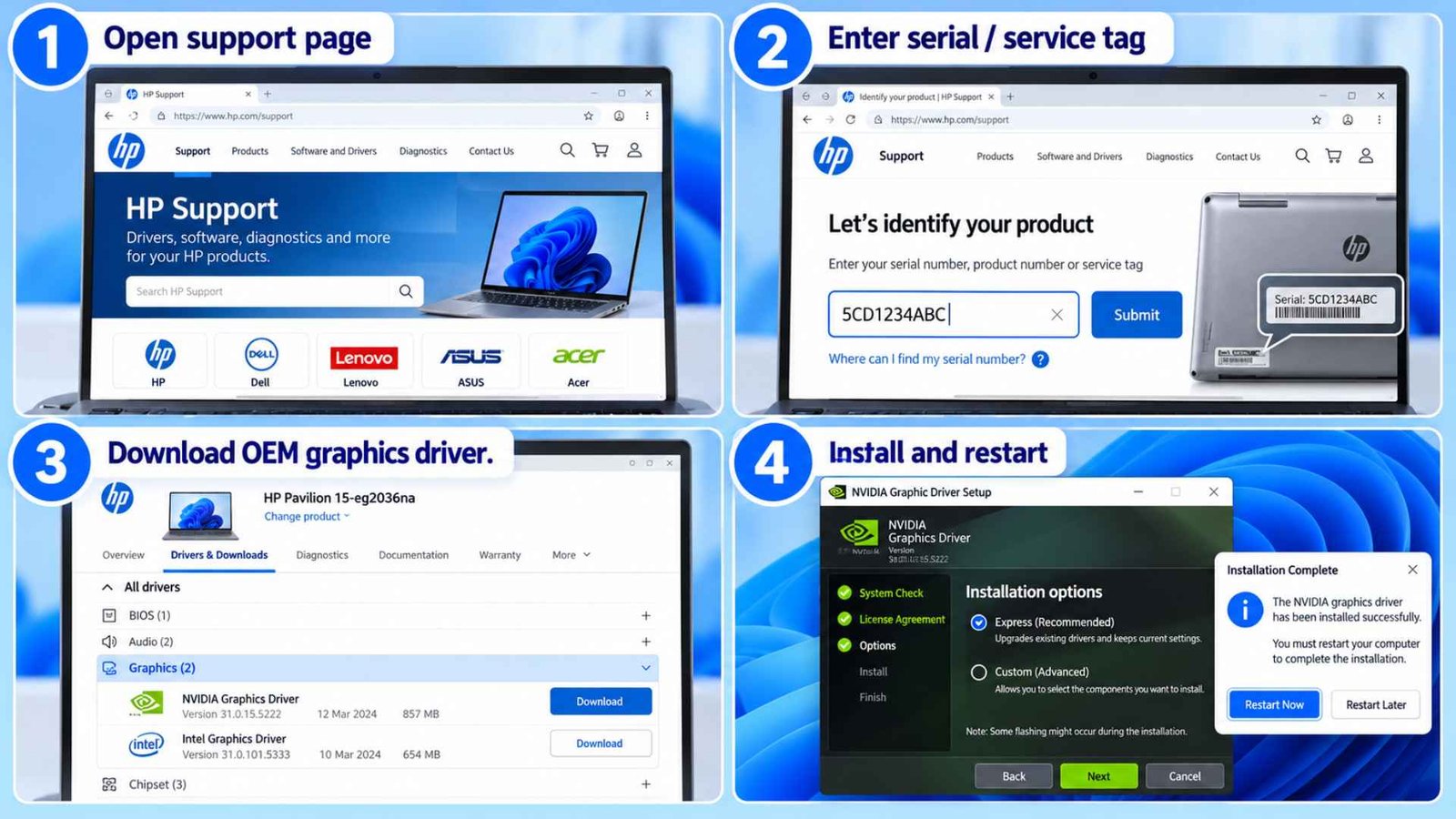
If the problem appeared after Windows installed another driver, the OEM package is worth reinstalling. If you use a generic Graphics Driver, the machine can drop its link during sleep state transitions, and it would turn it into an external monitor not detected after sleep event. Installing the official package certified by your original laptop manufacturer (HP, Dell, Lenovo, Acer, ASUS) establishes solid stability for port level power calls.
How to do it:
- Head directly to the official support webpage for your specific laptop brand, such as Lenovo, Dell, or HP.
- Input your machine’s unique hardware service tag or serial identifier to access the exact deployment library.
- Locate the specific display adapter download package designated for your system configuration and save it to your storage.
- Launch the installer package, check the option to perform a completely clean installation if it is available, and restart the PC to overwrite the problematic generic code.
Solution 3: Restart the Display Adapter in Device Manager
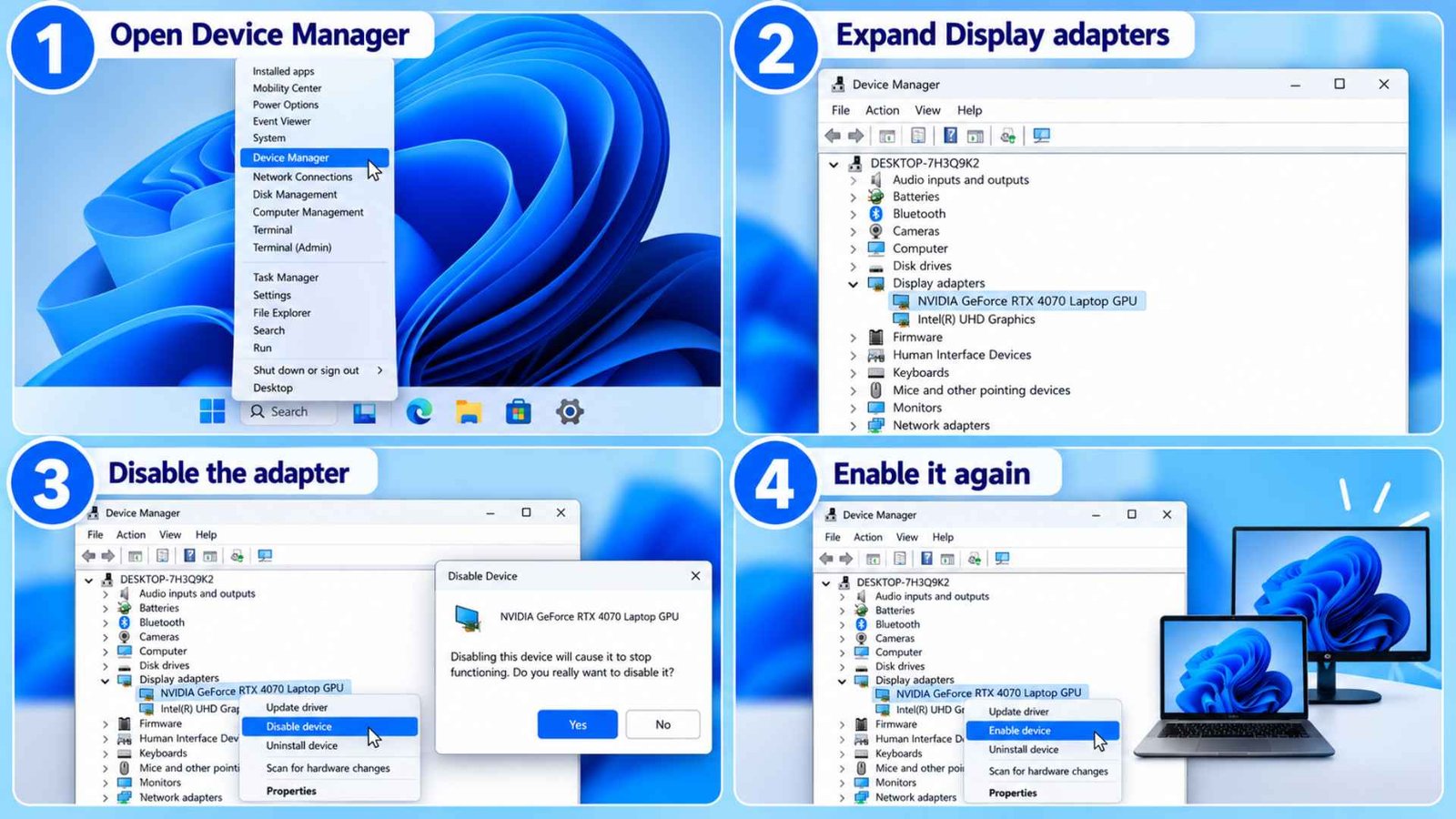
This is stronger than the keyboard shortcut. You’re telling Windows to power off the display adapter on the device level, then power it back on.
The procedure is good for the case where a second monitor you could not detect after sleep starts working as soon as you disable and enable the graphics adapter. The fact that it resolves the issue says something. The monitor connection itself might be fine, but the GPU failed to rebuild output properly after waking.
Microsoft’s external display guidance puts driver repair, rollback, and reinstallation near the center of troubleshooting when a setup worked before and suddenly stops.
How to do it:
- Press the Windows Key + X shortcut on your keyboard and choose Device Manager from the pop up administrative list.
- Navigate down the main directory tree and expand the section labeled Display adapters.
- Right-click your active video card, select Disable device, and click yes on the system warning box that appears.
- Watch your main screen flicker, wait five seconds, then right-click the same component again and select Enable device to jumpstart your secondary video rail.
Another Good Read: Laptop Volume Keys Not Working in Windows 11? Try These 10 Fixes!
Solution 4: Update BIOS and Dock Firmware
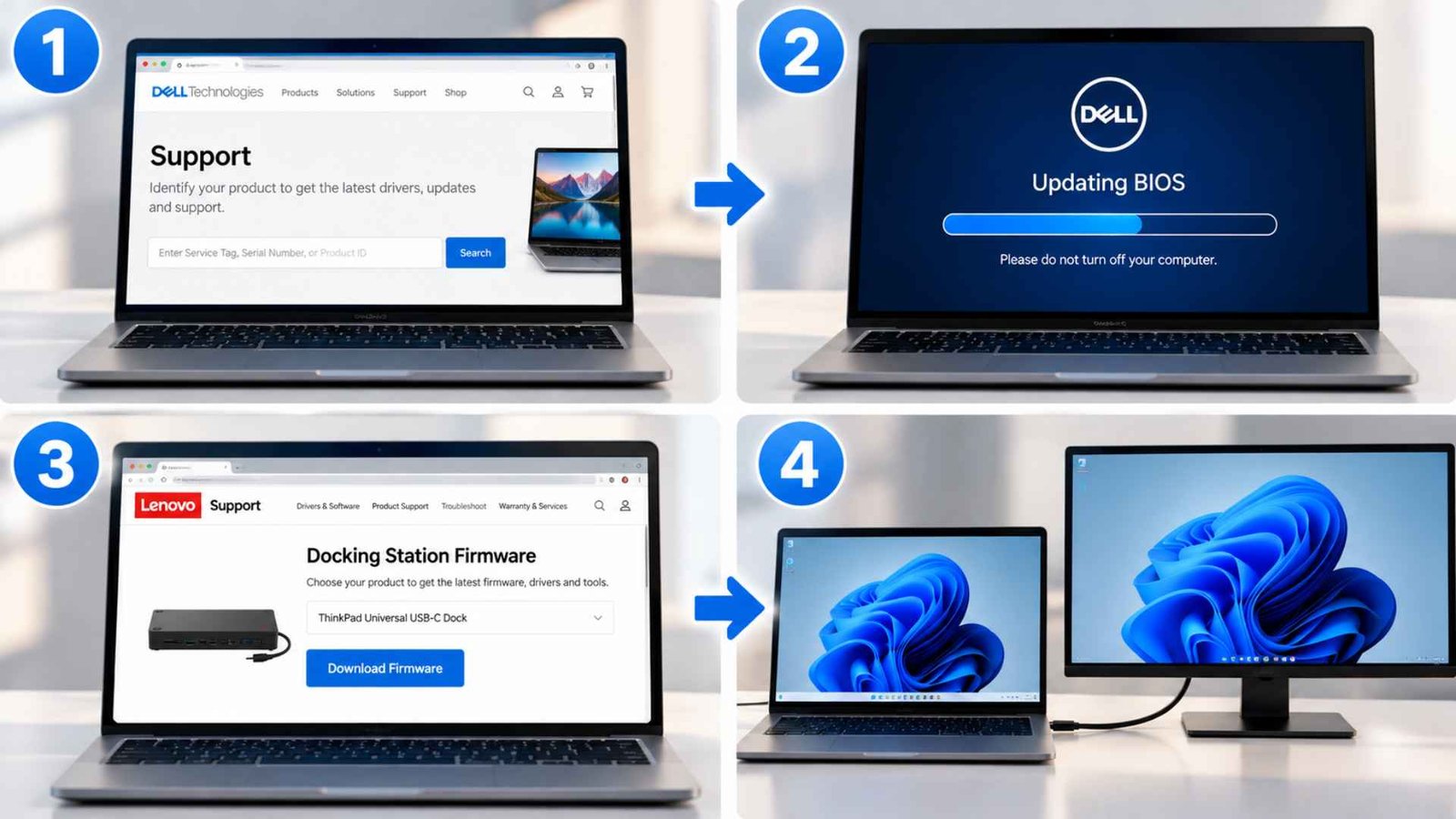
BIOS code controls how your laptop wakes its ports. Dock firmware controls how the hub passes video. Out of date versions of either can drop a screen after sleep. If you run a Docking Station, this one matters most. A Second Monitor that disappears on wake while the first survives often points at dock firmware. Also confirm the dock has its own power adapter plugged in, because an underpowered hub can fail to pass video.
How to do it:
- Check your laptop maker’s support page for a newer BIOS and read the release notes.
- Install the update with the laptop plugged in, and don’t interrupt it.
- Look for dock firmware on the dock maker’s page, such as Dell, Lenovo, or HP.
- Test the monitor straight into the laptop. If a second monitor not detected after sleep only happens through the dock, the dock is the culprit.
Solution 5: Set the Monitor to a Fixed HDMI Input
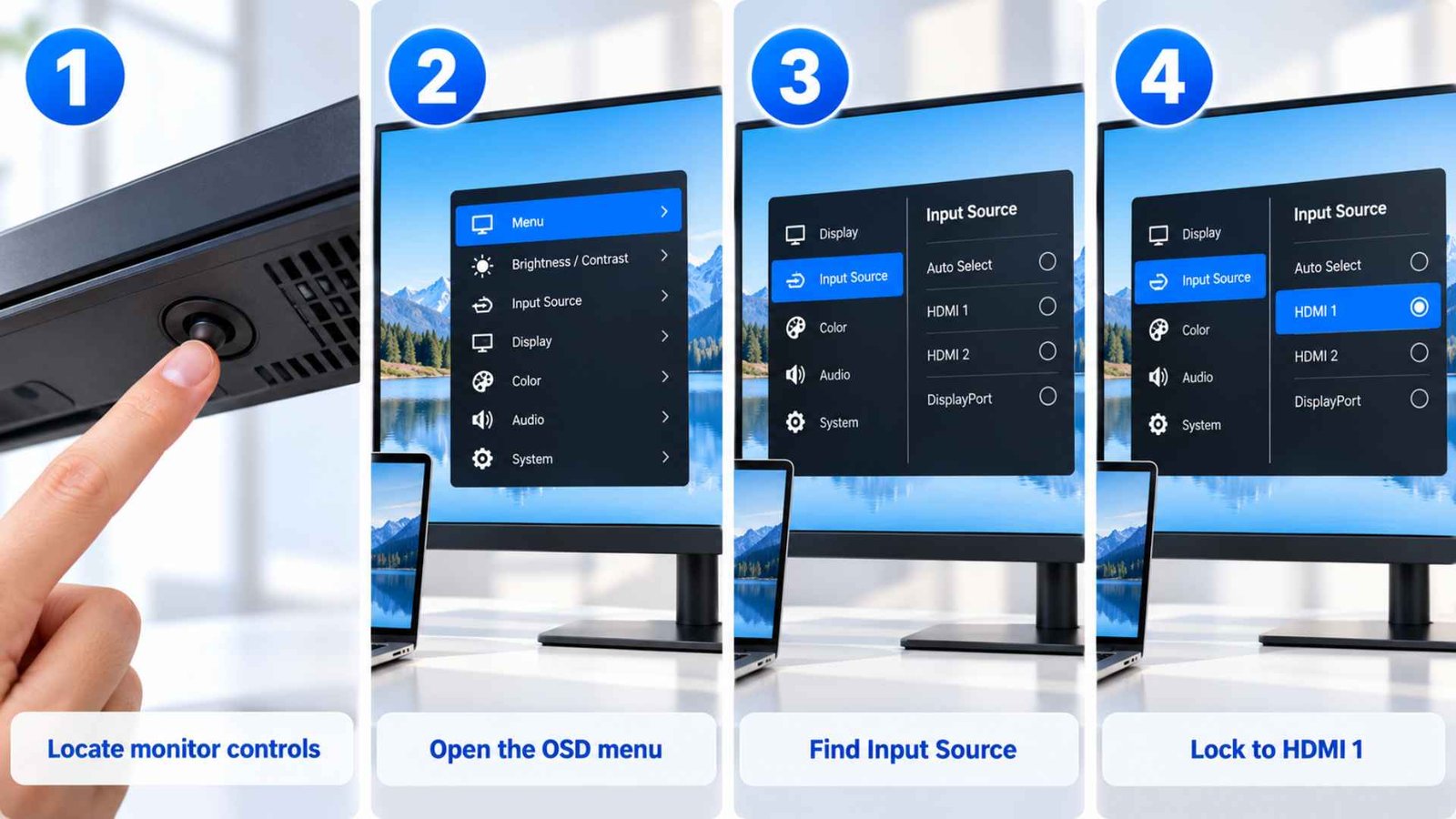
Modern consumer displays are engineered with aggressive power conservation timers that activate the moment a video feed drops out. When your laptop enters a deep rest, the screen loses data packets and begins looping through its inputs via an auto-scan feature. If your laptop fires back up while your panel is busy polling empty DisplayPort or VGA connections, the two devices miss the tiny microsecond window needed to complete an identity exchange. This timing mismatch creates a classic HDMI monitor wake problem.
How to do it:
- Locate the physical control joystick or array of buttons built into the bottom or rear panel of your external display chassis.
- Press the main menu key to activate the integrated On-Screen Display (OSD) adjustment console.
- Use the navigation keys to find the setting cluster titled Input Source or Port Selection.
- Switch the parameter away from the factory Auto-Select mode, changing it to a permanent lock on the specific link you are using, like HDMI 1.
Solution 6: Disable PCIe Link State Power Management
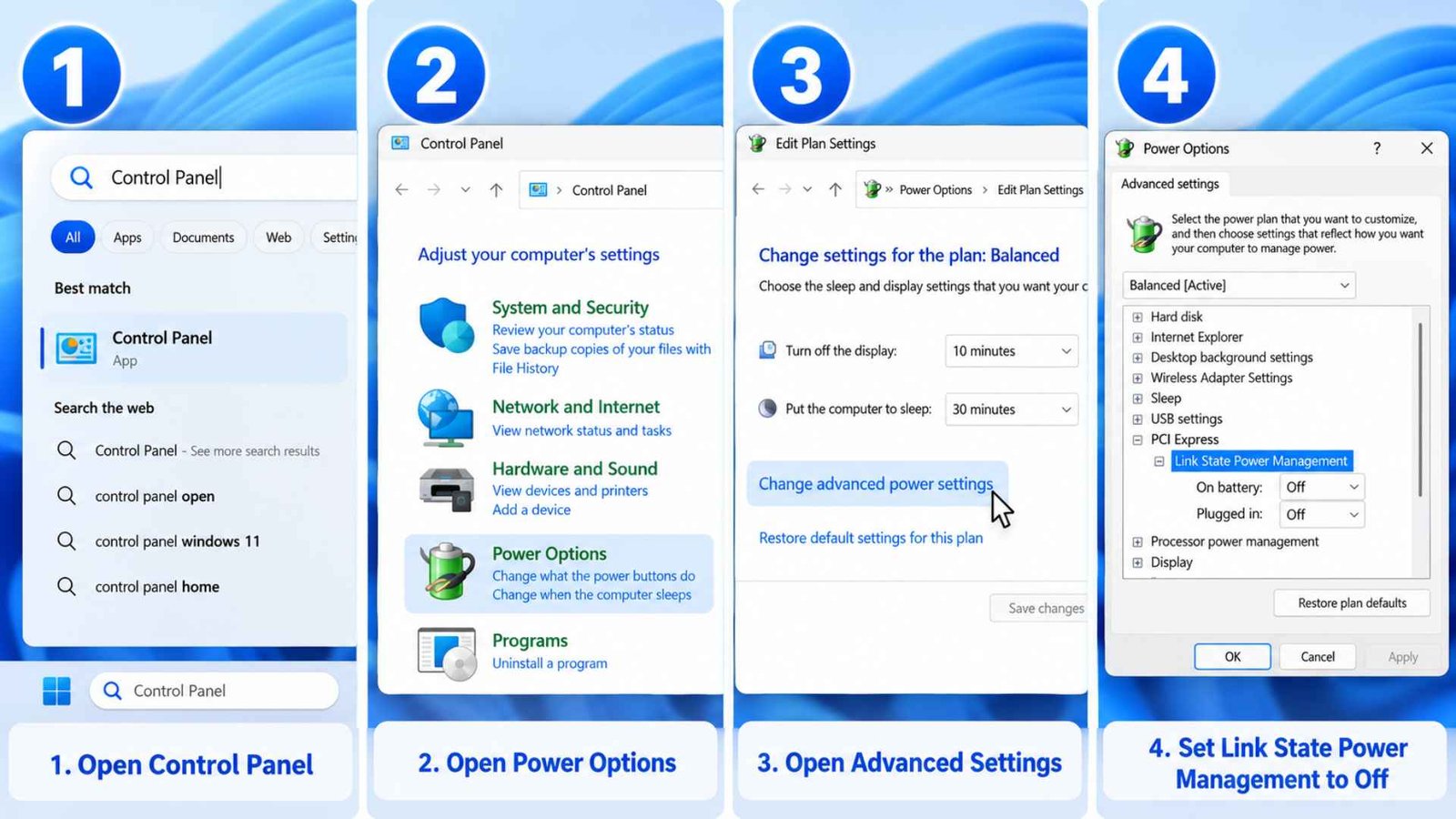
The core power saving framework inside the laptop operating system actively chokes the power flowing to internal motherboard lanes when it has gone to sleep mode.
This could, in turn, drop the operating voltage of your graphics pipeline too low to recover quickly when you resume your work session. The result is an annoying HDMI monitor not detected Windows 11 fault that keeps your desk dark until a full reboot occurs.
How to do it:
Shutting off this feature guarantees that your video card retains instantaneous access to the physical power rails it needs to fire up your external connection.
- Launch your system search field, type out Control Panel, and click on the desktop app icon.
- Click into the Power Options segment and select Change plan settings right next to your active power arrangement.
- Choose the option for Change advanced power settings to bring up the hidden configuration window.
- Scroll through the list to find PCI Express, expand Link State Power Management, and flip both battery and plugged-in options to Off.
Solution 7: Stop Windows From Powering Down USB Hubs
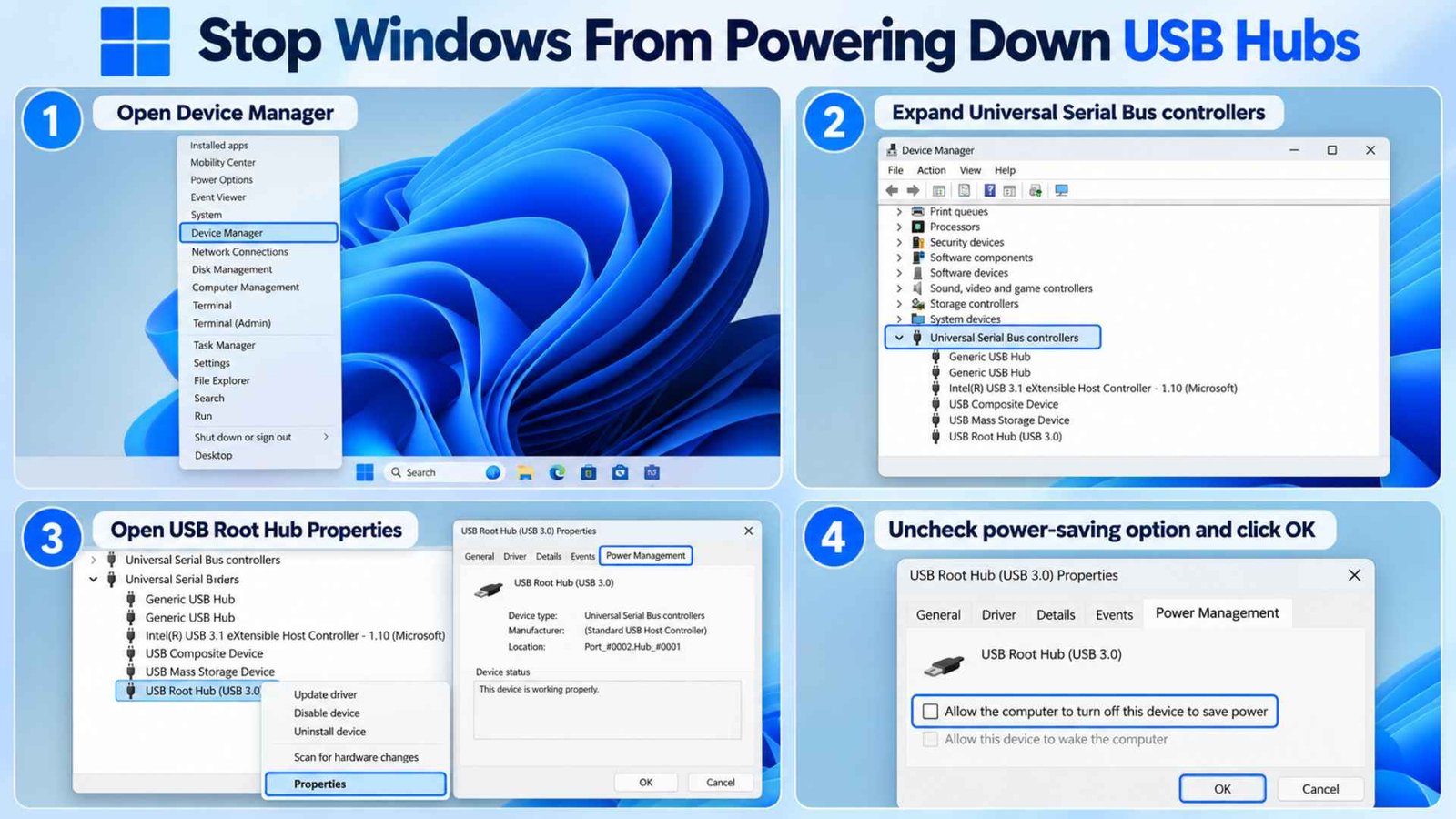
If your desk configuration utilizes a modern Type-C port or a Thunderbolt layout to run your monitors, the video adapter relies entirely on your internal USB controllers for power.
The operating system natively kills power to these massive root hubs during long rest periods (sleep mode) to stretch out battery longevity.
Turns out, when you wake the laptop up, the host controller often fails to restore power to those internal pins, and it could cause a severe second monitor not detected after sleep failure.
You can manually bar the system from ever dropping power to these critical interfaces.
How to do it:
- Open up your Device Manager console by right-clicking the Start button and picking it from the utility menu.
- Scroll down to the bottom of your structural list and expand the category named Universal Serial Bus controllers.
- Right-click your main USB Root Hub, select Properties, and click into the tab marked Power Management.
- Clear the checkmark from the box that reads “Allow the computer to turn off this device to save power” and click OK.
Solution 8: Perform a Full Power Reset
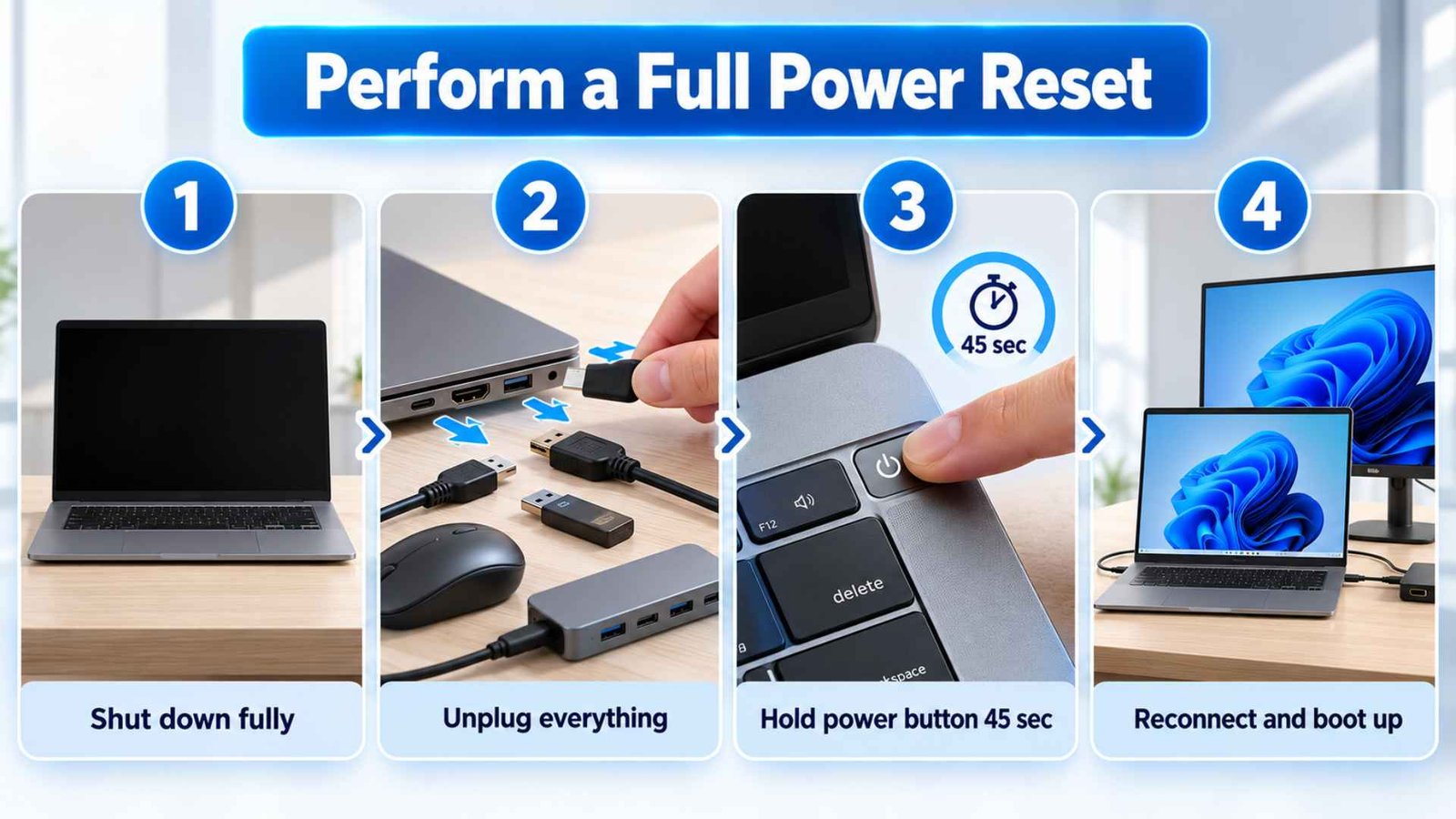
When HDMI only comes back after a full shutdown, a complete power reset is worth trying.
I would not describe this as “draining static.” That phrase gets used a lot online, but it is not a useful explanation of the fault. The practical goal is to fully power down the laptop and force hardware controllers to initialize again.
How to do it:
- Shut down your computer fully, wait for the fans to stop spinning, and yank the charging line out of the side of the case.
- Disconnect your HDMI Cable, along with all external storage drives, mechanical keyboards, mice, and accessory hubs.
- Press and hold down the physical Power Button on your laptop chassis continuously for a full 45 seconds without letting go.
- Release the button, plug your main power cord and display line back into their respective slots, and boot up your operating system.
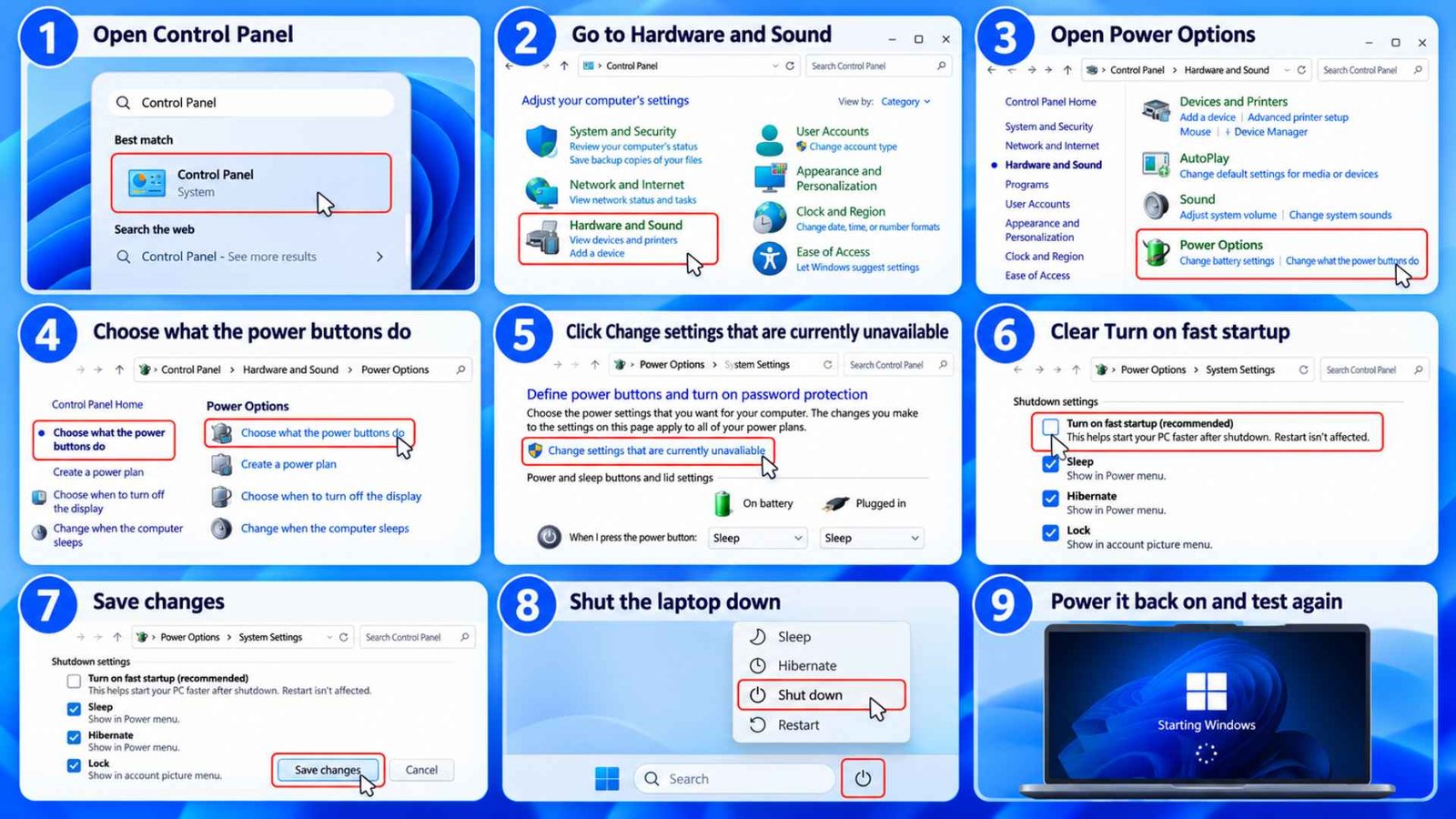
Solution 9: Disable Fast Startup for Testing
Fast Startup is lower on this list for a reason. It mainly changes what happens after shutdown, not ordinary sleep.
Fast Startup saves the Windows kernel session and loaded drivers to the hibernation file during shutdown. Restart does a full boot, while a normal Fast Startup shutdown can restore that saved system state.
That difference becomes useful when laptop HDMI not working survives shutdown, yet Restart fixes it. In that case, Fast Startup is worth testing.
It can also help you separate a pure laptop HDMI sleep issue from a broader driver state problem.
How to do it:
- Open Control Panel.
- Go to Hardware and Sound.
- Open Power Options.
- Select Choose what the power buttons do.
- Click Change settings that are currently unavailable.
- Clear Turn on fast startup.
- Save changes.
- Shut the laptop down.
- Power it back on and test again.
If your issue happens only after sleep and never after shutdown, do not expect this to be your strongest fix.
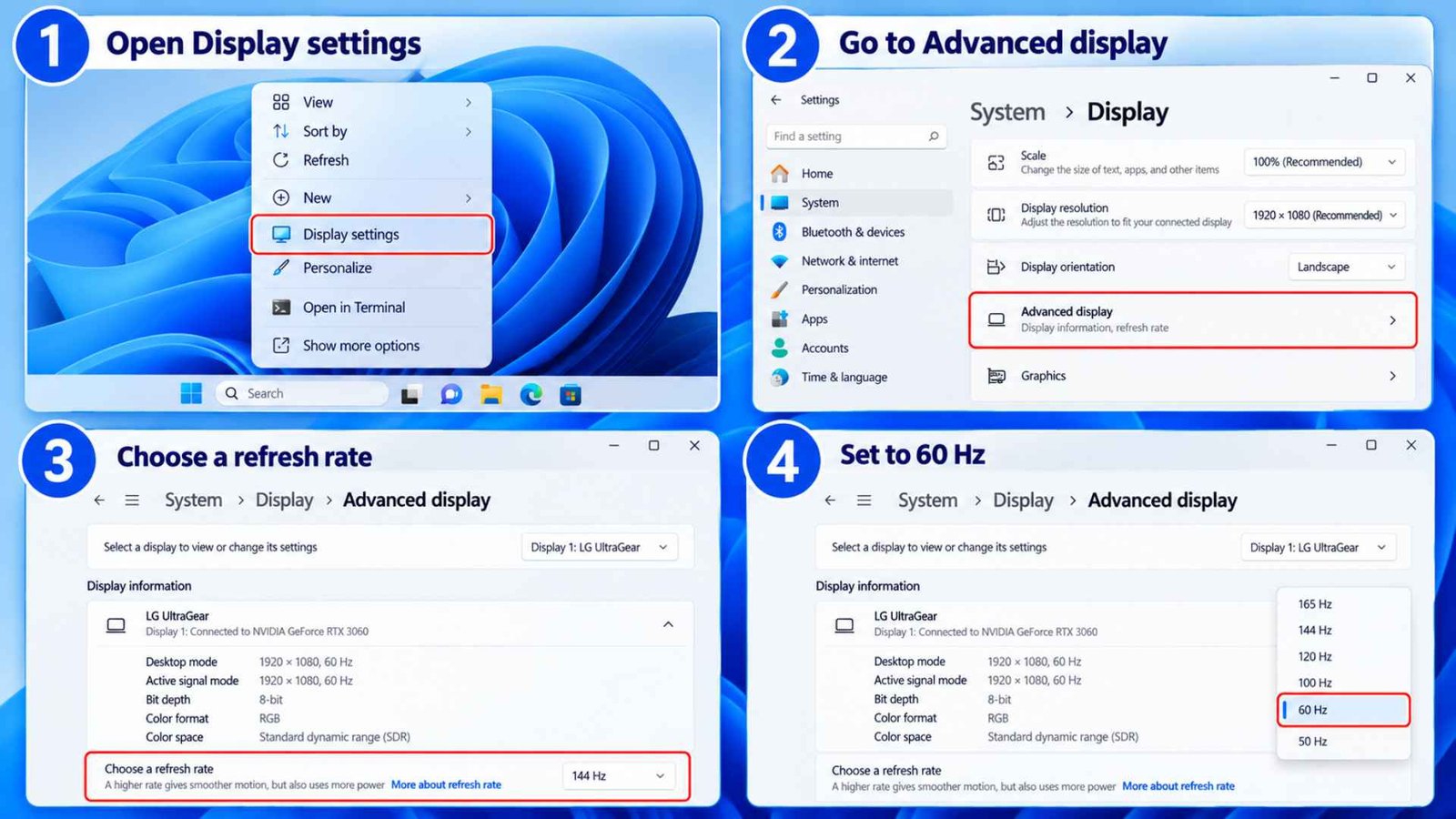
Solution 10: Lower Your Monitor’s Screen Refresh Rate to 60Hz
This is a targeted test for high refresh monitors, not something every reader needs to do. Higher refresh modes place more demand on the display link. A system that wakes fine at 60Hz but struggles at 120Hz, 144Hz, 165Hz, or another high refresh mode gives you a useful clue. The driver, cable, dock, adapter, or display mode may be struggling to renegotiate the higher bandwidth connection after wake.
How to do it:
- Open Settings> go to System? Open Display
- Select the external monitor
- Open advanced display
- Find “Choose a refresh rate”
- Set it to 60Hz
- Put the laptop to sleep
- Wake it and check whether HDMI returns
Frequently Asked Questions (FAQs)
Why is my laptop monitor not turning on after I’ve gone to sleep?
The graphics driver may fail to restore the video output after wake, the monitor may switch inputs, or a dock may not rebuild the connection correctly. A firmware problem can cause the same symptom. If the monitor not detected after sleep problem disappears after a graphics reset or restart, focus on the graphics and power resume path before replacing the monitor.
How do I force Windows 11 to detect an HDMI monitor?
You can manually trigger a hardware scan through your main control options. Navigate to your system Display Settings panel, expand the property menu labeled Multiple displays, and click the manual Detect button to force an immediate port poll. You can also quickly hold down the Windows + P key combination on your keyboard and select the option for Extend to force a fresh video stream down your cable line.
Why does HDMI work after restart but not after sleep?
Restart rebuilds Windows, drivers, and device state from a fresh boot. Sleep depends on the existing graphics session coming back correctly. If HDMI works after every restart but fails after wake, the issue points more strongly toward resume behavior, power management, graphics drivers, BIOS, or dock firmware. That pattern is common in an HDMI no signal after sleep type of failure, even when the monitor itself is still powered.
Why is my HDMI saying no signal when it’s connected?
The “No Signal” message indicates that your monitor is fully powered up but its internal processing chip is receiving zero active data packets across the physical pins of your cable. This occurs when your laptop’s graphics infrastructure stops sending video packets entirely. This shutdown can be triggered by an internal display driver crash, built-up static electricity inside the port housing, or an aggressive power conservation cutoff.
Wrapping Up…
Resolving a stubborn HDMI not detecting monitor error requires a systematic check of how your operating system manages low power states. Although pulling out cords provides a brief temporary fix, adjusting your advanced PCIe link configurations and locking down your display input channels provides long term stability. These settings keep your video ports fully powered and alert, ensuring your multi-screen arrangement remains completely intact whenever you step away from your desk.